A happy customer doesn’t always leave a review. They might love your service, tell a friend about it, and still forget to share their experience online.
That’s why the way you ask for reviews matters. You want to reach customers while their experience is still fresh and make it as easy as possible for them to leave a review.
WhatsApp can be a useful channel for this because it lets you reach customers directly through a platform they already use to communicate.
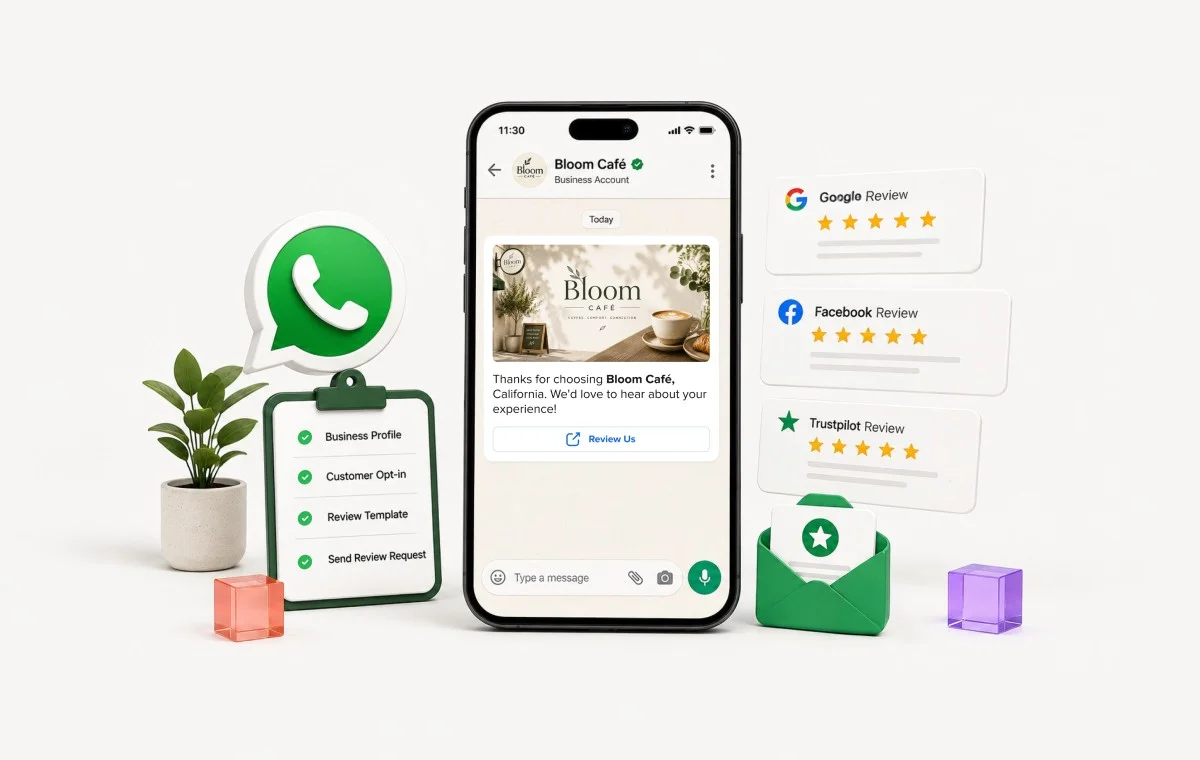
But to use WhatsApp for review requests, you first need to set up your WhatsApp Business account. This means creating your business profile, adding the necessary details, and preparing review request messages that feel natural rather than pushy.
In this guide, we’ll walk you through how to set up WhatsApp Business for review requests, along with practical tips to help you ask for reviews at the right time and make it easy for customers to respond.
WhatsApp Business App vs. WhatsApp Business API (Which Do You Need?)
WhatsApp offers two main options for businesses: the WhatsApp Business App and the WhatsApp Business API.
The WhatsApp Business App is a free app designed for small businesses to manage customer conversations directly from a phone.
The WhatsApp Business API, now part of the WhatsApp Business Platform, is built for businesses that need to connect WhatsApp with other tools and automate customer communication at scale.
While both can be used to communicate with customers and request reviews, they differ in features, automation, and scalability.
Here’s a quick look at which option makes sense for your business.
| Free Business app | Business API | |
| Cost | Free | Per message, plus your provider’s fee |
| Who you reach | Only people who saved your number | Anyone who opted in |
| Send limit | 256 per list, sent by hand | From 250 customers per 24 hours, rises by tier |
| Automation | None | Fired by your store or CRM |
| Ideal for | Solo owners and single-location SMBs | Agencies, multi-location brands, and enterprises |
The Free WhatsApp Business App (What It Can and Can't Do)
The app is designed primarily for manual customer communication, so managing review requests across a larger team or multiple locations quickly becomes difficult.
| Limit | What it means for review requests |
| 256 contacts per broadcast list | Constant list rebuilding past a few hundred customers |
| Recipients must have saved your number | A one-time customer who never saved your contact gets nothing |
| One device | Nobody else on your team can send or reply |
| No automation | Every request goes out by hand |
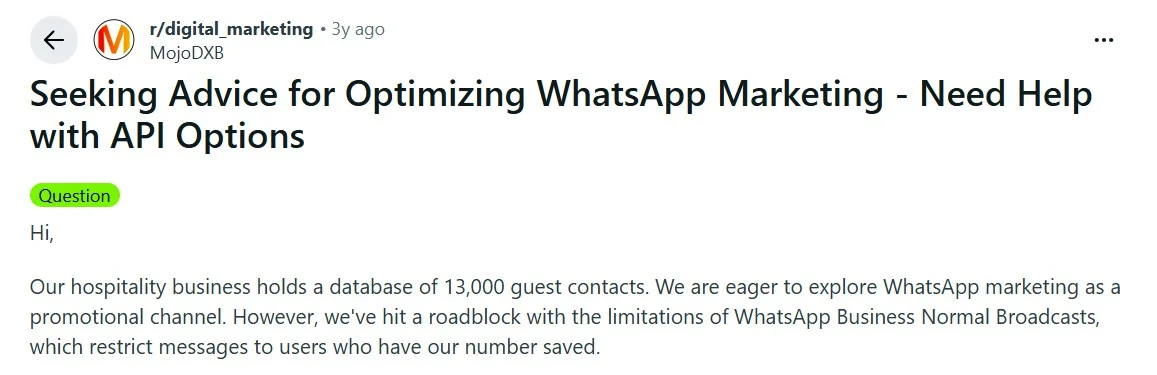
That second row is specially concerning. A hospitality business with a 13,000-contact database mentioned on Reddit, WhatsApp broadcasts “restrict messages to users who have our number saved” (r/digital_marketing). Most reviewers never save your contact info on their phone.
The WhatsApp Business API (What It Can and Can't Do)
The API is the paid, programmatic version: multiple users, multiple locations, automation, no saved-number requirement.
The catch is that any message you start outside an open conversation needs a template Meta approved in advance, and it costs money from the first send.
Meta moved to per-message pricing on 1 July 2025, retiring the conversation-based model. You are “only charged when a template message is delivered,” and marketing templates are charged from the very first one (Meta’s pricing documentation).
Review requests count as marketing, so there is no free allowance.
Messaging capacity is another thing to keep in mind. Meta now applies messaging limits at the business portfolio level, meaning the capacity is shared across all the phone numbers in that portfolio rather than being assigned separately to each number.
As your portfolio meets Meta’s requirements and maintains good messaging quality, its messaging capacity can increase, as per the Meta messaging limits.
This matters if you manage multiple locations or clients. For example, if an agency has 10 WhatsApp numbers under the same business portfolio, they share the portfolio’s messaging capacity rather than getting a separate limit for each number.
Which One Do You Need for Review Requests?
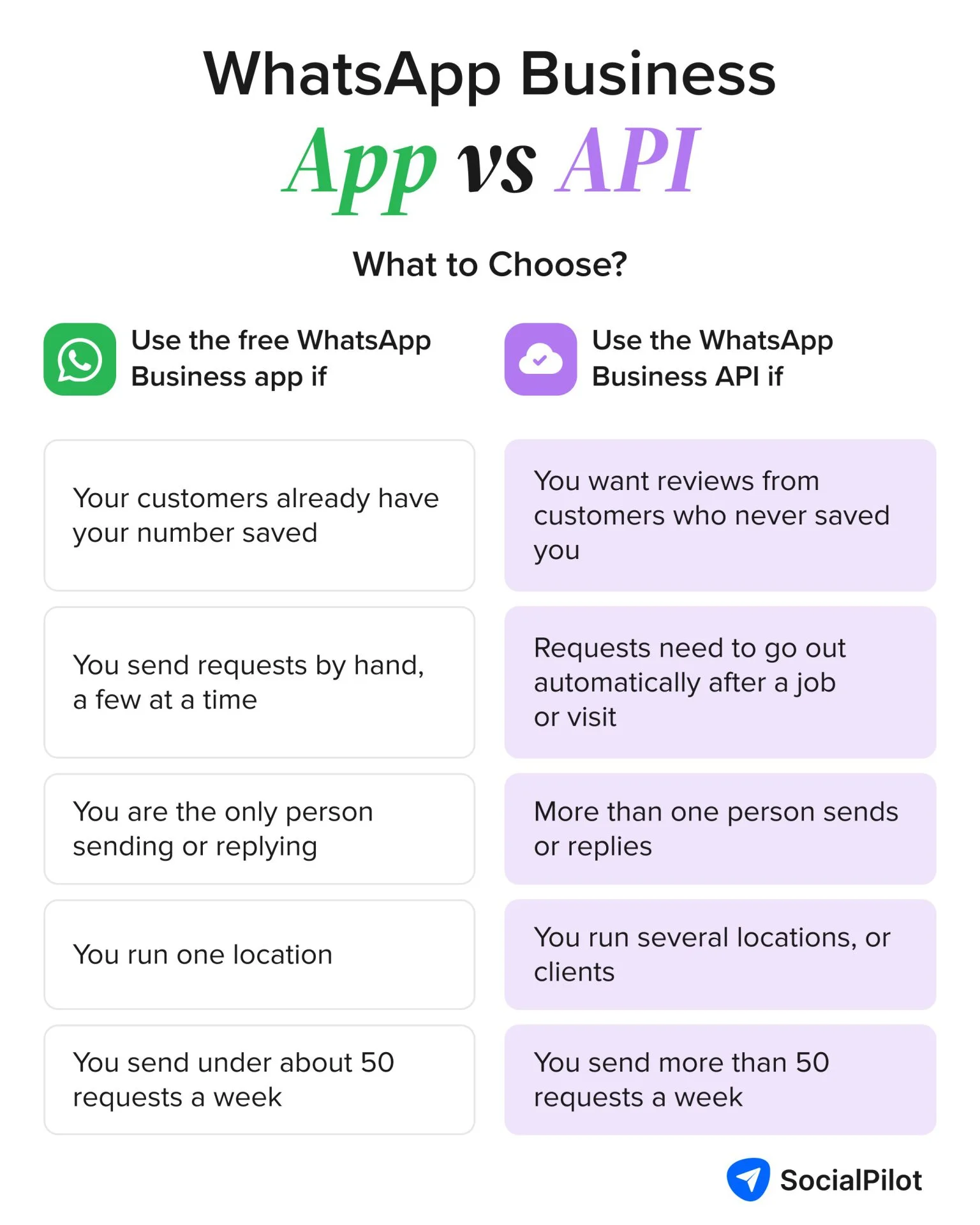
If you run one location and send review requests by hand to customers who already have your number saved, the app section below is enough. You do not need the API and you do not need to pay anyone.
If you need to send automatically, at volume, to customers who have not saved you, or across more than one location or client, skip to the API section. For the broader case on why this is worth the effort, why customer reviews matter this much covers it.
One more option, if neither fits. Since May 2025, Coexistence lets you run the app and the Cloud API on one number at once (WhatsApp Business Platform Documentation). Contacts sync, along with six months of chat history, so you keep answering people personally while automation handles review requests.
You need app version 2.24.17 or higher, you lose broadcast lists and group chats on the API side, and the app has to stay in regular use. If giving up your number was what stopped you, this is the way around it.
How to Set Up the WhatsApp Business App for Review Requests
If you’re running one location and only need to send a few review requests at a time, start with the free app. There’s no reason to add the API and its extra setup if you don’t need automation.
You can set up your business profile, add your review link, and create messages that make it easy for customers to share their feedback. You can use a free Google review link generator for this and use that link in your messages.
Here’s how to set up the WhatsApp Business App on your phone and get it ready for sending review requests.
Step 1: Download and Verify Your Business Account
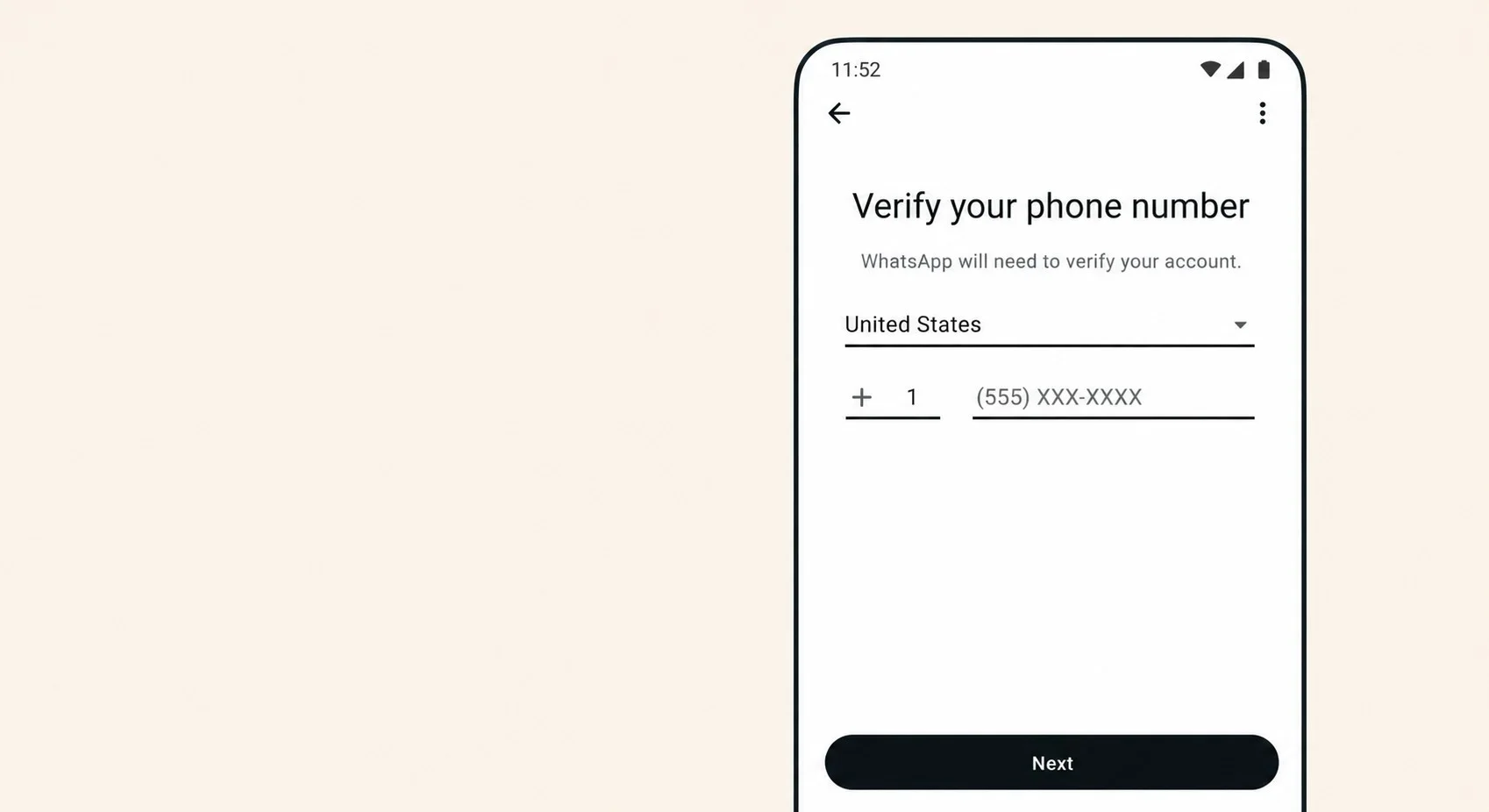
Download WhatsApp Business from the App Store or Google Play. It is a separate app, not a setting inside regular WhatsApp.
- Enter the number you want customers to see. It cannot already run a personal WhatsApp account; if it does, you will be asked to migrate, which moves your chats across.
- Enter the six-digit code sent by SMS or voice call.
Tip: Use a number you control long-term. Changing it later means rebuilding everything.
Step 2: Set Up Your Business Profile
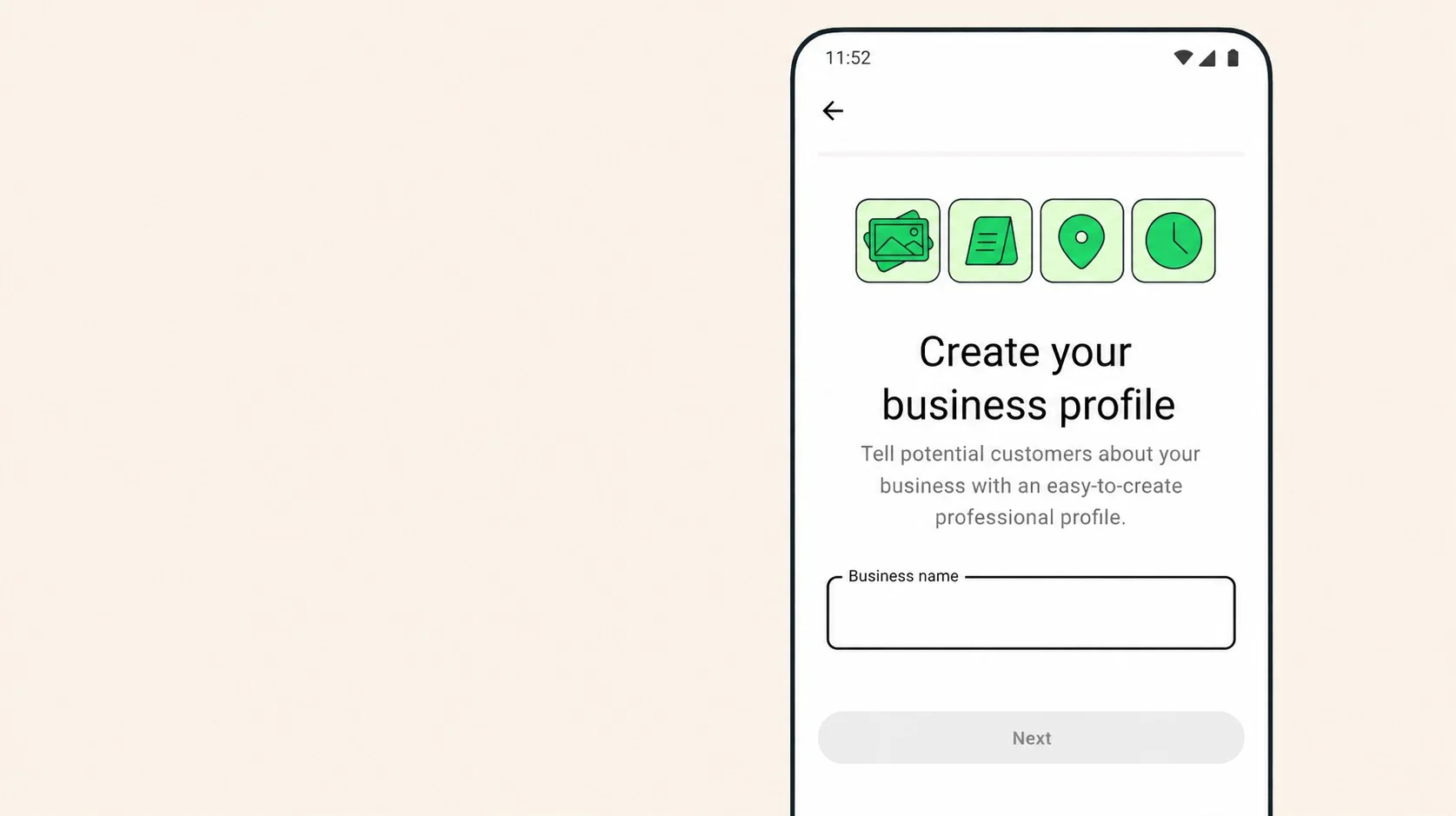
Go to Settings > Business Tools > Business Profile and fill in your name, category, address, hours, and website.
This is the face of your brand. When you message someone who never saved your number, your profile is the only thing telling them who you are.
A blank profile reads like spam, spam gets blocked, and blocks get numbers restricted.
Step 3: Save Customer Contacts for Review Requests
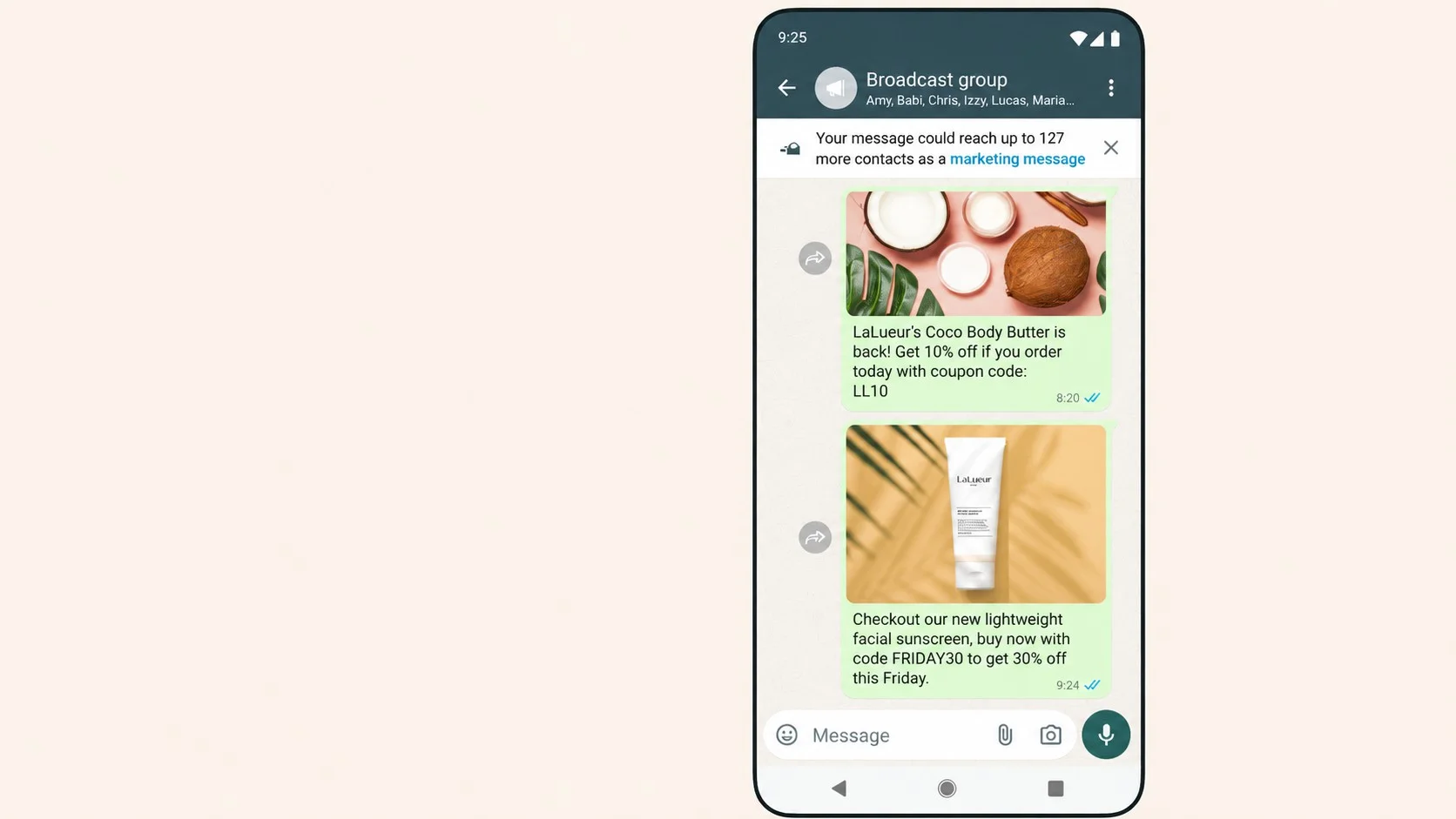
Add each customer as a contact, then build a broadcast list under Settings > Business Tools > Broadcast lists, capped at 256 recipients.
Broadcasts only land for people who saved your number, so ask customers to save you while they are still in front of you, at checkout or the end of an appointment.
If that does not fit how your business runs, you have outgrown the free app.
Your WhatsApp Business App is now ready for sending review requests manually. But if you want to automate requests or handle them at scale, you’ll need a more powerful setup.
Next, let’s look at how to set up the WhatsApp Business API for review requests.
How to Set Up the WhatsApp Business API for Review Requests (For Scale and Automation)
Configuring the WhatsApp Business API takes a little more setup than the WhatsApp Business App and is typically done from a desktop. But, once configured, you can build review requests into your customer communication workflow. Here’s how to get started.
Step 1: Choose Your Route, Direct Cloud API or a Provider
You will read almost everywhere that you need a Business Solution Provider to access the API. That has not been true for a while, and it is worth knowing before you sign anything.
Meta’s Cloud API getting started guide lays out a seven-step self-serve path: create a Meta app, connect a WhatsApp Business account, send test messages, set up a webhook, generate a permanent access token.
No provider at any point. As one developer who has shipped this for small businesses put it, “Direct Cloud API gives more control, while BSPs can reduce setup complexity” (r/whatsapp).
So you have two routes:
| Route | Good for | Trade-off |
| Direct Cloud API | You have a developer, or can handle a webhook | You build and maintain it. No dashboard, no support desk. |
| Provider (Twilio, Infobip, 360dialog, Gupshup, AiSensy) | You want a centralized dashboard and human support | Platform fees stack on top of Meta’s per-message charges |
If you go the provider route, a small business owner weighing the same decision listed what matters day to day on Reddit: how smooth Meta verification is, whether platform fees are separated from per-message pricing, and how much help you get when a template is rejected (r/WhatsAppBusiness_API). That last one matters more than price.
Step 2: Apply for WhatsApp Business API Access
- Create or open your Meta Business portfolio at business.facebook.com.
- Add a WhatsApp Business Account under Settings > Accounts > WhatsApp accounts.
- Register a phone number not currently on any WhatsApp account.
- Submit Meta business verification with your registration documents.
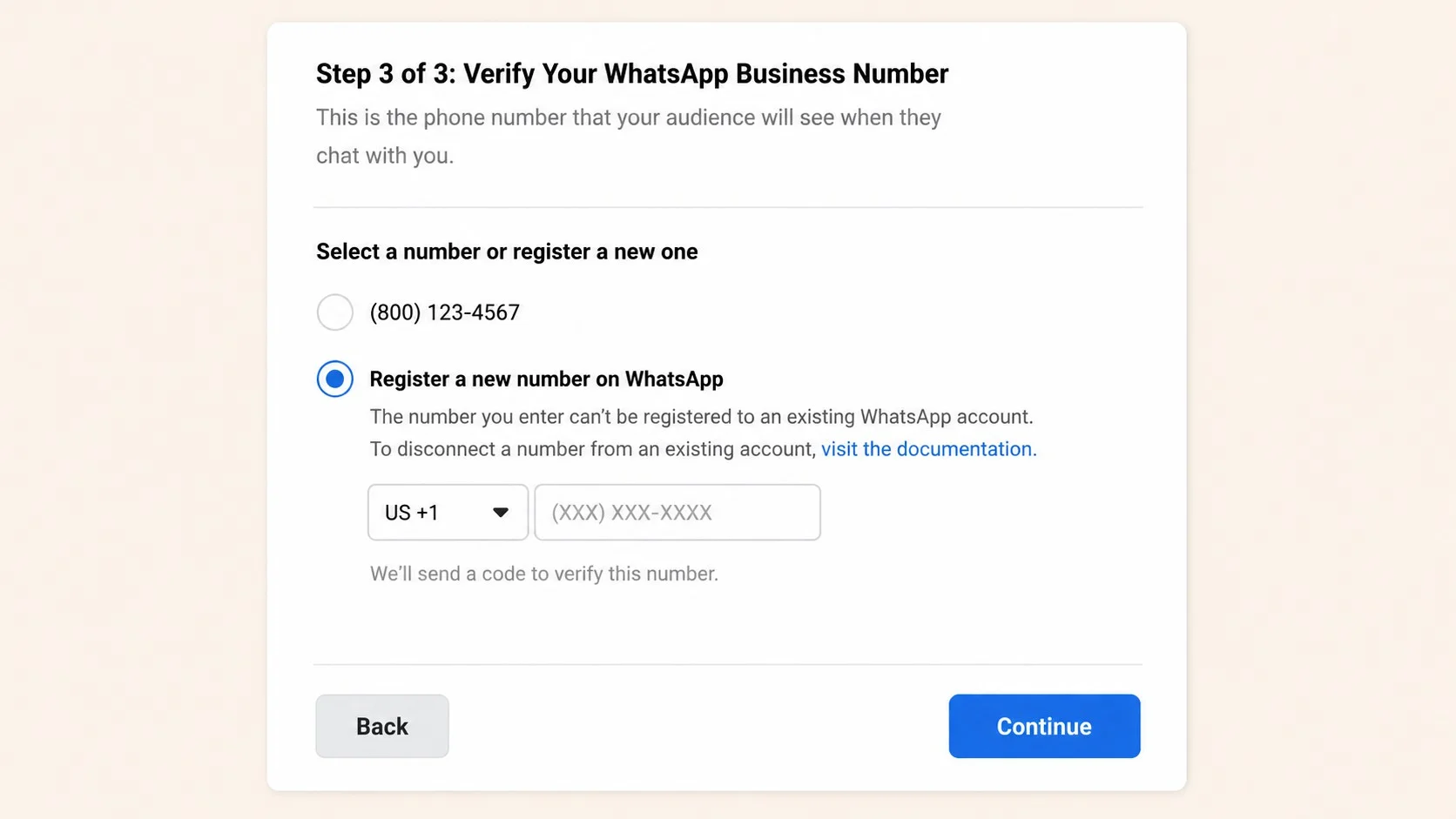
Step four can take the most time. Registration can be same-day, but verification takes anywhere from hours to a couple of weeks, and until it clears you are capped at 250 messages a day. If your business is informally running, expect friction.
Note: If you’re following a tutorial published before October 2025, make sure it uses the WhatsApp Cloud API. Meta discontinued the On-Premises API on October 23, 2025.
Step 3: Submit a Review-Request Template for Approval
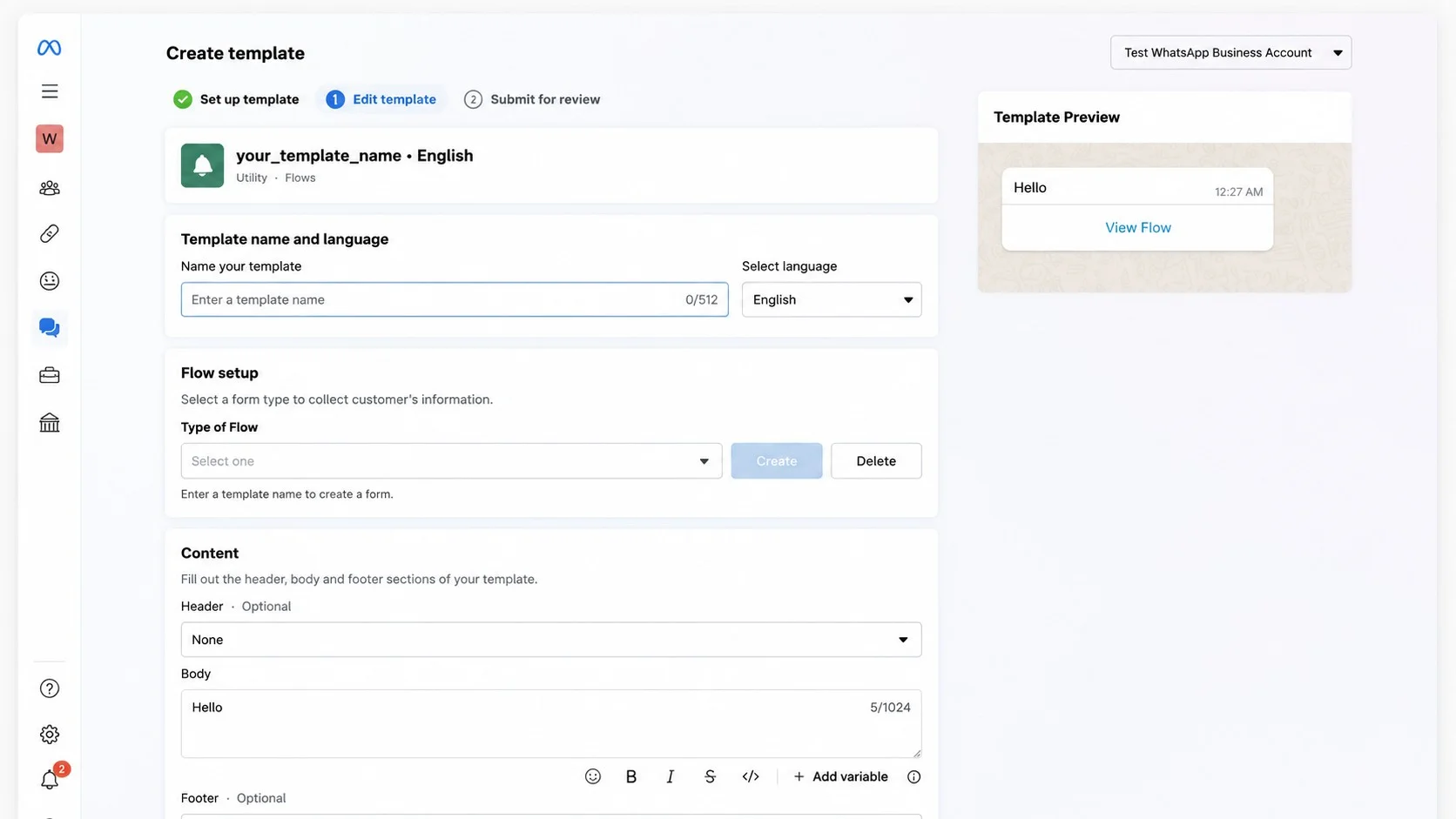
Any message you start outside an open conversation needs a pre-approved template. Submit yours as Marketing, because that is what a review request is.
Note: If your customers are in the US, stop here. As per Meta’s Marketing Templates Documentation, since April 2025, WhatsApp has not delivered marketing template messages to US phone numbers, and review requests are marketing category. Meta calls the pause temporary and has given no end date. Your options for US customers are the free app, which does not use templates, or asking them for a review inside an open 24-hour window after a customer messages you first.
Here’s a sample template you can use to get started:
Hi {{1}},
Thanks for choosing {{2}} last week.
If you have a minute, would you leave us a quick review? It genuinely helps other people find us.
[Leave a review]
- {{1}} → Customer’s name
- {{2}} → Business name
- [Leave a review] → Review link/button
Keep it short, name your business, and use a button rather than a raw URL in the body. Template review takes minutes to 24 hours. Do not submit it as Utility to save money. The next section explains why that no longer works.
The Compliance Rules You Can't Skip During Setup
This is the part you don’t want to overlook, especially if you plan to send review requests at scale.
The 24-Hour Messaging Window
WhatsApp’s policy is exact: “You may reply to a user message without use of a Message Template as long as it’s within 24 hours of the last user message” (WhatsApp Business Messaging Policy).
A customer messages you, a 24-hour window opens in which you can write freely, and when it closes you are back to approved templates only.
It is a technical timer on the conversation, not a description of when your staff are around.
Businesses typically confuse the two. As one developer put it, “once they reply, I only have a 24-hour window to send custom messages before going back to template-only mode” (r/n8n).
Getting Real Opt-In (a Reply Isn't Consent)
Here is the most misunderstood rule in this topic, and the one most likely costing you right now.
A customer replying does not give you standing permission to message them later. It only opens the 24-hour window.
WhatsApp’s policy sets two conditions, both required: “You may only contact people on WhatsApp if: (a) they have given you their mobile phone number; and (b) you have received opt-in permission from the recipient.”
Having a customer’s phone number doesn’t mean they’ve agreed to receive WhatsApp messages from you. If you want to send them messages later, you need to get their opt-in first.
Since a November 2024 update, opt-in need not be collected on WhatsApp specifically (WhatsApp Opt-In Policy). Your opt-in should clearly state that the customer is agreeing to receive communications from your business, identify your business by name, and comply with applicable laws.
What Happens After You Submit Your Template
If templates have bounced on you, you have probably heard the advice to submit your template review requests as Utility instead of Marketing, because Utility is cheaper. That loophole closed on 9 April 2025.
Meta’s documentation states that if “you selected UTILITY as the template’s category and WhatsApp determined it should be MARKETING, the template is approved as MARKETING” (Template Categorization).
That is not a rejection. Your template gets approved quietly at the more expensive rate, and you find out from your invoice. You then have 60 days to appeal in the Meta Help Centre.
Category is judged on content, not the label you pick, and review is automated. See how a Reddit user, u/blabla_sheep, talks about business verification delay on Reddit:
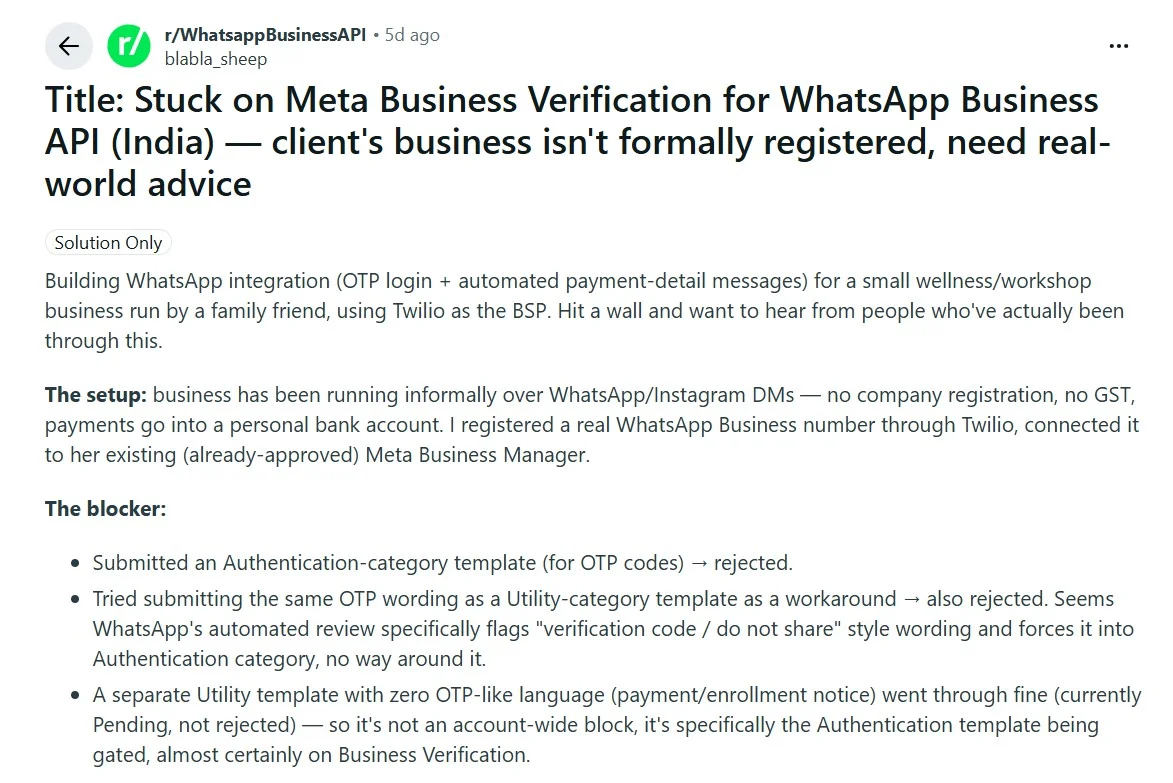
Label it accurately the first time. You cannot outsmart it, and trying costs you money rather than getting you caught.
Avoiding an Account Ban
Almost everyone believes message volume is what gets numbers banned. It is not, and believing it leads to the wrong precautions, like spacing messages ten minutes apart.
An operator who has shipped WhatsApp automation to around ten Gulf businesses explains the mechanism:
“Broadcast volume isn’t what kills numbers. Block rate is. WhatsApp’s quality detection runs per number, and it’s driven mostly by the percentage of recipients who tap block or report inside the first few hours. A clean 200 contact list with real opt in outperforms a 1,000 contact blast by an absurd margin… Most SMB owners think volume equals risk. It’s the opposite.”
That matches Meta’s system. Your number carries a quality rating built from recipient reactions, and that rating governs whether your sending limit rises or your account gets restricted.
So, the rule is not sent less. The rule is that the people you message need to recognize you. A hundred customers who agreed to hear from you are safer than a thousand who did not, at any speed.
Two more things. A ban is not always limited to the WhatsApp number and can reach your Business Manager, Page, and ad account.
And appeals are thin: one user reported sending seven emails to support and getting an AI-generated reply every time (r/WhatsappBusinessAPI). Prevention is all you have.
When a Template Is Approved but Still Doesn't Arrive
Template approval is not the same as message delivery. Separately from your account’s messaging limit, WhatsApp caps how many marketing templates any one person receives, and that cap counts every business messaging them, not just you.
Meta’s per-user marketing template message limits state that WhatsApp “may limit the number of marketing template messages a WhatsApp user receives from any business in a given period of time.” When a send fails this way, the messages webhook fires with status failed and error code 131049.
A customer who has been messaged heavily by other brands that week may not receive your request, even though your template is approved; your opt-in is valid, and you have never messaged them before. Nothing on your side is wrong, and nothing on your side fixes it.
Managing Review Request Setup Across Multiple Locations or Clients
Managing review requests on WhatsApp is fairly straightforward when you have one business location.
But when you’re handling multiple locations or clients, things can quickly get messy. You may need to manage different WhatsApp accounts, review links, customer lists, and messaging workflows.
A clear setup can help you keep everything organized while making sure each review request reaches the right customers.
The Problem with Fragmented, Location-by-Location Setup
If you manage several branches or a roster of clients, everything above multiplies. Every location needs its own number, verification, and approved templates, and carries its own quality rating.
The failure mode is rarely a bad campaign. It is that nobody sees the whole picture:
“Almost every single time we dig into the root cause, it’s a classic organizational blind spot. Someone in another department grabs an old, inactive database and blasts out a massive, aggressive broadcast without thinking about the operational risk.”
A spreadsheet cannot tell you a quality rating dropped on Tuesday. If you are building the wider programme, our guide on proven ways to get more Google reviews covers the tactics alongside it.
How To Solve This
Every one of these problems points to the same need: one place to manage your numbers, store approved templates, and keep track of the review requests you’ve sent.
That’s the part the setup process doesn’t cover. Setting up WhatsApp is one thing; keeping everything organized and running smoothly is what comes next.
Automating This with a Review Management Platform
Setup gives you a verified number and an approved review template. It doesn’t give you anywhere to send from.
Meta hands you the plumbing. You still need:
- A contact list that grows as customers come in
- Timing, so requests go out while the experience is still fresh
- A record of who was asked and when
- A way to catch your quality rating slipping before it becomes a restriction
The Business App does none of that. Direct Cloud API means you build it yourself.
That’s the gap review management platforms fill. They connect the WhatsApp Business account you just set up rather than replacing it, so everything above still has to happen.
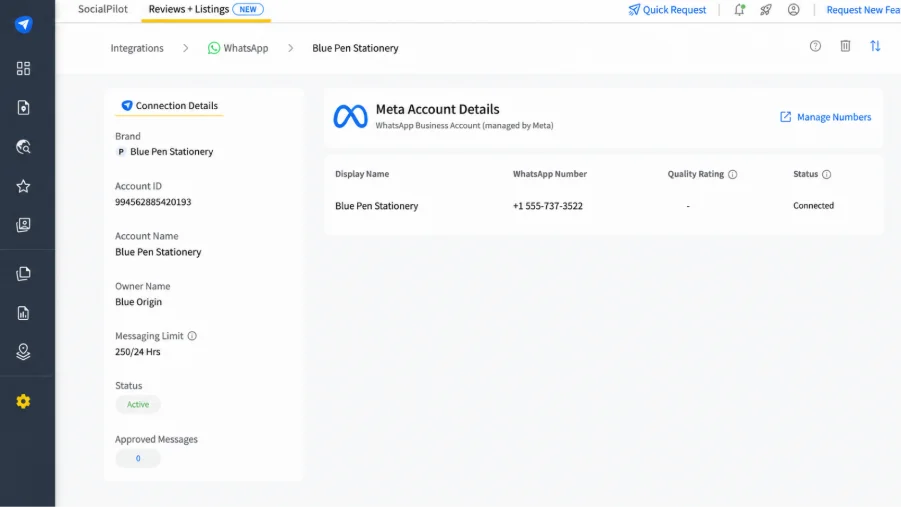
SocialPilot Reviews is one of them, and here’s what it changes:
- You stop asking the same customer twice. Duplicate Request Prevention holds a contact for a window you set, up to a year. Repeat asks are what drive block rate, and block rate is what gets numbers restricted.
- You see trouble before Meta acts on it. One card carries your Messaging Limit, quality rating, and whether the number is Connected, Flagged, or Restricted.
- Requests go out without you remembering to send them. Multi-step campaigns space messages apart and stop the moment someone clicks the review link.
- WhatsApp isn’t your only shot. The same campaign runs email and SMS too, so a customer who ignores one still gets asked.
- Approved wording stays in one place. Build templates in the Library, submit them to Meta from there, and assign them per brand so locations don’t drift.
| Manual | On a platform |
| Spreadsheet of who to ask | One contact list, auto-enrolled |
| Messages sent by hand | Campaigns fire on a schedule |
| Templates in Meta’s console | Shared library, assigned per brand |
| Rating checked after something breaks | Status visible on one card |
The result is a review request process that runs consistently in the background, while you keep visibility and control over what’s happening. At the same time, you get a clear view of your campaigns, customer responses, and account health, so you can stay in control of the process as it runs.
Wrapping Up
Getting WhatsApp Business ready for review requests doesn’t have to be complicated.
Start with the option that fits your business, set up your profile and messaging correctly, and make sure you have the right customer opt-ins before sending requests.
Once everything is in place, you can make review requests a regular part of your customer follow-up, rather than something you remember to do occasionally.
If you want to automate that process and manage review requests across WhatsApp, email, and SMS, SocialPilot Reviews can help you handle it from one place.
Explore the SocialPilot Reviews pricing plans to see which option fits your review-generation needs.