
Schritt 1
Add the SocialPilot connector
Add SocialPilot as a connector in Claude, ChatGPT, or any AI tool using mcp.socialpilot.co/mcp.
Equip your AI agents with the context and control to execute publishing inside SocialPilot,
keeping content moving as your operations grow.
Trusted by 15,000+ businesses and creators






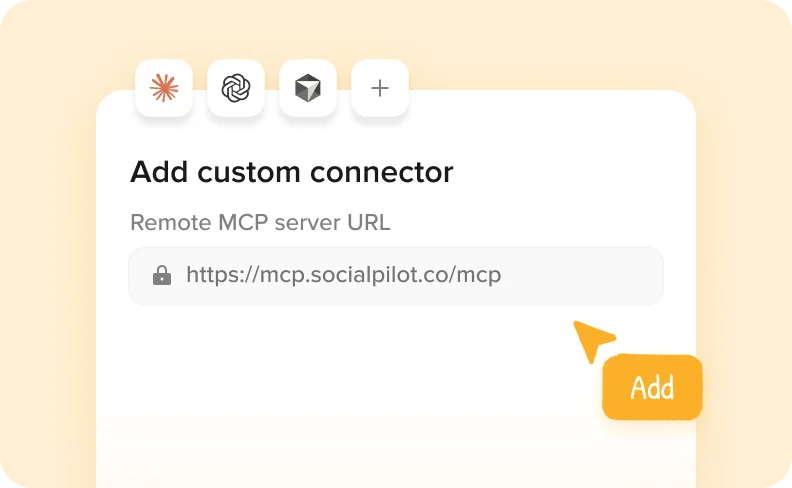
Schritt 1
Add SocialPilot as a connector in Claude, ChatGPT, or any AI tool using mcp.socialpilot.co/mcp.
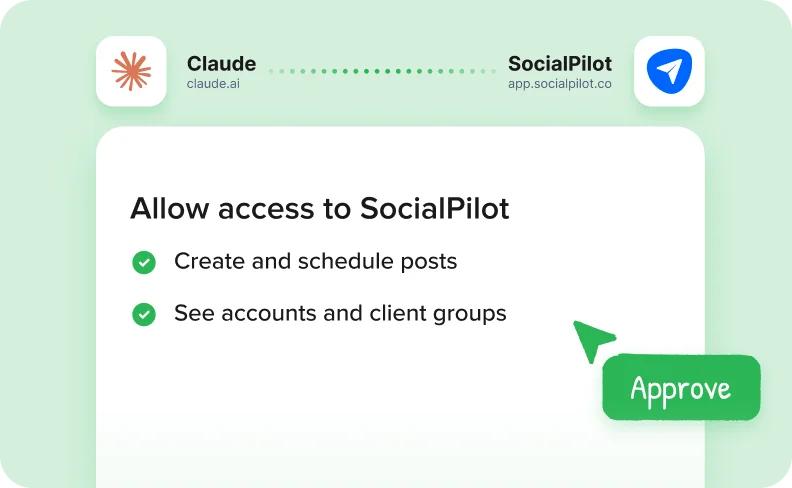
Schritt 2
Log in with your SocialPilot account and approve access. Your AI tool is now connected.
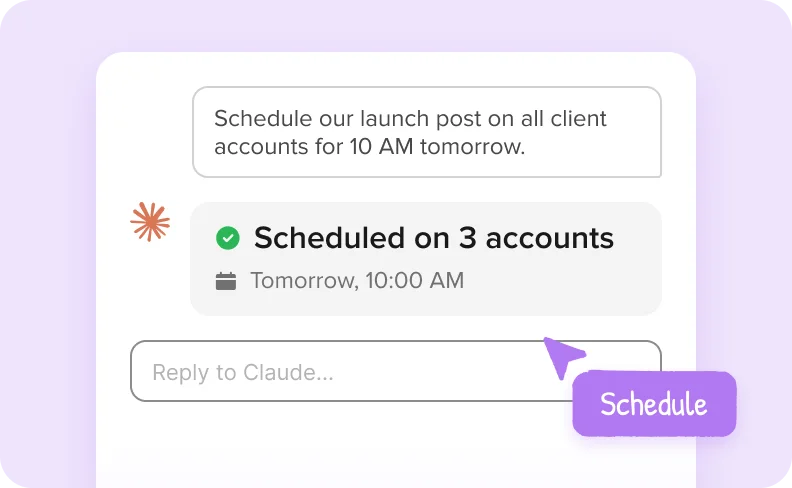
Schritt 3
Create, schedule and review posts across all your accounts, right from your AI chat.


Connect Claude or any AI agent and turn it into an operator that creates, schedules, and manages posts across
every account while reducing manual work.

Erstellen und planen Sie Beiträge direkt über KI in einem einzigen Arbeitsgang, wodurch manuelle Schritte entfallen und die Veröffentlichungszeit verkürzt wird.
Give your AI agent complete access to accounts and client groups so every post is published in the right place.


Speichern Sie Beiträge als Entwürfe, wenn eine Überprüfung erforderlich ist, um die Kontrolle zu behalten und gleichzeitig Ihren Publishing-Workflow voranzutreiben.
Verfolgen Sie in der Warteschlange stehende, veröffentlichte und ungeplante Beiträge gemeinsam, um immer zu wissen, was gerade passiert, ohne die Ansicht zu wechseln.


Zeigen Sie nicht zugestellte oder übersprungene Beiträge frühzeitig an, damit Sie die Probleme rechtzeitig lösen und Ihren Veröffentlichungsplan einhalten können.
SocialPilot has emerged as the preferred social media management tool for more than 15000 customers.

Nach einem 3-wöchigen Vergleich von Tools zur Planung sozialer Medien erwies sich SocialPilot als die beste Option heraus. Es übertrifft Hootsuite und Buffer in Bezug auf Wert, Kosten und außergewöhnlichen Kundenbetreuung.


Jenna D.
Gründer & Community Explorer | Leben in Düsseldorf

Alexis Rüstung
Modell bei Chantale Nadeau
Der Preis ist unschlagbar und der fantastische Kundendienst, den Sie bei technischen Problemen technische Probleme. Ich habe Hootsuite und SocialChamp benutzt und sie kommen nicht annähernd an SocialPilot heran.

Robin A.
Inhaber der Agentur | Birdhouse Marketing & Design
Ich kann diese kostengünstige Option nur empfehlen! Sie übertrifft Hootsuite durch wertvolle Analysemöglichkeiten für Kunden bietet. Die Planung von Inhalten ist ein Kinderspiel, und die Funktion für vorgeschlagene Zeiten ist nützlich.

Victoria Y.
Gründungspräsident | Red Ball Consultants
Ich kann diese Plattform nur empfehlen! Im Gegensatz zu Hootsuite kann ich getrost mehrere Konten verwalten Konten verwalten, ohne dass ich mir Sorgen um überraschende Rechnungen machen muss. Die beeindruckenden Statistiken und Analysen machen die Berichterstattung an Kunden zu einem Kinderspiel.

Juan O.
Direktorin für digitales Marketing | The Click Town

Nathan Gesner
Immobilienmakler
SocialPilot hat alle Funktionen, die unser Unternehmen braucht, um das zu erreichen, was wir wollen - einfach und effizient. Ganz zu schweigen von den erheblichen Kosteneinsparungen auch.

Jaimie C.
Marketing-Fachmann
Da alle sozialen Netzwerke bequem an einem Ort verwaltet werden können, hilft es uns, unsere Zeit zu optimieren, ein ein wichtiger Aspekt für uns. Ständige Aktualisierungen mit wichtigen Funktionalitäten erhöhen die seine Attraktivität.

Bradford J.
Projektmanagement Leitung | DAS42
Der Wechsel zu Social Pilot war ein echter Wendepunkt. Meiner vorherigen App zur Terminplanung fehlte die Unterstützung für Instagram, was sehr lästig war. Jetzt habe ich mit SocialPilot jede Plattform, die ich brauche, zur Hand. SocialPilot.

Penny W.
Freiberufliche Schriftstellerin | PennyWilliamsWriter

Catherine Coffey
Marketing-Spezialist | Cahaba Medical Care
Ich kann SocialPilot nicht genug empfehlen. Seine Benutzeroberfläche ist ein wahres Juwel - bemerkenswert einfach und intuitiv. Es ist eine kostengünstige Lösung ohne Kompromisse bei Qualität oder Funktionalität.

Heather W.
Leiter Marketing, Vertrieb und Design | Greenphire
Sehr empfehlenswert auf G2

Guides and ready-to-run AI workflows to help your agency plan, approve, and publish faster.

How Agencies Use Claude for Competitor Monitoring to Find and Act on Content Gaps
 Monika Ahuja
A step-by-step workflow for agencies to pull competitor posts with Apify MCP, identify content…
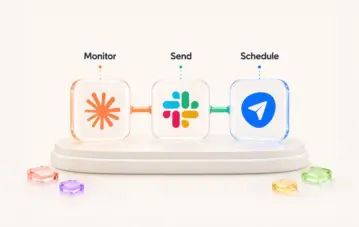
Using Claude to Monitor Industry Trends, Send Ideas to Slack, and Schedule the Best Ones
 Aakanksha Sharma
A five-tool Claude MCP workflow for agencies. Research trends with Brave Search and Reddit,…

Was ist ein MCP Connector für Social Media Scheduling?
Monika AhujaMCP verbindet Ihr AI-Tool direkt mit SocialPilot, so dass Sie planen, entwerfen und...
SocialPilot MCP Server connects AI assistants like Claude and ChatGPT to your SocialPilot account. Once connected, you can ask your assistant to create and schedule posts, save drafts, or check publishing status directly from your conversation.
MCP stands for Model Context Protocol, the standard that makes this connection possible.
You can create and schedule posts across connected accounts, save drafts for review, and check scheduled, published, or failed posts.
For example, ask: “Schedule this post on my LinkedIn and Facebook pages for Thursday at 10 AM.” Your assistant can schedule it in SocialPilot directly.
You can also ask what’s scheduled for the week or which posts failed to publish.
You don’t need coding knowledge to connect through Claude or ChatGPT.
In Claude, add the SocialPilot MCP connection and sign in to your SocialPilot account. For ChatGPT’s custom MCP setup, you’ll also need to enable Developer Mode. Access depends on your ChatGPT plan and workspace settings.
Follow the setup guide for Claude or ChatGPT for the full steps.
It’s super simple and most people are up and running in a few minutes.
You can connect Claude (both the app and Claude Code), ChatGPT, Cursor, Windsurf, Zapier, and other AI tools that support MCP too.
Each tool has its own requirements. For example, ChatGPT would need a paid plan that supports connectors.
It's included on every plan, so it's already part of your subscription. Start using it today!
Yes. Ask your AI assistant to save posts as drafts instead of publishing or scheduling them. You can then review the drafts in SocialPilot before publishing.
When requesting publishing or scheduling, specify the accounts, content, and timing you want.
It only posts when you ask it to. If you say "publish this now," it will, so it helps to be as clear as you would be with a teammate.
If you'd rather see everything before it goes live, ask it to save your posts as drafts. They'll wait in SocialPilot until you've had a look and you're happy with them.
Your AI assistant can only access the accounts and perform the actions allowed by your SocialPilot role.
For example, if you have access to five client accounts, your assistant can work with those five. If a teammate has access to two, their assistant can work with those two.
Connecting an AI tool doesn’t give it additional SocialPilot permissions.
Yes. You can ask your AI assistant to create or schedule posts across multiple accounts, including accounts within your existing SocialPilot groups.
It understands the groups you've already set up, so a request like "post this to my Retail group" works the way you'd expect.
You can also ask to see the posts queued for a specific client.
You can create and schedule posts for connected social accounts supported by SocialPilot MCP Server, subject to each network’s publishing requirements.
Google Business Profile Event and Offer posts can’t be created or scheduled through MCP. Use Create Post in SocialPilot for these post types.
Yes, it can. Ask "Did any of my posts fail this week?" and it will retrieve the list from SocialPilot.
It can also find posts that missed their scheduled time, and open any post so you can see exactly what went out and where.
You can connect Claude, ChatGPT, and Zapier by signing in to your SocialPilot account, without an API key.
API keys are also supported for tools such as Cursor and Windsurf, and for custom setups. Follow your tool’s setup guide to choose the appropriate connection method.
To find your API key, click your profile icon in SocialPilot, select Security, and locate the API Key section. If you replace your key, update it in any tools using that key.
Your AI assistant can only reach the accounts and posts you already have access to in SocialPilot, and you can disconnect it whenever you like.
How your conversations are stored and used is decided by the AI tool itself, based on your plan and settings with them.
Check your provider’s privacy policy and data controls to understand whether that information may be used for model training.
You can remove it from your AI tool's settings at any time. In Claude, look under Connectors, and in ChatGPT, look under Apps.
Removing the connection doesn’t delete your posts or drafts, or cancel posts already scheduled in SocialPilot.
Your connection may have expired or need authorization again. Changes to your SocialPilot password, permissions, or authentication settings can also require a fresh sign-in.
Reconnect from your AI tool’s settings and sign in again.
If you use an API key and have replaced it, update the key in your connection settings.
Start by creating a draft: “Write a LinkedIn post announcing a weekend offer of 20% off all pastries and save it as a draft for my bakery client, Brew & Bean.” and see what comes back.
Replace the business name and offer with your own details. Open SocialPilot and you'll find the draft waiting for you.
Once that feels natural, try planning a whole week of posts in a single conversation.

Holen Sie sich einzigartige, plattformspezifische Inhaltsideen, um Ihren Kalender voll zu halten.