
Step 1
Add the SocialPilot connector
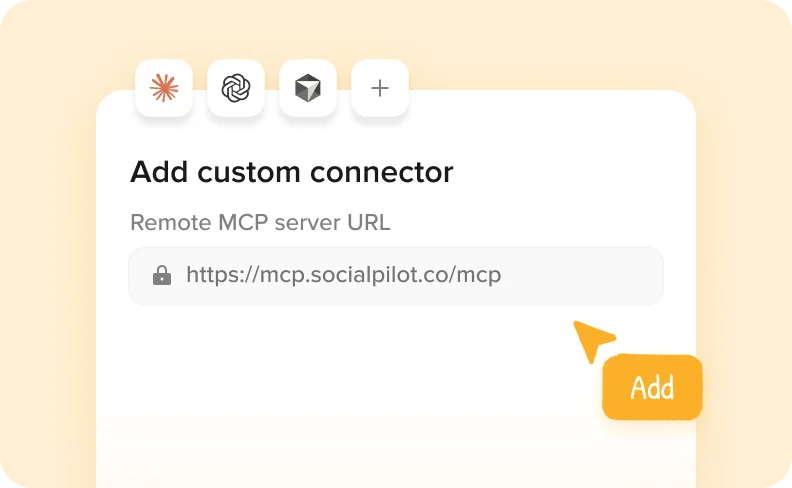
Add SocialPilot as a connector in Claude, ChatGPT, or any AI tool using mcp.socialpilot.co/mcp.
Equip your AI agents with the context and control to execute publishing inside SocialPilot,
keeping content moving as your operations grow.
Trusted by 15,000+ businesses and creators






Step 1
Add SocialPilot as a connector in Claude, ChatGPT, or any AI tool using mcp.socialpilot.co/mcp.
Step 2
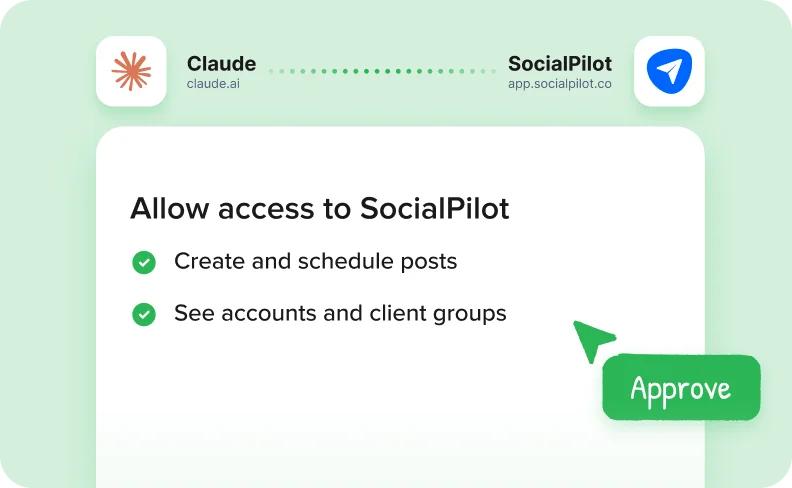
Log in with your SocialPilot account and approve access. Your AI tool is now connected.
Step 3
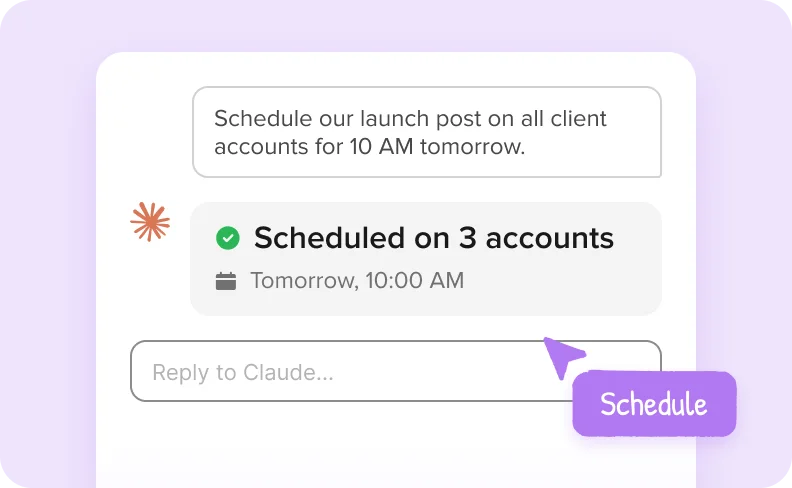
Create, schedule and review posts across all your accounts, right from your AI chat.


Connect Claude or any AI agent and turn it into an operator that creates, schedules, and manages posts across
every account while reducing manual work.

Create and schedule posts directly through AI in one flow, removing manual steps and speeding up publishing time.
Give your AI agent complete access to accounts and client groups so every post is published in the right place.


Save posts as drafts when review is needed to maintain control while moving your publishing workflow forward.
Track queued, published, and unscheduled posts together to always know what’s happening without switching views.


Surface undelivered or skipped posts early so you can resolve issues in time and keep your publishing plan on track.
SocialPilot has emerged as the preferred social media management tool for more than 15000 customers.

After spending 3 weeks comparing social media scheduling tools, SocialPilot emerged as the best option. It surpasses Hootsuite and Buffer in value, cost, and exceptional customer support.


Jenna D.
Founder & Community Explorer | Life in Düsseldorf

Alexis Armour
Model at Chantale Nadeau
The price can't be beaten and the amazing customer service you get when you experience technical issues. I've used Hootsuite and SocialChamp and they don't come close to touching SocialPilot.

Robin A.
Agency owner | Birdhouse Marketing & Design
I highly recommend this cost-effective option! It surpasses Hootsuite by providing valuable analytics for clients. Scheduling content is a breeze, and the suggested times feature is useful.

Victoria Y.
Founding President | Red Ball Consultants
I highly recommend this platform! Unlike Hootsuite, I can confidently manage multiple accounts without worrying about surprise billing. The impressive stats and analytics make reporting to clients a breeze.

Juan O.
Digital Marketing Director | The Click Town

Nathan Gesner
Real Estate Broker
SocialPilot has the complete range of features our company needs to accomplish what we want - simply and efficiently. Not to mention the significant cost savings as well.

Jaimie C.
Marketing Professional
With all social networks conveniently managed in one place, it helps optimizes our time, a crucial aspect for us. Constant updates with essential functionalities further enhance its appeal.

Bradford J.
Project Management Lead | DAS42
Switching to Social Pilot was a game-changer. My previous scheduling app lacked Instagram support which was a hassle. Now, every platform I need is at my fingertips with SocialPilot.

Penny W.
Freelance Writer | PennyWilliamsWriter

Catherine Coffey
Marketing Specialist | Cahaba Medical Care
I can't recommend SocialPilot enough. Its user interface is a true gem—remarkably simple and intuitive. It's an inexpensive solution without compromising on quality or functionality.

Heather W.
Manager Marketing Distribution and Design | Greenphire
Highly Recommended on G2

Guides and ready-to-run AI workflows to help your agency plan, approve, and publish faster.

How Agencies Use Claude for Competitor Monitoring to Find and Act on Content Gaps
 Monika Ahuja
A step-by-step workflow for agencies to pull competitor posts with Apify MCP, identify content…
Using Claude to Monitor Industry Trends, Send Ideas to Slack, and Schedule the Best Ones
 Aakanksha Sharma
A five-tool Claude MCP workflow for agencies. Research trends with Brave Search and Reddit,…
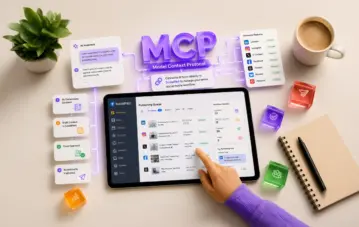
What is an MCP Connector for Social Media Scheduling?
Monika AhujaMCP connects your AI tool directly to SocialPilot so you can schedule, draft, and…
SocialPilot MCP Server connects AI assistants like Claude and ChatGPT to your SocialPilot account. Once connected, you can ask your assistant to create and schedule posts, save drafts, or check publishing status directly from your conversation.
MCP stands for Model Context Protocol, the standard that makes this connection possible.
You can create and schedule posts across connected accounts, save drafts for review, and check scheduled, published, or failed posts.
For example, ask: “Schedule this post on my LinkedIn and Facebook pages for Thursday at 10 AM.” Your assistant can schedule it in SocialPilot directly.
You can also ask what’s scheduled for the week or which posts failed to publish.
You don’t need coding knowledge to connect through Claude or ChatGPT.
In Claude, add the SocialPilot MCP connection and sign in to your SocialPilot account. For ChatGPT’s custom MCP setup, you’ll also need to enable Developer Mode. Access depends on your ChatGPT plan and workspace settings.
Follow the setup guide for Claude or ChatGPT for the full steps.
It’s super simple and most people are up and running in a few minutes.
You can connect Claude (both the app and Claude Code), ChatGPT, Cursor, Windsurf, Zapier, and other AI tools that support MCP too.
Each tool has its own requirements. For example, ChatGPT would need a paid plan that supports connectors.
It's included on every plan, so it's already part of your subscription. Start using it today!
Yes. Ask your AI assistant to save posts as drafts instead of publishing or scheduling them. You can then review the drafts in SocialPilot before publishing.
When requesting publishing or scheduling, specify the accounts, content, and timing you want.
It only posts when you ask it to. If you say "publish this now," it will, so it helps to be as clear as you would be with a teammate.
If you'd rather see everything before it goes live, ask it to save your posts as drafts. They'll wait in SocialPilot until you've had a look and you're happy with them.
Your AI assistant can only access the accounts and perform the actions allowed by your SocialPilot role.
For example, if you have access to five client accounts, your assistant can work with those five. If a teammate has access to two, their assistant can work with those two.
Connecting an AI tool doesn’t give it additional SocialPilot permissions.
Yes. You can ask your AI assistant to create or schedule posts across multiple accounts, including accounts within your existing SocialPilot groups.
It understands the groups you've already set up, so a request like "post this to my Retail group" works the way you'd expect.
You can also ask to see the posts queued for a specific client.
You can create and schedule posts for connected social accounts supported by SocialPilot MCP Server, subject to each network’s publishing requirements.
Google Business Profile Event and Offer posts can’t be created or scheduled through MCP. Use Create Post in SocialPilot for these post types.
Yes, it can. Ask "Did any of my posts fail this week?" and it will retrieve the list from SocialPilot.
It can also find posts that missed their scheduled time, and open any post so you can see exactly what went out and where.
You can connect Claude, ChatGPT, and Zapier by signing in to your SocialPilot account, without an API key.
API keys are also supported for tools such as Cursor and Windsurf, and for custom setups. Follow your tool’s setup guide to choose the appropriate connection method.
To find your API key, click your profile icon in SocialPilot, select Security, and locate the API Key section. If you replace your key, update it in any tools using that key.
Your AI assistant can only reach the accounts and posts you already have access to in SocialPilot, and you can disconnect it whenever you like.
How your conversations are stored and used is decided by the AI tool itself, based on your plan and settings with them.
Check your provider’s privacy policy and data controls to understand whether that information may be used for model training.
You can remove it from your AI tool's settings at any time. In Claude, look under Connectors, and in ChatGPT, look under Apps.
Removing the connection doesn’t delete your posts or drafts, or cancel posts already scheduled in SocialPilot.
Your connection may have expired or need authorization again. Changes to your SocialPilot password, permissions, or authentication settings can also require a fresh sign-in.
Reconnect from your AI tool’s settings and sign in again.
If you use an API key and have replaced it, update the key in your connection settings.
Start by creating a draft: “Write a LinkedIn post announcing a weekend offer of 20% off all pastries and save it as a draft for my bakery client, Brew & Bean.” and see what comes back.
Replace the business name and offer with your own details. Open SocialPilot and you'll find the draft waiting for you.
Once that feels natural, try planning a whole week of posts in a single conversation.

Get unique, platform-specific content ideas to keep your calendar full.