
Étape 1
Add the SocialPilot connector
Add SocialPilot as a connector in Claude, ChatGPT, or any AI tool using mcp.socialpilot.co/mcp.
Equip your AI agents with the context and control to execute publishing inside SocialPilot,
keeping content moving as your operations grow.
Trusted by 15,000+ businesses and creators






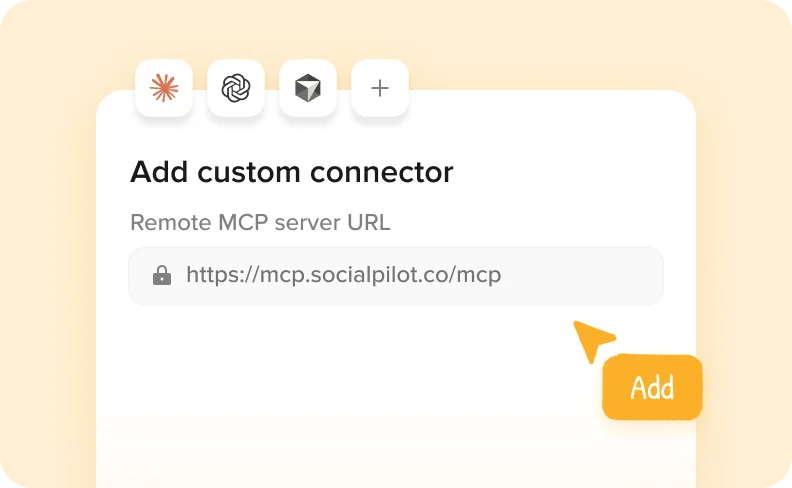
Étape 1
Add SocialPilot as a connector in Claude, ChatGPT, or any AI tool using mcp.socialpilot.co/mcp.
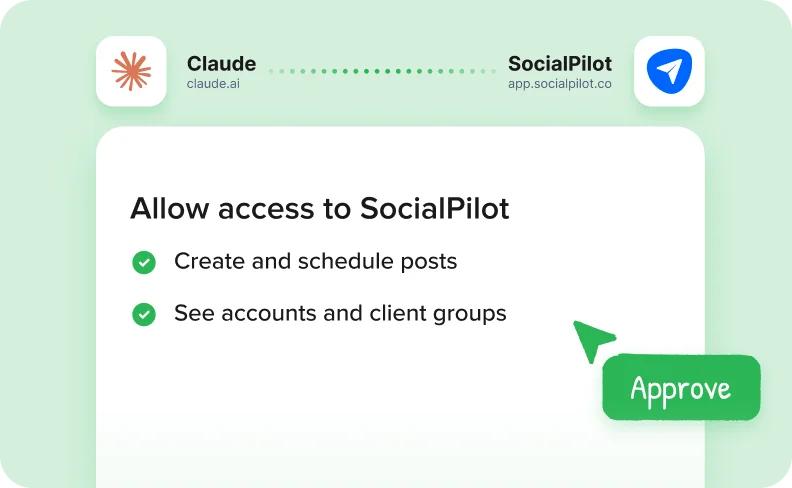
Étape 2
Log in with your SocialPilot account and approve access. Your AI tool is now connected.
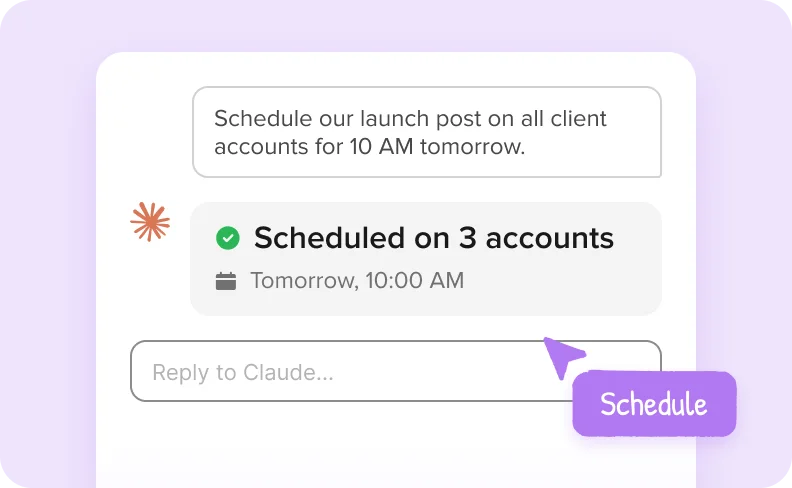
Étape 3
Create, schedule and review posts across all your accounts, right from your AI chat.


Connect Claude or any AI agent and turn it into an operator that creates, schedules, and manages posts across
every account while reducing manual work.

Créez et planifiez des posts directement via l'IA en un seul flux, en supprimant les étapes manuelles et en accélérant le temps de publication.
Give your AI agent complete access to accounts and client groups so every post is published in the right place.


Enregistrez les messages en tant que brouillons lorsqu'une révision est nécessaire afin de garder le contrôle tout en faisant avancer votre flux de publication.
Suivez les messages en file d'attente, publiés et non programmés ensemble pour toujours savoir ce qui se passe sans changer de vue.


Faites apparaître rapidement les messages non livrés ou ignorés afin de résoudre les problèmes à temps et de maintenir votre plan de publication sur la bonne voie.
SocialPilot has emerged as the preferred social media management tool for more than 15000 customers.

Après avoir passé 3 semaines à comparer les outils de planification des médias sociaux, SocialPilot s'est imposé comme la meilleure option. meilleure option. Il surpasse Hootsuite et Buffer en termes de valeur, de coût et de support client exceptionnel. exceptionnel.


Jenna D.
Fondateur et explorateur de la communauté | Life in Düsseldorf

Alexis Armour
Modèle chez Chantale Nadeau
Le prix est imbattable et le service client est fantastique lorsque vous rencontrez des problèmes techniques. problèmes techniques. J'ai utilisé Hootsuite et SocialChamp et ils n'arrivent pas à la cheville de SocialPilot. de SocialPilot.

Robin A.
Propriétaire de l'agence Birdhouse Marketing & Design
Je recommande vivement cette option rentable ! Elle surpasse Hootsuite en en fournissant des analyses précieuses aux clients. La programmation de contenu est un jeu d'enfant, et la fonction de est facile à programmer et la fonction de suggestion d'horaires est utile.

Victoria Y.
Président fondateur de Red Ball Consultants
Je recommande vivement cette plateforme ! Contrairement à Hootsuite, je peux gérer plusieurs comptes en toute confiance sans m'inquiéter de la facturation surprise. comptes sans m'inquiéter d'une facturation surprise. Les statistiques et les analyses impressionnantes font du reporting aux clients un jeu d'enfant.

Juan O.
Directeur du marketing numérique | The Click Town

Nathan Gesner
Courtier en immobilier
SocialPilot possède la gamme complète des fonctionnalités dont notre entreprise a besoin pour accomplir ce que nous voulons, simplement et efficacement. simplement et efficacement. Sans parler des économies significatives réalisées de coûts.

Jaimie C.
Professionnel du marketing
La gestion de tous les réseaux sociaux en un seul endroit permet d'optimiser notre temps, un aspect crucial pour nous. aspect crucial pour nous. Des mises à jour constantes avec des fonctionnalités essentielles son attrait.

Bradford J.
Chef de projet | DAS42
Le passage à Social Pilot a changé la donne. Mon ancienne application de planification ne prenait pas en charge Instagram, ce qui était gênant. Maintenant, toutes les plateformes dont j'ai besoin sont à portée de main avec SocialPilot.

Penny W.
Rédacteur indépendant | PennyWilliamsWriter

Catherine Coffey
Spécialiste du marketing - Cahaba Medical Care
Je ne saurais trop recommander SocialPilot. Son interface utilisateur est un véritable bijou - remarquablement remarquablement simple et intuitive. C'est une solution peu coûteuse sans compromis sur la qualité ou la sur la qualité ou la fonctionnalité.

Heather W.
Directeur du marketing, de la distribution et de la conception | Greenphire
Hautement recommandé sur G2

Guides and ready-to-run AI workflows to help your agency plan, approve, and publish faster.

How Agencies Use Claude for Competitor Monitoring to Find and Act on Content Gaps
 Monika Ahuja
A step-by-step workflow for agencies to pull competitor posts with Apify MCP, identify content…
Using Claude to Monitor Industry Trends, Send Ideas to Slack, and Schedule the Best Ones
 Aakanksha Sharma
A five-tool Claude MCP workflow for agencies. Research trends with Brave Search and Reddit,…
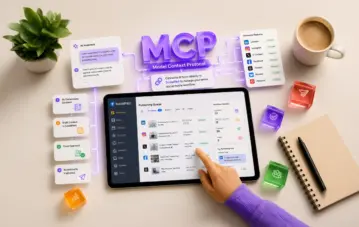
Qu'est-ce qu'un connecteur MCP pour la planification des médias sociaux ?
Monika AhujaMCP connecte votre outil d'IA directement à SocialPilot afin que vous puissiez planifier, rédiger et...
SocialPilot MCP Server connects AI assistants like Claude and ChatGPT to your SocialPilot account. Once connected, you can ask your assistant to create and schedule posts, save drafts, or check publishing status directly from your conversation.
MCP stands for Model Context Protocol, the standard that makes this connection possible.
You can create and schedule posts across connected accounts, save drafts for review, and check scheduled, published, or failed posts.
For example, ask: “Schedule this post on my LinkedIn and Facebook pages for Thursday at 10 AM.” Your assistant can schedule it in SocialPilot directly.
You can also ask what’s scheduled for the week or which posts failed to publish.
You don’t need coding knowledge to connect through Claude or ChatGPT.
In Claude, add the SocialPilot MCP connection and sign in to your SocialPilot account. For ChatGPT’s custom MCP setup, you’ll also need to enable Developer Mode. Access depends on your ChatGPT plan and workspace settings.
Follow the setup guide for Claude or ChatGPT for the full steps.
It’s super simple and most people are up and running in a few minutes.
You can connect Claude (both the app and Claude Code), ChatGPT, Cursor, Windsurf, Zapier, and other AI tools that support MCP too.
Each tool has its own requirements. For example, ChatGPT would need a paid plan that supports connectors.
It's included on every plan, so it's already part of your subscription. Start using it today!
Yes. Ask your AI assistant to save posts as drafts instead of publishing or scheduling them. You can then review the drafts in SocialPilot before publishing.
When requesting publishing or scheduling, specify the accounts, content, and timing you want.
It only posts when you ask it to. If you say "publish this now," it will, so it helps to be as clear as you would be with a teammate.
If you'd rather see everything before it goes live, ask it to save your posts as drafts. They'll wait in SocialPilot until you've had a look and you're happy with them.
Your AI assistant can only access the accounts and perform the actions allowed by your SocialPilot role.
For example, if you have access to five client accounts, your assistant can work with those five. If a teammate has access to two, their assistant can work with those two.
Connecting an AI tool doesn’t give it additional SocialPilot permissions.
Yes. You can ask your AI assistant to create or schedule posts across multiple accounts, including accounts within your existing SocialPilot groups.
It understands the groups you've already set up, so a request like "post this to my Retail group" works the way you'd expect.
You can also ask to see the posts queued for a specific client.
You can create and schedule posts for connected social accounts supported by SocialPilot MCP Server, subject to each network’s publishing requirements.
Google Business Profile Event and Offer posts can’t be created or scheduled through MCP. Use Create Post in SocialPilot for these post types.
Yes, it can. Ask "Did any of my posts fail this week?" and it will retrieve the list from SocialPilot.
It can also find posts that missed their scheduled time, and open any post so you can see exactly what went out and where.
You can connect Claude, ChatGPT, and Zapier by signing in to your SocialPilot account, without an API key.
API keys are also supported for tools such as Cursor and Windsurf, and for custom setups. Follow your tool’s setup guide to choose the appropriate connection method.
To find your API key, click your profile icon in SocialPilot, select Security, and locate the API Key section. If you replace your key, update it in any tools using that key.
Your AI assistant can only reach the accounts and posts you already have access to in SocialPilot, and you can disconnect it whenever you like.
How your conversations are stored and used is decided by the AI tool itself, based on your plan and settings with them.
Check your provider’s privacy policy and data controls to understand whether that information may be used for model training.
You can remove it from your AI tool's settings at any time. In Claude, look under Connectors, and in ChatGPT, look under Apps.
Removing the connection doesn’t delete your posts or drafts, or cancel posts already scheduled in SocialPilot.
Your connection may have expired or need authorization again. Changes to your SocialPilot password, permissions, or authentication settings can also require a fresh sign-in.
Reconnect from your AI tool’s settings and sign in again.
If you use an API key and have replaced it, update the key in your connection settings.
Start by creating a draft: “Write a LinkedIn post announcing a weekend offer of 20% off all pastries and save it as a draft for my bakery client, Brew & Bean.” and see what comes back.
Replace the business name and offer with your own details. Open SocialPilot and you'll find the draft waiting for you.
Once that feels natural, try planning a whole week of posts in a single conversation.

Obtenez des idées de contenu uniques et spécifiques à une plateforme pour remplir votre calendrier.