Managing one Google Business Profile is pretty easy. You update the details, change the hours when something comes up, reply to reviews, and move on.
Then you add a few more locations; and a few more after that.
Before long, you’re keeping track of different addresses, phone numbers, hours, photos, categories, and reviews across dozens of listings.
A change that takes a couple of minutes for one location can suddenly mean updating 20 or 50. And somewhere along the way, it’s easy to miss one.
That’s what makes managing multiple Google Business Profiles difficult. It’s not simply about having more listings. It’s about keeping them all accurate without spending your day checking and updating them one by one.
In this guide, we’ll walk through how to manage Google Business Profile listings across multiple locations. Learn how to set up your locations, keep information consistent at scale, and avoid common violations that can get your listings suspended.
Why Multi-Location GBP Management Is Harder Than It Looks
You already know how to run one Google Business Profile well. So the natural assumption is that location 40 is just location one, done another 39 times.
It isn’t, and working that out the hard way is completely normal.
Three things change as the number of profiles you have to manage increases, and none of them are about how hard you’re working.
Fragmented Data Across Locations
Your profiles were almost certainly created at different times by different people. That means they live in different Google accounts, with different admins, different levels of completeness, and no shared record of what the correct details even are.
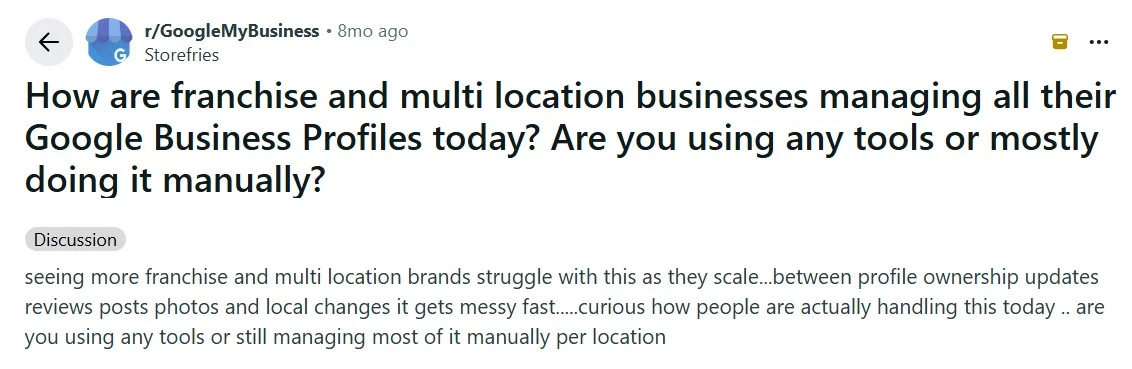
Here’s a Reddit user on r/localseo sharing their experience with handling Google Business profiles for multi-location clients:
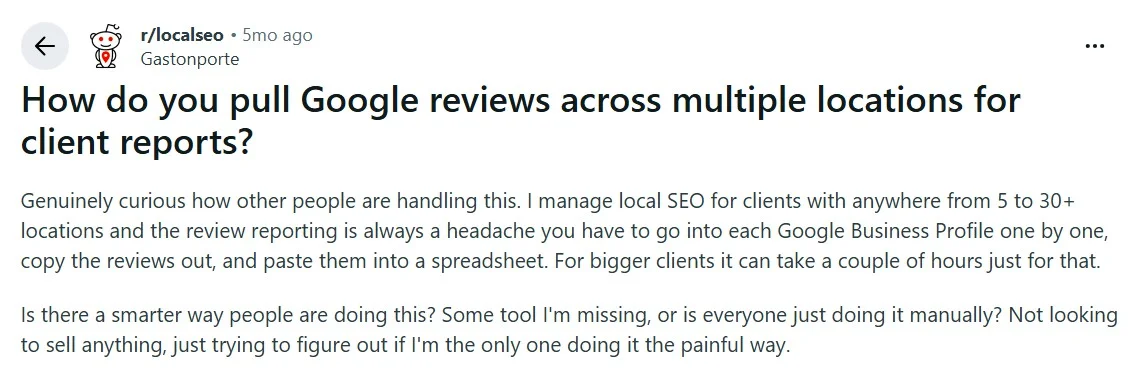
The practical effect is that nobody can answer a simple question. Which of your locations currently has the wrong hours? You cannot know without opening each one.
Inconsistent NAP Information
Basic business details such as the name, address and phone number (a.k.a. the NAP information) should match everywhere. In reality, they drift.
One branch is listed as “Suite 4” and another as “Ste 4.” One location uses a central 0800 number while the rest use local lines.
Google’s guidelines are blunt about what it expects. Your profile has to represent the real-world business as customers actually find it, and “there should only be one profile per business” (Guidelines for representing your business on Google).
The problem isn’t local edits, but the fact that nobody records them. Here’s how drifts can impact your business:
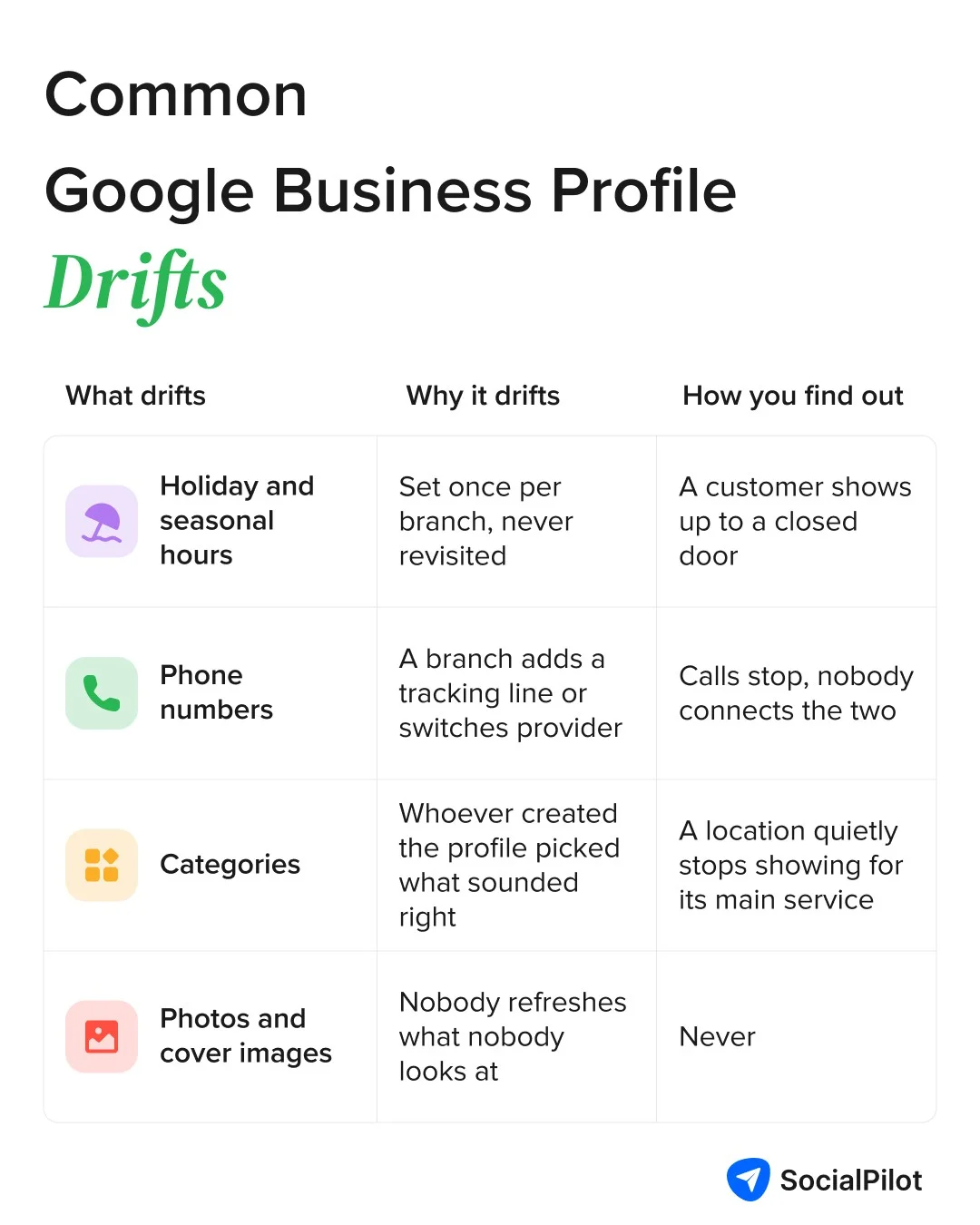
One wrong phone number at one store is a bad week. The same gap across 200 stores is a slow leak you can’t see.
No Unified Visibility Into Performance or Issues
This is the one that actually costs you. With locations spread across separate profiles, a problem at one branch is invisible until someone happens to look, or until a customer calls the wrong number and tells you.
There is an important question to answer early because many multi-location strategies are based on the wrong idea: Can one profile rank in every location? The answer is no.
As one local SEO practitioner put it, “the map pack is heavily proximity-based, so a single GBP ranks strongest near its verified address and fades the further the searcher is from it” (r/GoogleMyBusiness).
Adding service areas does not change rankings. If you serve several places properly, you need a profile for each, which is exactly why this gets hard.
Simply put, when you have multiple locations, the challenge isn’t managing each profile. It’s keeping all of them organized and up to date at the same time.
The more locations you add, the more important it becomes to have a clear structure for managing them. That starts with setting up your locations the right way.
Setting Up Your Locations the Right Way
If you are starting fresh, or reorganizing what you already have, do these three things in this order. The order matters, because the third one is much harder to do retroactively.
Individual Profiles vs. Business Groups
A business group lets you, in Google’s words, “safely share management of your locations with multiple users and run location-based ad campaigns” (Google Business Profile Help).
Pay attention to the word “safely.” That is not a throwaway.
One Reddit user on r/GoogleMyBusiness shared losing two business profiles entirely because they were built on former employees’ individual accounts:
“Two of our Google Business Profiles disappeared completely. Not suspended, not merged, just gone from Search and Maps. No warning, no policy notice, nothing in any of our dashboards. Both profiles were owned by a Google account on our company domain that belonged to a former employee.”
A profile owned by one person’s account is a single point of failure, and the failure is sometimes permanent.
Business groups are the structure Google’s own bulk workflow is built around, and creating one is step two of its recommended process. Here’s the difference between creating a GBP on an individual versus group account:
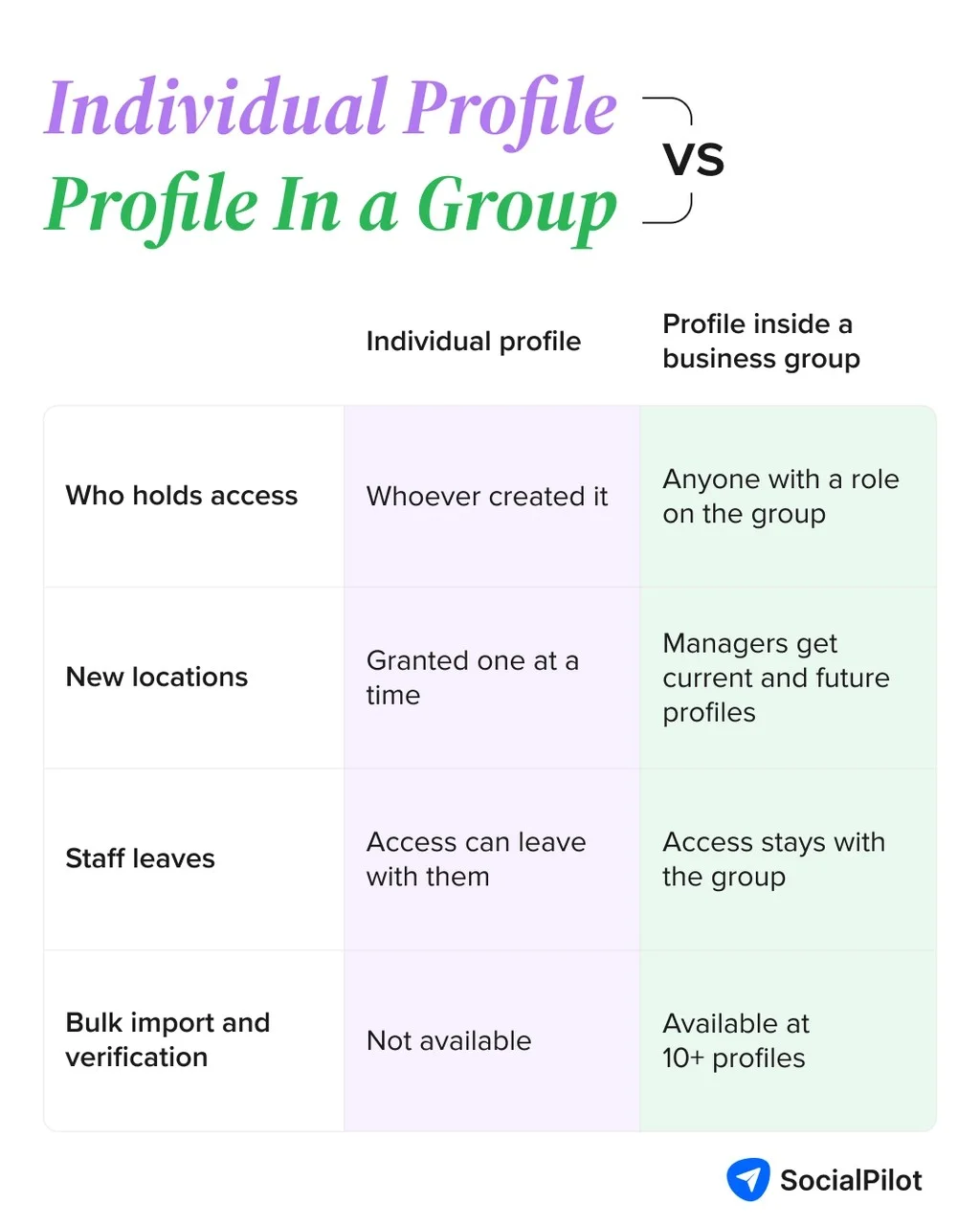
Note: If you manage locations for clients rather than branches of your own business, Google offers agency business groups for that case.
Bulk Verification for 10+ Locations
At ten locations, bulk verification becomes available. The eligibility rules are specific, and getting one wrong turns a planned bulk verification into a rejection. Here’s what Google’s bulk verification documentation says about these rules:
| Rule | Google’s wording |
| Minimum | Your spreadsheet has 10 or more profiles from the same business. |
| Same business only | Agencies with more than one business in one account can’t bulk verify. |
| What doesn’t count | Duplicate, suspended, or disabled profiles don’t count towards the 10 Business Profile minimum. |
| Ongoing obligation | To keep Google Maps data sources correct, we may de-verify accounts that don’t actively manage their profiles. |
Two of these catch people out. The first is the same-business rule, which means an agency managing ten different clients in one account does not qualify, no matter how many profiles it holds.
The second is that last row, which almost nobody mentions. Bulk verification is not a hurdle you clear once. Stop actively managing your profiles and Google reserves the right to take that verification away.
Building a Master NAP Record Before You Start
Before you upload anything, build one spreadsheet holding the correct, approved details for every location.
Business name, full address in a single consistent format, local phone number, hours, categories, and a unique store code per location.
This becomes the record everything else is checked against. Without it, bulk editing just distributes whatever errors you already had, faster.
One exception worth knowing if you run hotels. Google’s Hotel Business Profile Setup Documentation states plainly that “you can’t update hotel attributes through the spreadsheet upload,” and directs you to use the API and dashboard instead.
Once your locations are set up properly, the next challenge is keeping them accurate and consistent as you add more. That’s where ongoing listing management comes in.
Keeping Every Listing Accurate and Consistent at Scale
Keeping business listings accurate and consistent across platforms helps customers find reliable information and builds trust. A streamlined approach makes it easier to manage updates efficiently, even as your business scales.
Bulk-Editing Without Losing Local Nuance
Bulk editing is for the things that genuinely should be identical across locations. Business name, category, brand description, service definitions.
It is not for the things that should differ. Hours vary by branch. Photos should show that branch. Manager responses should sound like a person at that location, not head office. If you bulk-edit those, every location becomes a copy and Google gets less reason to distinguish them.
Tip: As a rule of thumb, bulk-edit what identifies the business, hand-edit what identifies the location.
Avoiding Duplicate Listings
Duplicates happen mostly through the ordinary chaos of a growing business. A location moves and someone creates a new profile instead of updating the old one.
A branch manager claims a listing that already existed. An old profile from a closed site never gets removed.
Find them by searching your business name plus each city on Google Maps, including former addresses and old trading names. Where you find a duplicate, consolidate to the profile with the most reviews and history rather than the newest one.
Duplicate listings do two things to you at once. They do not count toward your ten-profile bulk verification minimum, and they are one of the more commonly reported causes of suspension. A duplicate you have not noticed is a risk you are already carrying.
Auditing Listings on a Regular Cadence
Set a schedule and keep it. Quarterly is reasonable for more than ten locations, plus an immediate check whenever a location moves, changes number, or rebrands.
There is a second reason to keep this cadence beyond accuracy. Google’s own wording is that it may de-verify accounts that do not actively manage their profiles.
Regular auditing is not only how you catch errors. It is also the evidence that you are still an active manager of the profiles.
Getting your listings set up correctly and keeping them consistent takes care of a lot of the day-to-day problems. But multi-location businesses also have to watch out for issues that can affect a listing’s visibility or status. That brings us to suspension and other multi-location risks.
Avoiding Suspension and Other Multi-Location Risks
If one of your locations has just gone down on Google Business Profiles, start here. And before anything else, one thing worth saying plainly: a suspension is not proof you did something wrong.
Long-established businesses with hundreds of genuine reviews get suspended, and the notice rarely tells you why.
Common Suspension Triggers
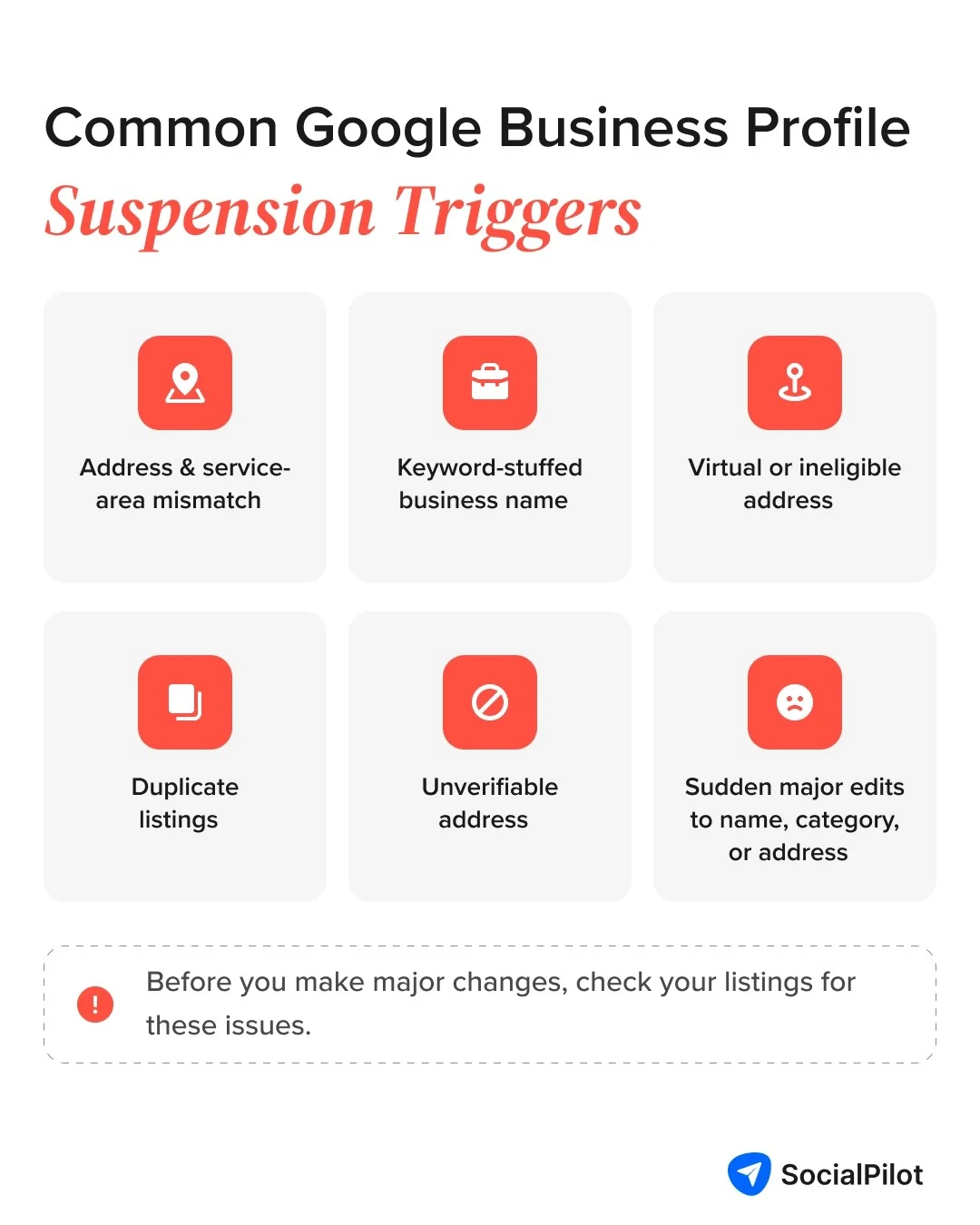
Google does not publish a definitive list of what exactly gets your listing taken down. The triggers below are drawn from its Business Profile Community guide, which is community-authored rather than official documentation, so treat them as strong signals rather than rules:
- A mismatch between your address settings and your service-area settings
- Keyword stuffing in the business name field
- Virtual offices, coworking addresses or P.O. boxes
- Duplicate listings for the same business
- Addresses Google cannot verify
- Sudden, significant edits to category, name or address
That last one deserves attention if you are mid-reorganization, because it is the trigger you are most likely to pull on purpose.
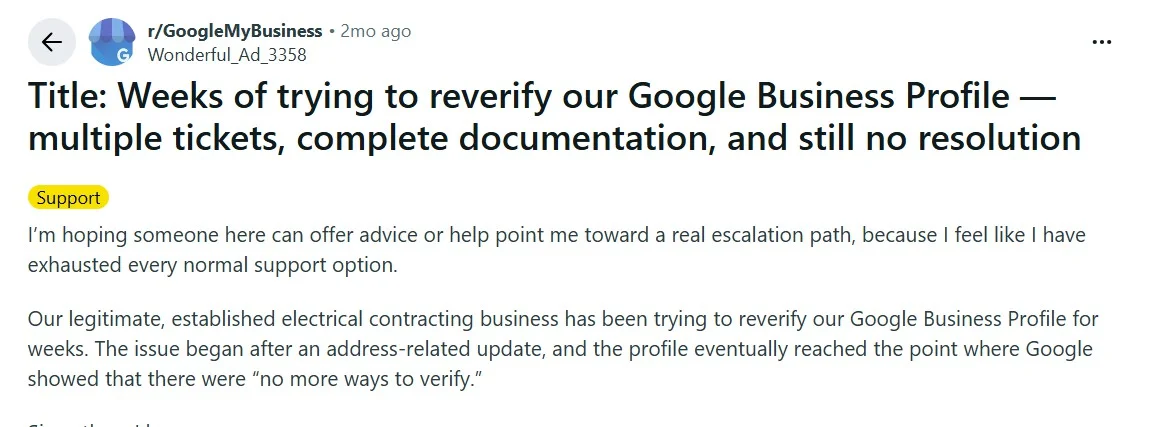
One operator described the pattern exactly on Reddit: the trouble started after an address-related update, and the profile eventually reached a state where Google reported there were “no more ways to verify” (r/GoogleMyBusiness).
If you are cleaning up many locations at once, stagger significant edits rather than pushing them all in a single afternoon.
What to Do If a Location Gets Suspended
Start by reading the suspension notice and checking the affected profile against the common triggers above. Here’s what a GBP suspension email typically looks like:
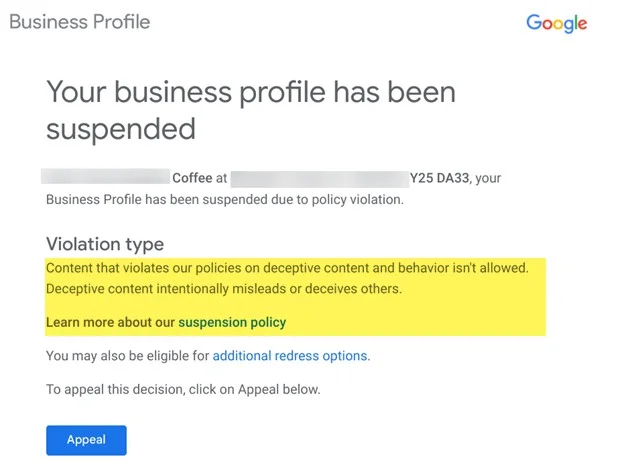
Source: Search Engine Journal
Fix the underlying issue before you appeal. Appealing without addressing the problem is unlikely to get the profile reinstated.
If you’re appealing more than 10 locations at once, Google allows you to submit a spreadsheet with the evidence and Business Profile ID for each profile. However, there’s an important detail to keep in mind: the appeal tool only shows the status of the profile you selected.
The other profiles may still be under review even if their status hasn’t changed in the tool. A couple of other important things mentioned in Google’s appeal documentation:
- Submit your evidence within 60 minutes. Once you open the evidence form, you have 60 minutes to complete and submit it.
- Don’t create a replacement profile while the appeal is under review. Creating another profile for the same business can create a duplicate and make the situation worse.
Google’s guidance suggests that appeal decisions can take a few business days, while re-reviews may take longer.
If you’re managing several suspended locations, expect the process to take some time and avoid submitting duplicate appeals simply because the status hasn’t changed yet.
The best way to deal with suspensions is to avoid them in the first place. Keeping your location data accurate, maintaining consistent information, and auditing your profiles regularly can catch many issues before they turn into a suspension.
Doing all of this manually can be taxing, especially when you are managing profiles at scale.
That’s where a listing and review management tool like SocialPilot Reviews can help you manage the day-to-day work from one place.
Once your locations are set up correctly, the work shifts to keeping them accurate and staying on top of what needs attention.
That can still be difficult when you’re managing dozens of listings, especially when information is scattered and different people are responsible for different locations.
This is where SocialPilot’s review management platform can help bring some of that work into one place.
Add your locations to the platform, connect the relevant Google Business Profile, and manage location details from the dashboard instead of updating each listing separately.
- Keep location details consistent: Update location information once and sync it with the connected Google Business Profile, instead of repeating the same changes across listings.
- Spot issues quickly: Location-level health cards show what’s synced and flag open issues, so you can see which locations need attention without checking each profile.
- Manage Google and Facebook listings: Connect Google Business Profile and Facebook Pages in one place. For Google, keeping the profile updated also keeps the information consistent across Search and Maps.
- Manage access by role: Give team members access based on what they need to manage, rather than having every location tied to one person’s Google account.
- Keep reviews in the same workflow: Manage review requests and responses across locations from the same dashboard, so listings and the reviews they receive don’t have to be managed separately.
Here’s how SocialPilot Reviews helps manage business listings on Google Business Profile and Facebook Pages at scale:
For businesses managing multiple locations, the main benefit is having fewer places to check and fewer repetitive tasks to keep up with. You still need to make sure the underlying business information is correct, but the day-to-day management becomes easier to keep track of.
Final Thoughts
Managing multiple Google Business Profiles gets harder as your business grows, but the problem usually isn’t the number of listings itself. It’s keeping all that information organized, making sure each location stays accurate, and knowing when something needs attention.
A good setup makes a big difference. Keep your locations organized, maintain a reliable record of business information, audit your listings regularly, and give the right people access.
Once that foundation is in place, managing dozens of locations becomes much easier to keep under control.
And if you want to reduce the manual work that comes with keeping listings and reviews up to date, a review and listing management software like SocialPilot Reviews can bring much of that work into one place.
SocialPilot Reviews’ pricing starts with a free tier for a single brand and $30/month for the Pro plan, which is designed for agencies and multi-location businesses.
Ultimately, the important thing is to have a process that works as your location count grows. Get the structure right, keep your information accurate, and make it easy to spot and fix issues before they become bigger problems.