
Primer paso
Add the SocialPilot connector
Add SocialPilot as a connector in Claude, ChatGPT, or any AI tool using mcp.socialpilot.co/mcp.
Equip your AI agents with the context and control to execute publishing inside SocialPilot,
keeping content moving as your operations grow.
Trusted by 15,000+ businesses and creators






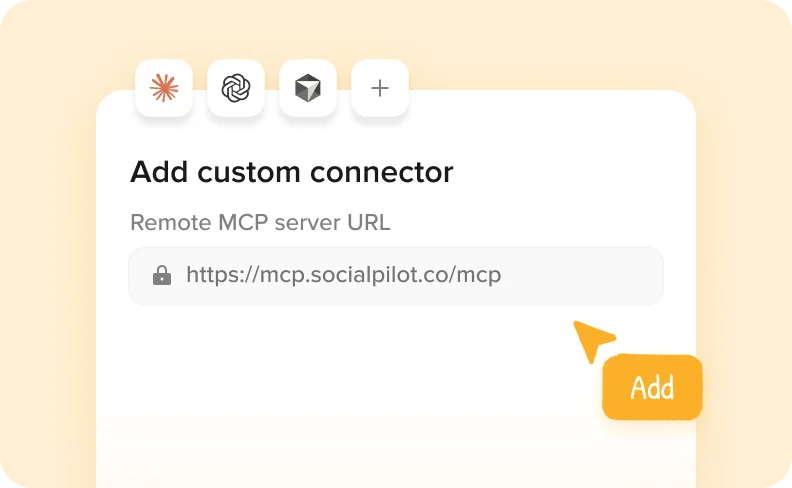
Primer paso
Add SocialPilot as a connector in Claude, ChatGPT, or any AI tool using mcp.socialpilot.co/mcp.
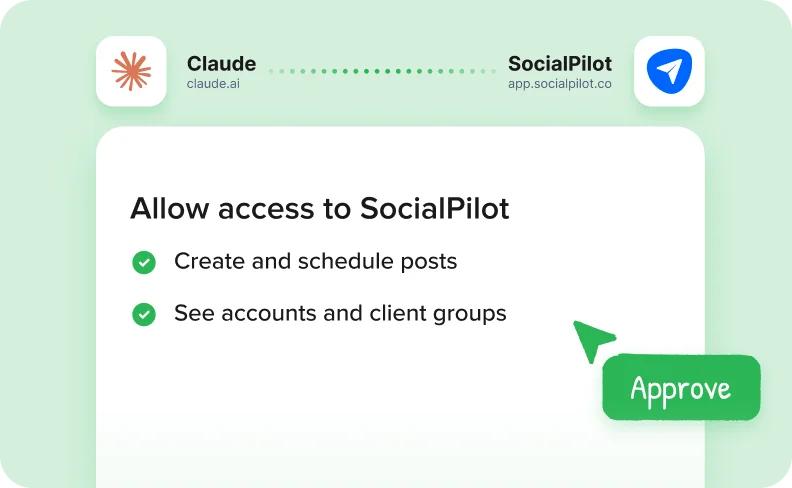
Paso 2
Log in with your SocialPilot account and approve access. Your AI tool is now connected.
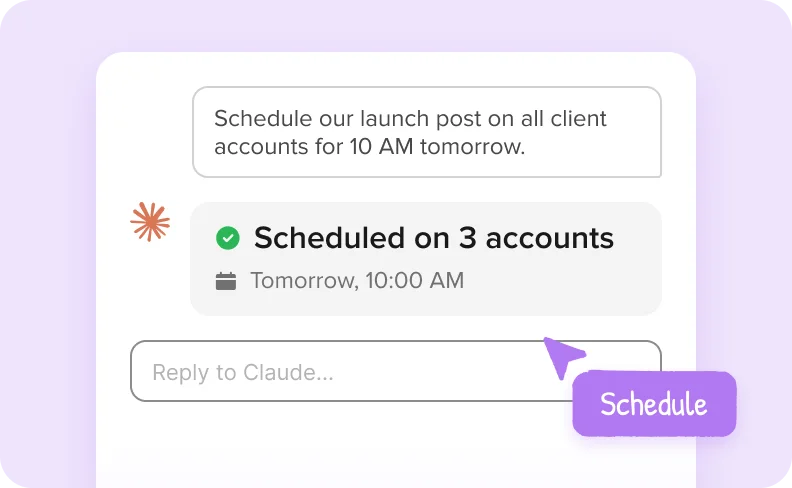
Paso 3
Create, schedule and review posts across all your accounts, right from your AI chat.


Connect Claude or any AI agent and turn it into an operator that creates, schedules, and manages posts across
every account while reducing manual work.

Cree y programe publicaciones directamente a través de AI en un solo flujo, eliminando los pasos manuales y acelerando el tiempo de publicación.
Give your AI agent complete access to accounts and client groups so every post is published in the right place.


Guarde las publicaciones como borradores cuando sea necesario revisarlas para mantener el control mientras avanza el flujo de trabajo de publicación.
Realice un seguimiento conjunto de las entradas en cola, publicadas y no programadas para saber en todo momento qué está ocurriendo sin cambiar de vista.


Detecte con antelación los mensajes no entregados u omitidos para poder resolver los problemas a tiempo y mantener su plan de publicación en marcha.
SocialPilot has emerged as the preferred social media management tool for more than 15000 customers.

Después de pasar 3 semanas comparando herramientas de programación de redes sociales, SocialPilot surgió como la mejor opción. mejor opción. Supera a Hootsuite y Buffer en valor, coste y excepcional atención al cliente. excepcional.


Jenna D.
Fundador y Explorador de la Comunidad | La vida en Düsseldorf

Alexis Armour
Modelo en Chantale Nadeau
El precio es insuperable y el servicio de atención al cliente es increíble cuando tienes problemas técnicos. problemas técnicos. He utilizado Hootsuite y SocialChamp y que no se acercan a a SocialPilot.

Robin A.
Propietario de la agencia | Birdhouse Marketing & Design
Recomiendo encarecidamente esta opción rentable. Supera a Hootsuite proporciona valiosos análisis para los clientes. Programar contenido es muy fácil, y la función de es útil.

Victoria Y.
Presidente fundador | Red Ball Consultants
Recomiendo encarecidamente esta plataforma. A diferencia de Hootsuite, puedo gestionar con confianza múltiples cuentas sin preocuparme por la facturación sorpresa. Las impresionantes estadísticas y análisis hacen que informar a los clientes sea pan comido.

Juan O.
Director de Marketing Digital | The Click Town

Nathan Gesner
Agente inmobiliario
SocialPilot tiene la gama completa de funciones que nuestra empresa necesita para lograr lo que queremos, de forma sencilla y eficaz. lo que queremos, de forma sencilla y eficaz. Por no hablar del importante ahorro de costes de costes.

Jaimie C.
Profesional del marketing
Con todas las redes sociales convenientemente gestionadas en un solo lugar, ayuda a optimizar nuestro tiempo, un aspecto crucial para nosotros. Las actualizaciones constantes con funcionalidades esenciales aumentan aún más su atractivo.

Bradford J.
Jefe de Gestión de Proyectos | DAS42
Cambiar a Social Pilot fue un cambio radical. Mi aplicación de programación anterior carecía de Instagram, lo que era un problema. Ahora, todas las plataformas que necesito están al alcance de mi mano con SocialPilot.

Penny W.
Escritora independiente | PennyWilliamsWriter

Catherine Coffey
Especialista en Marketing | Cahaba Medical Care
No puedo dejar de recomendar SocialPilot. Su interfaz de usuario es una verdadera joya - sorprendentemente sencilla e intuitiva. Es una solución barata sin comprometer la calidad o la funcionalidad. calidad o funcionalidad.

Heather W.
Director de Marketing, Distribución y Diseño | Greenphire
Altamente recomendado en G2

Guides and ready-to-run AI workflows to help your agency plan, approve, and publish faster.

How Agencies Use Claude for Competitor Monitoring to Find and Act on Content Gaps
 Monika Ahuja
A step-by-step workflow for agencies to pull competitor posts with Apify MCP, identify content…
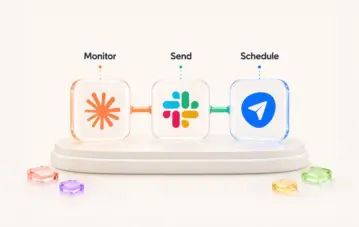
Using Claude to Monitor Industry Trends, Send Ideas to Slack, and Schedule the Best Ones
 Aakanksha Sharma
A five-tool Claude MCP workflow for agencies. Research trends with Brave Search and Reddit,…
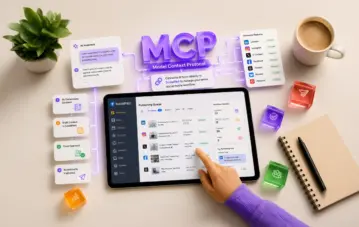
¿Qué es un conector MCP para la programación de redes sociales?
Monika AhujaMCP conecta su herramienta de IA directamente con SocialPilot para que pueda programar, redactar y...
SocialPilot MCP Server connects AI assistants like Claude and ChatGPT to your SocialPilot account. Once connected, you can ask your assistant to create and schedule posts, save drafts, or check publishing status directly from your conversation.
MCP stands for Model Context Protocol, the standard that makes this connection possible.
You can create and schedule posts across connected accounts, save drafts for review, and check scheduled, published, or failed posts.
For example, ask: “Schedule this post on my LinkedIn and Facebook pages for Thursday at 10 AM.” Your assistant can schedule it in SocialPilot directly.
You can also ask what’s scheduled for the week or which posts failed to publish.
You don’t need coding knowledge to connect through Claude or ChatGPT.
In Claude, add the SocialPilot MCP connection and sign in to your SocialPilot account. For ChatGPT’s custom MCP setup, you’ll also need to enable Developer Mode. Access depends on your ChatGPT plan and workspace settings.
Follow the setup guide for Claude or ChatGPT for the full steps.
It’s super simple and most people are up and running in a few minutes.
You can connect Claude (both the app and Claude Code), ChatGPT, Cursor, Windsurf, Zapier, and other AI tools that support MCP too.
Each tool has its own requirements. For example, ChatGPT would need a paid plan that supports connectors.
It's included on every plan, so it's already part of your subscription. Start using it today!
Yes. Ask your AI assistant to save posts as drafts instead of publishing or scheduling them. You can then review the drafts in SocialPilot before publishing.
When requesting publishing or scheduling, specify the accounts, content, and timing you want.
It only posts when you ask it to. If you say "publish this now," it will, so it helps to be as clear as you would be with a teammate.
If you'd rather see everything before it goes live, ask it to save your posts as drafts. They'll wait in SocialPilot until you've had a look and you're happy with them.
Your AI assistant can only access the accounts and perform the actions allowed by your SocialPilot role.
For example, if you have access to five client accounts, your assistant can work with those five. If a teammate has access to two, their assistant can work with those two.
Connecting an AI tool doesn’t give it additional SocialPilot permissions.
Yes. You can ask your AI assistant to create or schedule posts across multiple accounts, including accounts within your existing SocialPilot groups.
It understands the groups you've already set up, so a request like "post this to my Retail group" works the way you'd expect.
You can also ask to see the posts queued for a specific client.
You can create and schedule posts for connected social accounts supported by SocialPilot MCP Server, subject to each network’s publishing requirements.
Google Business Profile Event and Offer posts can’t be created or scheduled through MCP. Use Create Post in SocialPilot for these post types.
Yes, it can. Ask "Did any of my posts fail this week?" and it will retrieve the list from SocialPilot.
It can also find posts that missed their scheduled time, and open any post so you can see exactly what went out and where.
You can connect Claude, ChatGPT, and Zapier by signing in to your SocialPilot account, without an API key.
API keys are also supported for tools such as Cursor and Windsurf, and for custom setups. Follow your tool’s setup guide to choose the appropriate connection method.
To find your API key, click your profile icon in SocialPilot, select Security, and locate the API Key section. If you replace your key, update it in any tools using that key.
Your AI assistant can only reach the accounts and posts you already have access to in SocialPilot, and you can disconnect it whenever you like.
How your conversations are stored and used is decided by the AI tool itself, based on your plan and settings with them.
Check your provider’s privacy policy and data controls to understand whether that information may be used for model training.
You can remove it from your AI tool's settings at any time. In Claude, look under Connectors, and in ChatGPT, look under Apps.
Removing the connection doesn’t delete your posts or drafts, or cancel posts already scheduled in SocialPilot.
Your connection may have expired or need authorization again. Changes to your SocialPilot password, permissions, or authentication settings can also require a fresh sign-in.
Reconnect from your AI tool’s settings and sign in again.
If you use an API key and have replaced it, update the key in your connection settings.
Start by creating a draft: “Write a LinkedIn post announcing a weekend offer of 20% off all pastries and save it as a draft for my bakery client, Brew & Bean.” and see what comes back.
Replace the business name and offer with your own details. Open SocialPilot and you'll find the draft waiting for you.
Once that feels natural, try planning a whole week of posts in a single conversation.

Obtenga ideas de contenido únicas y específicas para cada plataforma para mantener su calendario lleno.