
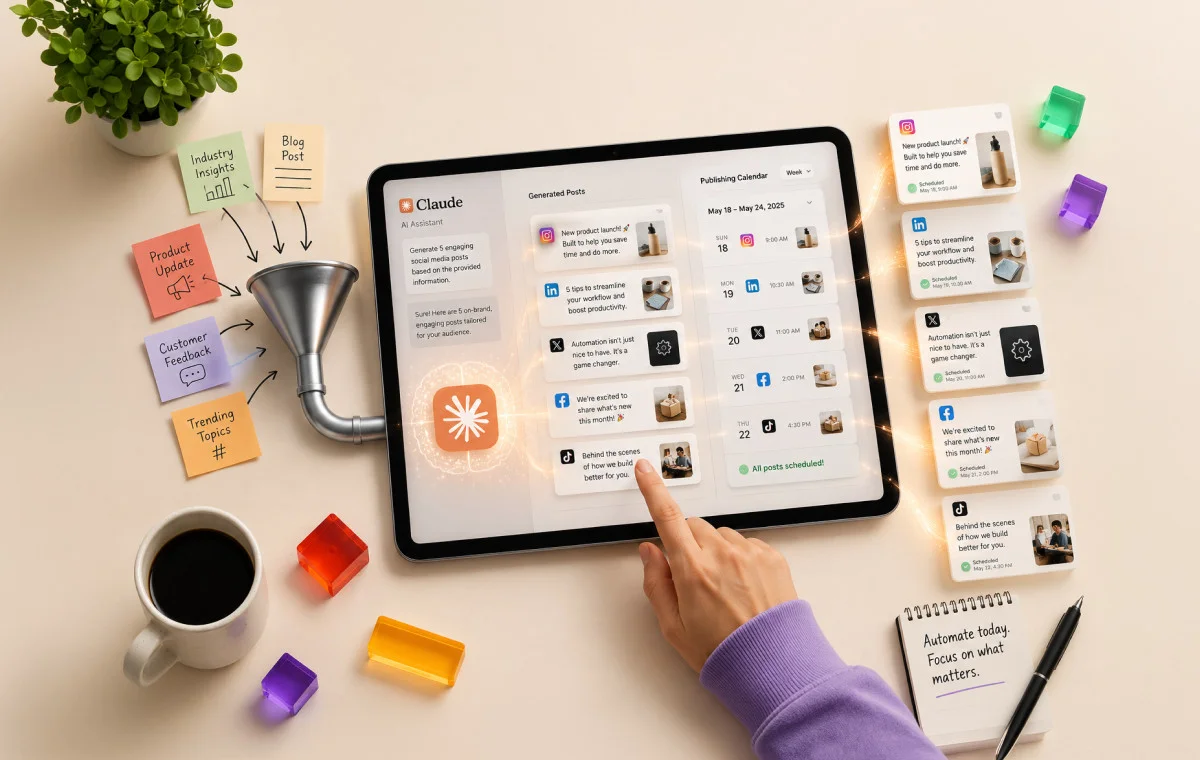
Imagine managing 10 active client accounts, each requiring content for four platforms in a single week. This involves research, captions, visuals, content calendars, scheduled posts, and performance reports for every client. Social media managers often juggle multiple tools, including AI writing platforms, scheduling dashboards, design software, spreadsheets, and client approval emails.
Managers often serve as intermediaries between disconnected systems. Most agencies rely on six separate AI tools for research, content creation, planning, batching, scheduling, and analytics.
But what has changed now in 2026 is that Claude can handle this entire workflow end-to-end, without you switching between the tabs. This has been made possible with MCP connectors. Connect Claude to your preferred tools using MCP, store workflow instructions in a Skill, and attach a Scheduled Task or Routine to automate each stage.
This article provides a step-by-step guide to building this workflow.
When agencies first used Claude for social media, it worked as a significantly better writing tool. You prompted it, received a caption or post draft, copied it into your scheduler, and re-explained your brand voice at the start of every new session. That was the Chat mode.
Today, Claude can be operated in three distinct ways. Below, we outline each approach:
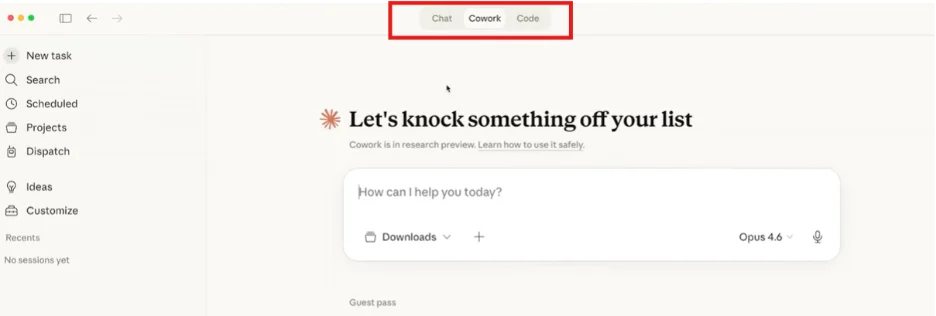
1. Claude Chat
Most agencies began here: you open a session, enter a prompt, receive a caption or post draft, and copy it into your scheduler. While this accelerates content writing, the surrounding workflow remains manual.
In Claude Chats, brand voice must be re-explained at the start of each session due to the lack of persistent memory. The AI generates content, but you manage all handoffs, including formatting, visuals, scheduling, and approvals. While it can improve your content speed, it will not resolve the multi-stage workflow challenge.
2. Claude Cowork
This next step does not require a terminal or configuration files. You connect your tools through the connectors interface, designate your working folder, and use Scheduled Tasks to assign a Skill to a specific time and frequency.
Claude executes tasks on schedule using your connected tools and delivers output to your designated folder. Brand voice is stored in the Skill, so you only need to define it once. The Claude Desktop app must be open on your machine when a task runs.
3. Claude Code
This option is ideal for agencies seeking a fully cloud-automated pipeline. It provides full file system access, MCP connectors configured via a setup file, CLAUDE.md documents that store brand voice and content rules per client folder, and Routines that run on Anthropic’s cloud infrastructure on a set schedule.
Work continues even if your laptop is closed. For agencies managing multiple clients, this approach eliminates the need for manual intervention.
The Three Things That Power Every Stage
Each automated stage in your social media workflow relies on three components: an MCP connector, a Skill, and a trigger.
MCP Connectors
An MCP (Model Context Protocol) connector links Claude directly to external tools via their APIs. For example, when connected to SocialPilot through its MCP, Claude can interact with SocialPilot without manual copying or pasting.
Claude writes and schedules content within the same pipeline. The connector specifies data sources and output destinations, removing manual handoffs.
The connectors that matter for social media management are:
- SocialPilot for scheduling, drafting and analytics
- Apify for pulling research and trends
- Canva for design
- Notion to store content calendar
- Descript for extracting audio/video transcripts
- Google Drive for files and briefs
Skills
A Skill is a saved instruction set that directs Claude at each stage. It includes the client’s niche, brand voice, platform rules, preferred formats, and examples of strong output. Build it once after manually completing the workflow. Claude will then understand the requirements for every run, removing the need to re-brief or re-explain brand voice.
In Claude Code, this context is stored in a CLAUDE.md file within each client project folder. In Cowork, it is a saved Skill attached to your project. In both cases, Claude starts every run with complete knowledge of the client and the task.
The Triggers: Scheduled Tasks and Routines
These components convert a one-time prompt into an automated process that runs without your intervention.
On Cowork, a Scheduled Task assigns a Skill to a specific time and frequency. Claude runs on schedule using your connected MCP connectors and delivers the output to your designated folder.
On Claude Code, a Routine performs the same function but runs on Anthropic’s cloud infrastructure. The session runs whether your laptop is open or closed.
Without these triggers, Skills and MCPs require manual activation. With triggers, the pipeline operates automatically.
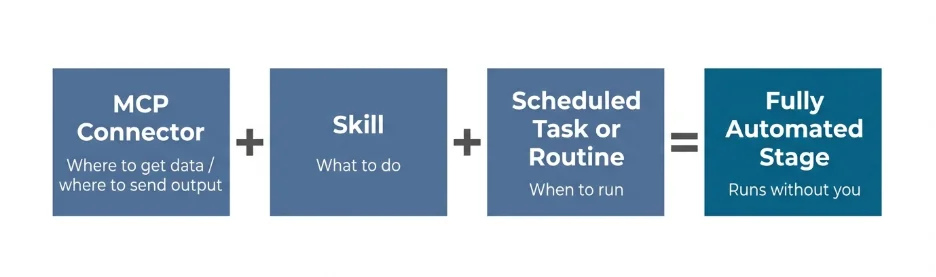
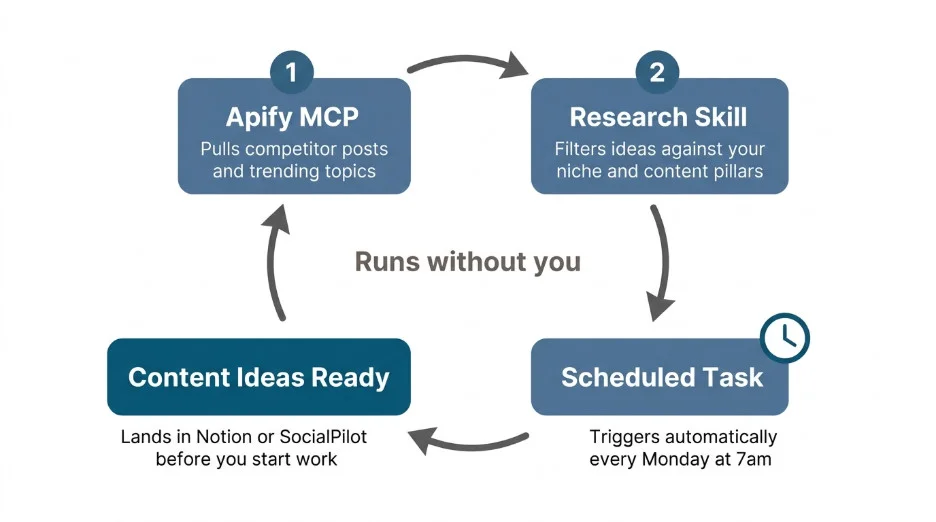
Simply put, the Apify MCP retrieves competitor posts and trending topics each morning. The Research Skill understands your client’s niche, content pillars, and criteria for strong ideas. The Scheduled Task runs at 7am on Mondays, placing new content ideas in your Notion calendar or SocialPilot drafts before your workday begins. No manual initiation is required.
Setting Up Claude Cowork for Your Agency with MCPs and Skills
Step 1: Download the Claude Desktop App
Start by downloading the Claude Desktop app from claude.ai and signing in with your account. Cowork runs through the Desktop app – you need it installed on your machine for Scheduled Tasks to run. Once installed, open it and look for the Cowork option in the navigation.
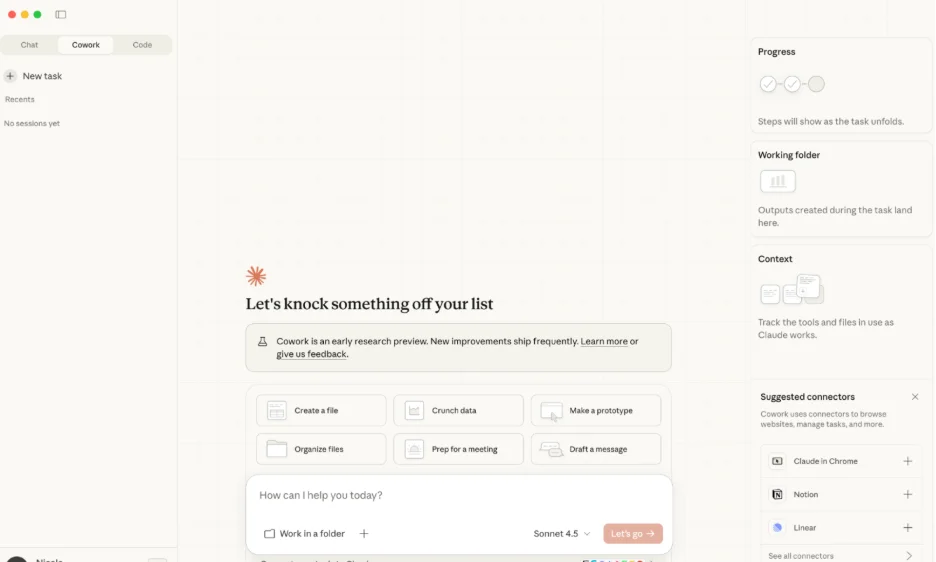
Step 2: Create Your Agency Workspace
When you first open Cowork, you will be prompted to set up a working folder. This is the folder on your computer where Claude will read from and write to – briefs, drafts, reports, and calendars will all land here.
Create a main agency folder and inside it, create one subfolder per client:
/agency/
/acme-corp/
/brand-two/
/brand-three/
This matters because Claude works within the folder you point it at. Keeping clients in separate subfolders ensures their content, briefs, and reports never get mixed up.
Step 3: Connect Your MCP Connectors
This is where you link Claude to the tools it will use to do the work. In Cowork, go to the connectors section and search for each tool by name, like SocialPilot, Canva, Apify, Notion, and Descript, and connect them one by one.
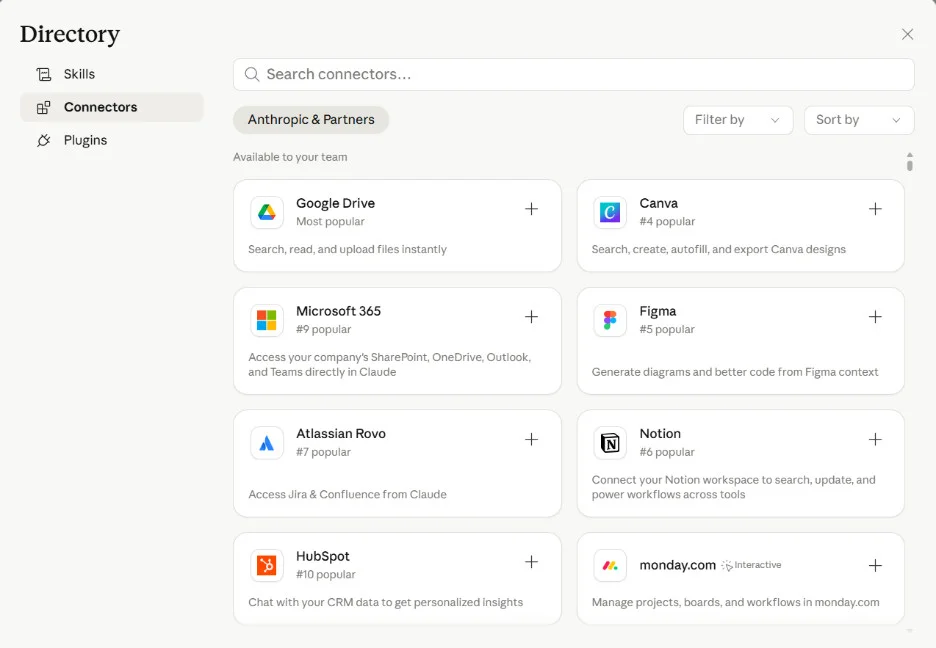
Here is what each one of these connectors does for your agency and why it matters:
| Connector | What it does |
| SocialPilot | Receives all finished content as drafts, handles scheduling, and pulls performance data for reports |
| Apify | Pulls competitor posts, trending topics, and content ideas automatically every week |
| Canva | Generates visuals alongside copy in the same pipeline using your saved templates |
| Notion | Stores and organizes monthly content calendars in a format your team can access and share |
| Descript | Extracts transcripts from podcasts and videos so Claude can turn them into social posts |
| Google Drive | Connects your existing brand assets, briefs, and guidelines so Claude can read and write from them |
Read this guide to learn more about what an MCP Connector is and how to use it for social media scheduling.
Also read about : Using Claude to Monitor Social Media Trends and Schedule Posts
Step 4: Run Your First Workflow Manually
Before building any automation, run through each stage manually for one client. Pick your simplest client and do the following in order:
- Ask Claude to research content ideas for that client using the Apify connector.
- Ask Claude to write posts from one of those ideas using the client’s brand voice.
- Ask Claude to generate a visual via Canva for one of those posts.
- Push the draft to SocialPilot.
Running through the workflow manually is what gives you the material to build Skills from. You will see exactly what good output looks like for this client, which is what goes into the Skill.
Step 5: Build Your Skills
After running through the workflow manually, ask Claude to turn that session into a reusable Skill. Say something like:
Say something like:
“Based on everything we just did for Acme Corp, create a Research Skill that stores their niche, content pillars, and the type of ideas that performed well. Save it as /research-acme-corp.”
Do this for each stage and each client. The Skills you need to build are:
- Research Skill – niche, content pillars, what a good idea looks like for this client
- Content Creator Skill – brand voice, platform rules, post length, tone, examples of strong posts
- Visual Content Skill – Canva template preferences, graphic formats per platform, visual style
- Analytics Digest Skill – report format, recurring questions to answer, and how to frame recommendations.
From that point, the Skill appears as a blue clickable command in your Cowork interface. Invoking it requires only a short prompt – a skill, a topic, and the client’s name, because everything else is already stored inside it.
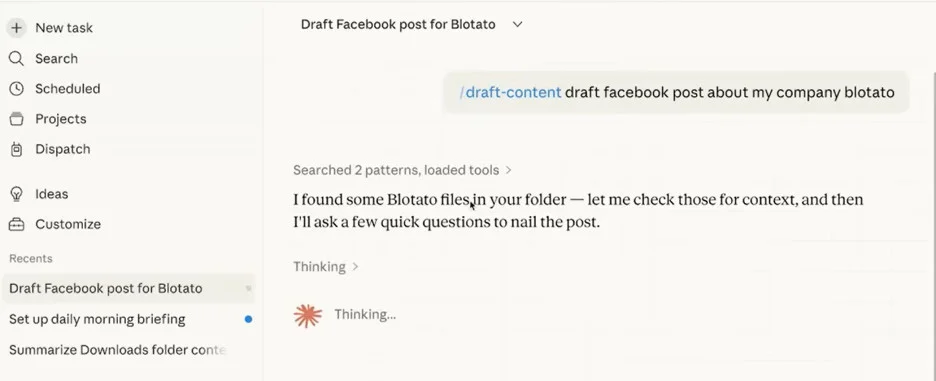
Note: Make sure to build each Skill after running that stage manually, not before, or else you will not know what to put in it until you have seen the output.
Step 6: Set Up Your Scheduled Tasks
Once a Skill is built, attach it to a Scheduled Task, so the stage runs automatically. Go to the Scheduled Tasks panel in Cowork and for each task:
- Select the Skill to run.
- Select the connectors it needs
- Set the frequency and time.
Once done, this is how your panel will appear.
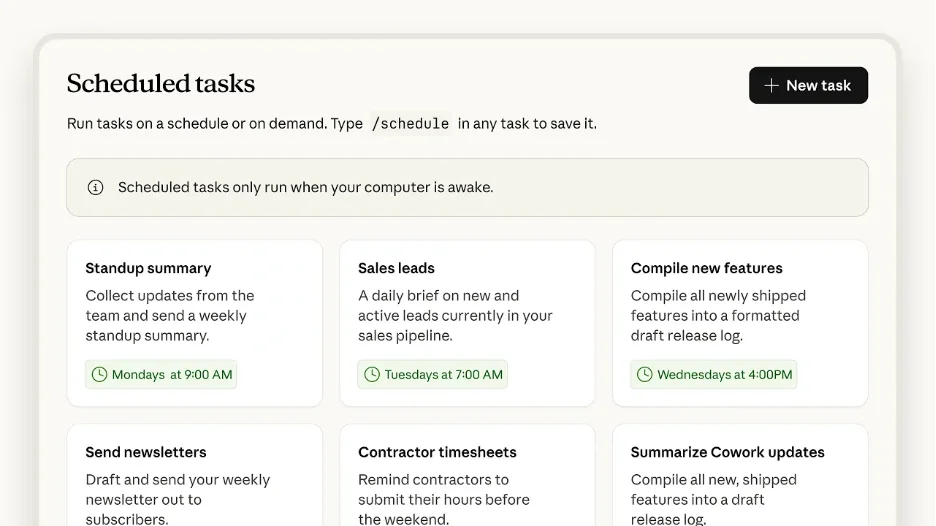
The tasks to set up for each client:
| Task | Skill | Connectors | Schedule |
| Weekly research brief | Research Skill | Apify + SocialPilot | Every Monday |
| Monthly content calendar | Calendar Skill | Notion + SocialPilot | 1st of each month |
| Friday analytics report | Analytics Digest Skill | SocialPilot | Every Friday |
Content creation and batching do not get Scheduled Tasks – those are triggered manually when you have a source or a brief folder ready.
Important: The Claude Desktop app must be open on your machine when a Scheduled Task triggers. If the app is closed, the task will not run. For fully unattended automation, that requires Claude Code with Routines instead.
Step 7: Repeat for Each Client
Once the first client is set up and running, the second client follows the same structure. Create the subfolder, build the Skills for that client’s brand voice and content rules, and attach the same Scheduled Task structure. The connectors are already in place – so this time you only need to build the client-specific Skills.
Setting Up Claude Code for Your Agency with MCPs and Skills
Step 1: Access Claude Code
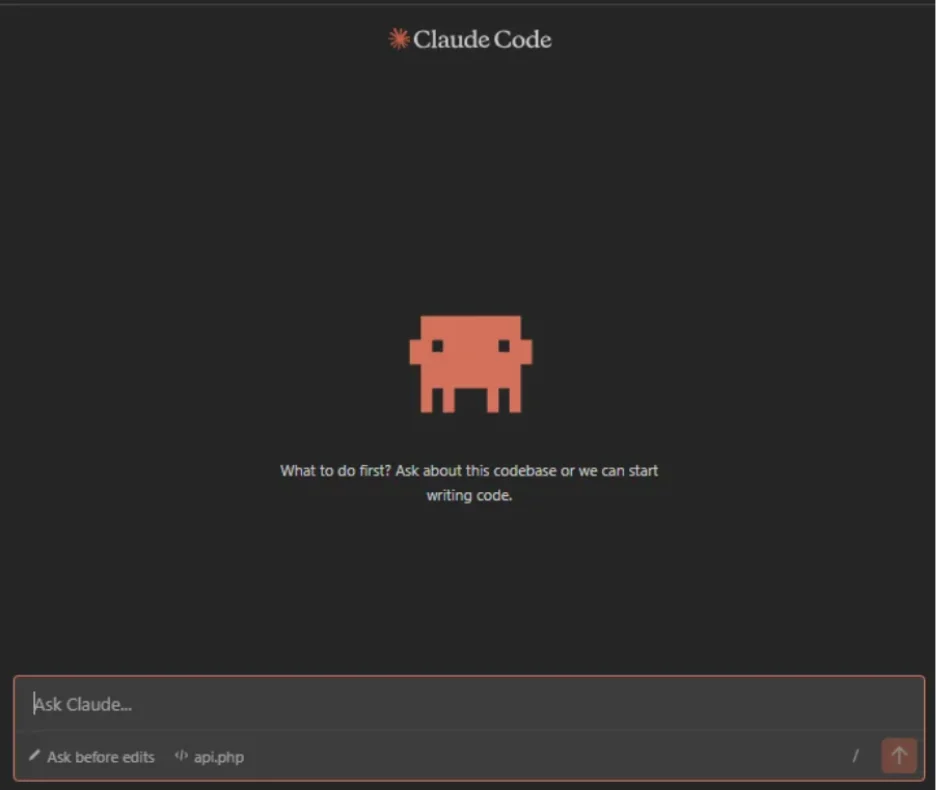
Go to claude.ai/code and sign in with your subscription. Claude Code works directly in your browser — you do not need to install anything to get started. You will see a clean interface where you can start sessions, manage your projects, and eventually set up Routines.
Step 2: Create Your Agency Folder Structure
Just like Cowork, here too, you must create one folder per client. Each folder becomes a completely separate workspace for that client, and this folder contains all client-related files that Claude reads only when working on that client.
/agency/
/acme-corp/
/brand-two/
/brand-three/
Step 3: Write a CLAUDE.md File for Each Client
Inside each client folder, create a plain text file called CLAUDE.md. This is the file Claude reads automatically at the start of every session for that client. Think of it as a one-page brief that tells Claude everything it needs to know before it starts working.
Keep it focused and under 60 lines. Include:
- Client name and what they do
- Brand voice in plain language
- Which platforms you post to
- Content pillars – 3 to 5 topics they post about
- Posting frequency per platform
- Who their audience is
- Any hard rules – topics to avoid, tone to stay away from, competitor names not to mention
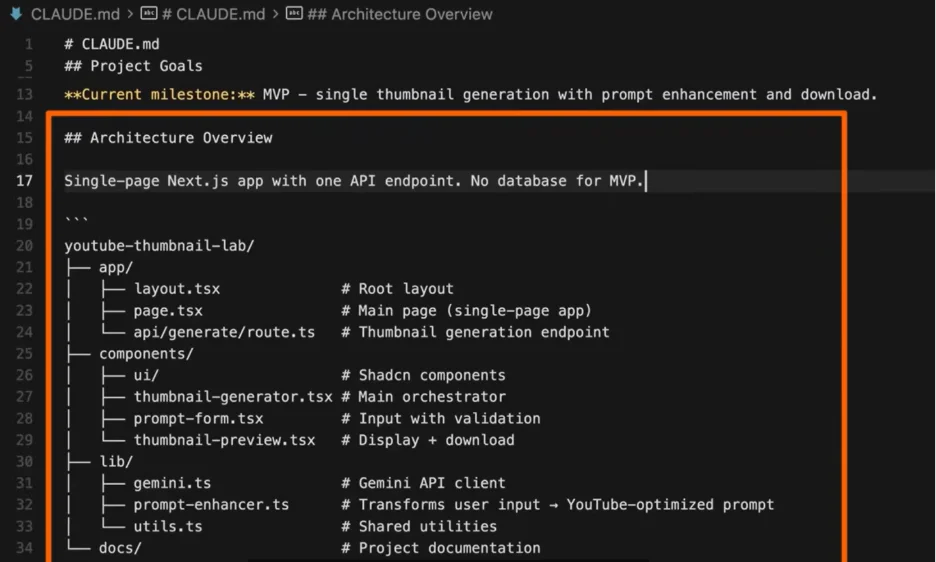
You do not need to write a perfect CLAUDE.md on day one. Start with what you know and update it after your first few sessions, when you can see what Claude gets right and what it misses.
Step 4: Connect GitHub
When a Routine runs on Anthropic’s cloud overnight, while your laptop is closed, it needs to access your CLAUDE.md and Skill files to know what to do for each client. Those files are currently sitting on your computer. Anthropic’s cloud cannot reach your computer.
GitHub solves this. GitHub stores your client folders in a private cloud repository that Claude Code can access from anywhere.
To set this up:
- Create a free GitHub account at github.com if you do not have one.
- Create a private repository called something like “agency-claude-setup.”
- Upload your client folders to that repository.
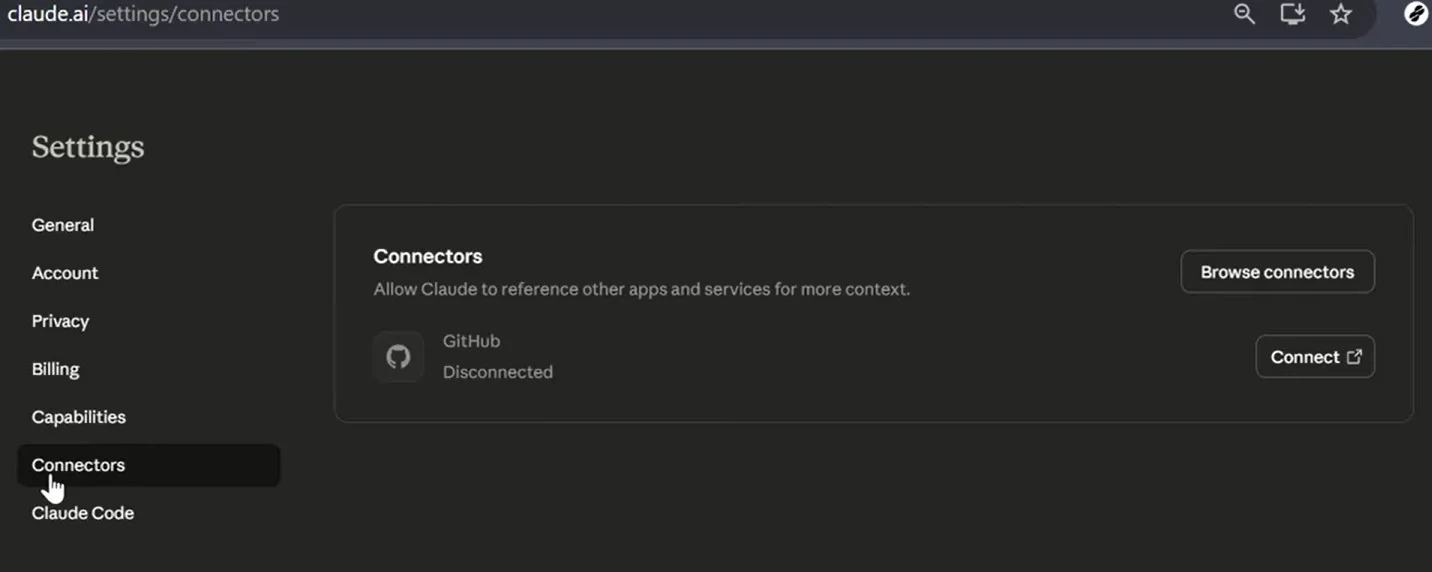
- Connect the repository to Claude Code by going to settings, connectors and then GitHub. This is an important step when setting up your Routines.
You do not need to understand how GitHub works technically. Think of it as a secure cloud folder that keeps your client setup files accessible to Claude at all times, even when your machine is off.
Step 5: Connect Your MCPs via the .mcp.json config file.
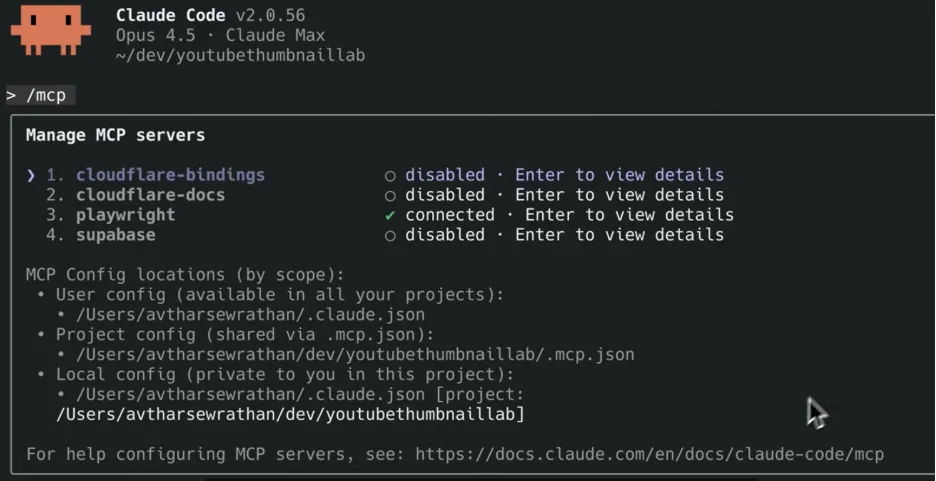
Inside each client folder, create a file called .mcp.json. This is a simple list that tells Claude which tools are allowed to be used for that client. You add each connectors like SocialPilot, Apify, Canva, Notion, Descript, and Google Drive, and these connectors activate for that particular folder.
Keeping this at the project level means each client folder only connects the tools it actually uses.
Step 6: Create Your Skills Folder
Inside each client folder, create a subfolder called skills, where you store skill files. These are plain-text markdown files that carry stage-specific instructions for Claude.
Each skill file covers one job: research, content creation, visual content, or analytics reporting. Claude reads these files automatically when the context matches, without you having to re-explain anything.
Build skills like research.md, content-creator.md, visual-content.md, and analytics-digest.md.
Do not write these files from scratch. Run through each workflow stage manually first and ask Claude to do the research, create content, build a calendar, and then ask it to turn that session into a skill file.
After each session, you can also ask Claude to update the CLAUDE.md file based on the major milestones or any additions you made to the project.

Step 7: Set Up Your Routines
Go to claude.ai/code/routines. For each Routine, set the prompt, connect the relevant MCPs, select the client repository from GitHub, and set the schedule.
This is how Routines appear in Claude Code.
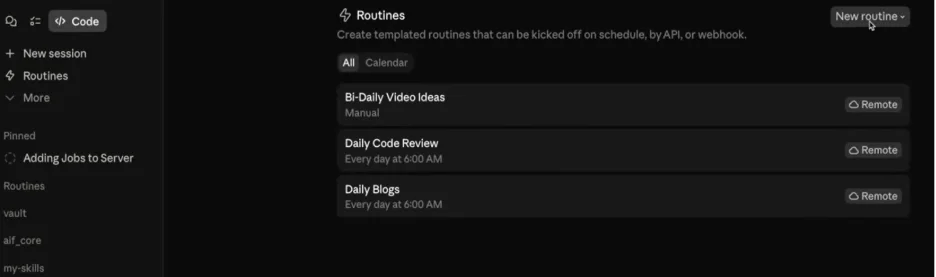
The three Routines to configure per client are the same as Cowork — weekly research on Monday, monthly calendar on the 1st, and Friday analytics report. Content creation and batching are triggered manually, not by a Routine.
Step 8: Repeat for Each Client
The folder structure, CLAUDE.md, skills, and Routine setup is identical for every client – only the client-specific content changes. Once your first client is running, duplicate the folder, update the CLAUDE.md and skill files for the new client, push to GitHub, and activate the Routines.
Once you have set up Claude Cowork or Code, this is what your agency workflow will look like:
Your Agency Workflow, Stage by Stage
The following sections will discuss what the agency workflows look like after the setup.
Each stage has a connector that handles the data, and a Skill that defines the job – once a Scheduled Task or Routine is attached, the stage runs without you having to trigger it.
Stage 1: Research
Powered by: Research Skill + Routine (Claude Code) or Scheduled Task (Cowork)
This stage is fully automatic. You configure it once, and it runs every Monday without you touching anything.
On Claude Code:
- Go to claude.ai/code/routines and create a new Routine.
- Set the prompt to call your Research Skill for the relevant client.
- Connect the Apify and SocialPilot MCPs and select the client repository.
- Set the schedule for Monday at your preferred time.
Every Monday, the Routine runs on Anthropic’s cloud and briefs land in SocialPilot drafts or Notion automatically, even if your laptop is not open.
On Cowork:
- Open the Scheduled Tasks panel and attach your Research Skill.
- Connect the Apify and Notion or SocialPilot connectors.
- Set the frequency to weekly on Monday.
When the task triggers, the Claude Desktop app must be open on your machine. The briefs land in your designated project folder automatically.
Do you need to type a prompt?
No, for the regular Monday run, the prompt is stored inside the Routine or Scheduled Task and fires without you. You only type a command if you need research outside the schedule, for example, a client brief due mid-week:
Prompts:
/research acme-corp week of May 12
Stage 2: Creating Posts and Visuals
Powered by: Content Creator Skill + Visual Content Skill (manual invocation)
This stage is input-triggered because the source changes every time. It could be a podcast episode, a blog post, or a topic from the research brief, so there is no fixed schedule to automate against. You provide the source and invoke the Skills.
On Claude Code:
Your CLAUDE.md already carries brand voice and platform rules. Your Content Creator and Visual Content Skills sit in the skills/ folder. Point Claude at the source and run the two commands. The Content Creator Skill writes platform-specific posts. The Visual Content Skill generates graphics via the Canva MCP. Drafts are pushed to SocialPilot automatically.
Prompts:
/create-content acme-corp source: podcast-ep-42 [URL]
/visual-content acme-corp source: podcast-ep-42 [URL]
On Cowork:
Open your project and invoke the Content Creator Skill and Visual Content Skill from the slash command interface. Provide the source URL or topic. Both Skills run and output posts and visuals to your project folder, with drafts saved to SocialPilot via the connector.
Do you need to type a prompt?
Yes, every time. The source is the variable that changes each run. The Skills handle everything else.
Stage 3: Building Content Calendars
Powered by: Calendar Skill + Routine (Claude Code) or Scheduled Task (Cowork)
This stage is automatic for standard monthly calendars. On the 1st of every month, the calendar for the coming month is built and saved without you initiating anything.
On Claude Code:
- Go to claude.ai/code/routines and create a new Routine.
- Connect the Notion and SocialPilot MCPs and point it at the client repository.
- Set the schedule to trigger on the 1st of each month.
- The Calendar Skill in the skills/ folder carries content pillars, posting frequency, and content mix.
On the 1st, the Routine builds next month’s full calendar, saves it to Notion, and creates draft batches in SocialPilot by platform and week. Each client outputs a separate CSV formatted for SocialPilot bulk upload.
On Cowork:
Set up a Scheduled Task using the Calendar Skill, connect Notion and SocialPilot, and set the monthly frequency. The Desktop app must be open when the task triggers. The calendar lands in your project folder, and drafts are created in SocialPilot.
Do you need to type a prompt?
Only if there is a campaign date or product launch to factor in that is not already stored in the Skill. Standard monthly calendars run without any input from you.
Prompts:
/build-calendar acme-corp june flag: product-launch June 10
Stage 4: Batching Content
Powered by: Content Creator Skill + Visual Content Skill (manual invocation)
This stage is input-triggered. You have a folder of briefs, and every piece needs to be processed – copy and visuals – and pushed to SocialPilot as a complete batch.
On Claude Code:
Point Claude at the briefs folder and run both Skill commands. The Content Creator Skill processes every brief in the folder, and the Visual Content Skill runs alongside it, pulling Canva templates and generating platform-matched graphics.
Completed copy and visuals are pushed to SocialPilot as drafts. Separate CSVs per client are output for SocialPilot bulk upload.
Prompts:
/create-content acme-corp briefs: /clients/acme/briefs/may-batch/
/visual-content acme-corp briefs: /clients/acme/briefs/may-batch/
On Cowork:
Drop the brief assets into your project folder. Invoke the Content Creator Skill and Visual Content Skill from the slash command interface and point both at the briefs folder. Both Skills processes every file and returns a copy and visuals as drafts saved to SocialPilot.
Do you need to type a prompt?
Yes, every time. The briefs folder is the variable. Both Skill commands are required.
Stage 5: Scheduling
Powered by: SocialPilot MCP, either as part of a Routine (no approval gate) or as a manual Skill invocation (with approval gate)
This stage has two paths, depending on whether your workflow requires client sign-off before posts go live.
On Claude Code: With a client approval gate:
Drafts created in Stage 2 or Stage 4 are sitting in SocialPilot awaiting review. Once the client signs off, you invoke the scheduling Skill. The posting schedule, times, platforms, account groups, etc., are already stored in the Skill. The SocialPilot MCP queues everything across all platforms automatically.
Prompts:
/schedule acme-corp week of May 19
On Cowork:
Invoke the scheduling Skill from the slash command interface, provide the week, and the SocialPilot connector handles the rest.
On Claude Code: Without a client approval gate:
Scheduling is the final step of the same Routine that runs research and content creation, so nothing needs to be manually invoked. Once the Routine completes content creation, the SocialPilot MCP schedules everything immediately as part of the same pipeline.
On Cowork:
It fires as part of the same Scheduled Task that created the content.
Do you need to type a prompt?
Only if your workflow has a client approval gate. If the pipeline runs without approval, no prompt is needed at any point in this stage.
Stage 6: Analytics
Powered by: Analytics Digest Skill + Routine (Claude Code) or Scheduled Task (Cowork)
This stage is fully automatic. Every Friday, the Routine pulls live performance data via the SocialPilot MCP, formats the report using the Analytics Digest Skill, and saves it to your folder.
On Claude Code:
- Go to claude.ai/code/routines and create a new Routine.
- Connect the SocialPilot MCP and point it at the client repository.
- Set the schedule to trigger every Friday at your preferred time.
The Analytics Digest Skill stores your report format, recurring questions, and how recommendations should be framed. The SocialPilot MCP pulls live performance data from SocialPilot advanced reports and creates a white-label report for every client.
On Cowork:
Set up a Scheduled Task using the Analytics Digest Skill, connect the SocialPilot connector, and set the frequency to weekly on Friday. The report lands in your project folder on schedule.
Do you need to type a prompt?
No, the Friday report runs without you. You only type a command if a client requests a report outside the regular schedule.
Prompts:
/analytics-digest acme-corp april
What You Can Build With This System
The six stages above combine into different workflows depending on your setup time and how much automation you want running month-on-month.
| Workflow | Setup time | Best for | Platform | What it does |
| Weekly Content Sprint | 30 minutes | Solo managers & small agencies | Cowork | To research, create posts and visuals, and schedule posts automatically every week. |
| Agency Client Batch | 2 hours | Agencies managing 3+ clients | Claude Code | It helps create a complete content batch for every client, save it for approval, and schedule it after approval with just one command |
| Monthly Hands-Off System | 90 minutes | Marketers who batch once and step back | Both | Helps build monthly content calendar, create content from it, then schedule it and generate performance report every month. |
| Content Flywheel | One-time | Businesses that publish blogs | Both | It helps turn every new blog post into platform-specific social content automatically – posts written, visuals created, and everything scheduled without any recurring input. |
The entire pipeline described above depends on one connector more than any other. SocialPilot is the output layer at the end of every stage. Research drops ideas into SocialPilot drafts. Creation pushes posts to SocialPilot for review. Scheduling runs through the SocialPilot MCP directly, and analytics pull from SocialPilot data without requiring an export. Every stage ultimately feeds into it, which is why connecting SocialPilot’s MCP first is the fastest path into this system.
SocialPilot’s MCP was built for agencies managing multiple accounts at scale. It gives Claude full access to your client roster and account groups before it takes any action, so it knows the entire operation. For agencies working across five or more clients, this is where you save hours between the writing and publishing steps.
SocialPilot’s Agency and Team plans are built around this use case, with client grouping, white-label reporting, and multi-user approval workflows included.


 Join 55,000+ social media managers


