

YouTube Studio already covers a lot for free: scheduling uploads, tracking performance, managing comments, basic editing, and even some AI-powered features. If you want to get more from it, here’s a complete guide to YouTube Studio.
But as your channel grows, you may need more than the basics, whether that’s publishing across multiple accounts, improving YouTube SEO, researching topics, editing videos, creating AI-powered footage or voiceovers, or running polished live streams.
The catch? No single tool does all of these jobs well. A scheduler won’t fix your SEO, and an AI video generator won’t replace a proper editor.
So instead of looking for one “best” YouTube tool, we grouped 15 options by the job they actually help you do. For each, you’ll find key features, current pricing, real user feedback, limitations, and who it’s best suited for.
Scheduling and Analytics Tools
These tools handle the day-to-day management of a YouTube channel: scheduling and publishing videos and Shorts, managing content across accounts, collaborating with teams, and tracking performance from one dashboard. This category covers SocialPilot, Sendible, and Zoho Social.
All three combine publishing and channel management with built-in analytics, so you can schedule content and monitor views, engagement, and audience growth without switching between tools. For deeper YouTube-specific insights, you can also use free options such as YouTube Analytics e Consola de pesquisa do Google alongside them.
The three below are compared on the features that matter most for channel management: supported accounts, YouTube video and Shorts publishing, scheduling, approvals, reporting, analytics, and team or client management.
| Caraterística | SocialPilot | Sendible | Zoho Social |
| Starts at | $30/mês | ~$35/mo | ~$15/mo |
| Profiles | 7 profiles | 6 profiles | 12+ profiles |
| YouTube video & Shorts |  |
|
(paid plans) |
| Agendamento em Massa |  (text & links) (text & links) |
|
|
| Client approvals | |
|
|
| White-label reports | |
|
(agency tiers) |
| Analytics & reporting | |
|
|
| Free option | Teste de 14 dias | Teste de 14 dias | 15-day trial |
Beyond scheduling and analytics, all three offer additional workflow features. SocialPilot and Sendible include AI caption and description assistance and basic image editing, while Sendible also integrates with Canva for easier content creation.
1. SocialPilot
The team-and-agency scheduler that manages YouTube alongside every other profile.
Coverage
- Multi accounts
- YouTube video & Shorts
- Agendamento em Massa
- Client approvals
- White-label reports
- Analítica
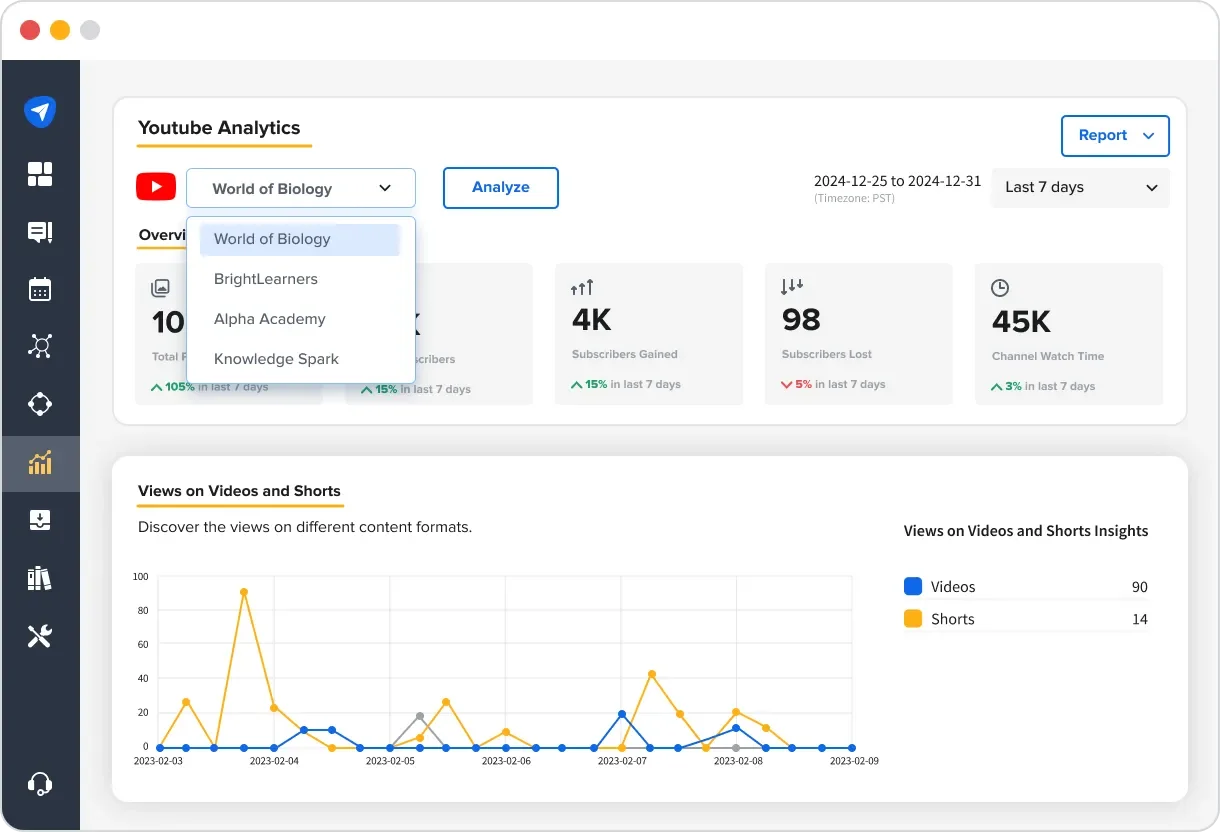
What it actually looks like: SocialPilot connects your YouTube channel alongside your other social profiles, letting you schedule videos and Shorts from one content calendar and track views, engagement, and audience growth from the same dashboard. Teams and agencies can organize accounts into separate client workspaces, use approval workflows, and create white-label reports. Its MCP feature also makes it easier to manage and interact with multiple social accounts through AI-powered workflows, extending SocialPilot beyond traditional scheduling and reporting.
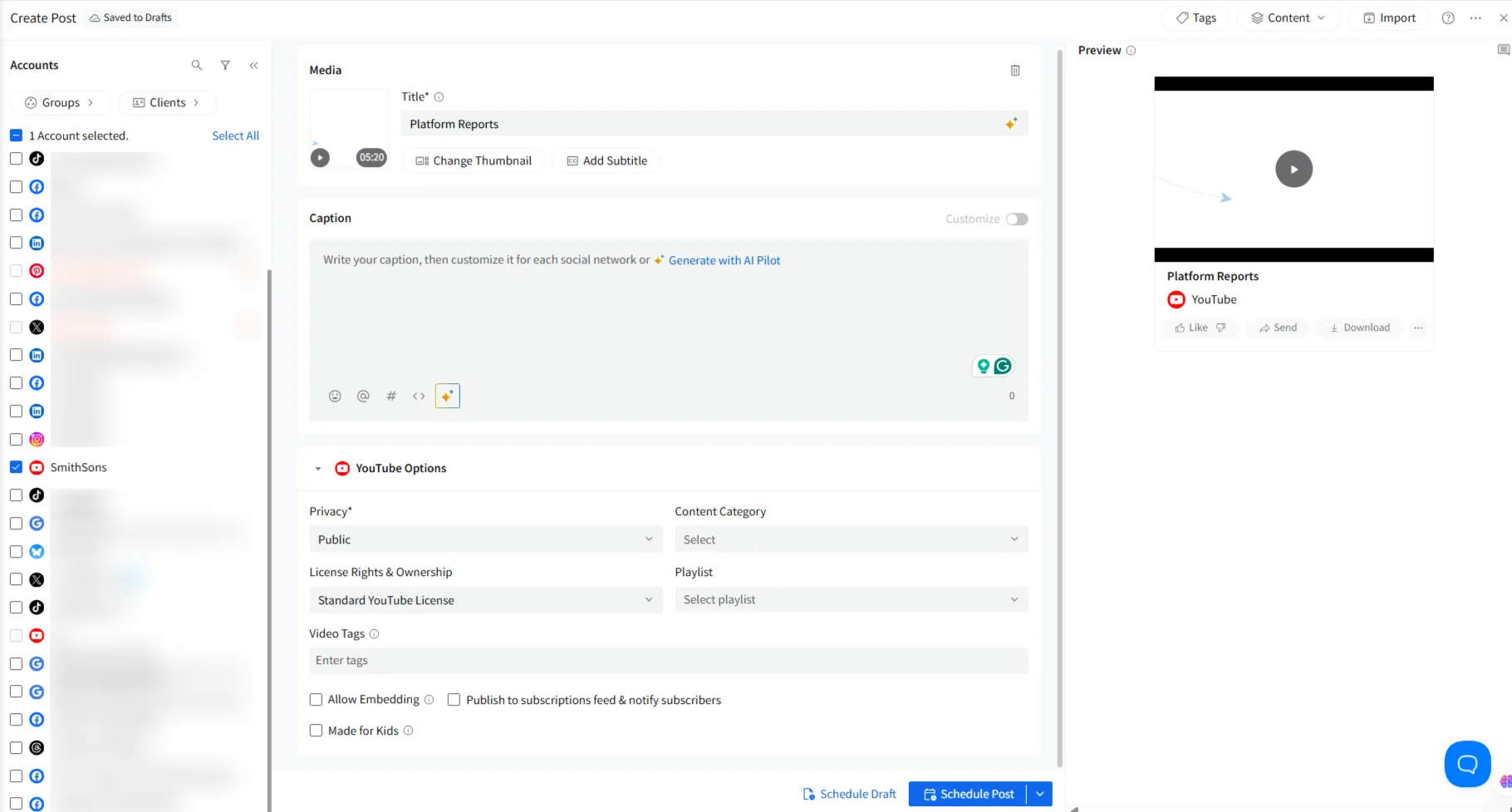
For example, an agency can manage several clients’ YouTube channels alongside their other social accounts, prepare and schedule content, send videos through an approval workflow, and pull performance data without switching between multiple platforms.
On Capterra, Monica N., a sales revenue manager, says the tool “has great comprehensive analytics” e é “very user friendly.“
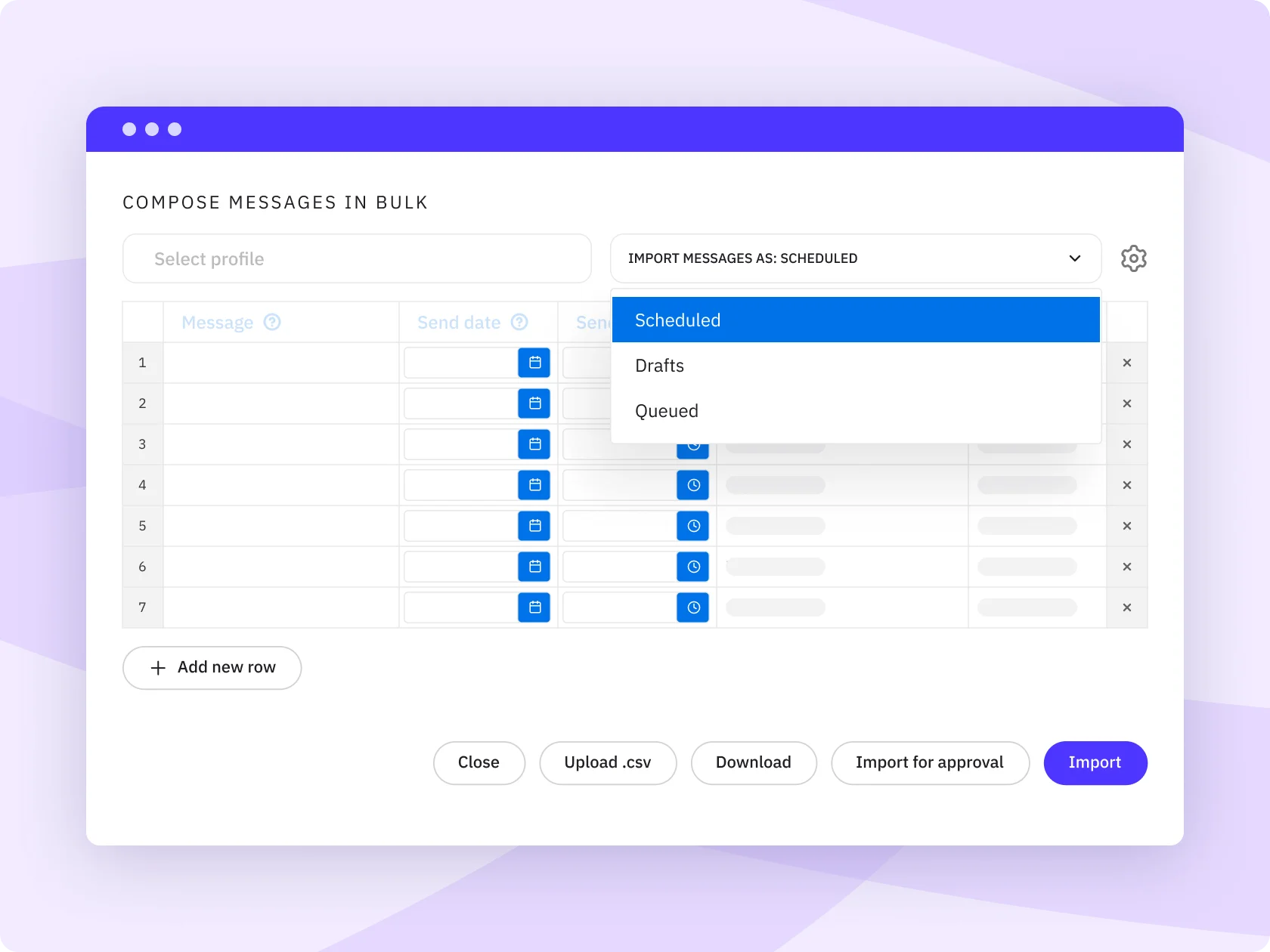
Its strength is breadth, one login for YouTube plus the rest of your social stack, with client reporting built in. It’s not a YouTube specialist: there’s no keyword research or SEO scoring, and on YouTube its bulk scheduling covers text and link posts rather than batch video uploads, one area where some dedicated single-platform schedulers edge ahead. You can dig into SocialPilot’s own analytics features for the full metric list.
Starting at $30/monthly, Preços da SocialPilot is structured around client and account volume, making it accessible for agencies at the point they’re scaling rather than only at enterprise scale.
| Ultimate | Premium | Standard | Essentials |
$170.00/mês$200
Cobrado anualmente (Economize 15%)
|
$85.00/mês$100
Cobrado anualmente (Economize 15%)
|
$42.50/mês$50
Cobrado anualmente (Economize 15%)
|
$25.50/mês$30
Cobrado anualmente (Economize 15%)
|
|
Otimize a gestão de redes sociais
|
|||
What running SocialPilot standalone requires: a dedicated SEO tool if you want keyword and tag research, since that’s outside its scope, and a video editor for production. It’s the hub, not the specialist.
2. Enviável
The agency-focused scheduler with a strong approval workflow.
Coverage
- Multi accounts
- YouTube video & Shorts
- Agendamento em Massa
- Client approvals
- White-label reports
- Analítica
What it actually looks like: Sendible schedules YouTube videos alongside the other major platforms from a shared calendar, with client approval steps, a content library, and a built-in image editor plus Canva integration. Reports are clean and can be white-labeled, which is why agencies running several channels lean on it. A shared queue and best-time suggestions keep a client’s channel active even when the account manager is buried in other work.
On Capterra, Rob F., a digital marketing manager, calls it “great value for money as a social media scheduling tool with an approval process,” but wishes it would “include social media monitoring tools so we can see any time we are mentioned.“
It sits close to SocialPilot in job and audience an all-in-one scheduler for teams with approvals as its standout. Like SocialPilot, it’s a publishing hub, not a YouTube SEO or editing tool.
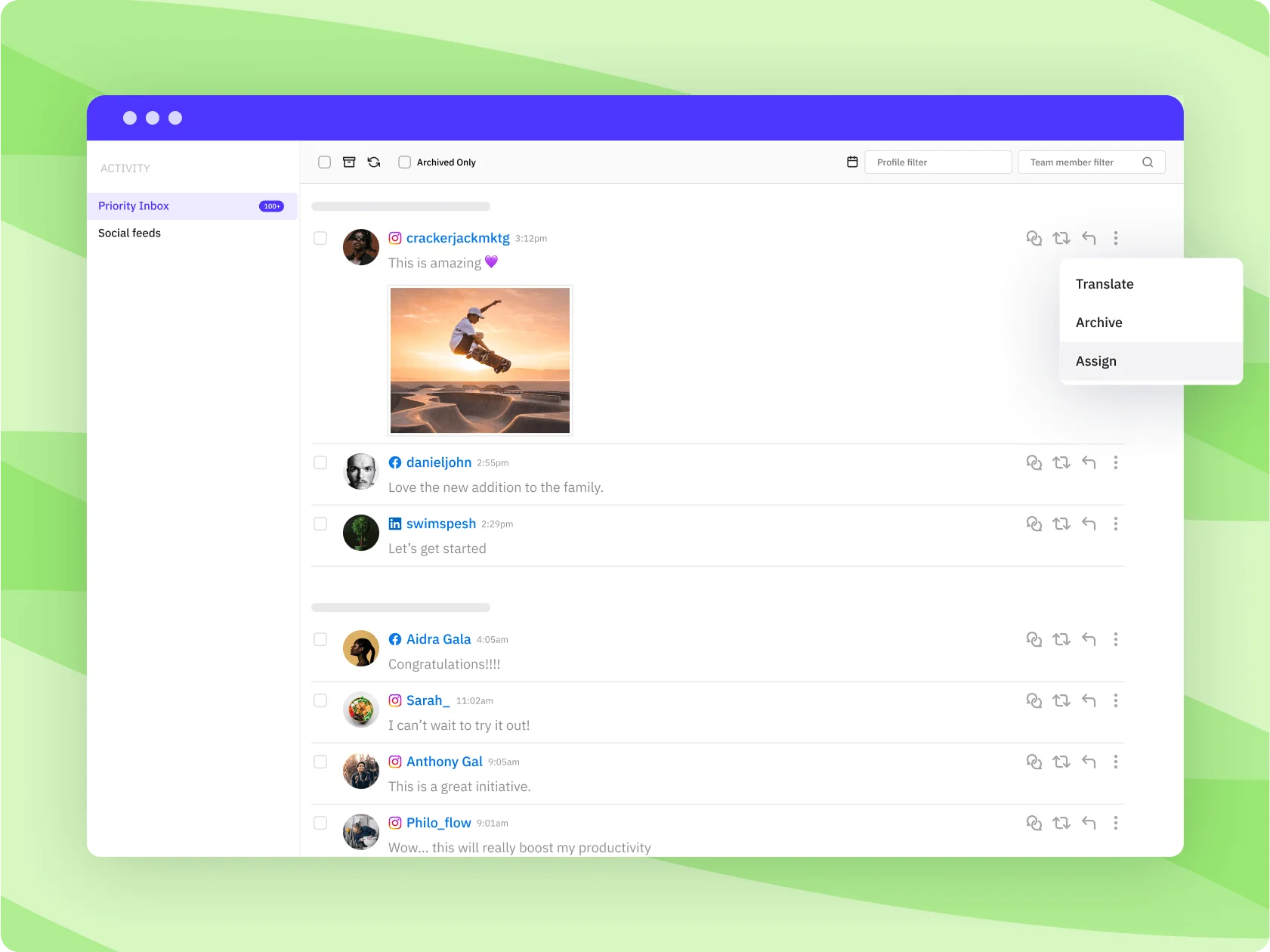
Sendible’s plans start around $35/month on Core and rise through Plus (~$99), Premium (~$199), Elite (~$299), and Enterprise, with unlimited users on every tier and a 14-day trial.
What running Sendible standalone requires: a separate SEO tool and editor, same as any scheduler here and, per its own users, a dedicated listening tool if mention monitoring matters.
3. Zoho Social
The scheduler that fits neatly into the Zoho business stack.
Coverage
- Multi accounts
- YouTube video & Shorts (paid plans)
- Agendamento em Massa
- Client approvals
- White-label reports
- Analítica
What it actually looks like: Zoho Social schedules and publishes to YouTube alongside other platforms, with solid analytics, a clean calendar, team collaboration, and tight links to Zoho CRM and the wider Zoho suite. If your business already runs on Zoho, it slots in without a new login habit, and the CRM link means a comment or message can turn into a tracked lead instead of a dead end.
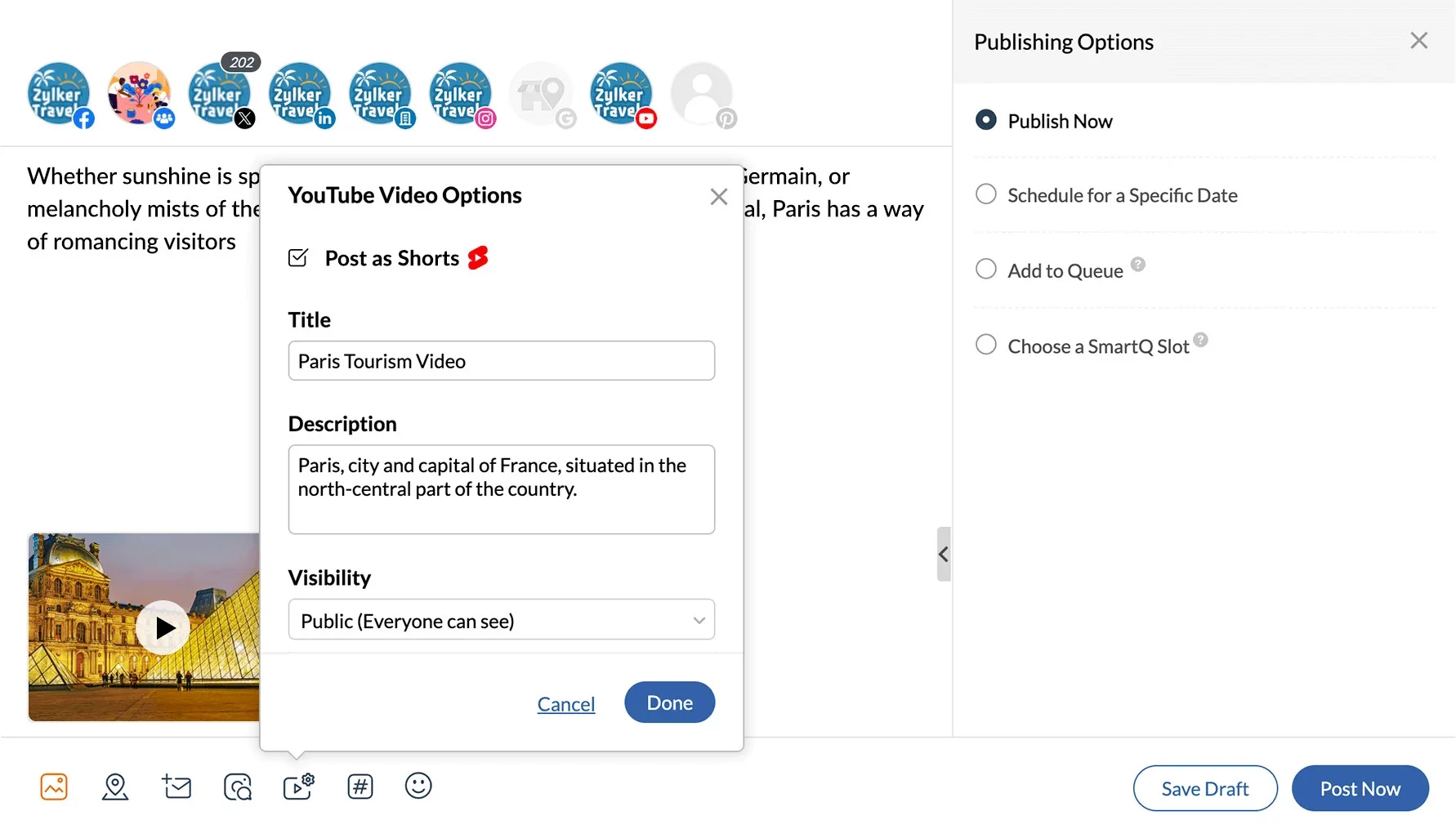
On Capterra, Amanda B., in financial services, says “even a novice like me can have a Social presence without stressing,” but flags that “being unable to edit or remove posts after posting… can be a pain point.”
It’s a strong all-rounder, especially for existing Zoho customers. One note specific to this list: YouTube publishing needs a paid plan, the free tier doesn’t include it, but it’s available from the entry-level Standard tier up, so you don’t have to jump to a premium plan just to post to YouTube.
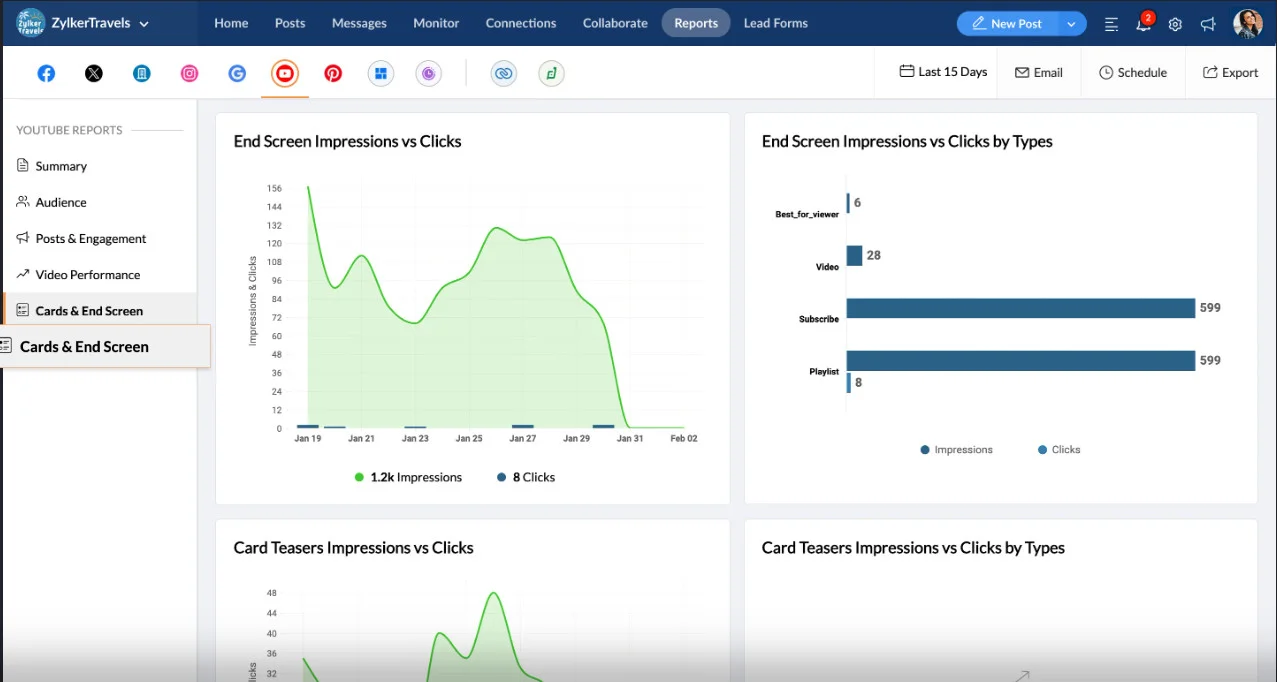
Zoho Social’s plans for business start around $15/month on Standard – the tier where YouTube publishing begins with Professional near $40. And agency plans start with $320/month and offer a 15-day trial.
What running Zoho Social standalone requires: a dedicated YouTube SEO tool and an editor, and if you’re not already in the Zoho ecosystem, a reason to adopt another suite.
What Youtube Studio Already Does Here
Studio lets you upload a video now and set it to publish at a future date and time, for free, genuine native scheduling for a single channel. Where it stops is everything these tools add for running YouTube next to other social platform: it only posts to YouTube (no one calendar across Instagram, Facebook, LinkedIn, and the rest), and there are no client workspaces, approval steps, or white-label reports. If YouTube is your only channel and you work solo, Studio’s scheduler is enough. The moment YouTube is one of several channels, or a client needs to approve posts, a scheduler earns its price.
SEO, Keyword Research and Optimization Tools
This group answers a different question: not “when do I post?” but “how do I get my videos found?” These tools help with keyword research, title and tag optimization, competitor tracking, thumbnail testing, and content ideas. This category covers TubeBuddy and vidIQ, two of the most established YouTube-focused tools for improving discoverability.
If you already have scheduling covered and your main challenge is getting more views, this is the category to explore. For broader performance reporting across YouTube and other social channel, you’ll need a dedicated social media analytics tool.
| Caraterística | TubeBuddy | vidIQ |
| Starts at | $15/mês | $19/mês |
| Pesquisa de palavras-chave | |
|
| Tag & title optimization | |
|
| Competitor tracking | |
|
| Thumbnail A/B testing | |
|
| AI ideas & coaching | |
|
| Free tier | |
|
Both tools work alongside YouTube, so we compare them on the discovery features that matter most: keyword research, tag and title optimization, competitor tracking, thumbnail A/B testing, AI-powered ideas and coaching, and free-tier availability.
4. TubeBuddy
The browser extension that puts YouTube SEO inside YouTube.
Coverage
- Pesquisa de palavras-chave
- Tag & title optimization
- Competitor tracking
- Thumbnail A/B testing
- AI ideas & coaching
- Free tier
What it actually looks like: TubeBuddy installs as a browser extension that overlays YouTube Studio with keyword research, tag suggestions, an SEO score for each video, A/B thumbnail testing, and bulk-processing tools. You work where you already work, and it nudges every upload toward better discoverability. A per-video best-practices checklist flags a missing tag, a weak title, or an empty description before you hit publish.
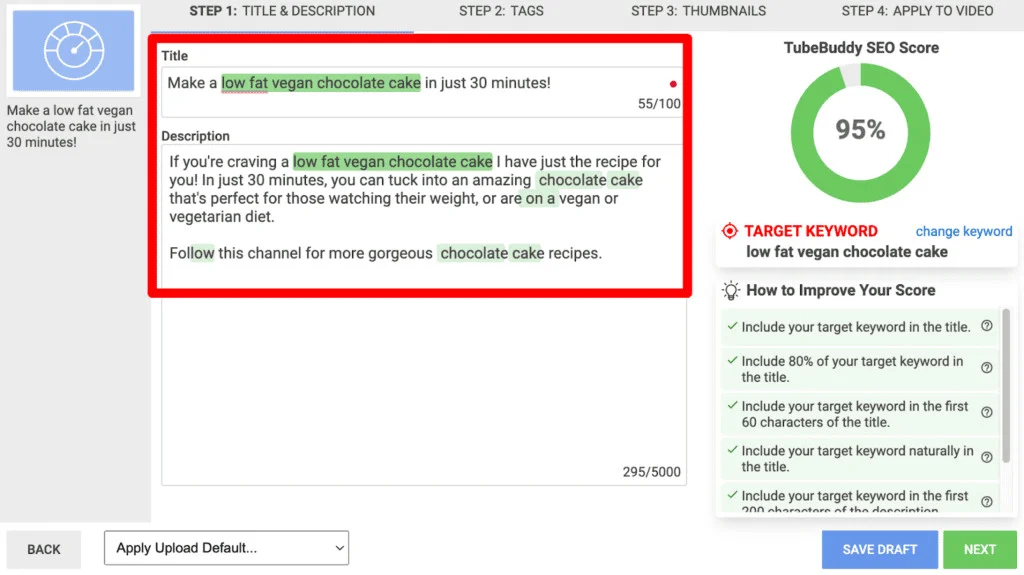
On Capterra, Maza C., a consultant, calls the “thumbnail and SEO score tracking… awesome, super helpful, helps my channel get seen,” but warns it’s “a little overwhelming, especially for a beginner,” and that you “must get the paid version for the best features.”
It’s one of the two names creators reach for on YouTube SEO. It’s YouTube-only by design, so it won’t help with cross-platform work.
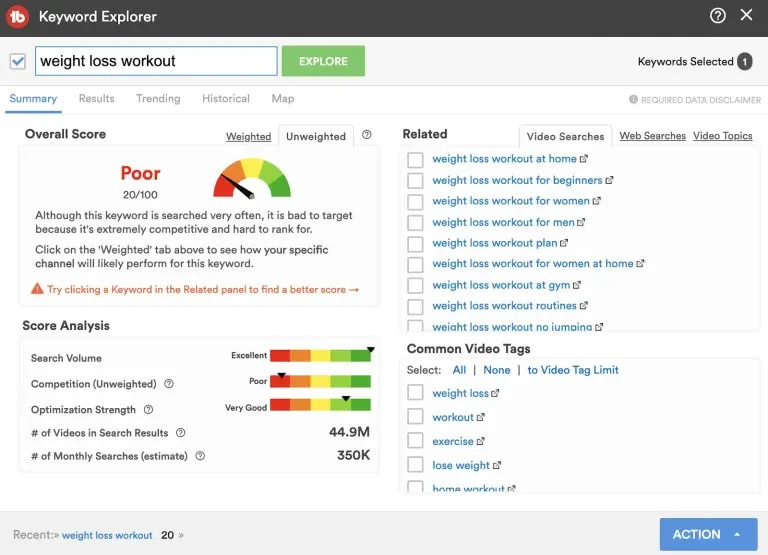
TubeBuddy’s plans start at $15/month for Pro, while the Legend plan costs $32.99/month. For larger teams and brands managing multiple channels, TubeBuddy offers an Enterprise plan with custom pricing.
What running TubeBuddy standalone requires: a scheduler if you post across platforms and an editor for production, it’s a discovery tool, not a publishing hub.
5. VidIQ
The AI-driven coach for keywords, ideas, and daily direction.
Coverage
- Pesquisa de palavras-chave
- Tag & title optimization
- Competitor tracking
- Thumbnail A/B testing
- AI ideas & coaching
- Free tier
What it actually looks like: vidIQ pairs a browser extension with a dashboard that surfaces keyword scores, competitor tracking, trending ideas, and an AI coach that suggests what to make next and how to title it. Where TubeBuddy leans into in-studio SEO tooling, vidIQ leans into ideation and daily guidance. A daily-ideas feed and a per-video score give a solo creator a running to-do list instead of a blank page.
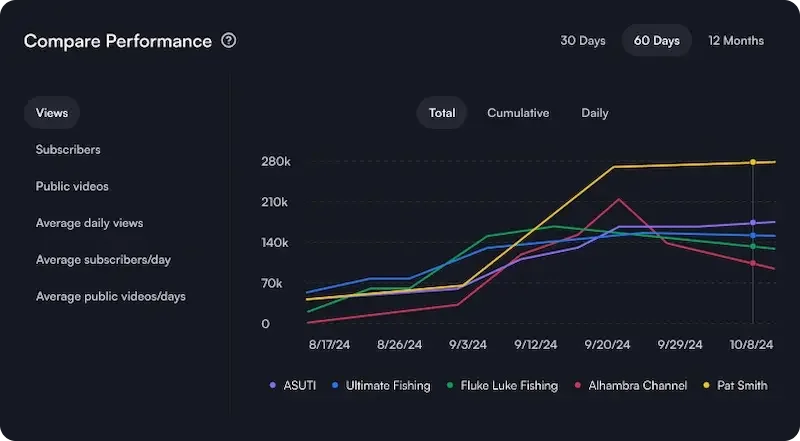
On Capterra, Gabby W., a founder in e-learning, praises the “great keyword research and SEO tools for finding video ideas,” but notes “some of the AI-generated suggestions and title ideas can feel generic.“
It’s TubeBuddy’s main rival, with a stronger tilt toward AI suggestions. Both are YouTube-first, so neither replaces a cross-platform scheduler.
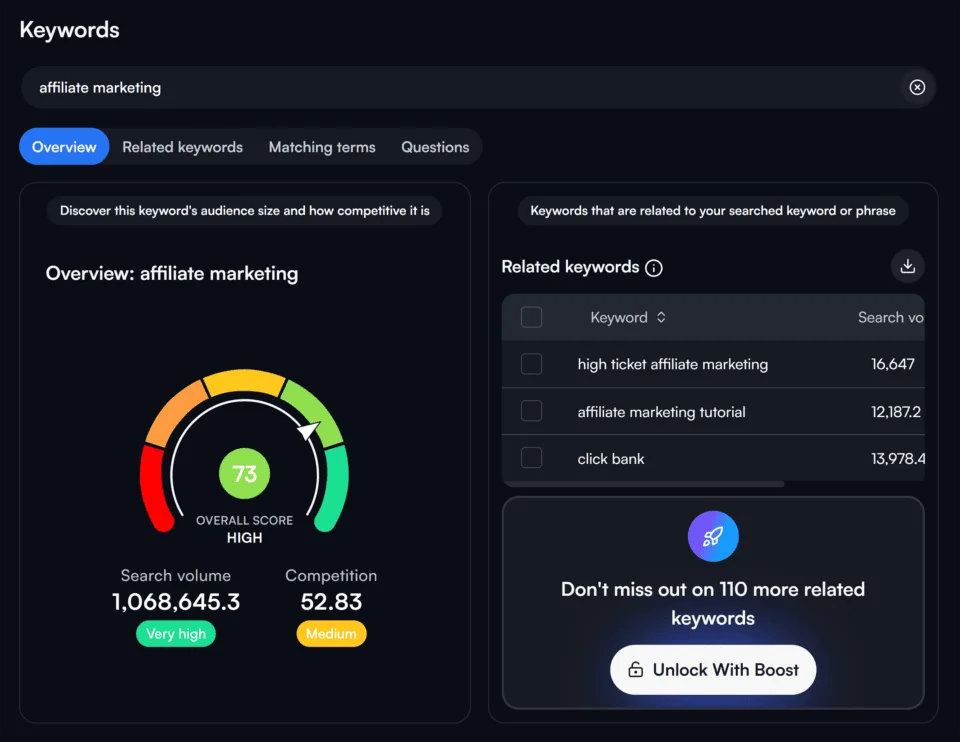
vidIQ’s plans start with a free tier, then Boost around $19/month, Max around $49/month, and higher coaching tiers; the older Pro plan has been retired.
What running vidIQ standalone requires: a scheduler and an editor, it’s built to tell you what to make and how to get it found, not to publish or produce it.
What Youtube Studio Already Does Here
Studio’s Inspiration tab surfaces trending searches, breakout topics, and AI-generated video ideas, titles, and outlines. Its “Ask Studio” assistant can also answer analytics questions. YouTube’s native “Test & Compare” lets you A/B test up to three titles and thumbnails based on watch time. For basic ideation and thumbnail testing, you may not need a paid tool.
TubeBuddy and vidIQ still pull ahead with keyword difficulty/opportunity scores, systematic competitor tracking, and broader A/B testing. Note: Inspiration is desktop-only, with suggestions in English only.
Video Editing and Design Tools
This group makes the video and the thumbnail. These tools don’t schedule or track performance, they’re where the actual content gets built, from timeline editing to click-worthy thumbnails. This category covers Adobe Premiere Pro, DaVinci Resolve Studio, CapCut, Canva, and Camtasia.
If you want more options, Final Cut Pro is the Mac-only one-time-purchase editor, Descrição edits video by editing the transcript, and Photopea is a free browser-based thumbnail designer. For the AI tools that gerar footage and voiceovers rather than edit them, see the AI Video and Voice Tools category right after this one. Most creators pair one of these with a tool from the categories above.
These five do different jobs: timeline editing, screen recording, thumbnail design, so they’re scored on the range of production work: timeline video editing, color and effects, design and thumbnails, built-in AI assist, how beginner-friendly they are, and whether there’s a free option.
| Caraterística | Premiere Pro | DaVinci Resolve | CapCut | Canva | Camtasia |
| Starts at | $22.99/mo | Free / $295 once | Free + paid | Free + $18/mo | $179.88/yr |
| Timeline video editing | |
|
|
|
(screen) |
| Color & effects | |
|
|
 |
|
| Design & thumbnails | |
|
|
|
|
| Built-in AI assist | |
|
|
|
|
| Beginner-friendly | |
|
|
|
|
| Free option | |
|
|
|
(watermark) |
One cross-over worth noting: Canva isn’t only a design tool, it has a built-in content planner that can schedule finished graphics to some platforms, so it nudges into the scheduling job too.
6. Adobe Premiere Pro
The industry-standard editor for serious, long-form video.
Coverage
- Timeline editing
- Color & effects
- Design & thumbnails
- AI generation
- Beginner-friendly
- Free option
What it actually looks like: Adobe Premiere Pro is the professional timeline editor a huge share of full-time YouTubers and studios cut on. Multi-track editing, precise color, audio mixing, motion graphics through its tie-in with After Effects, and AI features like text-based editing, Enhance Speech, and the built-in Firefly Video Model, which can extend a clip or generate missing frames right in the timeline, it’s built for control, not shortcuts.
It’s the tool you grow into when a beginner editor starts limiting what you can make. Because it lives in Adobe’s ecosystem, footage moves cleanly between Premiere, Photoshop, and After Effects without export headaches.
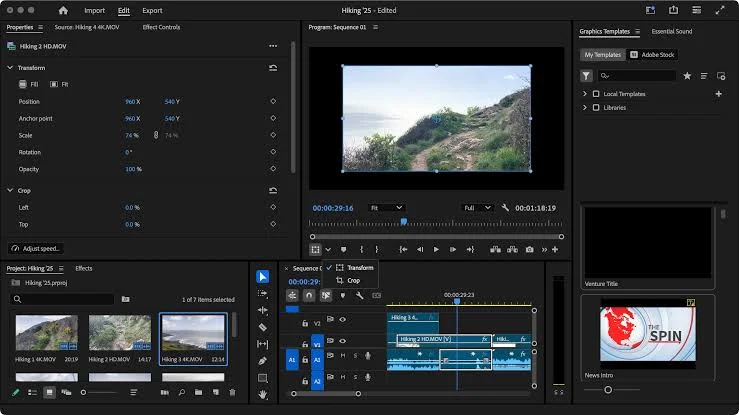
On Software Advice, Yasser A., in the apparel industry, likes “being able to make subtle adjustments to the color and lighting,” but says “at times the software slows down when working on larger projects,” interrupting the workflow on tight deadlines.
It’s the deepest editor here, and the steepest to learn. For long-form, high-production channels it’s the standard; for quick Shorts or a first editor, it’s more than the job needs.
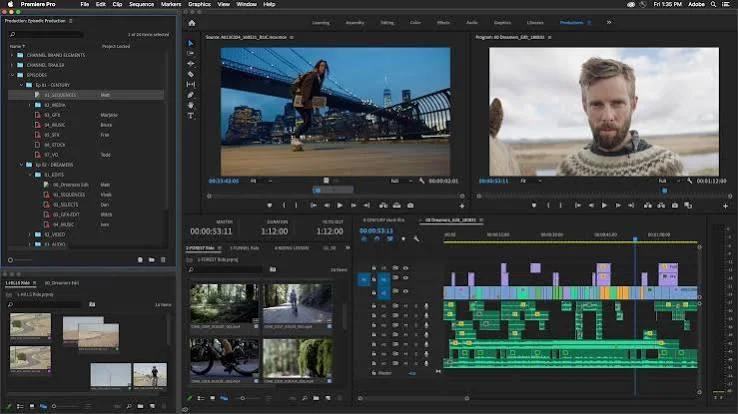
Adobe Premiere’s plans start at $22.99/month for individuals on the Premiere single-app plan. For teams, Premiere costs $37.99/month per license. Adobe also offers Creative Cloud Pro at $69.99/month (currently at $34.99 with discounts) for individuals and $99.99/month per license for teams, with both billed monthly under annual plans. A 7-day free trial is available.
What running Premiere Pro standalone requires: a scheduler to publish and an SEO tool to get found, it edits and exports only, and the subscription never converts to a license you own.
7. DaVinci Resolve Studio
The color-grading powerhouse cinematic channels edit on with a real free version.
Coverage
- Timeline editing
- Color & effects
- Design & thumbnails
- AI generation
- Beginner-friendly
- Free option
What it actually looks like: DaVinci Resolve is the editor cinematic, travel, and tech channels reach for, known for Hollywood-grade color grading, professional audio through its Fairlight page, and rock-solid performance on heavy 4K footage. Editing, color, effects, and audio all live in one app, so a whole finish happens without round-tripping to other software. What sets it apart from the rest of this list is the price model: the full-featured free version handles most creators’ needs outright, and the one-time DaVinci Resolve Studio license adds the AI tools and higher-end effects with no subscription.
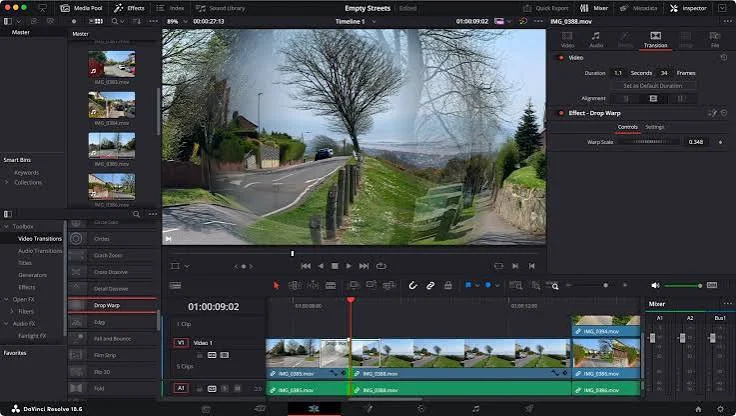
On Capterra, Penisoara C., a photographer, says “it does a quality job once you learn to use it,” but cautions “it is a little hard to learn how to use it,” and that “you will have trouble with parts of the playback when editing if your computer isn’t powerful enough.”
It’s the deepest free editor here and a genuine Premiere Pro rival for color-critical work. The trade-offs are a steep learning curve and real hardware demands. It edits and colors only, no scheduling or analytics.
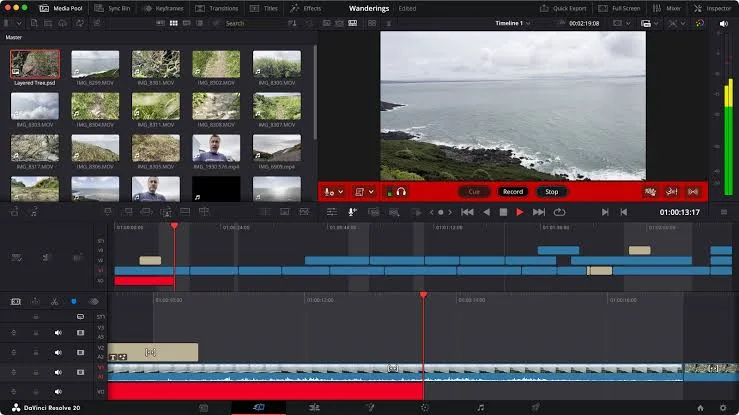
DaVinci Resolve is free in its full-featured version; DaVinci Resolve Studio is a one-time $295 purchase (no subscription) that adds the AI Neural Engine features and extra effects.
What running DaVinci Resolve Studio standalone requires: a scheduler to publish and an SEO tool to get found and enough computer to run it smoothly; it’s purely the editing-and-color step.
8. CapCut
The fast, free-to-start editor built for Shorts and vertical video.
Coverage
- Timeline editing
- Color & effects
- Design & thumbnails
- AI generation
- Beginner-friendly
- Free option
What it actually looks like: CapCut is where a lot of Shorts get made – auto-captions, trending audio, quick transitions, and templates on both mobile and desktop, with almost no learning curve. It’s built for speed and volume, so you can turn a raw clip into a captioned, on-trend vertical video in minutes. The auto-caption and trending-sound tools alone save the fiddly steps that used to push creators toward heavier software.
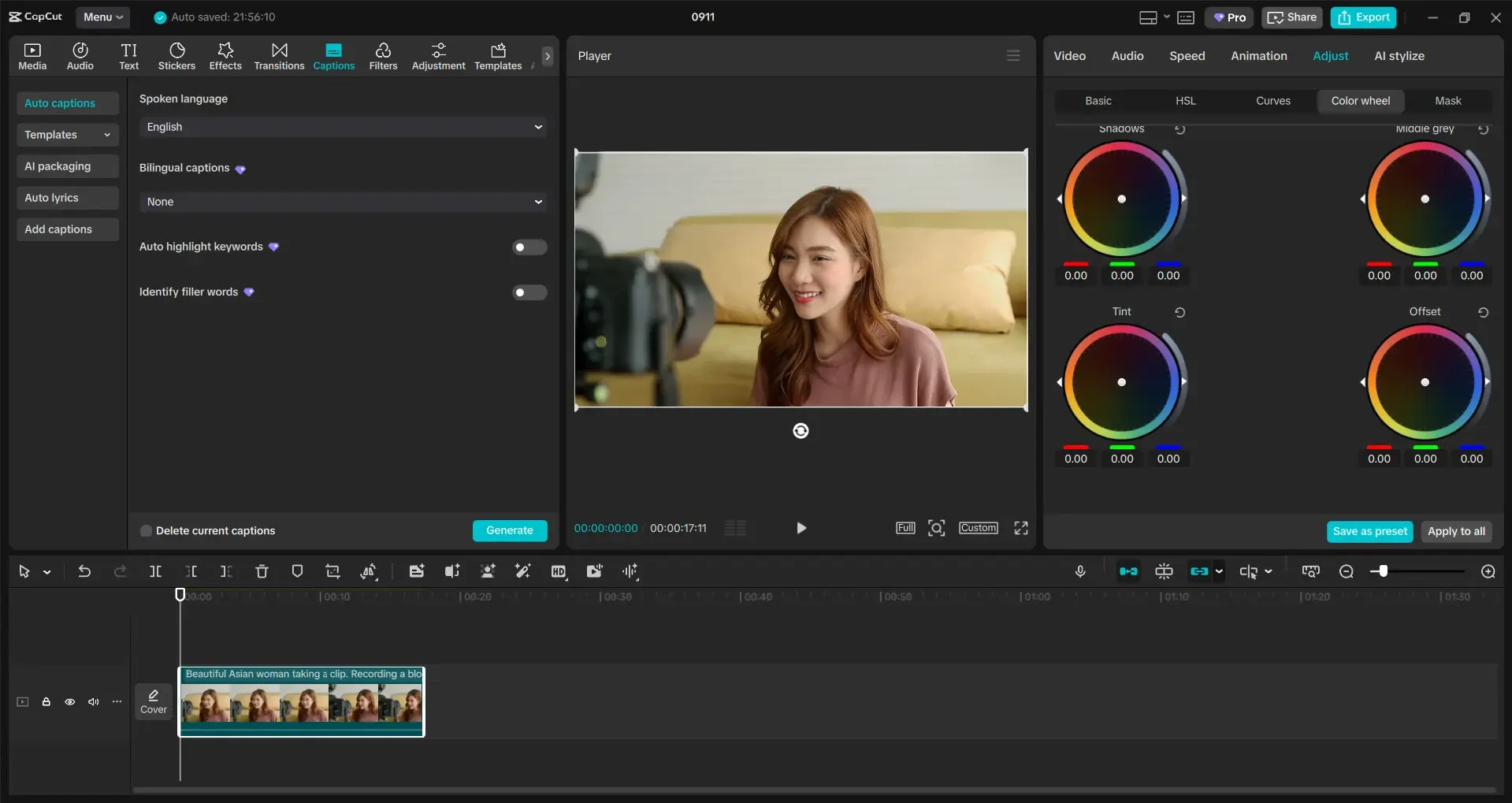
On Product Hunt, Denesse Isabedra says the “AI auto-captions save me so much time” and it “handles cuts, trending audio, and transitions way faster than any heavy desktop software,” but adds that “the pro features paywall is getting a little aggressive lately, a lot of basic effects that used to be free are now locked behind the subscription.“
It’s the closest thing to a free Shorts studio, with the trade-off that it’s short-form-first and increasingly nudges you toward Pro. For long-form YouTube, a timeline editor fits better.
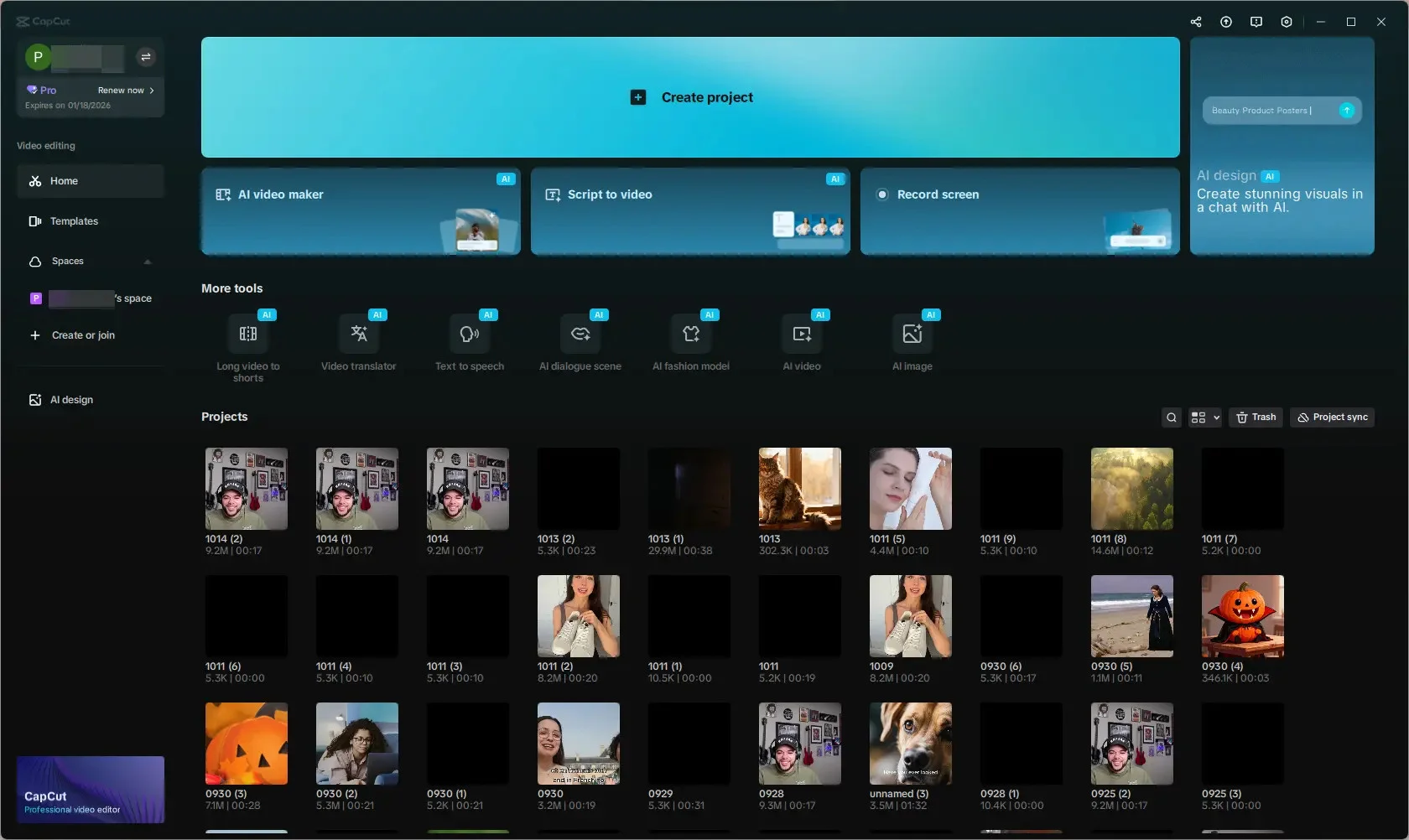
CapCut’s plans include Standard and Pro subscriptions for individual creators, along with a Teams option for collaborative work. Pricing varies by region, platform, and number of seats, so check CapCut’s pricing page or in-app subscription screen for the current price available to you.
What running CapCut standalone requires: a scheduler and an SEO tool for the channel side, and for long-form videos, a full desktop editor; it’s the fast short-form step.
9. Canva
The drag-and-drop design tool for thumbnails, and now video.
Coverage
- Timeline editing
- Color & effects
- Design & thumbnails
- AI generation
- Beginner-friendly
- Free option
What it actually looks like: Canva is where most creators build YouTube thumbnails, channel art, and increasingly short videos, using a huge template library and a drag-and-drop editor anyone can pick up in minutes. Real-time collaboration makes it a team favorite, and a built-in content planner can even schedule finished designs to some platforms. A brand kit locks your fonts, colors, and logo in place, so a whole channel’s thumbnails stay visually consistent without a designer policing every file.
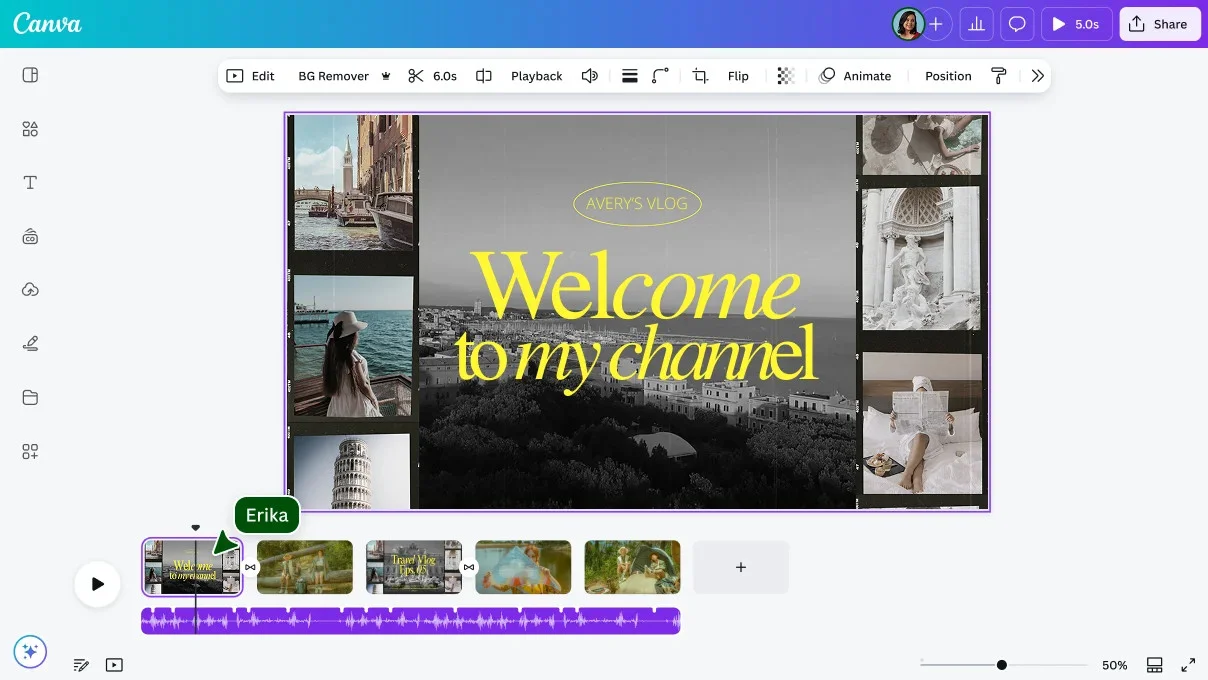
On Capterra, Vimal B., a manager in automotive, says “the drag-and-drop interface is easy enough for beginners,” but finds that on “the mobile app… complex editing tasks feel cramped.”
For thumbnails and quick design it’s near-universal. Its video editing keeps improving but is still lighter than a dedicated editor like Premiere Pro or DaVinci Resolve.

Canva’s pricing keeps a genuinely useful free plan, with Pro around $18/month and Canva Teams around $25/user per month.
What running Canva standalone requires: a real timeline editor for complex video and a scheduler or analytics tool for the channel itself.
10. Camtasia
The screen-recorder-plus-editor built for tutorials and how-tos.
Coverage
- Timeline editing (screen)
- Color & effects
- Design & thumbnails
- AI generation
- Beginner-friendly
- Free option (watermark)
What it actually looks like: TechSmith Camtasia pairs polished screen recording with a straightforward editor, which makes it the go-to for tutorial, software-demo, and training creators. Record your screen and webcam, drop in callouts, annotations, and quizzes, and export a clean YouTube-ready video without touching a complex editing suite. The interactive quizzing is a genuine edge for course creators who post lessons on YouTube and want to check comprehension, not just views.
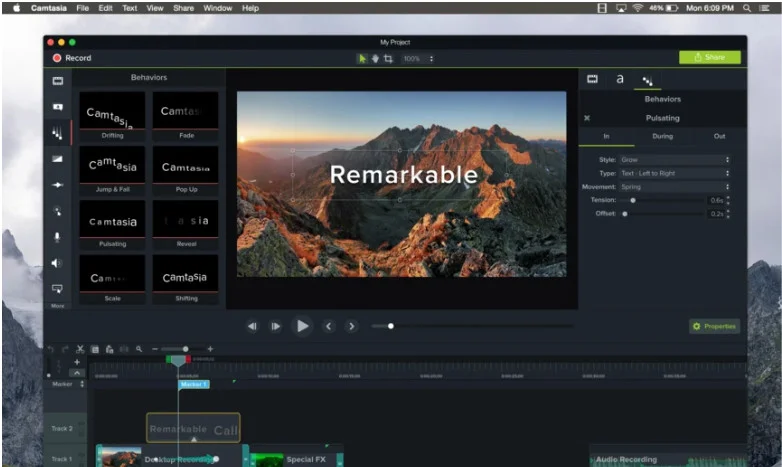
On Capterra, Anne H., a senior learning designer, says Camtasia “packs some impressive tools into a low price” and “can create awesome videos,” but dislikes that “you can’t just purchase Camtasia once — you keep needing to… buy a yearly subscription.”
For screen-based content it’s hard to beat; for cinematic or effects-heavy editing, a tool like Premiere Pro or DaVinci Resolve fits better.
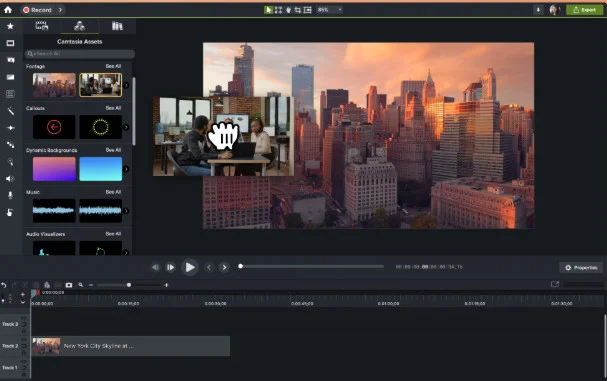
Camtasia’s plans are annual subscriptions, Starter at $39/year (capture only), Essentials at $179.88/year, Create at $249/year, and Pro at $599/year, with a free watermarked version.
What running Camtasia standalone requires: a scheduler and analytics tool for the channel side, it’s the recording-and-editing step, focused on screen content.
What Youtube Studio Already Does Here
Studio has a basic built-in editor – trim and cut, blur faces, add licensed music, and drop in end screens, plus a few AI touches like beat-matching clips to a song. It’s fine for quick cleanup. What it isn’t is a real editor: no multitrack timeline, no color grading, no effects or motion graphics, and no thumbnail or graphic design (creators use Canva or Photopea for that). The moment you need a polished long-form cut, real color work, or a click-worthy thumbnail, you’re reaching for one of these.
Live Streaming Tools
Going live is the one job where YouTube’s own tools are genuinely capable, so this category is about what you add on top. It covers StreamYard and OBS Studio. If you want more options, Streamlabs is a popular OBS alternative with a friendlier setup, Restream focuses on multistreaming to many platforms at once, and Riverside is built for high-quality recorded interviews you can also stream. Pick a tool here when you’ve outgrown a single host talking to one camera.
The two below sit at opposite ends, one browser-based and beginner-friendly, one free and endlessly configurable, so they’re scored on what separates live tools: guest hosting, branded overlays, multistreaming, scene switching, recording quality, and a free tier.
| Caraterística | StreamYard | OBS Studio |
| Starts at | Free / $44.99/mo | Free (open-source) |
| Guest hosting | |
|
| Overlays & branding | |
|
| Multistreaming | |
(plugin) |
| Scene switching | |
|
| Recording quality | |
|
| Free tier | |
(fully free) |
The choice is basically ease versus control: StreamYard gets you live with guests and branding in minutes from a browser, while OBS is free and does anything you can configure, including local recording quality that StreamYard can’t match, if you’ll put in the setup time.
11. StreamYard
The browser-based live studio built for guests, overlays, and multistreaming.
Coverage
- Guest hosting
- Overlays & branding
- Multistreaming
- Scene switching
- Recording quality
- Free tier
What it actually looks like: StreamYard runs entirely in your browser, no software to install and lets you bring on guests, add your logo, lower-thirds, and backgrounds, share your screen, and broadcast to YouTube (and several other platforms at once) in minutes. It’s the tool behind a lot of interview shows, panels, and live-shopping streams. Guests join from a link with no account, which removes the single biggest source of “can you hear me now” friction in live video.
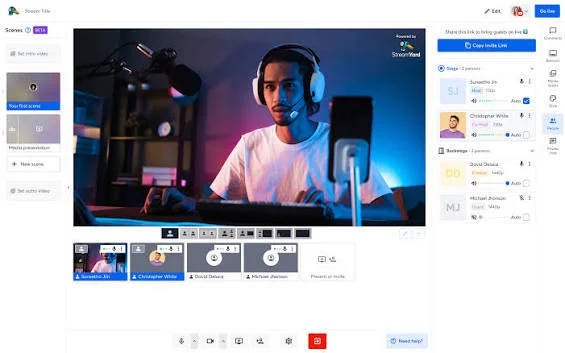
On Capterra, Lynn Elikqitie S., a publishing CEO, praises the “clean UX design,” strong audio, and how little editing the final video needs, but wishes clip and transcript features were bundled into the plan rather than costing extra on top.
For polished, multi-guest live video with zero setup, it’s the easy pick. The trade-off is cost and browser-based limits, less low-level control than desktop software.
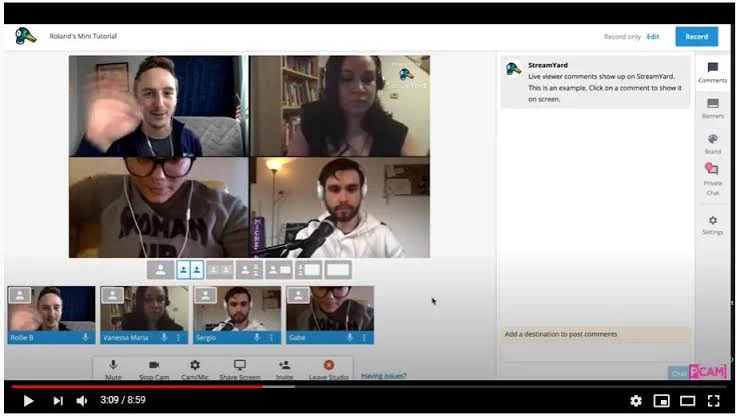
StreamYard’s plans are Free (with its logo on streams), Core at $44.99/month (or $35.99 billed yearly), and Advanced at $88.99/month (or $68.99 yearly) for 4K and multistreaming to more destinations.
What running StreamYard standalone requires: for true shoppable streams, an e-commerce setup to handle products and checkout, StreamYard runs the broadcast, not the store; and a separate editor for anything beyond light trimming.
12. OBS Studio
The free, open-source powerhouse for full control over your stream.
Coverage
- Guest hosting
- Overlays & branding
- Multistreaming (plugin)
- Scene switching
- Recording quality
- Free tier
What it actually looks like: OBS Studio is the free, open-source standard for streaming and recording. You build scenes from multiple sources camera, screen, overlays, audio and switch between them live, with quality that rivals paid software once it’s dialed in. It’s the choice of gamers and technical streamers who want total control and high-quality local recordings without paying a cent. Because it’s open source, a deep library of community plugins extends it to almost anything, including multistreaming.
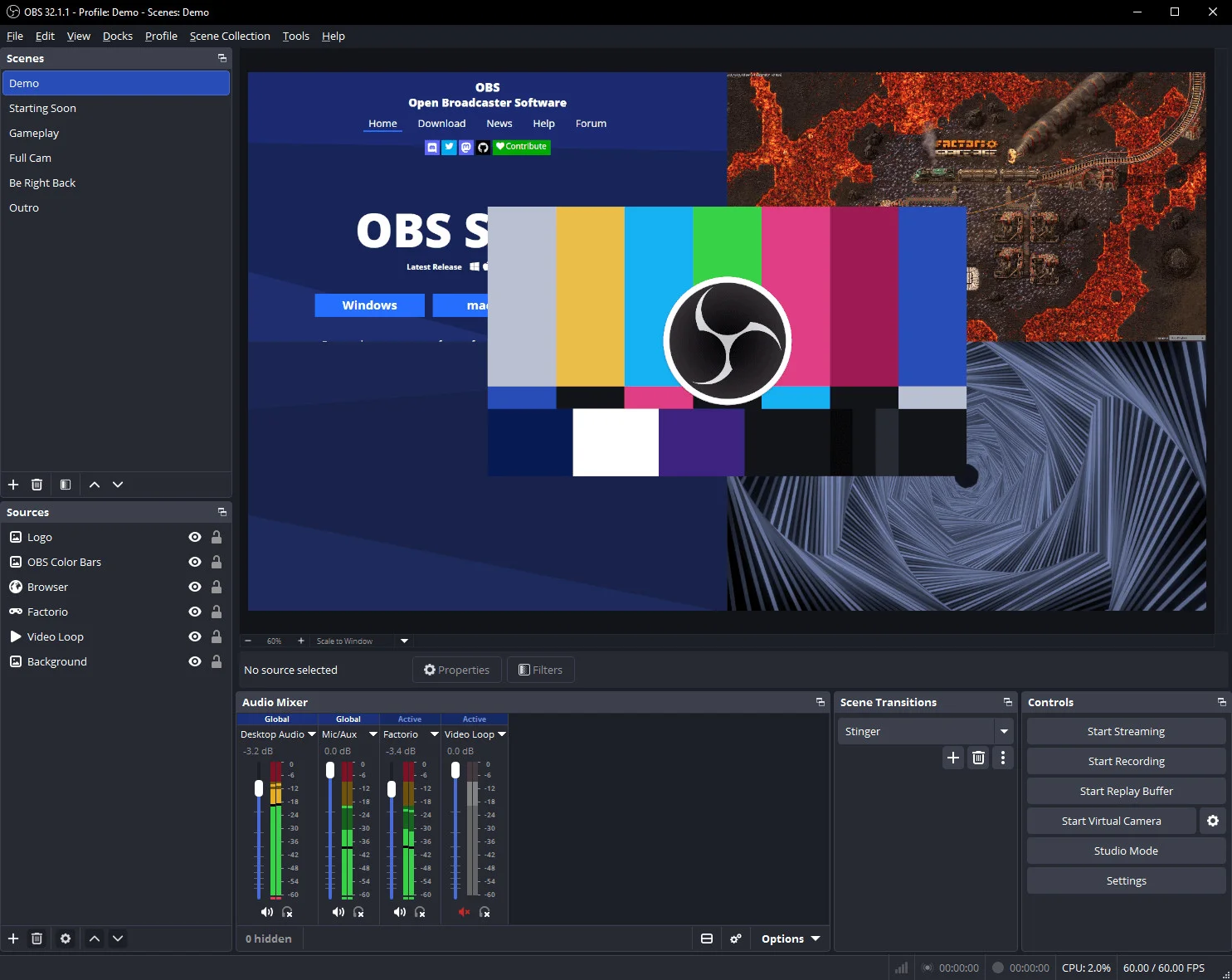
On Capterra, Edwin V., a dev manager, calls it “powerful while still being completely free,” with “professional-level tools… without forcing you into a paid subscription,” but warns it “can feel overwhelming for new users,” with a setup process that “requires some learning” and no traditional support team.
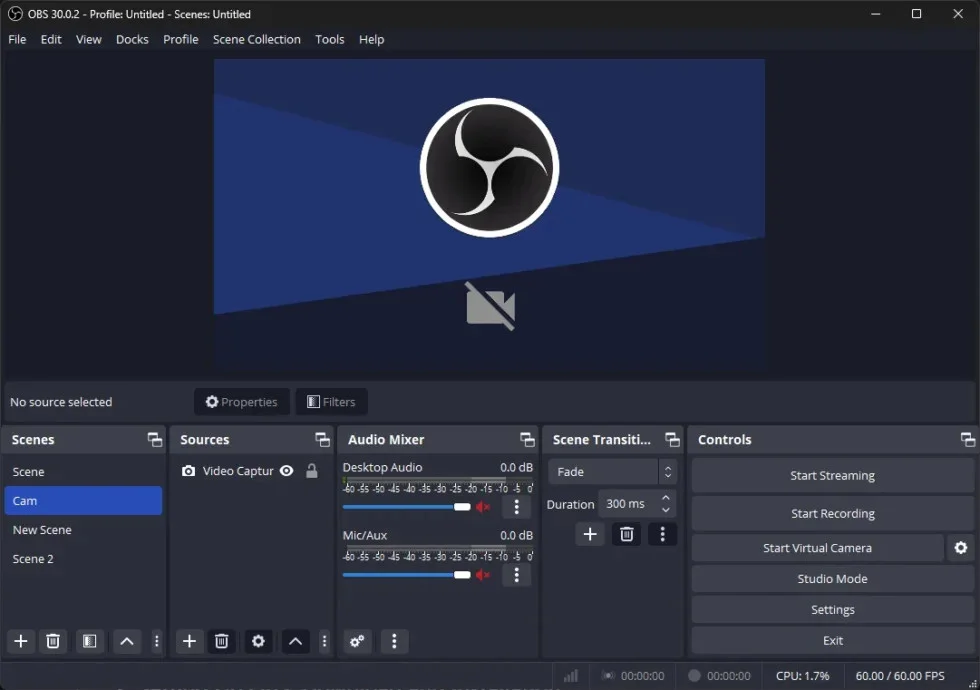
It rewards the time you put into configuring it. The flip side: there’s no built-in guest hosting and no native multistreaming, both need a plugin or a paired service.
OBS Studio is completely free and open-source – no tiers, no subscription, no watermark.
What running OBS Studio standalone requires: a multistream service or plugin to broadcast to several platforms at once, and a separate tool to bring remote guests on screen, OBS has neither built in.
What Youtube Studio Already Does Here
Native “Go Live” streams for free from your webcam, phone, or an encoder, with live chat and a stream-health dashboard; eligible creators get Super Chat and product tagging (mobile streaming needs at least 50 subscribers, and monetizing a stream needs Partner Program status). YouTube is even rolling out simultaneous horizontal-and-vertical streaming.
For a solo host talking to one camera, you may not need anything else. What native Go Live still can’t do is the production side: no full multi-guest studio, no branded overlays or scene switching, and no multistreaming to YouTube plus Twitch or Facebook at once. StreamYard covers the guests, branding, and multistream in a browser; OBS covers deep scene control and high-quality recording for free.
AI Video and Voice Tools for YouTube
This category is the newest and the fastest-moving: tools that gerar footage and voiceovers from a text prompt instead of editing what you shot. Editors reach for them to fill a B-roll gap when the right stock footage doesn’t exist, or to record a line without booking a voice actor. It covers Runway (Gen-4), Google Veo (Veo 3.1), and ElevenLabs.
If you want more options, Pika e Luma Dream Machine are rival text-to-video generators, Kling is a strong lower-cost pick, and HeyGen makes AI avatar presenters. These aren’t editors, you still cut what they produce into your video with a tool from the category above.
The three below split cleanly by what they make, so they’re scored on that: text-to-video, camera and motion control, realism and physics, AI voiceover, native audio baked into the clip, and whether there’s a free way to try.
| Caraterística | Runway (Gen-4) | Google Veo | ElevenLabs |
| Starts at | Free + $12/mo | ~$19.99/mo | Free + $6/mo |
| Text-to-video | |
|
|
| Camera & motion control | |
|
|
| Realism & physics | |
|
|
| AI voiceover | |
|
|
| Native audio in clip | |
|
|
| Free to try | (credits) |
|
(no commercial) |
The picks divide by job: Runway for directed, consistent B-roll; Veo for photoreal shots with real physics and built-in audio; ElevenLabs for the voice. One shared catch, they all bill by credits or by the second, so re-generating clips or lines adds up faster than the sticker price suggests.
13. Runway (Gen-4)
The AI video generator for cinematic B-roll you can direct shot by shot.
Coverage
- Text-to-video
- Camera & motion control
- Realism & physics
- AI voiceover
- Native audio
- Free to try (credits)
What it actually looks like: When an editor can’t find the right stock footage, Passarela generates it from a text prompt or a still image. Gen-4 is the version high-budget documentary and storytelling channels lean on, mostly for its director-style camera controls, you can call the panning, tracking, and zoom, and keep characters, locations, and objects consistent from shot to shot. That shot-to-shot consistency is the hard part most AI video tools miss, and it’s why Runway shows up in polished, narrative work rather than one-off clips.
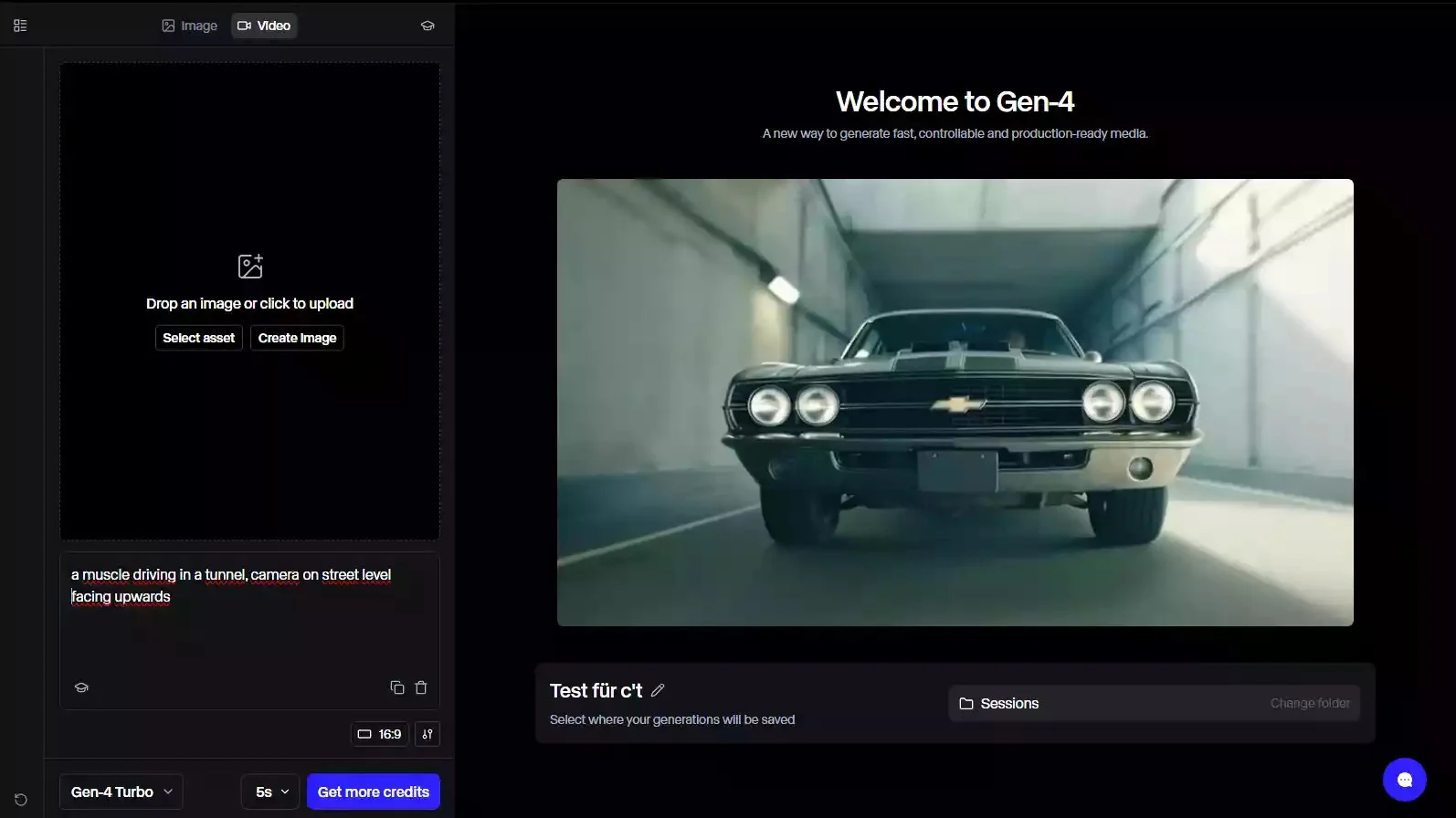
In a hands-on test, Vijay Chauhan found Runway Gen-4 “very good at turning a still image into a stylish short video,” but warned that “credits run out fast, especially when clips fail or need several retries.”
It’s a generator, not an editor, you still cut the clips together elsewhere. And the credit model rewards knowing what you want before you prompt.
Runway’s plans start with a free tier (125 one-time credits), then Standard at $12/month, Pro at $28/month, and Max at $76/month (billed annually), each step adding monthly credits, higher resolution, and no watermark.
What running Runway standalone requires: an editor to assemble the generated clips into a finished video, plus a scheduler and SEO tool for the channel, it produces B-roll, not a published upload.
14. Google Veo (Veo 3.1)
The AI generator for photoreal B-roll with real-world physics and native audio.
Coverage
- Text-to-video
- Camera & motion control
- Realism & physics
- AI voiceover
- Native audio
- Free to try
What it actually looks like: Veo 3.1 is Google’s text-to-video model, used for clips that need realistic human movement, believable physics, and native, lip-synced audio at up to 4K. Where Runway sells camera direction, Veo sells realism, it’s the pick when a shot has to pass as real footage. You reach it through Google’s Flow studio and Gemini, or through the API, and you only pay for clips that actually generate.
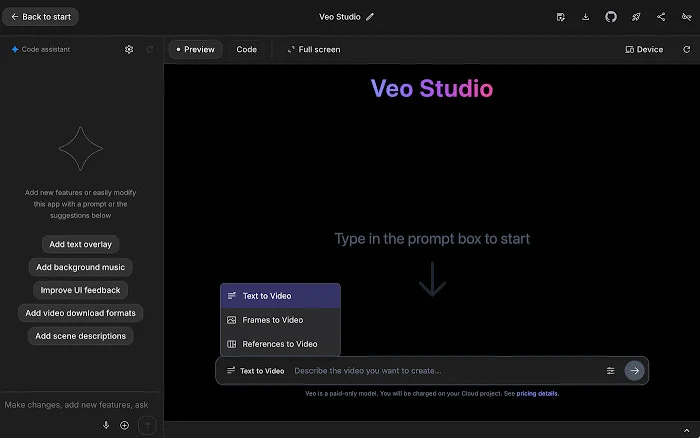
An agency test by Sian Evans praised the realism “our clients would love that lip-sync accuracy” but flagged the catch with any AI footage: “physics breaks? That’s a reshoot, and with AI, that means starting from scratch.“
The other limit is length: clips are short (around eight seconds) and longer sequences mean chaining generations together. It’s a B-roll and shot generator, not an editor.
Veo 3.1 isn’t sold on its own. You get it through a Google AI subscription, reported around $19.99/month (AI Pro) or $249.99/month (AI Ultra) inside Gemini and Google Flow, or via the API at roughly $0.40 per second of 1080p video; confirm the current subscription price on Google’s page, since it renders live and shifts.
What running Google Veo standalone requires: an editor to cut the clips into a full video, and a scheduler and SEO tool for the channel even inside Flow, you still assemble and upload the final cut yourself.
15. ElevenLabs (Eleven v3)
The AI voiceover tool for narration, corrections, and filling B-roll gaps.
Coverage
- Text-to-video
- Camera & motion control
- Realism & physics
- AI voiceover
- Native audio
- Free to try (no commercial use)
What it actually looks like: ElevenLabs turns text into natural-sounding speech, with a large voice library, 70-plus languages, and voice cloning. Creators use it to narrate faceless videos, and with a cloned voice to record a correction or fill a gap in B-roll without setting up a mic or re-booking a voice actor. Fix one line by typing it, not by scheduling another recording session. That’s the workflow that made it a fixture on explainer and narration channels.
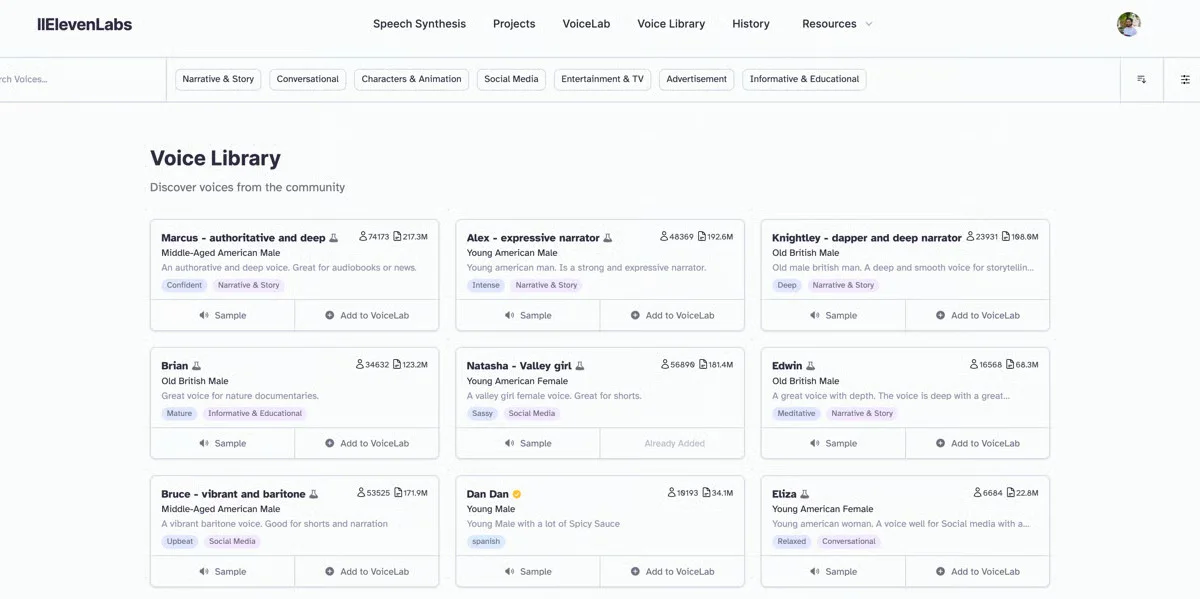
On Capterra, Nishant T., a senior analyst, calls it “one of the best (human like) AI backed voice generator in the market” with a “clean UI,” but notes it “sometimes gives incorrect pronunciation” and has “limited editing controls around tone, speed and pauses.“
It’s the strongest AI voice on this list, with two catches: credits burn faster than the sticker price suggests once you re-generate lines, and the free tier has no commercial license, so a monetized channel needs a paid plan.
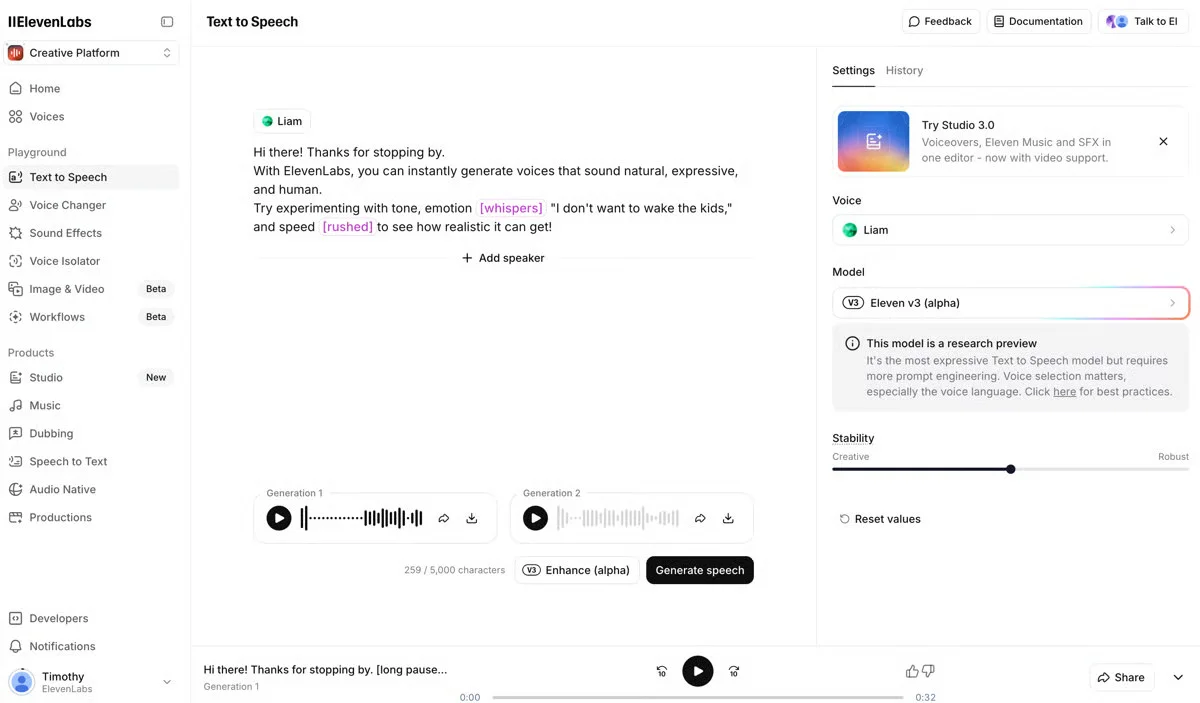
ElevenLabs’ plans start free (10,000 credits, no commercial use), then Starter at $6/month, Creator at $22/month, Pro at $99/month, and higher Scale and Business tiers, commercial rights and voice cloning unlock from the paid plans up.
What running ElevenLabs standalone requires: an editor to drop the voiceover into your footage, and a scheduler and SEO tool for the channel, it outputs audio only.
What Youtube Studio Already Does Here
YouTube has started building AI creation in, but it’s Shorts-focused and light. “Dream Screen” generates AI image or video backgrounds for Shorts from a text prompt, auto-dubbing translates your audio into other languages, and beat-matching arranges clips to a song, all free, all inside the app.
What native AI can’t do is the work these tools are for: generating cinematic, directable B-roll for long-form video, photoreal shots with controllable physics, or a cloned, studio-quality voiceover you can edit line by line. For anything past a Shorts background or an auto-dub, you’re reaching for a tool here.
How to Choose the Right YouTube Tool
Start with the problem, not the brand. Need to publish consistently across platforms? Look at scheduling tools. Struggling with discovery? Focus on SEO, analytics, and topic research. Need better videos or thumbnails? Choose an editing or design tool. Need B-roll or voiceovers you can’t produce yourself? AI creation tools can fill the gap. For interviews, panels, or multistreaming, look at live streaming tools.
Check YouTube Studio first. It already handles scheduling, analytics, comments, basic editing, live streaming, and some AI-powered creation features for free. If it does what you need, there’s no reason to add another tool.
Then consider your workflow and budget. A multi-platform scheduler makes more sense if YouTube is part of a wider social strategy, while a YouTube-specific tool may be better if channel growth is your main focus.
Choose the tool that solves your current bottleneck, not the one with the longest feature list.
How We Analyze and Select These YouTube Tools
Most YouTube tool roundups rely on vendor claims. We combined hands-on testing, official documentation, and real user reviews to see what each tool actually offers.
Our Testing Protocol
Our product team tested the shortlisted tools in July and August 2026 using SocialPilot test accounts.
- Signed up for a free trial, free plan, or demo where available for tools including SocialPilot, Sendible, Zoho Social, TubeBuddy, and vidIQ.
- Tested video and Shorts uploading, scheduling, bulk publishing, and channel management across the scheduling tools.
- Explored YouTube SEO and optimization features in TubeBuddy and vidIQ, including keyword research, title and tag optimization, competitor tracking, and thumbnail testing.
- Tested editing and design workflows in Premiere Pro, DaVinci Resolve, CapCut, Canva, and Camtasia.
- Tested live-streaming workflows in StreamYard and OBS Studio, including guests, overlays, scenes, recording, and multistreaming where available.
- Tested AI creation features in Runway, Google Veo, and ElevenLabs, focusing on video generation, B-roll, audio, and voiceover capabilities.
How We Fact-Checked Every Comparison
- Verified features against each tool’s current official pages and documentation.
- Checked pricing, channel limits, and feature availability against live pricing pages.
- Linked every customer review to its original source.
- Clearly marked features we couldn’t test as vendor-stated.
What We Didn’t Test, and Why
- Enterprise-only features requiring custom contracts or API access.
- YouTube-controlled outcomes such as monetization, copyright claims, and Content ID.
- Long-term channel growth or rankings, since these depend on content quality, audience behavior, and YouTube’s algorithm.
Choose the YouTube Tool That Fits Your Workflow
The mistake most creators make with YouTube tools isn’t picking the wrong app, it’s shopping for a single “best” tool when they actually have several different problems. Name the job first. If you need to stay consistent and post across platforms, you’re shopping schedulers. If you need to get found, you’re shopping SEO and analytics. If you keep arriving late to topics, you’re shopping trend trackers.
If you need to make the video, you’re shopping editors. If you need footage or a voice you can’t record, you’re shopping AI generators. If you want to go live with guests, you’re shopping streaming tools.
Once you know the job, the shortlist above picks itself and for a lot of creators, YouTube Studio plus one specialist is the whole stack. If YouTube is one channel among many and you’d rather run it beside the rest of your social from one place, a scheduling platform is the natural home base.
Map your need against the comparison table and start where your actual bottleneck is.
Perguntas mais frequentes
É possível programar vídeos do YouTube com antecedência?
Yes, two ways. YouTube Studio itself lets you upload a video now and set it to go public at a future date and time. And if YouTube is one of several channels you run, a scheduler like SocialPilot, Sendible, or Zoho Social lets you queue it alongside everything else from one calendar — which saves logging into each platform separately.
What are the most important tools for YouTubers?
Honestly, it comes down to where you're stuck. Can't stay consistent? A scheduler (or Studio) matters most. Videos not getting found? An SEO tool like TubeBuddy or vidIQ earns its keep. The videos themselves need work? An editor like Premiere Pro or CapCut, plus Canva for thumbnails. Fix the weakest link first.
How often should I post on YouTube?
Whatever you can keep up without dropping quality, consistency beats volume every time. A lot of growing channels land on one long-form video a week plus a couple of Shorts, but a schedule you actually stick to will beat an ambitious one you abandon after a month. Watch your own retention and let it set the pace.
Do I need a separate tool for YouTube SEO?
If getting discovered is the problem, yes. Studio tells you how a video did, but it won't research keywords, score your titles and tags, or show what competitors rank for that's what TubeBuddy and vidIQ are built for, right inside YouTube. If you're already getting views and just want to post more reliably, spend on a scheduler instead.
What do I need to live stream on YouTube?
For a basic stream, nothing extra - YouTube's built-in "Go Live" handles webcam, mobile, and encoder broadcasts with live chat for free. You only need a third-party tool once you want more than a single host on camera: StreamYard if you want to bring on guests, add branded overlays, and stream to several platforms at once from your browser, or OBS Studio if you want free, deep control over scenes and high-quality recording and don't mind the setup.
Can I use AI to make YouTube videos or B-roll?
Yes, and a lot of channels already do, but as ingredients, not the whole meal. Runway and Google Veo generate cinematic B-roll from a text prompt when you can't shoot or find the footage, and ElevenLabs creates natural voiceovers or fills gaps with a cloned voice. You still cut those pieces together in a real editor and upload them yourself. Watch the running cost, though: these tools bill by credits or by the second, and re-generating clips or lines adds up faster than the headline price suggests.
What's the best free video editor for YouTube?
It depends on how far you want to go. For quick, fully free editing, CapCut is the closest, Camtasia has a free version but watermarks your exports until you pay. For serious, watermark-free editing at no cost, DaVinci Resolve's free version is in a class of its own, though it asks more of you and your computer. If you mainly make tutorials or screen recordings, Camtasia is worth the eventual paid step; for thumbnails and light video, Canva's free plan does the job.
Can I manage YouTube alongside other social platforms in one tool?
Yes, and that's exactly what the schedulers here are for. SocialPilot, Sendible, and Zoho Social all connect YouTube next to Instagram, Facebook, LinkedIn, and the rest, so you plan, publish, and pull basic reports from one dashboard. It's the main reason to pick a broad suite over a YouTube-only tool when YouTube isn't your only channel.
Sobre o autor