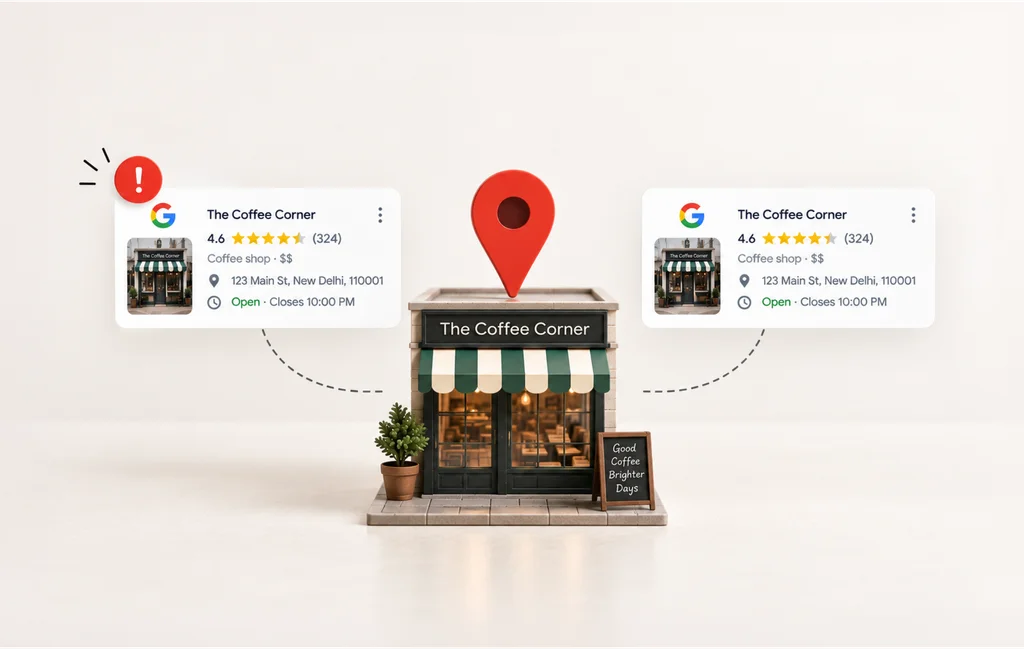
You search for your business on Google and find two listings for the same location.
One has your current phone number and hours. The other has an old address, a different set of reviews, or information you don’t recognize.
It may seem like a simple Google Maps issue, but duplicate business listings can create real problems.
Google Business Profile Help guidelines state, “There should only be one profile per business, as this can cause problems with how your information displays on Google Maps and Search.” and warn that Google “reserves the right to suspend access to Business Profiles” that violate its guidelines.
There’s another problem, too. Your business information and reviews can end up split across profiles, making it harder for Google and customers to know which listing is the right one.
In this guide, we’ll show you how to find duplicate Google Business listings, confirm whether they’re actually duplicates, and fix them the right way.
Why Duplicate Listings Are a Real Ranking Problem
A duplicate listing can do more than confuse customers. When your business information and reviews are spread across two profiles, Google has to sort through conflicting signals to understand which listing actually represents your business.
A Reddit user on r/GoogleMaps shared how a duplicate listing has ended up collecting customer reviews and gained visibility on Google Maps:
“We’ve tried reporting it as a duplicate, talked to Google support, even marked it as “closed” or “doesn’t exist,” but the profile is still there. Meanwhile, reviews are now split and the wrong profile keeps showing up on Maps.”
That can make it harder for the right profile to show up consistently in local search.
How Duplicates Split Your Ranking Signals
A duplicate doesn’t necessarily hurt your rankings by itself. The bigger problem is that it can split the signals your business has built between two profiles.
Reviews, clicks, calls, photos, and direction requests can all end up on the duplicate instead of your main listing. So, two profiles with 40 reviews each don’t give you the same benefit as one profile with 80 reviews.
That’s why review signals matter here. As per Google’s guidelines on improving local search rankings, “Positive reviews and helpful replies can help your business stand out.”

Why This Gets Worse the Longer It’s Ignored
Every week the duplicate listing sits there, it can collect new reviews, calls, or customer interactions.
The bigger risk is to your account. Duplicates are one of the more commonly reported causes of profile suspension. As per a Google Business Profile community article posted by Claudia Tomina:
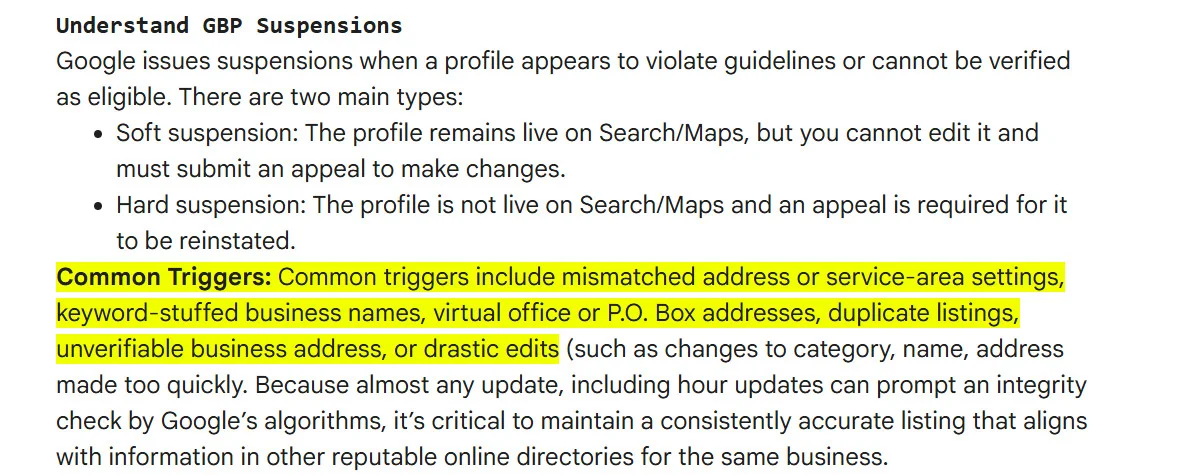
Moreover, a suspension does not just hide the duplicate, it takes your real listing offline while you appeal, so you disappear from the map pack for as long as the review takes.
This compounds fastest across multiple locations, where duplicates multiply quietly through new openings, agency handovers and relocations. If that sounds like your situation, the wider playbook for managing listings across locations is worth reading alongside this piece.
What you are really dealing with is an unattended version of your business, which is running out there without you.
How to Find Every Duplicate Listing of Your Business
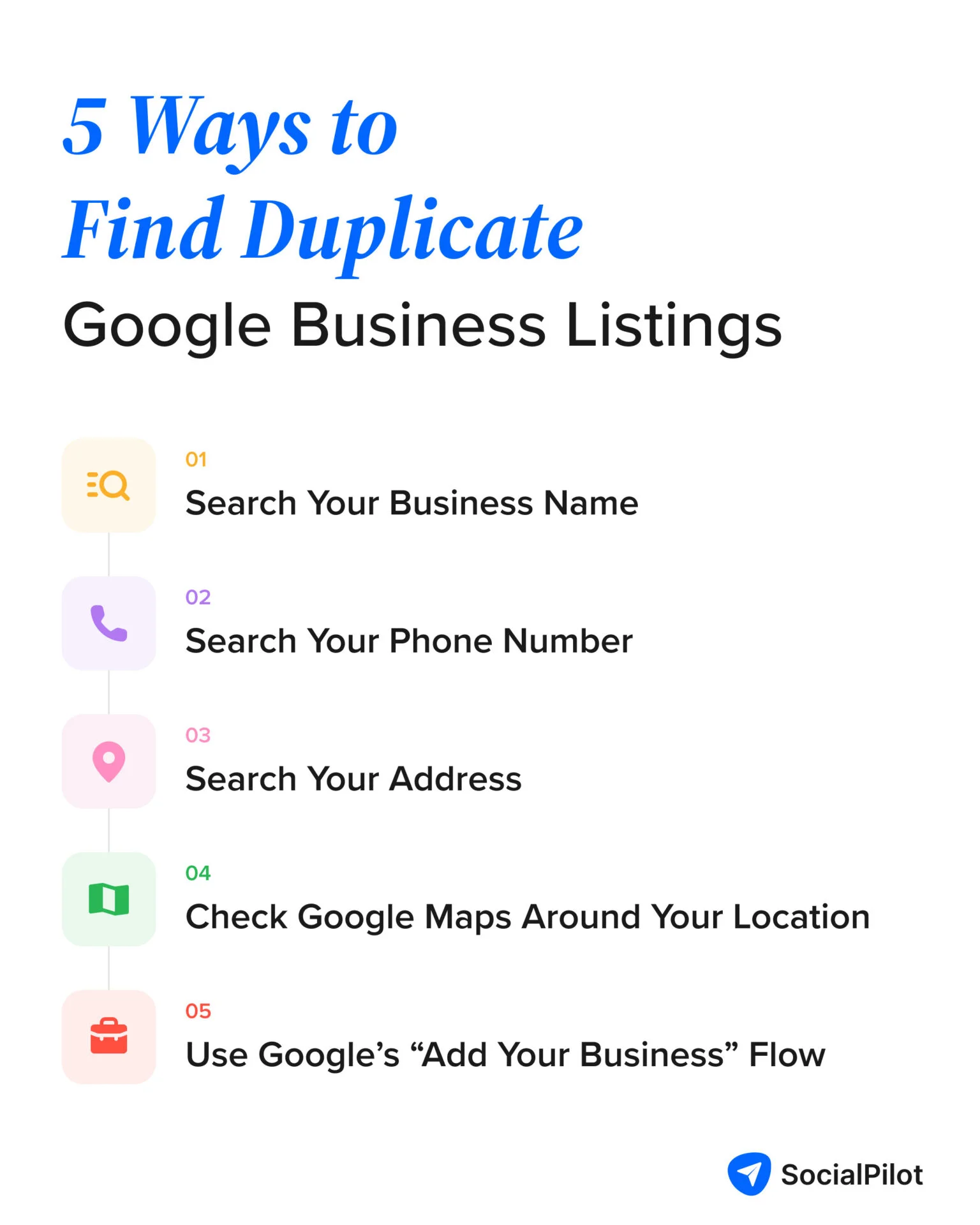
Finding a duplicate is usually easier than fixing one. The challenge is knowing where to look, especially when a duplicate has a slightly different business name, old phone number, or outdated address.
Start with the details customers are most likely to search for, then check Google Maps for profiles that match your business. A few simple searches can uncover duplicates you may not know about.
Searching by Name, Address, and Phone
Work through these in order, because each search can uncover duplicates the others miss.
- Search your exact business name in Google Maps, then scroll the full results list rather than stopping at the first match.
- Search every name variant you have traded under, including abbreviations, the version with and without “Ltd” or “LLC”, the misspellings customers make, and any former business name.
- Search your phone number in Google Maps, which is the highest-yield search of the set, because a duplicate created by someone else usually carries the right phone number even when the name is wrong.
- Search your street address, then search it again in its alternate formats, since “Suite 4” and “Unit 4” and “#4” are three different strings to a database.
- Search every previous address the business has held, because relocations are the single most common source of a stranded duplicate.
Tip: Keep a record of every duplicate you find. Save the profile URL and take a screenshot before making any changes. It’ll make it much easier to tell the profiles apart when you start merging, removing, or reporting them.
Checking Google Maps Directly
Search results are ranked, but Google Maps is based on location. So a duplicate with a slightly different pin might not show up when you search by name, even though it’s visible on the map.
Zoom into your street and read the pins around your building, including the ones across the road and in the unit behind you.
Then start Google’s “Add your business” flow as though you were creating a listing from scratch and type in your business name. Google will surface the possible matches it already holds, which is a useful backdoor list of profiles tied to your location.
Stop before you finish, since you are using the flow to look rather than to create a third listing.
What Google's Own Duplicate Detection Misses
Google does flag duplicates on its own, and it publishes the reasons a profile gets marked as one. A verified profile already existing for the same business, multiple profiles sharing an address, or multiple profiles for the same business offering different services will each do it.
A profile marked that way stops being visible at all, because Google’s duplicate resolution document states “if a profile is considered a duplicate, it won’t show on Google Search or Maps.”
Being flagged is not the same as being fixed. Google does not combine two profiles for you, and its documented route is a request you file and Google reviews: “To request a merge when 2 or more Business Profiles for the same business exist on Maps, report a suggestion on Google Maps. All merge requests are subject to review.”
That gap between flagged and fixed is where duplicates sit for months. Nobody gets an alert, and the profile keeps collecting reviews until someone files the request.
This is also the part that quietly eats a Monday morning once you are past a handful of locations. Tools built for local listings hold a per-location view of what Google currently shows, so a stray profile shows up as an issue on the location’s card rather than a message from a confused customer.
Fixing a Duplicates You Own vs. One You Don't
There are two paths from here, and the one you take depends on whether you can log in and see the duplicate in your own account.
| Your situation | What to do | What happens to reviews? |
| You own both | Merge or remove the duplicate. | Merged reviews are combined; replies may be lost. |
| You own one | Request ownership of the other, then merge or remove it. | Merged reviews are combined; replies may be lost. |
| You own neither | Request ownership or report the duplicate on Google Maps. | Don’t remove either profile until you know which one to keep. |
What Happens to Your Reviews and Data Before You Act
Before you merge, remove, or report a duplicate, take a quick look at what each profile contains. Reviews, photos, business details, and other information may not be treated the same way when you change or remove a profile. Here’s what Google’s documentation on duplicate profiles says:
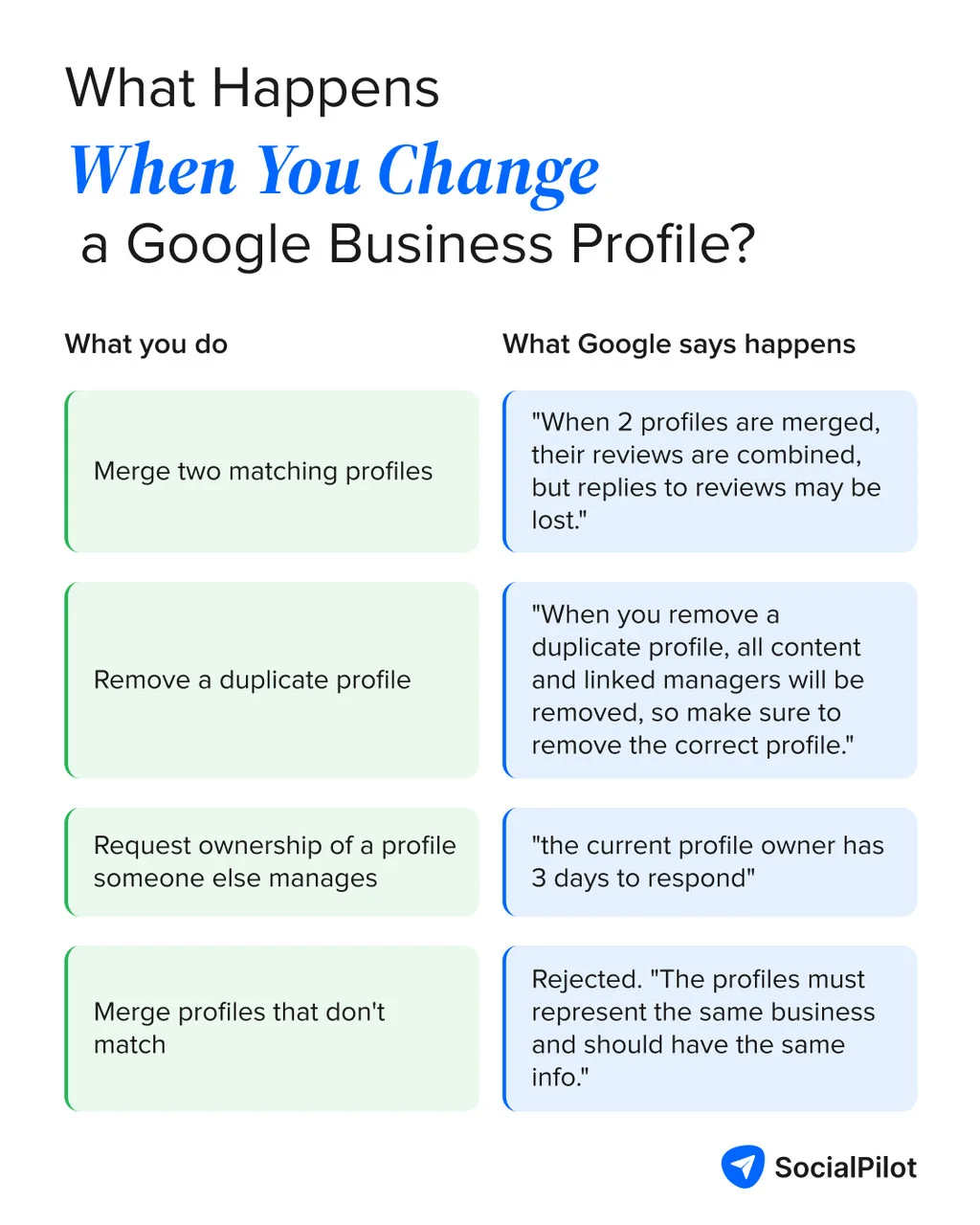
Your reviews survive a merge but your replies might not. So, if you have spent two years writing careful responses to every review, copy them into a document before you start. Google says only that review replies “may be lost”, and its documentation gives no way to get them back.
Removal, on the other hand, is absolute and takes all content and every linked manager with it, which is why identifying the correct profile comes first and why those screenshots were worth the five minutes.
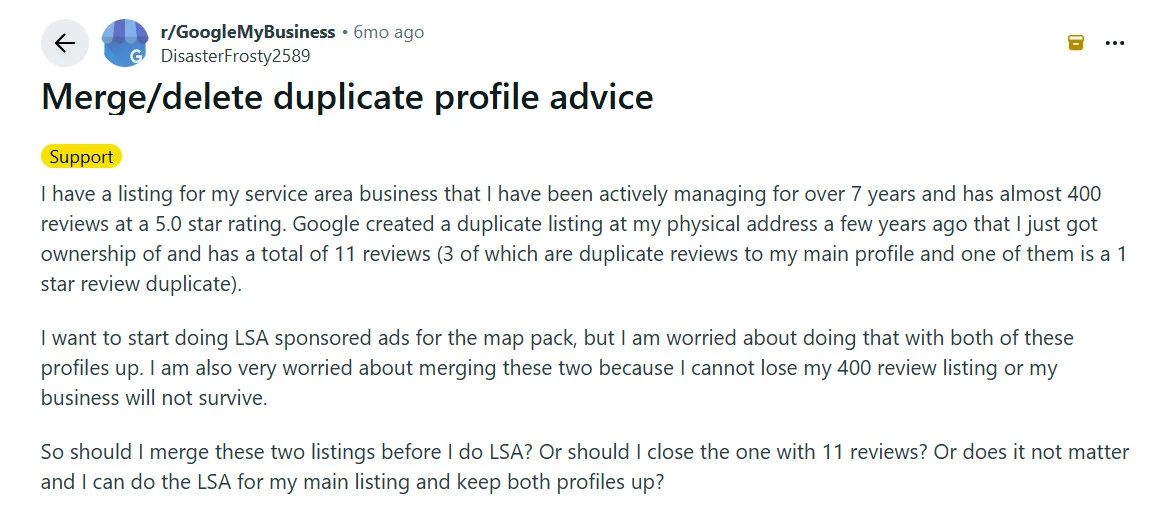
Here’s what a Reddit user on r/GoogleMyBusiness says about their concerns with merging/removing duplicate business profiles:
A merge will also simply fail if the two profiles disagree with each other, so align the name, address, phone and category across both before you ask Google to combine them.
Merging or Removing a Profile You Control
If you have access to both listings, you can merge duplicate Google Business Profiles or remove the duplicate, depending on what you need to keep. The right option depends on whether the profiles are true duplicates and what information or reviews you need to keep.
The goal is to combine Google Business Profiles when both listings represent the same business, rather than removing one and losing its content.
- Confirm which profile is the keeper, which is almost always the verified one with the most reviews and the correct address.
- Copy your review replies from the profile you are about to lose.
- Match the information across both profiles so a merge request is not rejected over a formatting difference.
- Remove the duplicate from your Google Account. Google’s guidance is direct on this point, that “If you created a duplicate profile by mistake, you can remove it without affecting your verified listing.”
- If both profiles carry reviews you want to keep, request a merge on Maps instead of removing, so the reviews combine rather than disappear with the profile.
If the duplicate is verified and carries reviews, removing it is the wrong move, because removal takes that content with it. Merge requests are slower and go through review and approval, but they are the only route that keeps the customer reviews.
Reporting a Duplicate You Don't Own
Don’t have access to the duplicate? You still have options. You can first try to claim the profile, or report it to Google if you can’t get access.
If the duplicate is unclaimed or managed by someone else, start by requesting ownership:
- Open the duplicate profile and request access from the current owner.

- According to Google’s help documentation, current owner then has 3 days to respond. If they approve, you get an email and can manage the profile, and if they deny it you can appeal the denial.
- If nobody responds within those 3 days, you may get the option to claim the profile yourself, though Google notes that this option “isn’t always available.”
- Once the profile is yours, you are back on the path above, merging or removing.
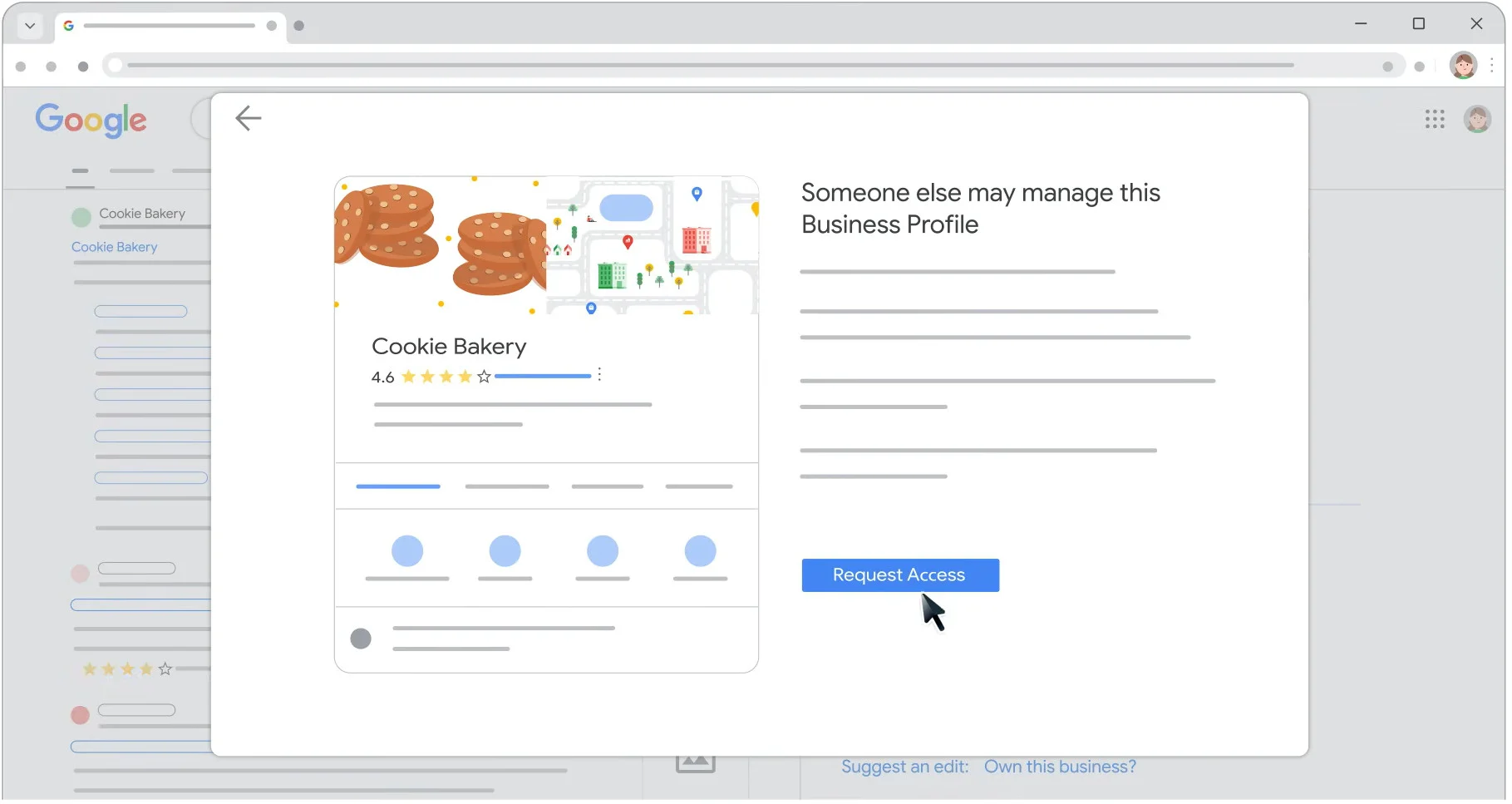
If ownership is denied or unavailable, report it on Maps:
- Open the duplicate in Google Maps.
- Select Suggest an edit.

- Select Place closed or not here, which some desktop views label Close or remove.
- Select Duplicate of another place, then Submit.
- Google will offer matching listings so you can point at the profile you actually manage.
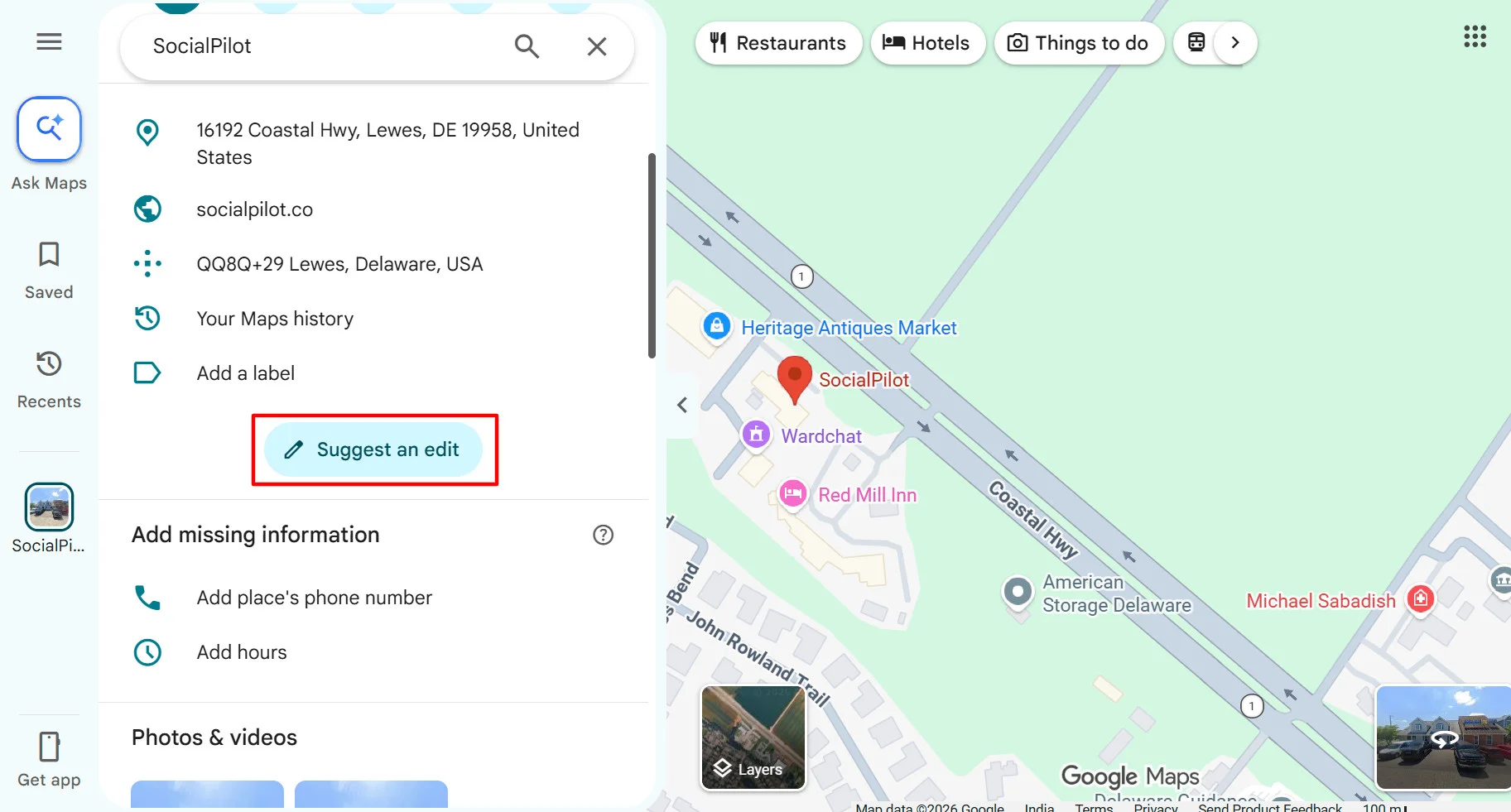
Every merge request goes through review before anything changes, so nothing happens instantly or on your word alone.
Tip: Don’t submit the same report multiple times. Google reviews edits before making changes, so check the status of your existing request instead of sending another one.
If Google marks a listing of yours as a duplicate when it genuinely is not, such as two distinct businesses at one address, you can appeal through Google Business Profile support. Bring evidence that both businesses are separately staffed, separately contactable and separately trading.
What to Do While You Wait
Submitting the request doesn’t resolve the duplicate immediately. While Google reviews it, treat the profile you plan to keep as your main listing.
Keep sending customers to that profile for reviews, and avoid making new updates or building citations around the duplicate. Also, keep an eye on the request status so you know when Google has made a decision.
After the duplicate is resolved, update any remaining listings or business directories that still point to the old profile.
Once you’ve handled the duplicate, the next challenge is making sure it doesn’t happen again. That gets harder when you’re managing multiple locations and keeping business information consistent across profiles.
That’s where a listing management platform can help.
Managing This at Scale with a Listing Management Platform
Fixing one duplicate is manageable. Keeping it from happening again is harder when you have multiple locations to watch.
Google doesn’t notify you every time a new or duplicate profile appears, so these issues can sit unnoticed until a customer points them out.
When you’re managing several locations, checking each profile manually makes it easy to miss changes, new reviews, or listings you didn’t know existed.
SocialPilot’s listing management platform gives you one place to manage your business listings, so you don’t have to check every location separately.
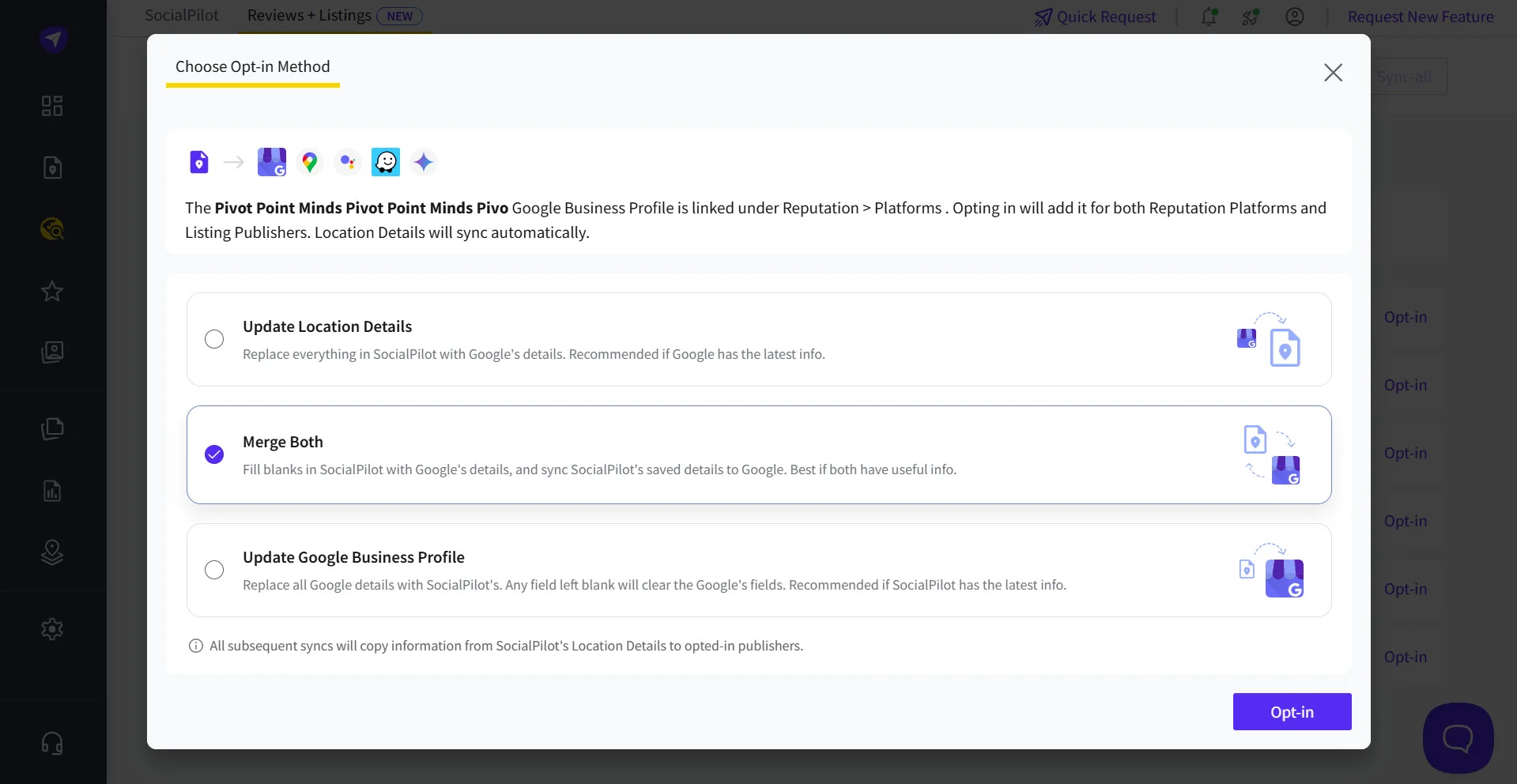
Instead of tracking every location and listing manually, you can:
- Create and manage listings for multiple locations from one dashboard.
- Claim existing listings to bring the right profiles under your control and manage them alongside your other locations.
- Merge listing information when you need to consolidate information from an existing profile rather than leave conflicting details across profiles.
- Update business details when your address, hours, phone number, or other information changes.
- Check listing health to spot missing or incorrect details that could cause problems for a location’s listing.
This is especially useful when you’re dealing with multiple locations or cleaning up existing listings. Instead of creating another profile because the right one is difficult to find or manage, you can work with the listings you already have and keep their information organized in one place.
SocialPilot also brings review management and monitoring into the same workflow. Reviews from Google, Facebook, Yelp, Tripadvisor, and other supported platforms can be viewed in one place, so you’re less likely to miss a review sitting on a profile you weren’t actively checking.
Fix Duplicate Listings Before They Cause Bigger Problems
A duplicate Google Business listing is easy to overlook, especially when it has an old phone number, slightly different business details, or a misplaced map pin.
But leaving it unchecked can split your reviews and business information across profiles and make it harder for customers to find the right one.
The first step is finding every duplicate. From there, check what each profile contains before deciding whether to merge, remove, claim, or report it. And once it’s fixed, keep an eye on your listings so the same problem doesn’t come back.
For businesses managing multiple locations, keeping track of all this manually can quickly become difficult. A listing management tool like SocialPilot Reviews can help by giving you one place to manage, claim, and monitor your business listings. If you’re considering a tool for this, you can also take a look at SocialPilot’ pricing for listing management to see what fits your needs. to see what fits your needs.
The goal isn’t simply to remove one duplicate and move on. It’s to keep your business information accurate and your listings under control as your business changes and grows. That way, customers are more likely to find the right profile when they search for your business.