

You’re posting consistently on Instagram, boosting Facebook posts, and sharing insights on LinkedIn. The engagement looks good, but when someone asks, “How much website traffic is social media actually driving?” the answer isn’t always clear, as you don’t know the exact numbers.
Basic social media metrics such as likes and comments are easy to track, but they don’t show whether your efforts are generating leads, signups, or revenue.
This is where many social media marketers struggle. Google Analytics can connect social media activity to real business results, but GA4 often feels confusing at first. The reports seem complex, and finding social-specific insights takes effort or requires expert help for GA4 setup.
In this article, we break down the setup into simple steps and show you how to track social media traffic, organize your data with UTMs, and measure the real impact of your efforts.
Key Takeaways:
- Google Analytics 4 (GA4) helps track what happens after users click from social media—traffic, behavior, conversions, and revenue.
- UTM parameters are essential for accurate social media tracking and campaign attribution.
- Setting up key events (conversions) allows you to measure real business outcomes like signups, leads, and purchases.
- GA4 reports such as Traffic Acquisition and Conversion Paths reveal which platforms and campaigns drive results.
- Metrics like engagement rate, session duration, and conversion rate help evaluate social media performance effectively.
- GA4 has limitations in tracking in-platform metrics, so combining it with tools like SocialPilot gives a complete view.
- Consistent tracking, reporting, and optimization are key to measuring and improving social media ROI.
Google Analytics for social media is the practice of using Google’s free analytics platform (GA4) to track, measure, and analyze traffic and conversions coming from your social channels, including posts, stories, videos, and paid campaigns.
While platform-native analytics (like Instagram Insights or Facebook Page Analytics) show clicks, views, and engagement, GA4 takes it a step further by showing what happens after users leave the platform. For example:
- Did they explore your website?
- Did they sign up for a newsletter?
- Did they make a purchase or request a demo?
GA4 helps marketers move beyond vanity metrics to track real business outcomes from social media efforts.
Here are the key reasons GA4 should be part of your measurement toolkit:
| Benefit | What It Shows | Why It Matters |
| Track Traffic from Social Media | See which platforms drive visitors to your website (Facebook, Instagram, LinkedIn, X, TikTok, Pinterest, YouTube) | Identify which channels are generating the most sessions and users |
| Understand User Behavior | Tracks pages visited, time spent, scrolling, and navigation flow | Check if landing pages align with your social media promises |
| Measure Conversions & Revenue | Track newsletter signups, contact form submissions, purchases, or app installs | Attribute conversions to specific posts, campaigns, or platforms |
| Compare Channels Side by Side | Stack social platforms against each other and against other marketing channels | Find out which platforms are performing best for your business goals |
| Identify Top-Performing Content | Combine UTM-tagged campaigns with GA4 data | Remove guesswork and refine your social media content strategy |
If you have never used Google Analytics for social media before, do not worry. Now, we will walk you through the initial setup. If you already have GA4 installed on your website, skip to Step 3.
Step 1: Create Your GA4 Property
- Go to analytics.google.com and sign in with your Google account.
- Click “Admin” (gear icon in the bottom left).
- Click Create > Property.
- Name your property (for example, your business name or website name).
- Set your reporting time zone and currency.
- Click “Next,” fill in your business details, and click “Create.”

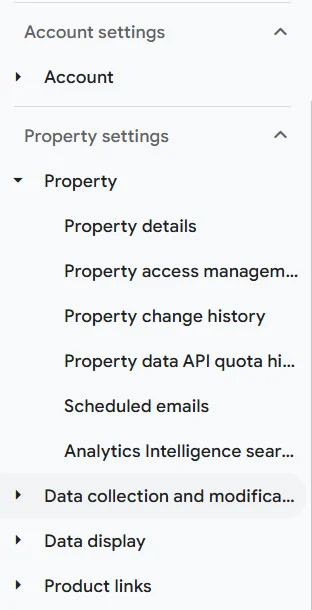
Google analytics will now create a property for you and prompt you to set up a data stream.
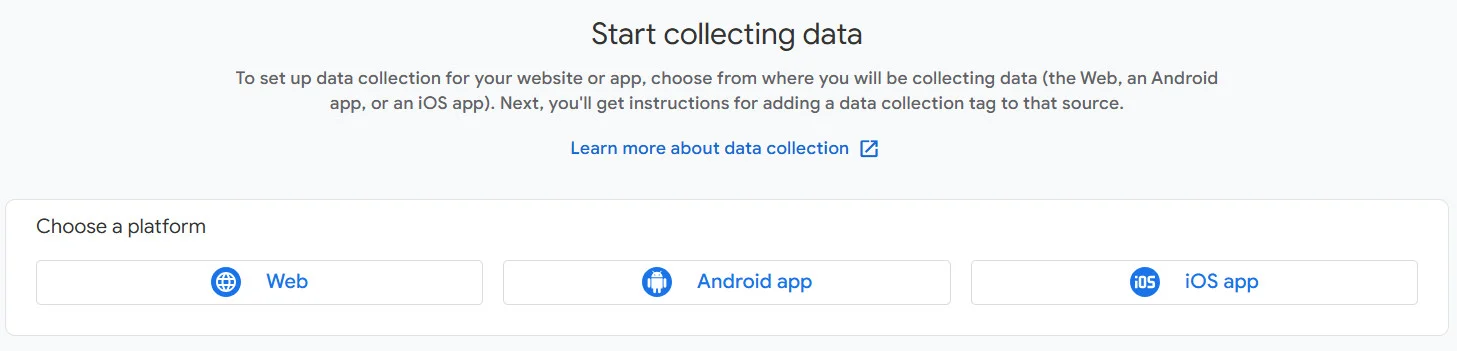
Step 2: Add Your Website as a Data Stream
- After creating the property, click Data Streams
- Choose Web and enter your website URL
- Give your stream a name (e.g., “Main Website”)
- Next click “Create Stream”
Step 3: Install the Tracking Code (or Use Google Tag Manager)
After adding your web stream, GA4 gives you a Measurement ID (it looks like G-XXXXXXXXXX). You need to add this to your website so GA4 can collect data, in short, this ID is a medium to connect your website and Google Analytics.
You have two options:
- Add the GA4 tag directly to your website’s header
- Or, install it using Google Tag Manager (recommended for beginners managing multiple tags)
Once installed, GA4 will start collecting visitor data automatically.
Option 1: Direct installation (simplest method)
- In GA4, go to Admin > Data Streams > click your web stream.
- Under Google tag, click View tag instructions.
- Select Install manually and copy the code snippet.
- Paste this snippet into the <head> section of every page on your website.
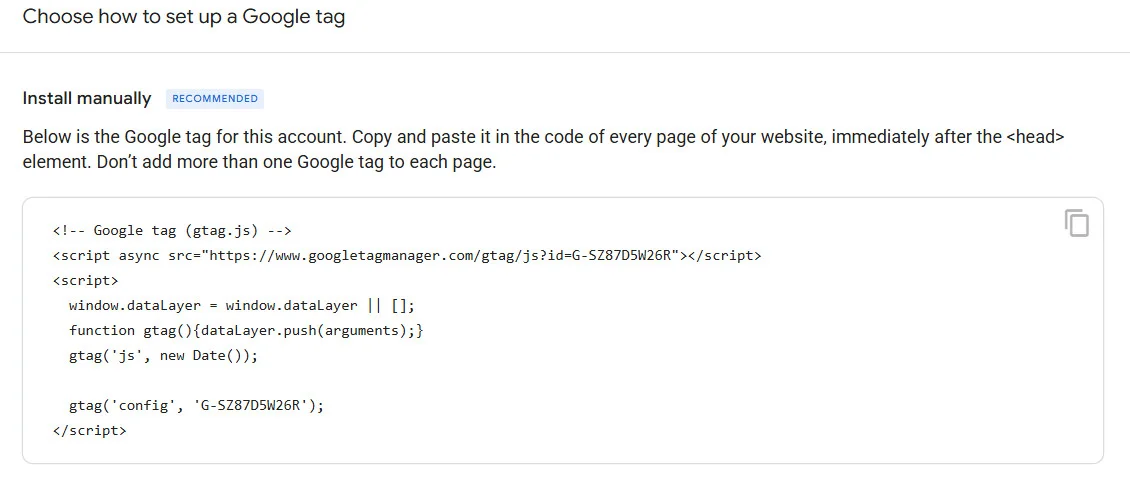
Most website platforms (WordPress, Shopify, Squarespace, Wix) have a dedicated field where you can paste this code without editing raw HTML. Look for “Google Analytics,” “Tracking Code,” or “Header Scripts” in your platform’s settings.
Option 2: Google Tag Manager (GTM)
If you want more flexibility or your website already uses GTM, you can add Google Analytics for social media through Tag Manager instead.
- In Google Tag Manager, create a new tag.
- Choose Google Analytics: GA4 Configuration as the tag type.
- Enter your Measurement ID.
- Set the trigger to All Pages.
- Click Save, then Submit to publish.
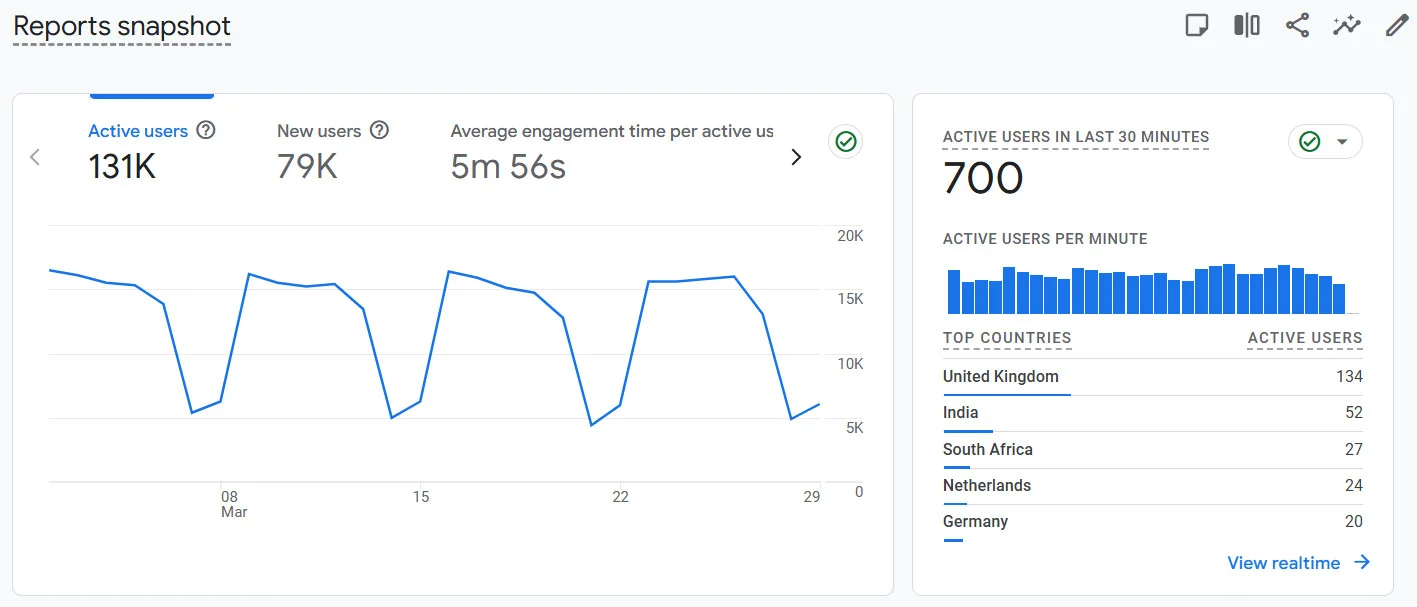
How to verify it is working: After installation, go back to Google Analytics and click Reports > Realtime. Open your website in another browser tab. You should see at least one active user within 30 minutes.
Step 4: Configure Custom Channel Groups
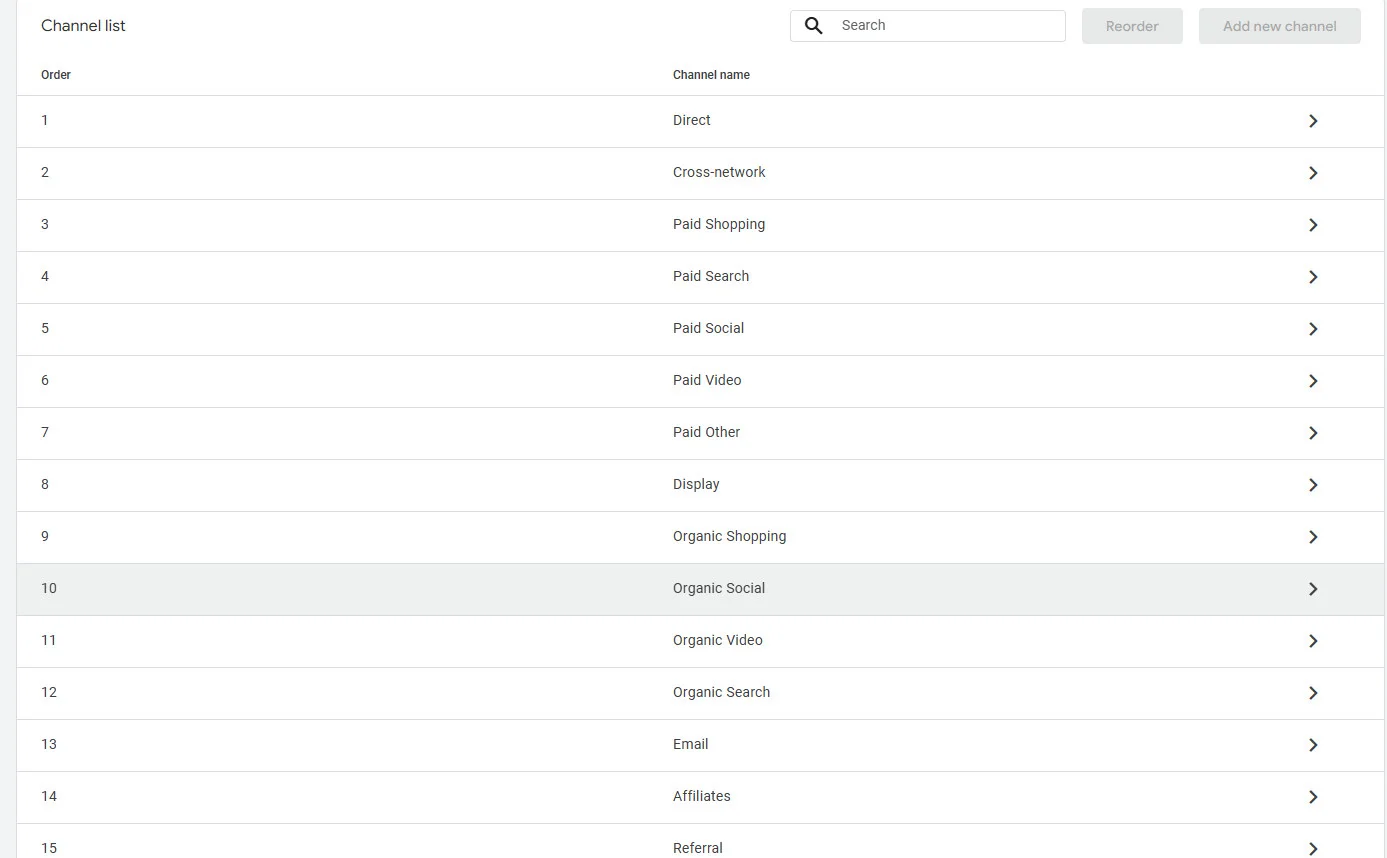
Google Analytics for social media automatically groups your traffic into channels like “Organic Social,” “Paid Social,” “Organic Search,” and “Direct.” But out of the box, it may lump some traffic together incorrectly, especially if you are not using UTM parameters on social media consistently.
To check (and customize) how GA4 classifies your social traffic:
- Go to Admin > Data display > Channel groups.
- Click Create new channel group (or review the default).
- Review the rules for “Organic Social” and “Paid Social.” GA4 uses the source and medium from your UTM parameters to classify traffic.
- If you use custom source names (for example, “ig” instead of “instagram”), add those to the rules so GA4 classifies them correctly.
This is the most important step for measuring social media ROI. A key event is any user action on your website that matters to your business. Here are some common event examples:
- Newsletter signup
- Contact form submission
- Product purchase
- Free trial registration
- PDF download
- Demo request
- Add to cart
- Calls
Mark these as conversion events in Google Analytics so you can measure results from social media.
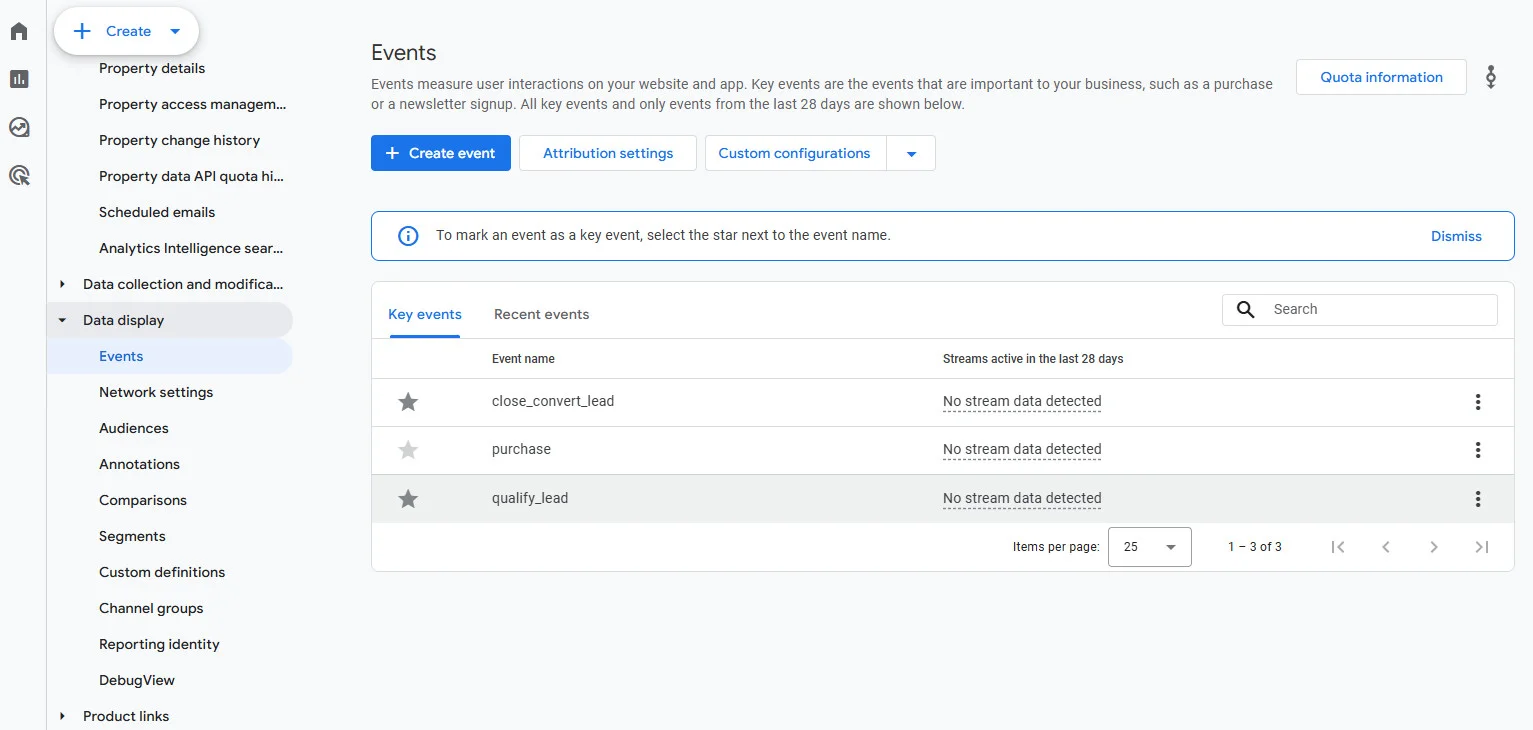
To set up key events in GA4:
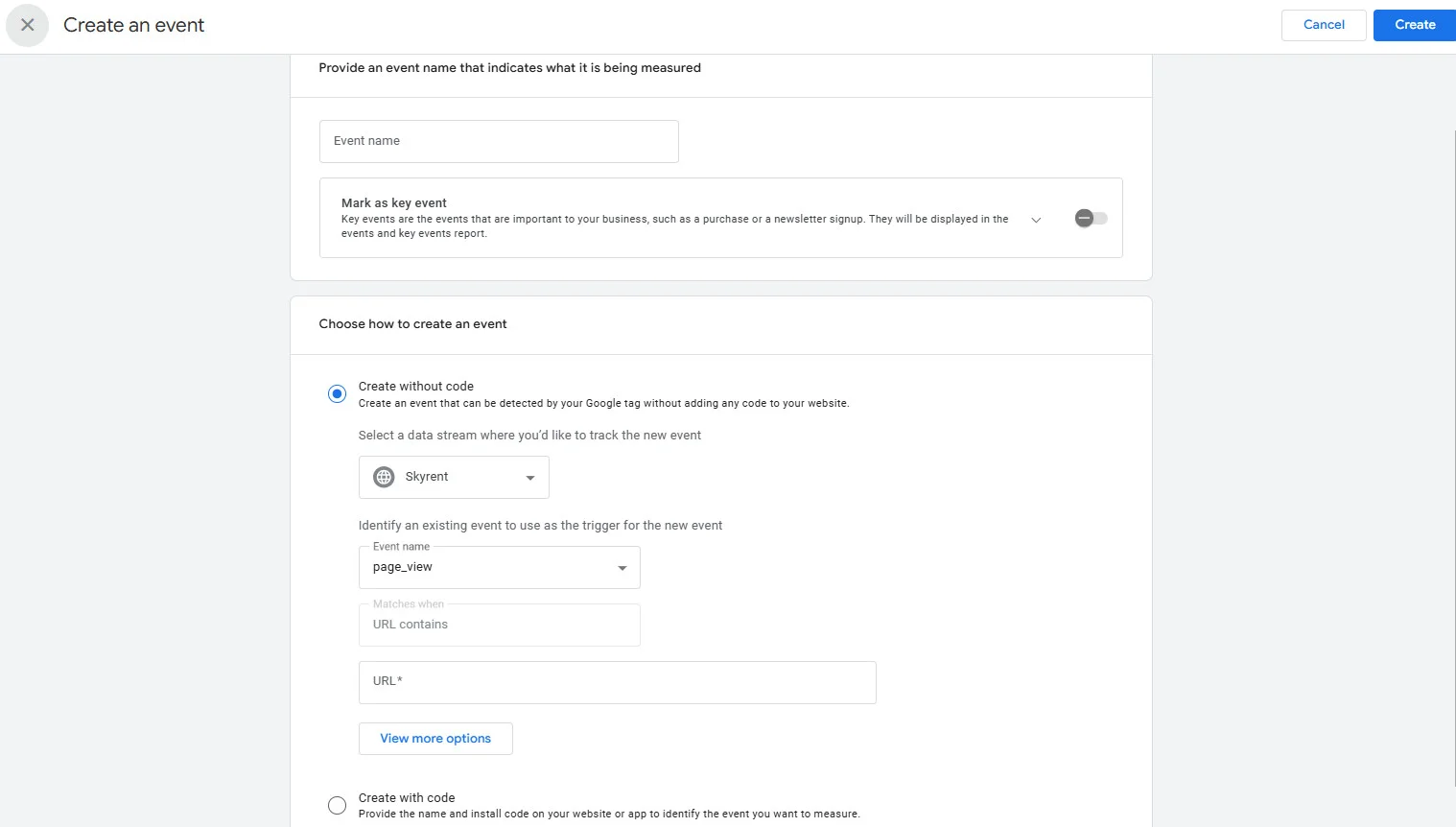
- Go to Admin > Events.
- If your event already appears in the list (for example, form_submit or purchase), click the toggle next to it to mark as key event.
- If the event does not exist, click Create event to define a new one based on conditions (for example, when a user views a specific “thank you” page after submitting a form).
For common events, GA4 tracks some automatically:
- page_view — tracked automatically
- scroll — tracked automatically (count only when user scrolls 90% of page)
- click — outbound link clicks (tracked automatically with enhanced measurement)
- purchase — requires e-commerce setup
- generate_lead — requires manual setup or GTM
We will advise starting with two or three key events. You can always add more later. The most impactful ones for social media managers are usually a lead form submission and a purchase or signup event.
Step 6: Build UTM Parameters for Every Link
This step is what separates useful social media data from messy, unreadable data in GA4. UTM parameters are tags you add to the end of your URLs so GA4 knows exactly where each visitor came from. Without them, GA4 often labels social traffic as “Direct” or “(not set),” which makes your reports useless.
UTM parameters are so important so let’s discuss what’s it is and how to create it.
UTM (Urchin Tracking Module) parameters are snippets of text added to a URL that tell Google Analytics where traffic came from and why. If you share links on social media without UTMs, you are flying blind.
Explore Key UTM Parameters
Here is what each UTM parameter does, for GA4 social media tracking with examples:
| Parameter | What It Tracks | Example | Required? |
| utm_source | Which platform sent the traffic | facebook, instagram, linkedin, tiktok | Yes |
| utm_medium | The marketing channel type | social, paid-social, story, boost | Yes |
| utm_campaign | The specific campaign or initiative | spring-sale-2026, product-launch, weekly-tips | Yes |
| utm_term | The keyword or audience targeted (optional) | smm-audience, retargeting, leads-lists | No |
| utm_content | Differentiates between variations | carousel-v1, video-ad, cta-button | No |
Example of a full UTM URL:
If you put a story on Instagram or Facebook and want to link CTA with pricing page, then this is the ideal UTM link:
socialpilot.co/pricing?utm_source=instagram&utm_medium=social&utm_campaign=spring-sale-2026&utm_content=story
When someone clicks this link, GA4 records the visit with all those details attached. You can then filter reports to see traffic specifically from Instagram Stories during your spring sale campaign.
However, social teams often run into issues when creating UTM parameters for GA4 tracking. One of the most common problems is inconsistent naming, which can quickly make your data messy and difficult to analyze.
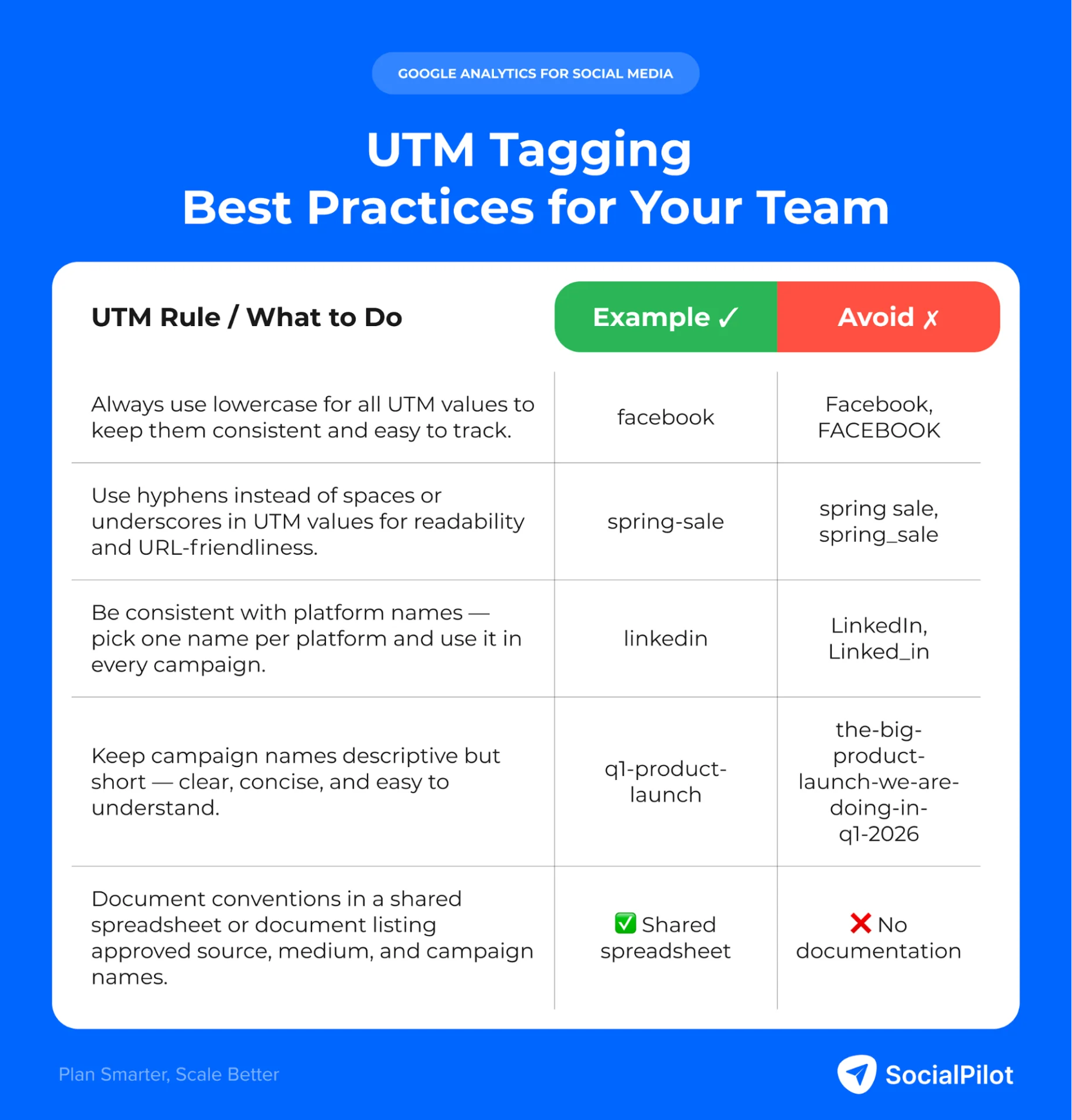
For example, if one person uses “facebook” and another uses “Facebook” or “fb,” GA4 treats them as three separate sources. To avoid this, your team should follow a consistent naming convention for all UTM parameters, so your tracking data stays clean and reliable.
Now, let’s talk about the best UTM tagging practices to effectively use GA4 for your social media.
Tools for Creating and Managing UTMs
You do not need to type UTM parameters manually. These tools make the process faster and less error-prone:
- Google’s Campaign URL Builder (free): The official tool from Google. Paste your URL, fill in the parameters, and it generates the tagged link. Search “Google Campaign URL Builder” to find it.
- UTM.io: A team-friendly UTM builder with preset conventions, link history, and collaboration features. It prevents naming inconsistencies automatically.
- SocialPilot: When you schedule posts across platforms, you can add UTM parameters directly in the composer, so every link you share is tagged without extra steps.so every link you share is tagged without extra steps.
For short links, pair your UTM builder with a link shortener such as Bitly, Rebrandly, or Short.io. Short links length is important because long UTM URLs look messy in social posts (especially on X/Twitter with character limits) and can discourage clicks.
Your GA4 is set up, your UTMs are in place, and traffic is coming in. Now you need to find and analyze your social media data. Here are the five most useful reports for social media managers.
1. Traffic Acquisition Report
This is your go-to report for seeing how many sessions social media is driving.
How to find it:
- In GA4, go to Reports > Acquisition > Traffic acquisition.
- The default view groups traffic by Session default channel group.
- Look for Organic Social and Paid Social in the table.
- To drill deeper, click the dropdown at the top of the table and change it to Session source/medium. Now you will see individual platforms like facebook / social, instagram / paid-social, and so on.
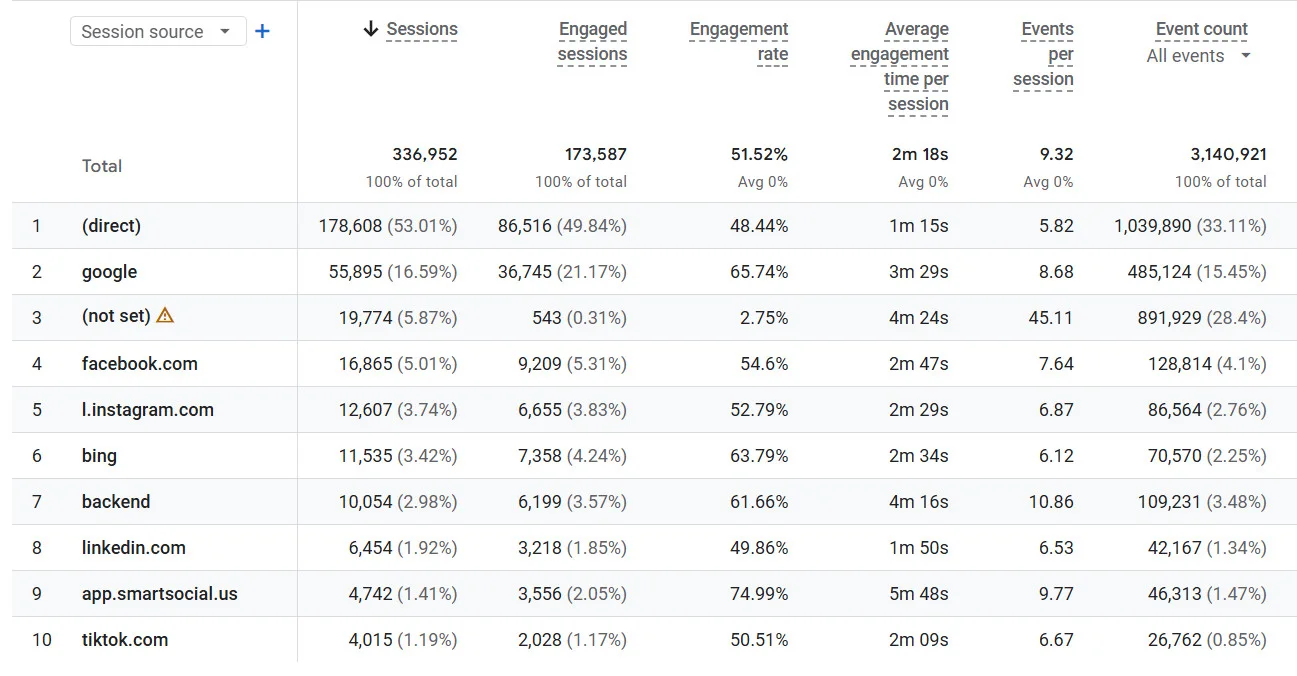
This report shows sessions, engaged sessions, engagement rate, average engagement time, and conversions, all broken down by traffic sources.
2. User Acquisition Report
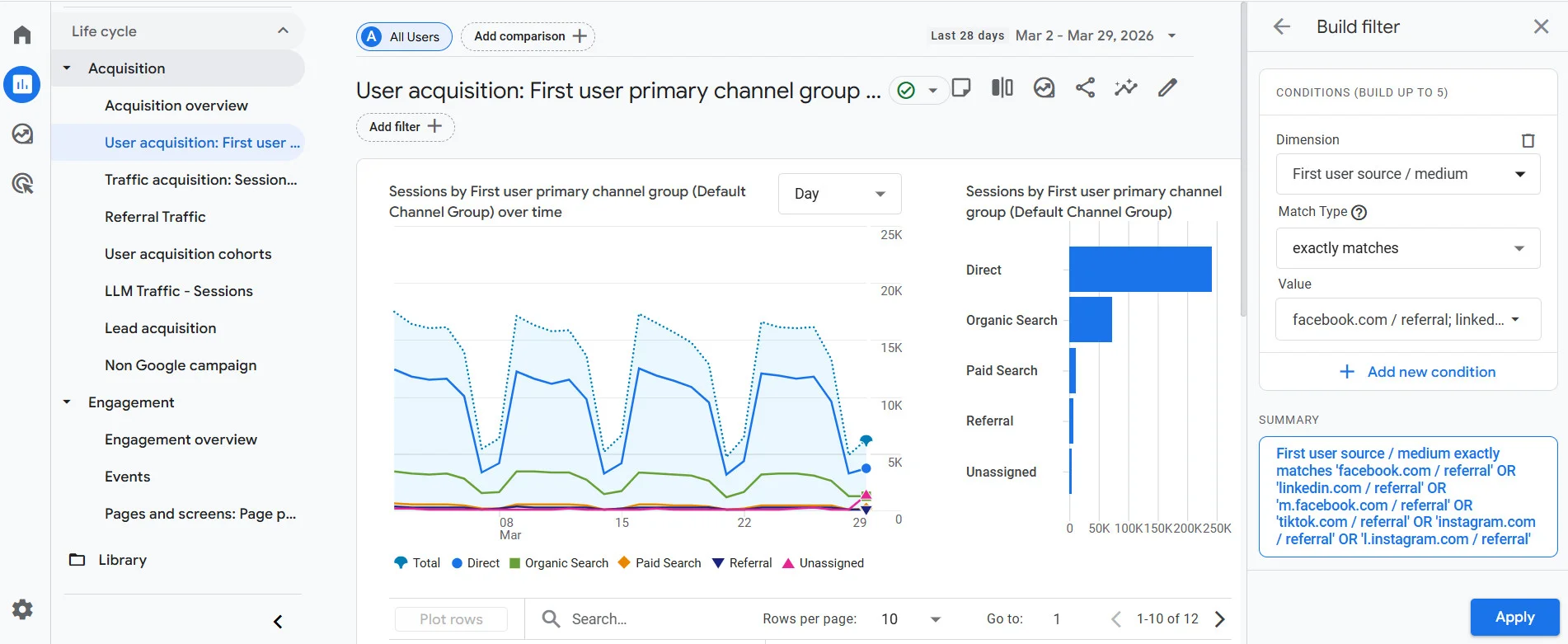
While the traffic acquisition report looks at sessions (visits), the user acquisition report shows you where new users first discovered your site. This is valuable for understanding which social platforms bring you fresh audiences versus returning visitors.
How to find it: Reports > Acquisition > User acquisition. Change the dimension to First user source/medium to see social platform breakdowns.
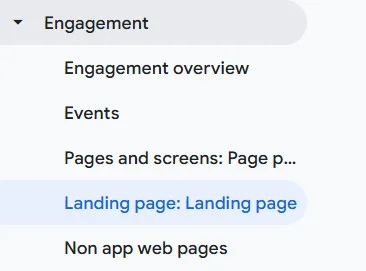
This report shows which pages social visitors land on most. It helps you understand whether your social links are sending people to the right content.
How to find it:
- Go to Reports > Engagement > Landing page.

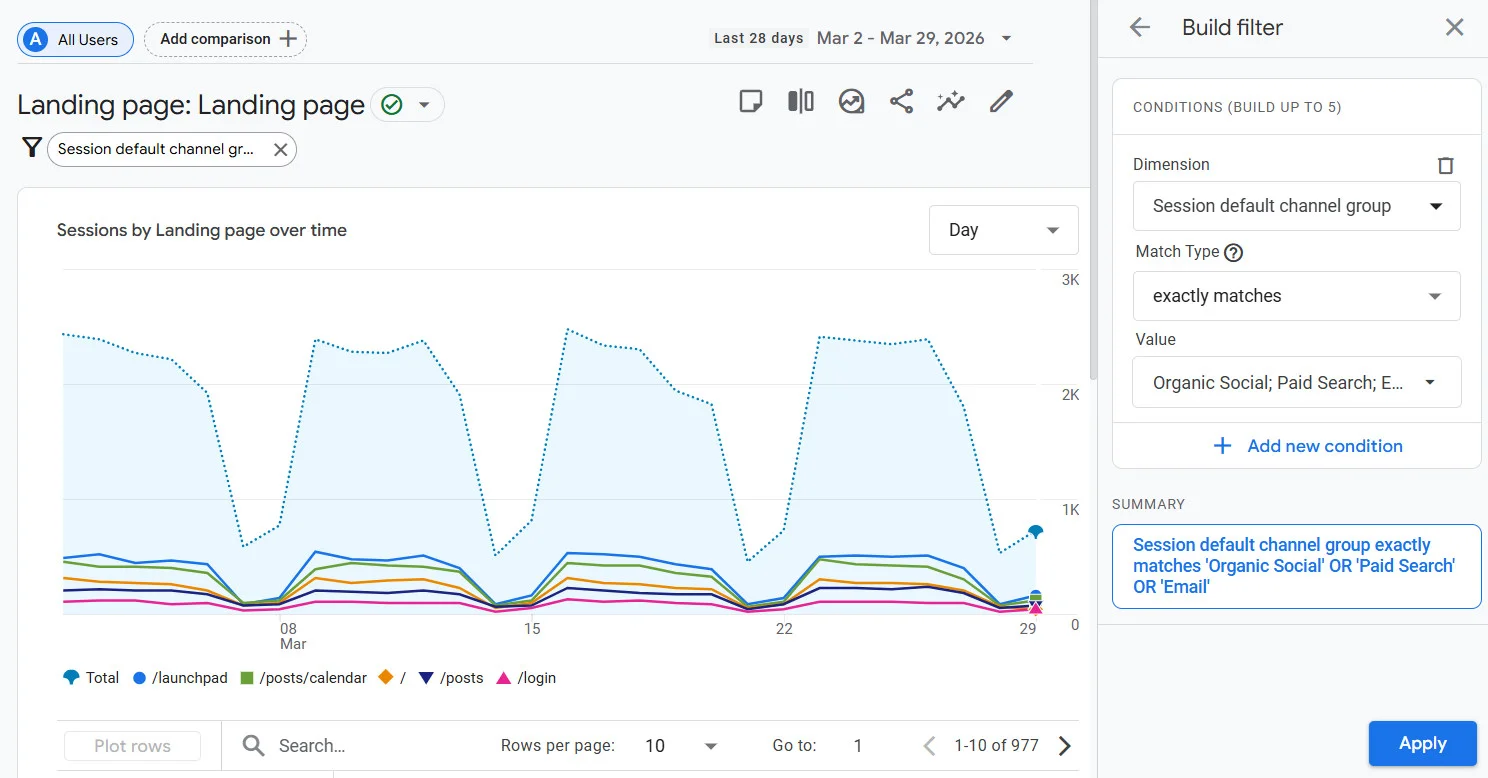
- Click Add filter (the funnel icon near the top).
- Set the filter to: Session default channel group > exactly matches > Organic Social (or Paid Social).
- Click Apply.
Now you see only landing pages from social traffic—sorted by sessions, engagement rate, and conversions.
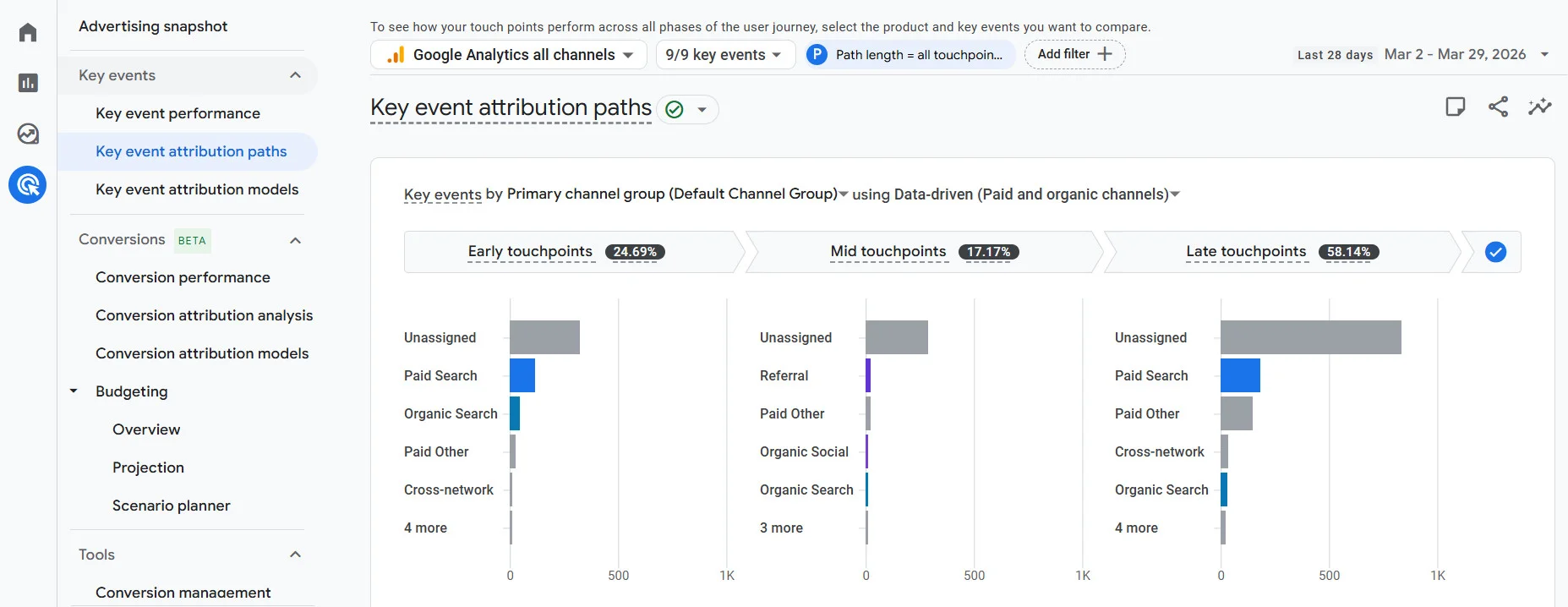
4. Conversion Path Report
Social media does not always get credit for conversions. A user might discover your brand through an Instagram post, come back later via Google search, and then convert. The conversion path report shows these multi-touch journeys.
How to find it: Go to Advertising > Attribution > Conversion paths. This shows you how different channels (including social) contribute to conversions at different stages, first touch, middle touch, and last touch.
For deeper analysis, Google Analytics in social media offers features which lets you build custom reports with exactly the dimensions and metrics you want.
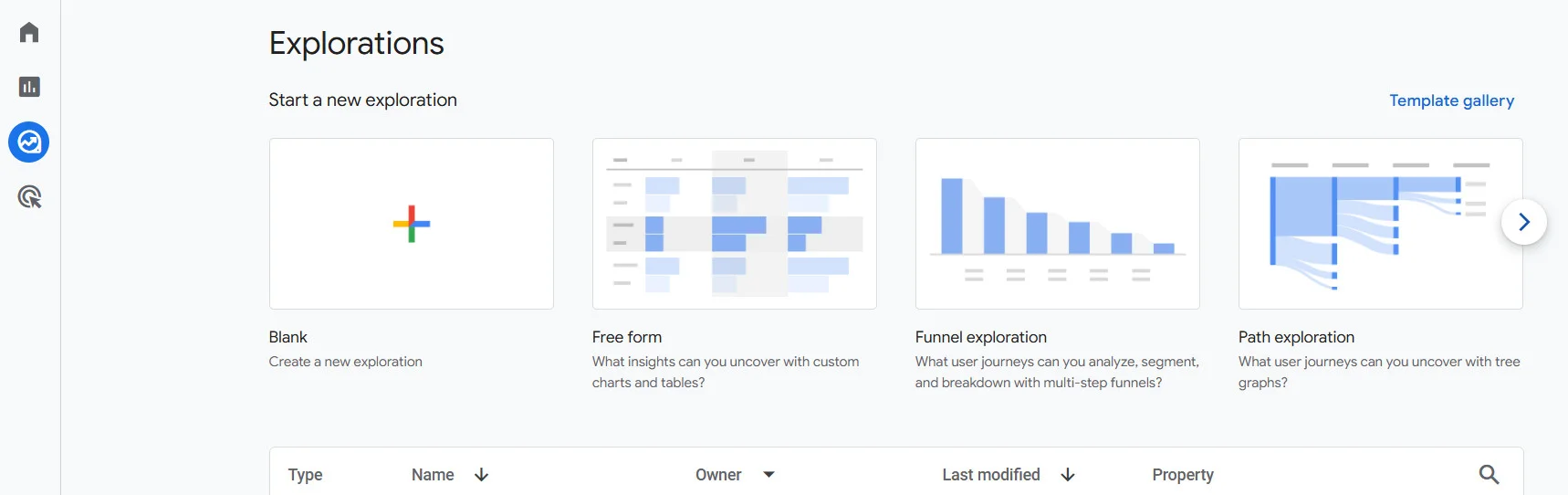
How to create a social media exploration report in Google Analytics:
- Go to Explore > Blank (or choose a template).
- Under Variables, add these dimensions: Session source, Session medium, Session campaign, Landing page.
- Add these metrics: Sessions, Engaged sessions, Key events, Total revenue (if applicable).
- Drag the dimensions into Rows and metrics into Values.
- Add a filter: Session default channel group contains Social.
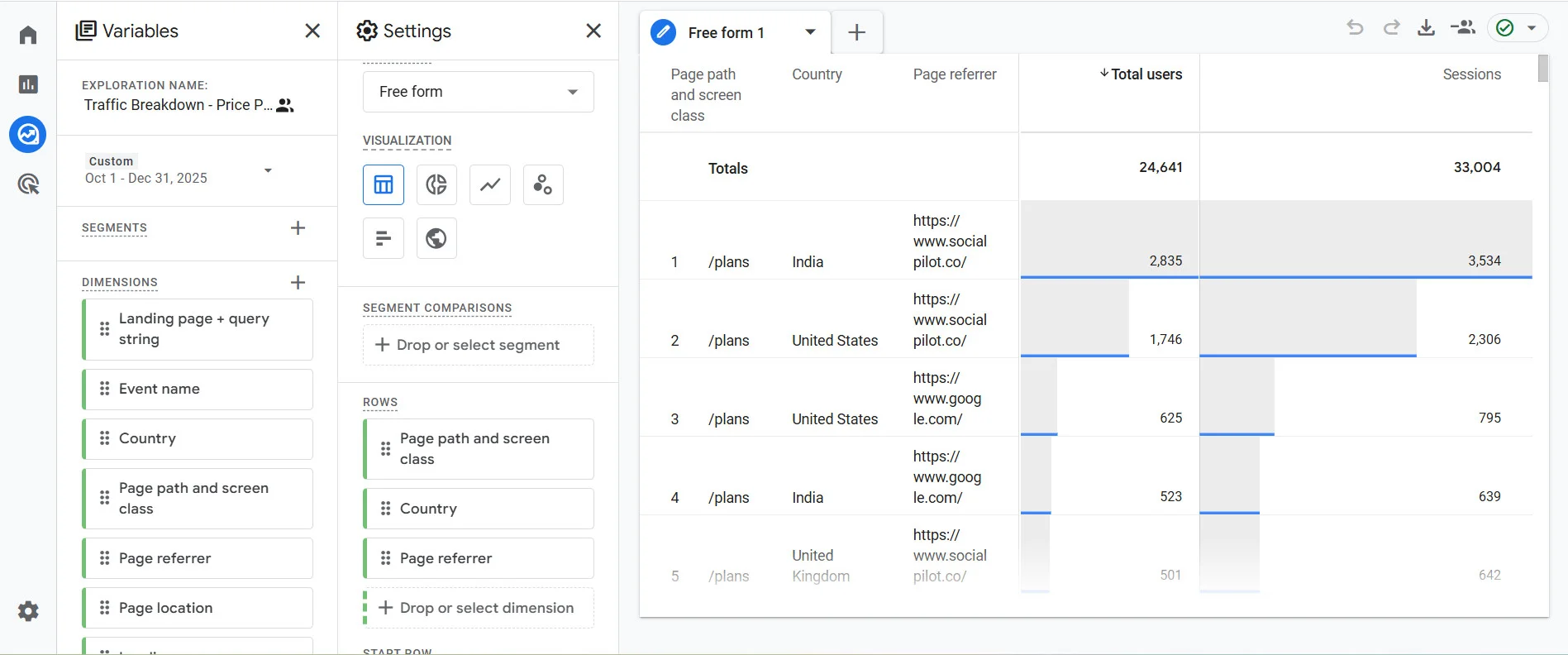
You now have a custom social media dashboard showing performance by platform, campaign, and landing page, all in one view.
Not every metric in GA4 is useful for social media analysis. Here are eight key metrics to track that help you understand how your social media efforts drive traffic, engagement, and conversions.
- Sessions and Users by Platform: Shows which social platforms drive the most traffic to your website, helping prioritize efforts.
- Engagement Rate by Social Source: Measures how actively visitors interact with your site after clicking from social media. Higher engagement indicates alignment between content and audience.
- Bounce Rate from Social Traffic: Percentage of visitors who leave without interacting. High bounce may suggest landing pages don’t match post expectations or need better targeting.
- Pages Per Session Average number of pages visited per session from social media. More pages indicate greater content interest.
- Average Session Duration: Measures how long social visitors stay on your site. Longer sessions show stronger interest and content relevance.
- Conversion Rate by Social Channel: Percentage of social visitors completing key actions (sign-ups, downloads, purchases). Directly links social traffic to business outcomes.
- Revenue or Goal Value by Source: Shows monetary value generated per platform. Helps translate social performance into ROI.
- New vs. Returning Users: Indicates whether social media is bringing in new audiences or re-engaging existing ones. Helps understand discovery vs. nurturing impact.
Google Analytics 4 (GA4) is a powerful tool for tracking website and app behavior, but it isn’t designed to fully measure native social media performance. Its strength lies in showing what happens after users click a link and land on your site.
Here are some things GA4 cannot track:
- In-platform engagement such as likes, comments, shares, saves, video views, or follower growth
- Reach and impressions, you won’t know how many people actually saw your social content
- Traffic shared via DMs or messaging apps may appear as direct traffic
- Cross-device journeys can be counted as separate users
Because of these limitations, GA4 primarily shows post-click metrics like sessions, conversions, and revenue.
How to Fill the Gaps?
For a complete view of social media performance, GA4 works best when combined with a dedicated social media analytics tool. Tools like SocialPilot Analytics help track platform-specific metrics such as reach, impressions, engagement, follower growth, and top-performing content across multiple networks.
SocialPilot also makes reporting easier for teams and agencies. You can create customized or branded reports for clients, compare performance across platforms, and share insights without manual data collection.
Watch this video to see how SocialPilot simplifies social media analytics and reporting for multiple accounts.
Paired with GA4, this approach gives a full view of the user journey from content visibility and engagement to clicks and conversions, helping measure ROI more accurately while saving time managing multiple clients.
Platform-Specific Tracking Tips With GA4 Using UTM Parameters
Every social platform handles links differently. Here is how to set up UTM tracking for each one so your GA4 data stays clean and accurate.
1. Facebook
Facebook supports clickable links across most content formats, making UTM tracking relatively straightforward. You can add tagged URLs directly to your content so GA4 captures traffic accurately.
- Organic posts: Add UTM-tagged links directly in the post caption. Use utm_medium=social to categorize this traffic as organic social in GA4.
- Link posts: The URL you paste automatically generates a preview card. Make sure the link already includes UTM parameters before publishing so the traffic is tracked correctly.
- Stories: Add your UTM-tagged link to the link sticker. Use utm_content=story to differentiate Story traffic from feed posts.
- Reels: Include the UTM-tagged link in the caption. Since users may need to tap to access it, using utm_content=reel helps you identify traffic specifically from Reels.
- Boosted posts: When you boost a post, Facebook retains the original link. If the post already contains UTM parameters, they will carry over. Use utm_medium=paid-social or utm_medium=boost to distinguish boosted traffic from organic posts.
- Facebook Ads (Ads Manager): Use utm_medium=paid-social and set utm_campaign based on your campaign name. You can also add UTMs directly in the URL parameters field within Ads Manager for cleaner tracking.
Example: ?utm_source=facebook&utm_medium=social&utm_campaign=weekly-tips&utm_content=reel-march-w4
2. Instagram
Instagram limits where clickable links can be placed, so UTM tracking requires a slightly different setup. To keep your GA4 data organized, you’ll often rely on bio links, story stickers, and ad URLs.
- Bio link: Add UTM parameters to the link in your profile bio. Update the utm_campaign value whenever you change the link so you can track which campaign is driving bio clicks.
- Stories (link sticker): Add your UTM-tagged URL to the link sticker. Use utm_content=story to differentiate Story traffic from other Instagram sources.
- Reels: If you direct users to your bio link or include a link reference in the description, make sure the destination link contains UTMs. This helps attribute traffic coming from Reels.
- Feed posts: Links in feed captions are not clickable. When you ask users to visit the “link in bio,” the UTMs attached to your bio link will capture this traffic in GA4.
- Instagram Ads: Add UTM parameters directly in the destination URL field within Ads Manager. Use utm_medium=paid-social to separate paid campaigns from organic traffic.
- DMs and collaborations: When sharing links through direct messages or influencer partnerships, use unique UTM-tagged URLs. This allows you to track traffic from specific campaigns, creators, or outreach efforts.
Example: URL?utm_source=instagram&utm_medium=social&utm_campaign=spring-sale&utm_content=story-link
3. LinkedIn
LinkedIn is one of the easiest platforms for UTM tracking, especially for B2B campaigns, since most content formats support clickable links. This makes it simple to attribute traffic accurately in GA4.
- Organic posts: Add UTM-tagged links directly in your post. LinkedIn supports link previews, so the tagged URL will generate a clickable preview while still tracking properly.
- Articles (LinkedIn Pulse): Include UTM parameters in any links within the article body. This helps track readers who click through to your website from long-form content.
- Company page posts: Tracking works the same way as personal posts. Add UTM-tagged links in the post text or link field to capture traffic from your company page.
- Sponsored posts and ads: Add UTM parameters in the destination URL field within LinkedIn Campaign Manager. Use utm_medium=paid-social to distinguish paid traffic from organic posts.
- Newsletter links: Add UTM parameters to all links included in your LinkedIn newsletter. This allows you to measure traffic driven by each issue and compare performance over time.
Example: URL?utm_source=linkedin&utm_medium=social&utm_campaign=thought-leadership&utm_content=article
4. X (Twitter)
Due to post character limits on X, using shortened links with UTM parameters helps keep posts clean while still tracking performance accurately in GA4.
- Tweets/posts: Add your UTM-tagged link directly in the post. To save characters and keep the post readable, use a link shortener like Bitly or Rebrandly while preserving the UTM parameters.
- Threads: If you are sharing links within a thread, use UTM parameters on the link and include utm_content=thread to differentiate traffic coming specifically from threaded conversations.
- Ads: Add UTM parameters in the destination URL field within X Ads Manager. Use utm_medium=paid-social to separate paid campaign traffic from organic posts.
- Profile bio: Add UTM parameters to the link in your profile bio. Update the utm_campaign value periodically to track traffic from different campaigns or time periods.
Example: URL?utm_source=twitter&utm_medium=social&utm_campaign=product-launch&utm_content=thread
5. TikTok
TikTok offers limited options for clickable links, but you can still track traffic effectively by using UTMs in key placements like your bio and ads.
- Bio link: Add UTM parameters to the link in your profile bio. Since most organic TikTok traffic comes from the bio, this helps you capture and measure clicks accurately. Update the utm_campaign value when running new campaigns.
- Video descriptions: Some accounts have access to clickable links in video descriptions. If available, include UTM-tagged URLs to track traffic from individual videos.
- TikTok Ads: Add UTM parameters in the destination URL field within TikTok Ads Manager. Use utm_medium=paid-social to distinguish paid campaign traffic from organic bio clicks.
- TikTok Shop links: If you are using TikTok Shop or product links, add UTMs and use utm_content=shop to track performance separately from other link placements.
Example: URL?utm_source=tiktok&utm_medium=social&utm_campaign=viral-content&utm_content=bio-link
6. Pinterest
Pinterest is one of the most trackable social platforms because every pin includes a destination URL. By adding UTM parameters to these links, you can clearly measure how different pin types drive traffic in GA4.
- Organic pins: Add UTM parameters to the destination URL when creating a pin. This allows you to track traffic from individual pins and compare performance across boards or content types.
- Idea pins: If sticker links are available, include UTM-tagged URLs. This helps differentiate traffic coming from Idea Pins versus standard pins.
- Promoted pins: Add UTM parameters in the ad’s destination URL. Use utm_medium=paid-social to separate paid pin traffic from organic pins.
- Product pins: Add UTM parameters to product URLs to track e-commerce traffic and conversions from Pinterest shopping content.
Example: URL?utm_source=pinterest&utm_medium=social&utm_campaign=recipe-collection&utm_content=infographic
7. YouTube
YouTube provides multiple placements for clickable links, making it easy to track traffic from different content formats using UTM parameters.
- Video descriptions: Add UTM-tagged links in the video description. Use utm_content=description to identify traffic coming specifically from description links.
- End screens and cards: When adding links to end screens or cards, include UTM parameters in the destination URL. Use utm_content=end-screen or utm_content=card to differentiate these placements.
- Channel banner link: Add UTM parameters to external links on your channel page. This helps track visitors who click through from your channel homepage.
- YouTube Shorts: If you include links in Shorts descriptions, use UTM-tagged URLs to track traffic from short-form video content separately.
- YouTube Ads: Add UTM parameters in the destination URL settings within Google Ads. Use utm_medium=paid-social (or paid-video) to distinguish ad-driven traffic from organic YouTube clicks.
Example: URL?utm_source=youtube&utm_medium=social&utm_campaign=tutorial-series&utm_content=description
Tracking social media performance in Google Analytics does not require a data science degree. With the right setup, a properly installed GA4 property, consistent UTM parameters, and a few key event configurations, you can prove exactly what your social media efforts are delivering.
Here is what to focus on:
- Set up GA4 and install the tracking code on your website if you have not already.
- Use UTM parameters on every link you share on social media. Consistency is everything.
- Configure key events so GA4 tracks the actions that matter to your business.
- Check the Traffic Acquisition report weekly to monitor social media performance by platform.
- Calculate ROI monthly using the formula and framework in this guide.
Social media’s value goes far beyond likes and comments. With GA4 in your toolkit, you can show exactly how your posts, stories, reels, and campaigns drive real business results: traffic, leads, and revenue.


 Join 55,000+ social media managers


