

Want a shorter, easier-to-share Facebook link? You can change it by updating your Facebook username.
Your username appears in your Facebook URL. For example, a profile with the username jane.smith has a URL like facebook.com/jane.smith. The same principle applies to Facebook Pages.
The process is different depending on whether you’re changing a personal profile or a Facebook Page.
Here’s how to do both on desktop and mobile.
What is a Facebook URL?
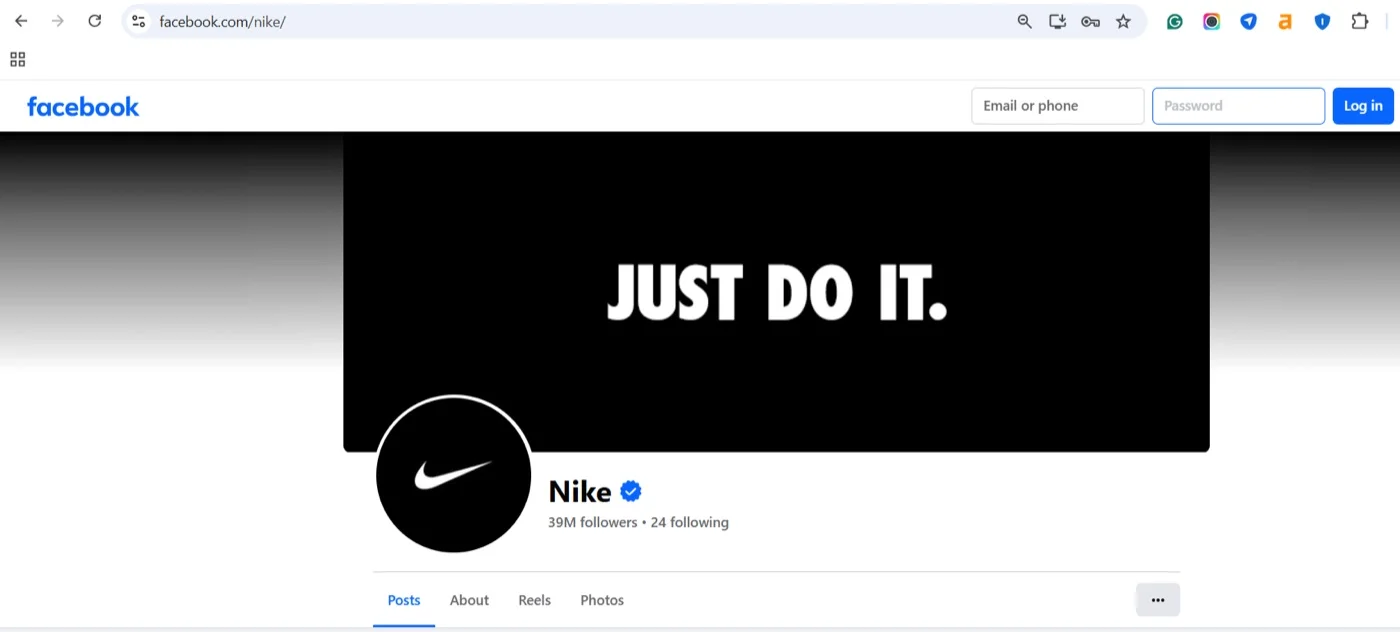
Your Facebook URL is the web address people use to visit your profile or Page.
For example:
facebook.com/jane.smith
Here, jane.smith is the username.
Your Facebook username is different from your display name. Changing your display name does not automatically change your URL. To change the URL, you need to change the username associated with your profile or Page.
Facebook also uses your username across Facebook and Messenger. When you change a personal profile username, Facebook says the change also updates your Facebook profile URL and Messenger URL. If you’ve enabled profile-information syncing between Facebook and Instagram, the username can also be updated on Instagram according to your sync settings.
Facebook URL Rules
Not every username will work on Facebook. Before choosing one, check these rules to make sure your new username is eligible and available.
- Can contain letters from A–Z, numbers from 0–9, or periods (.).
- Must be unique.
- Can’t simply be made different from an existing username by changing capitalization or adding/removing periods.
- Must follow Facebook’s terms and username guidelines.
- Can’t contain certain restricted or misleading terms.
Facebook also warns that you may not be able to reclaim your previous username after changing it, so choose carefully.
A couple of Page-only rules to know:
- A brand-new Page may not be able to set a username right away, Facebook can require the Page to be established first, so if the option isn’t there yet, keep posting and try again later.
- A Page’s username can be removed if the Page goes inactive. Post regularly to keep the URL you claimed.
For a personal profile, Facebook’s current process is handled through Accounts Center, then Profiles, then Username. For a Page, you’ll need Facebook access to the Page and a computer, Facebook doesn’t let you change a Page’s username in the app (more on that below).
How to Change Your Personal Facebook Profile URL (Username)
Your Facebook profile URL is tied to your username, so updating the username changes the link people use to find you.
Here’s how to update it from Facebook on desktop or mobile.
On desktop
Step 1: Go to Facebook and log in.
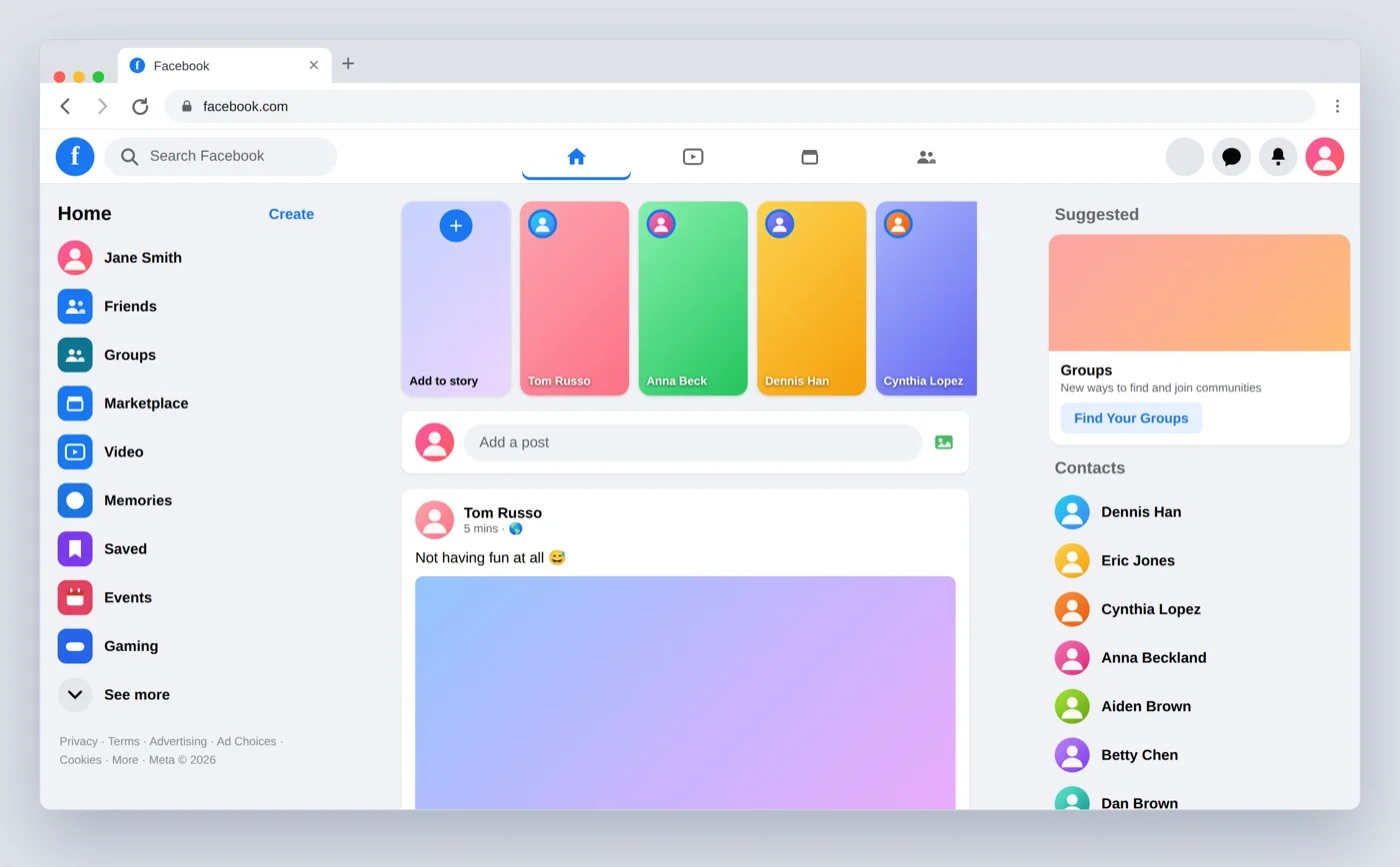
Step 2: Click your profile picture in the top-right corner.
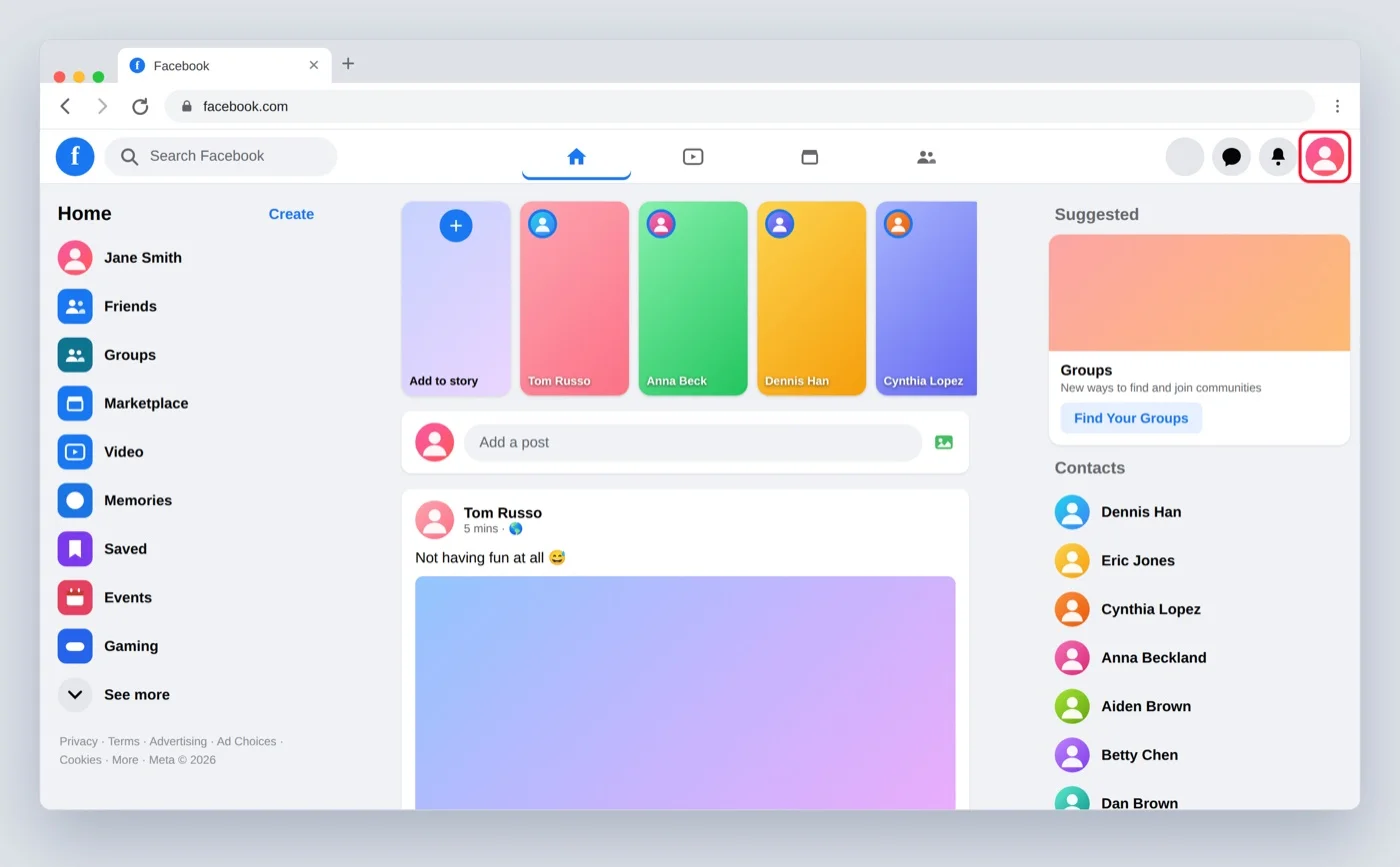
Step 3: Select Settings and privacy, then Settings.
Step 4: Open the Accounts Center.
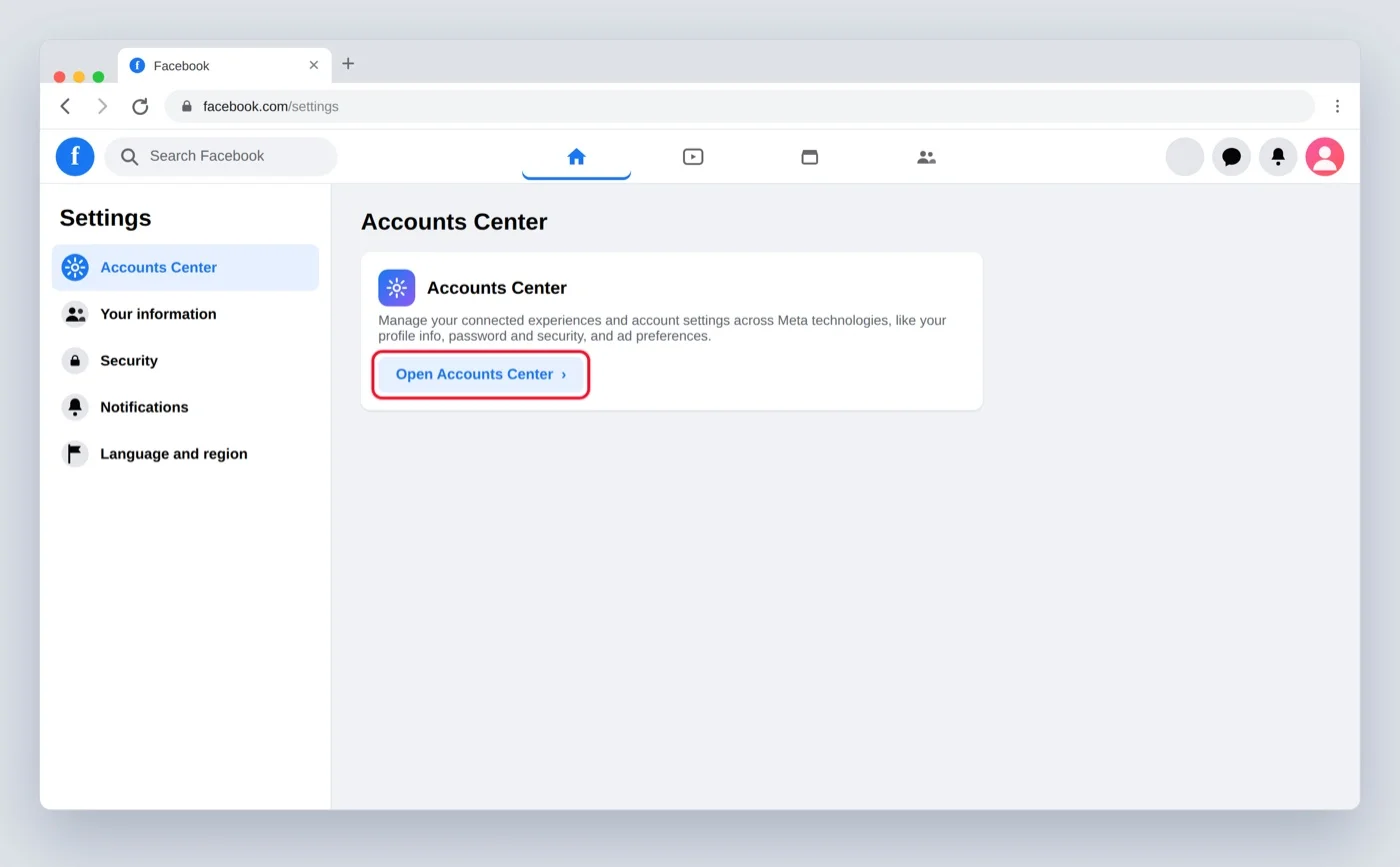
Step 5: Select Profiles, then choose your Facebook profile.
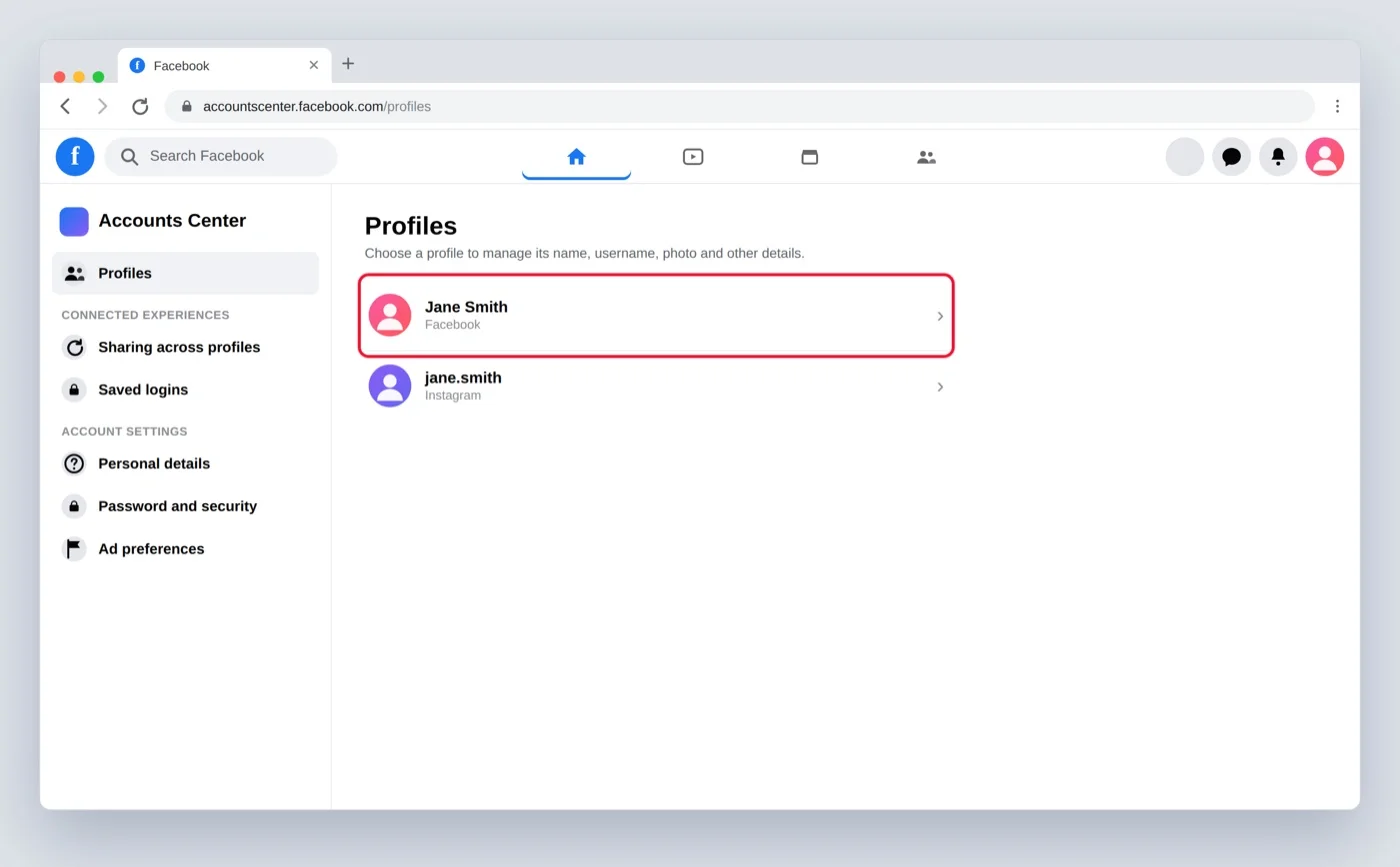
Step 6: Click Username.
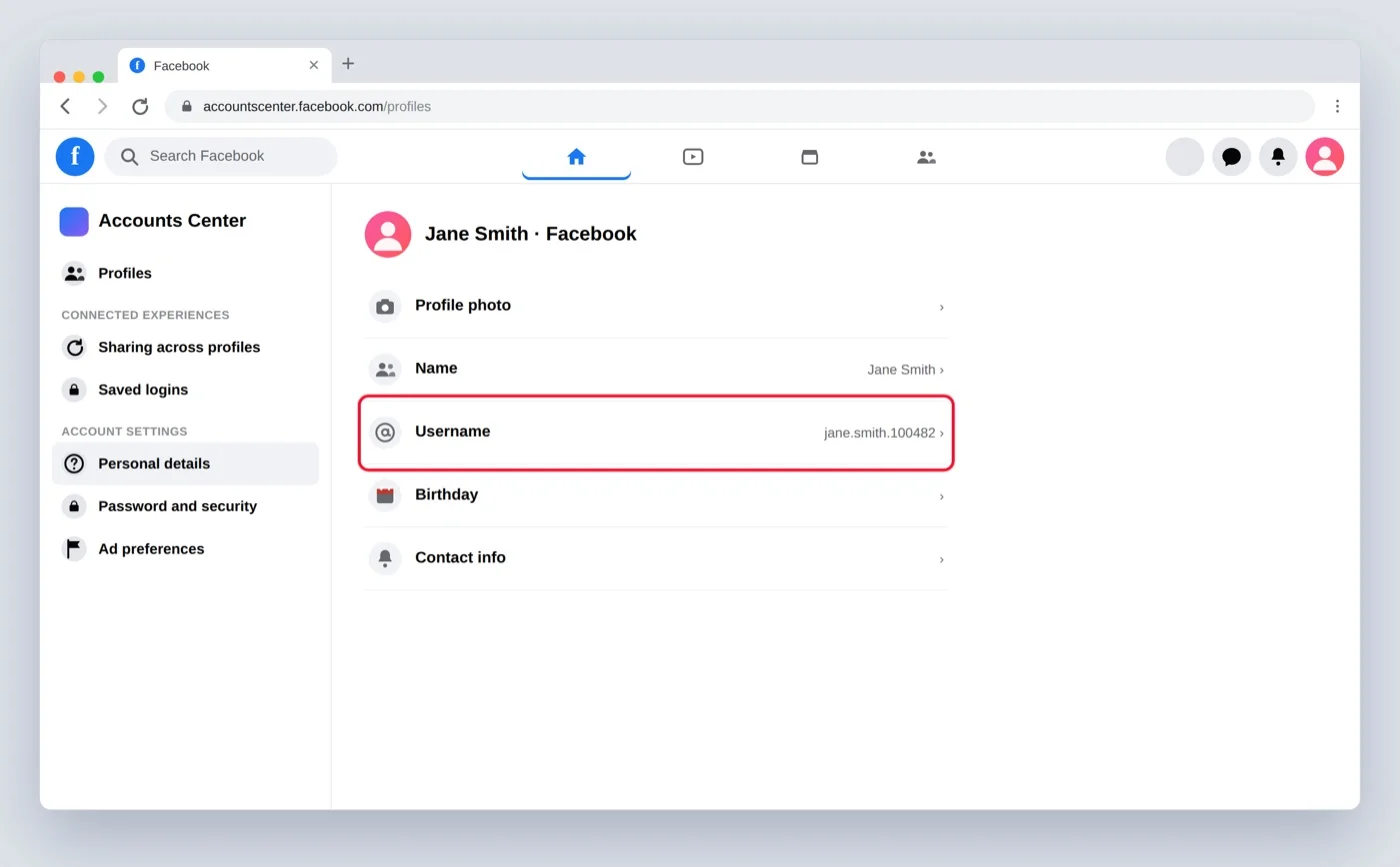
Step 7: Enter your new username.
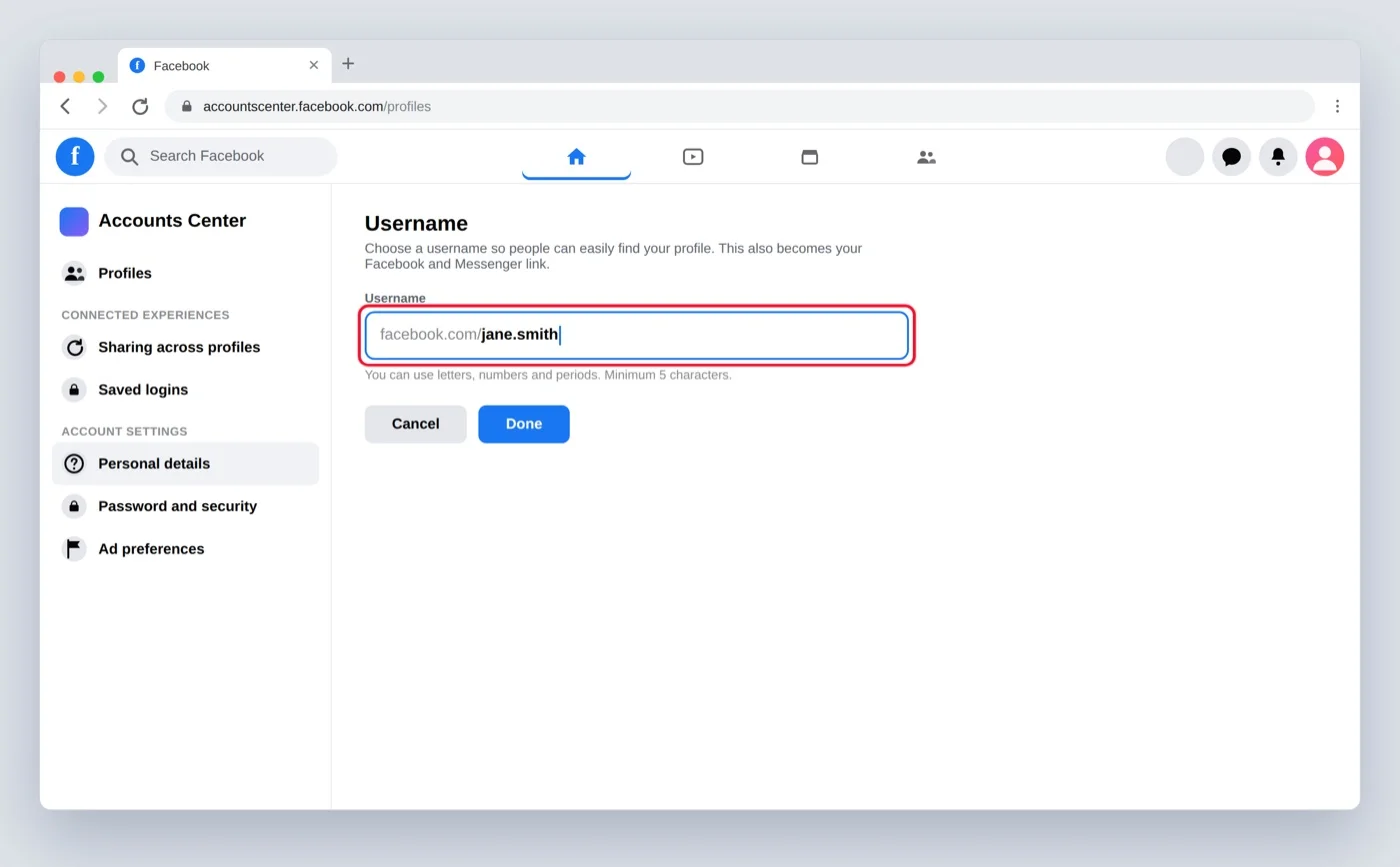
Step 8: If the username is available, select Done to save it.
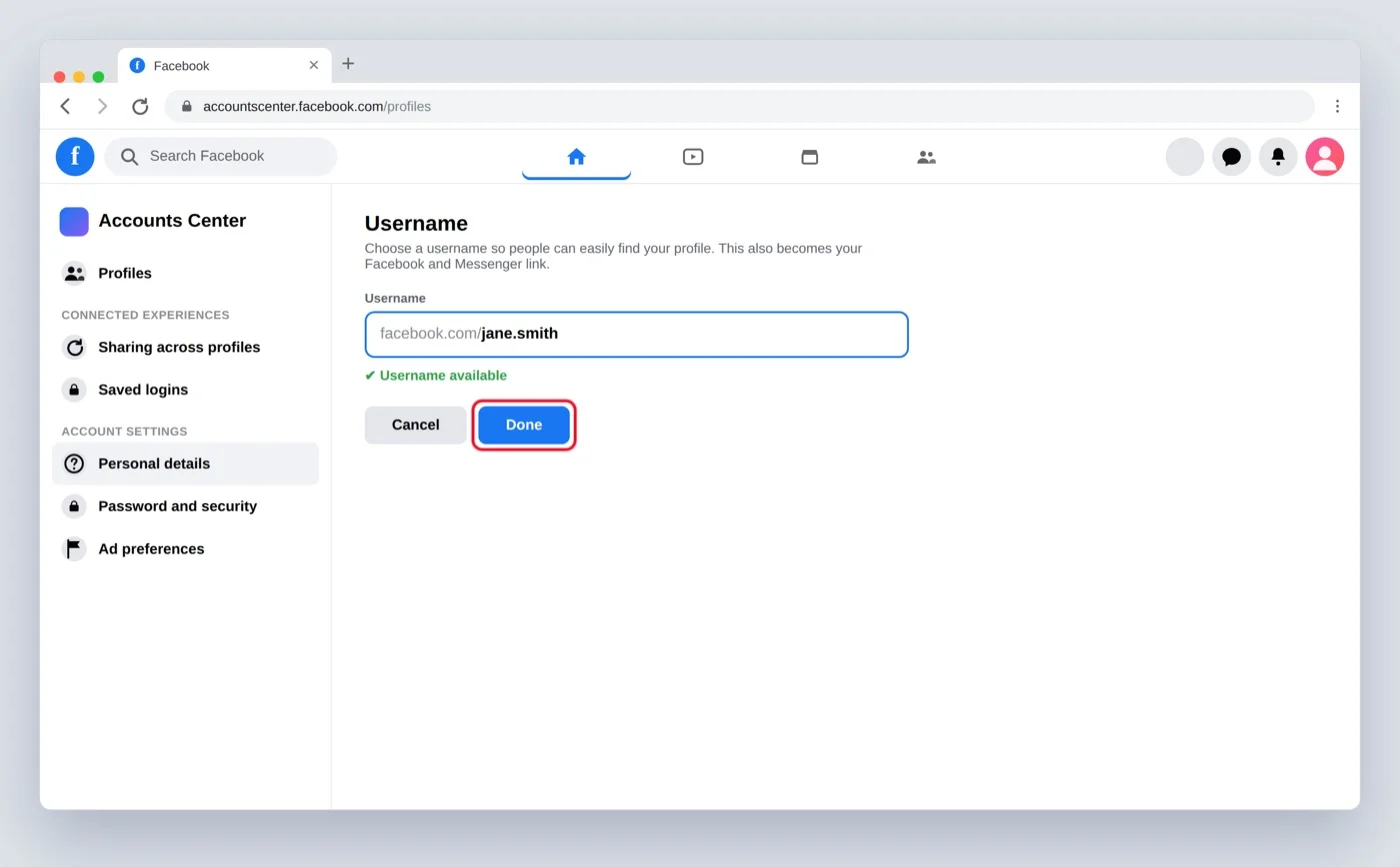
Your profile URL will then use the new username.
On the Facebook mobile app
The process is similar on iPhone and Android.
Step 1: Open the Facebook app and log in.
Step 2: Open the menu, then go to Settings and privacy, then Settings.
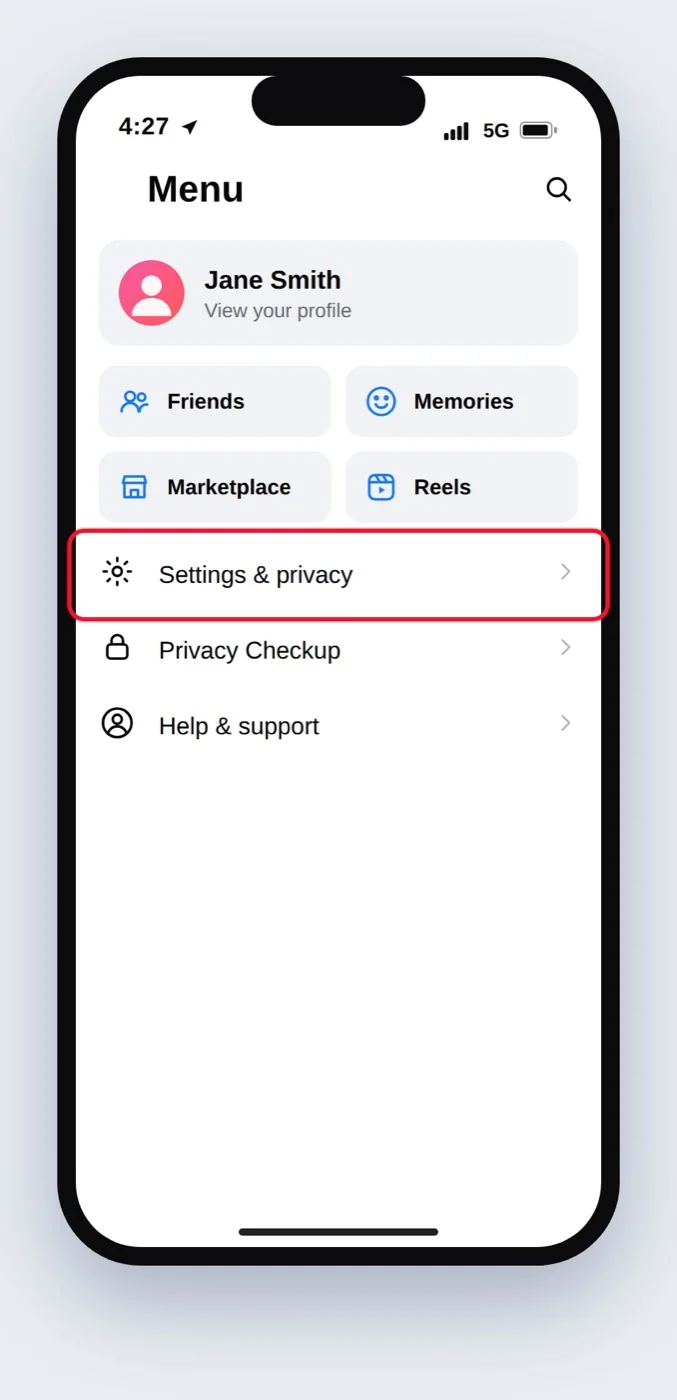
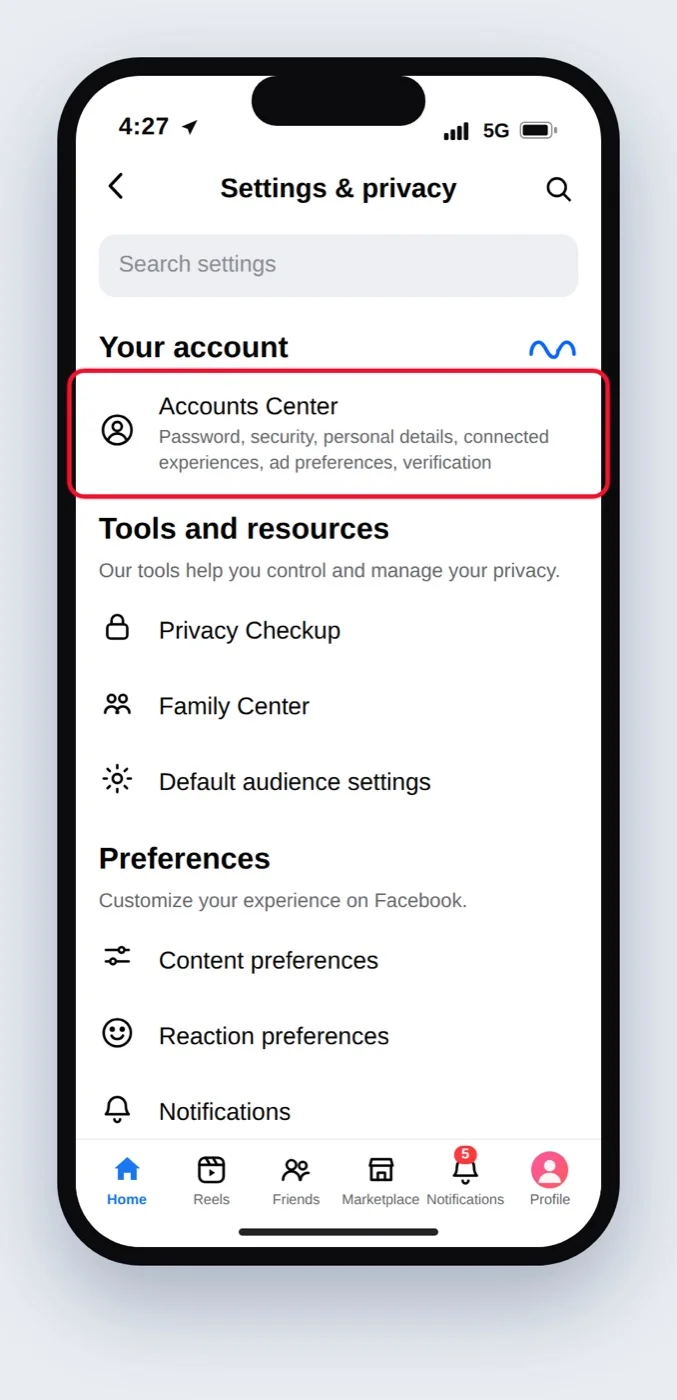
Step 3: Tap Accounts Center.
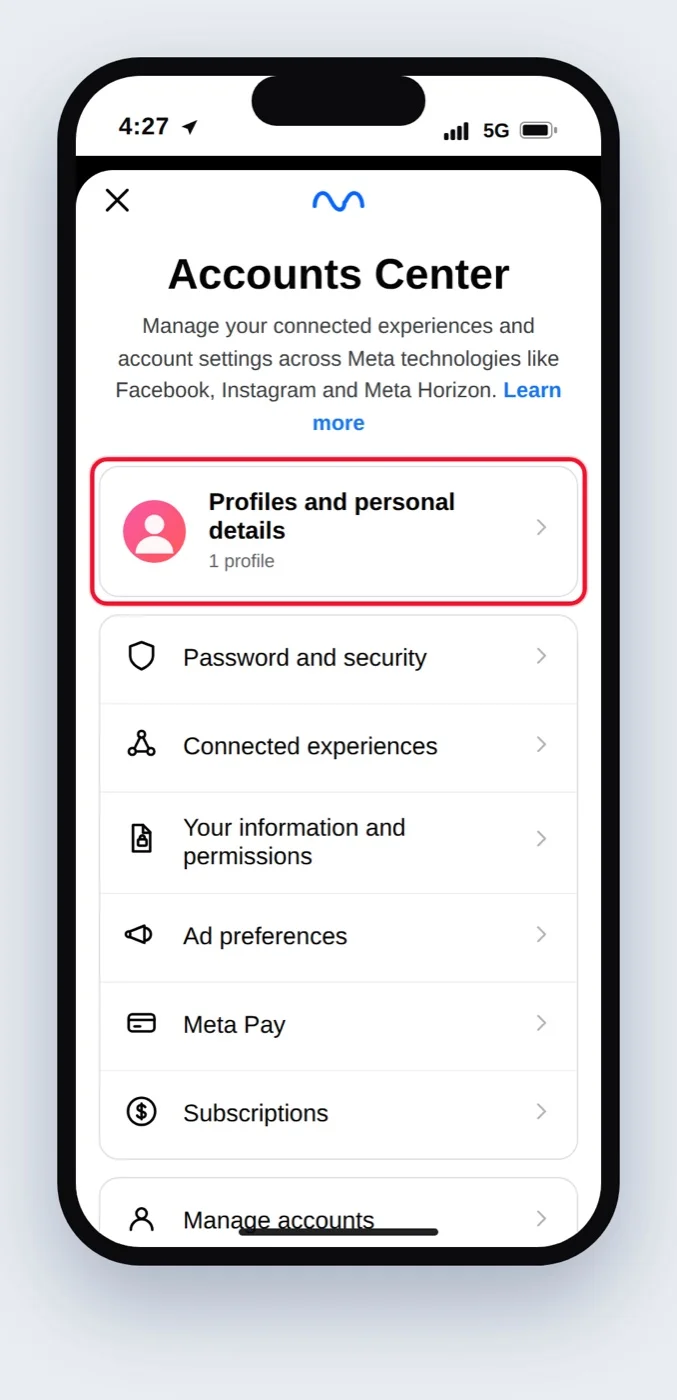
Step 4: Tap Profiles and select your Facebook profile.
Step 5: Tap Username.
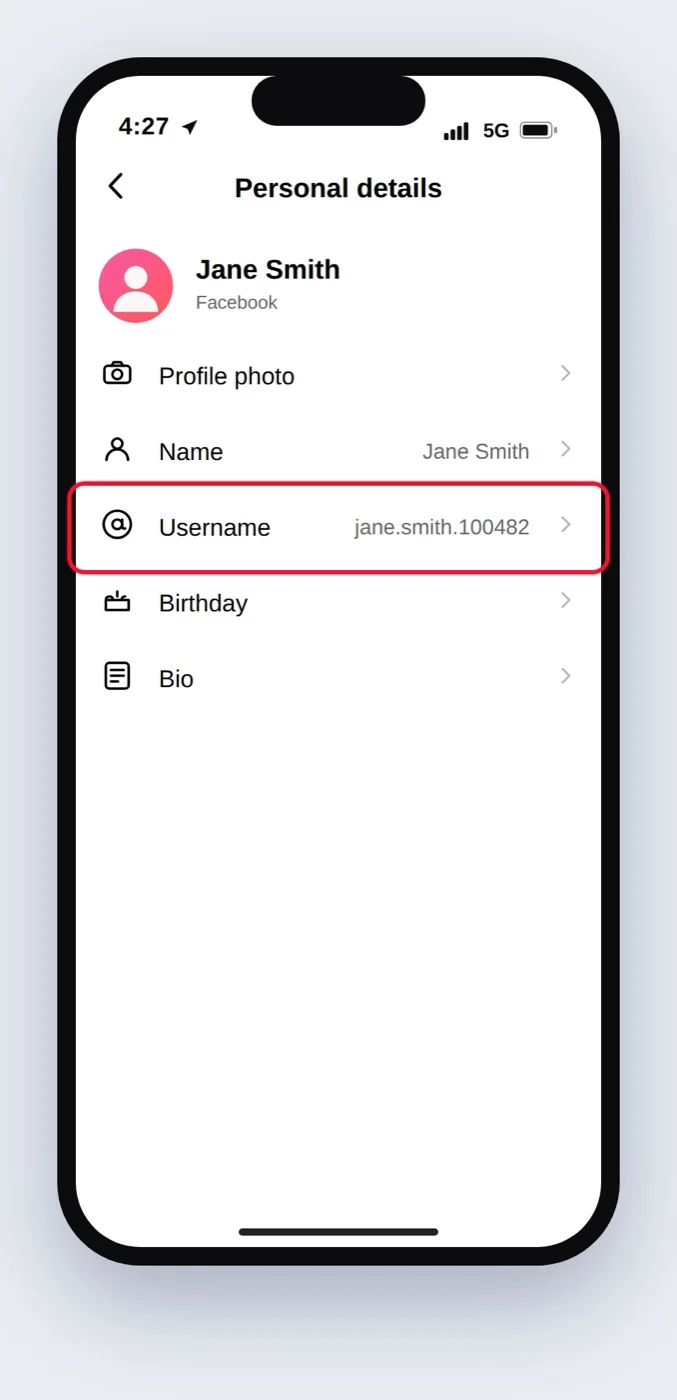
Step 6: Enter your new username and tap Done.
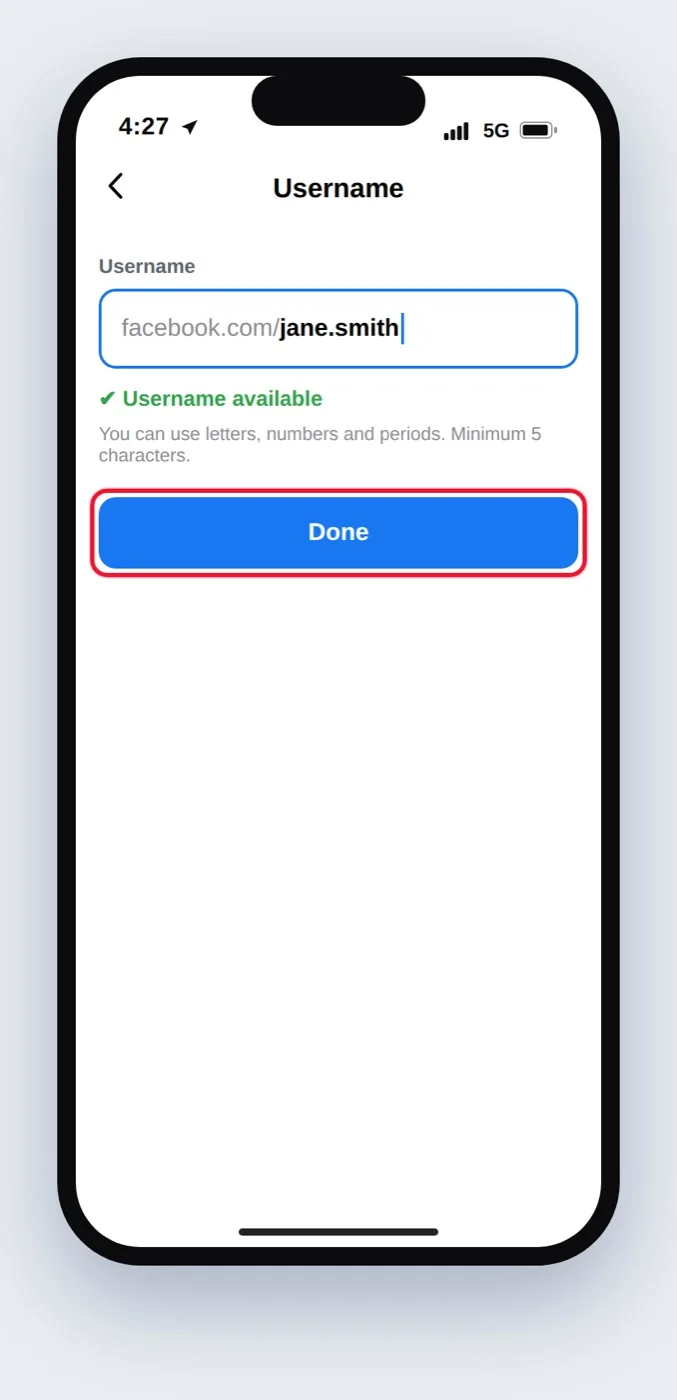
You don’t need the Messenger app to make this change.
What happens when you change your profile username?
Changing your username also changes:
- Your Facebook profile URL
- Your Messenger profile URL
- Your Instagram username/URL if you’ve enabled username syncing between Facebook and Instagram
Facebook specifically notes that you may not be able to reclaim your previous username, so update important places where you’ve shared your old link.
How to Change Your Facebook Page URL (Username)
Your Facebook Page URL is also based on its username.
For example: facebook.com/yourbrand
To change it, you need to be an admin of the Page. Facebook’s Help Center has a dedicated setting for changing a Page’s username and web address.
On desktop
Your Facebook Page URL is also based on its username. For example: facebook.com/yourbrand.
Two things to know first: you need Facebook access to the Page (if you only have task access, you can’t change the username, ask someone with Facebook access), and you can only do this on a computer. Facebook doesn’t offer Page username changes in the mobile app.
Step 1: Log in to Facebook on a computer, then click your profile photo in the top right.
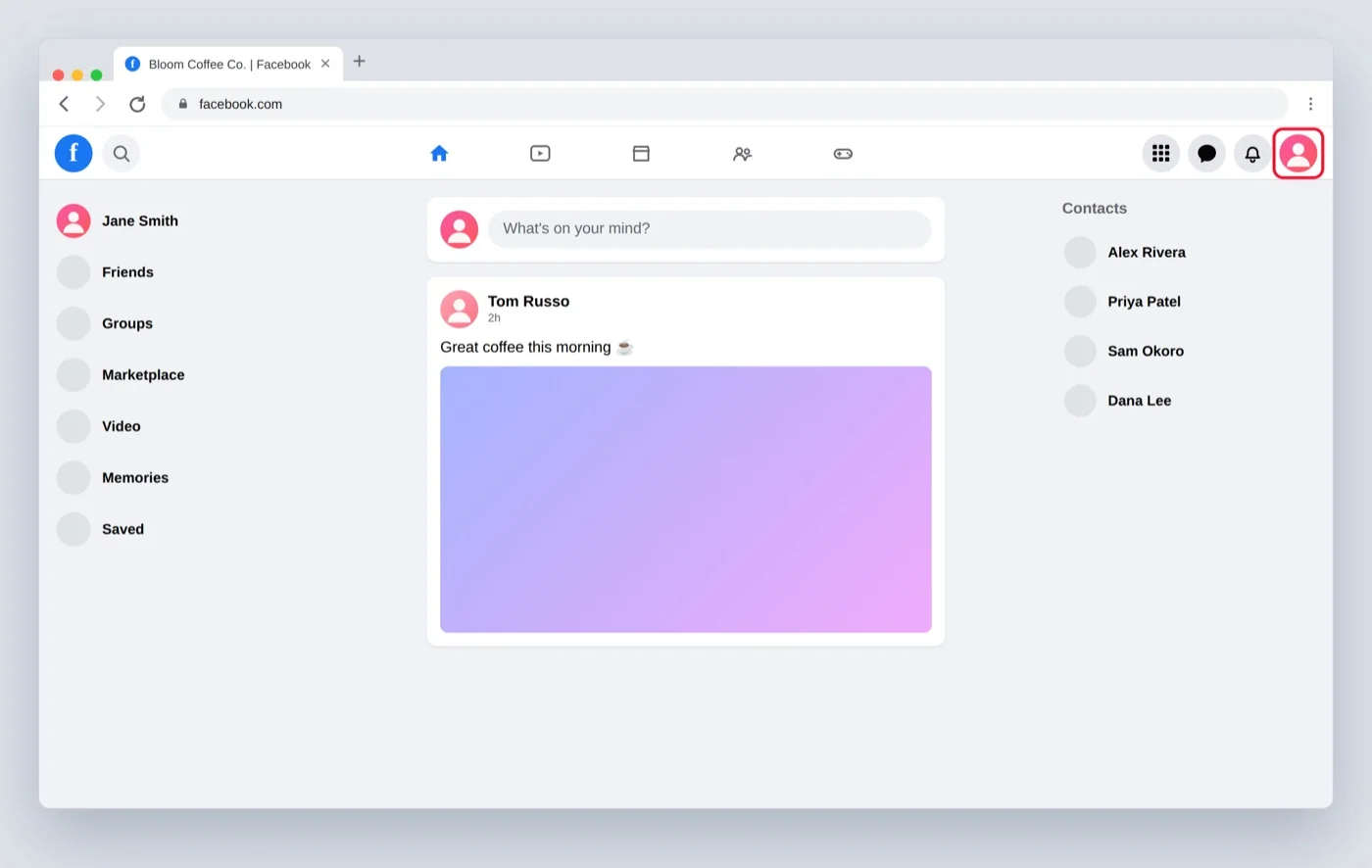
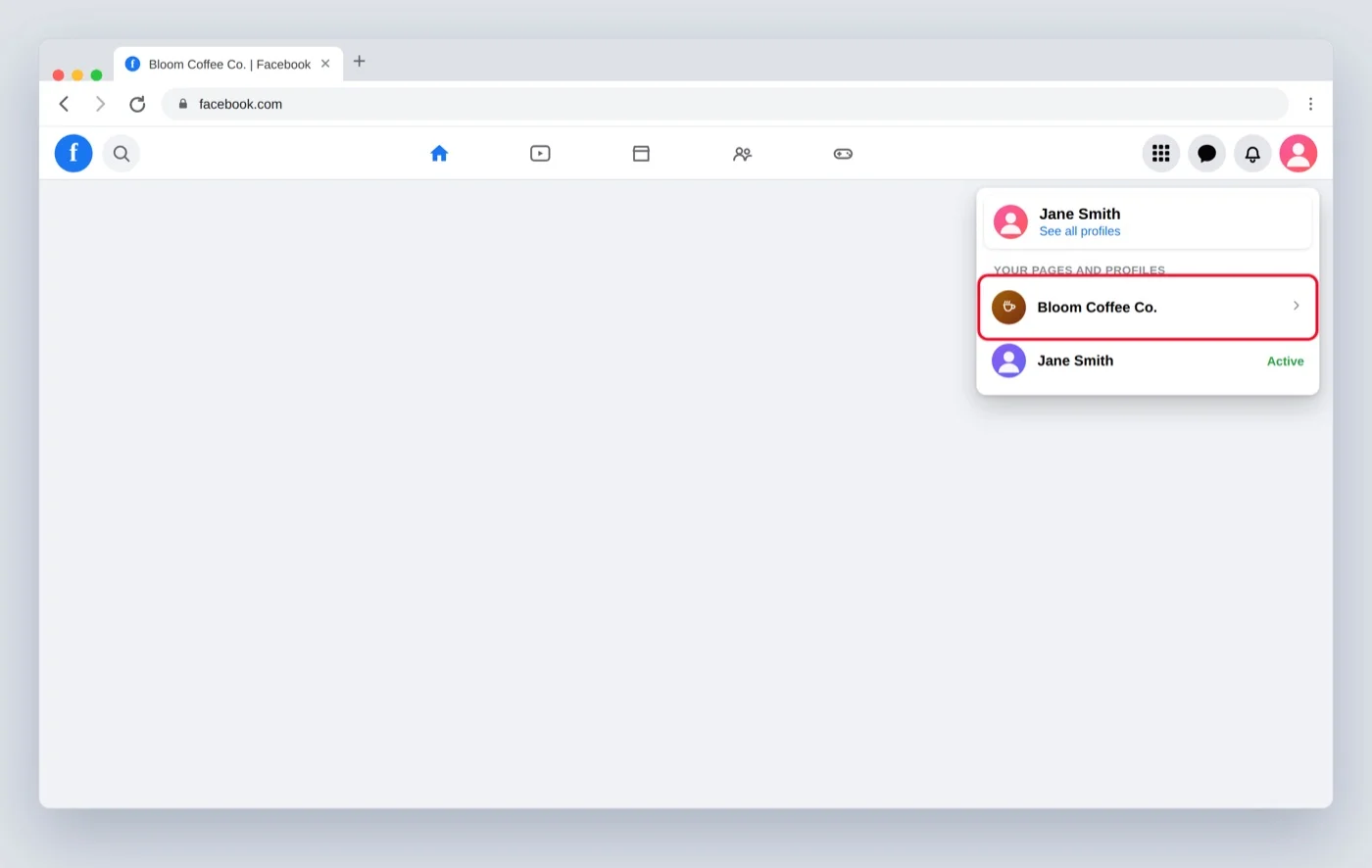
Step 2: Click See all profiles, then select the Page you want to switch into.
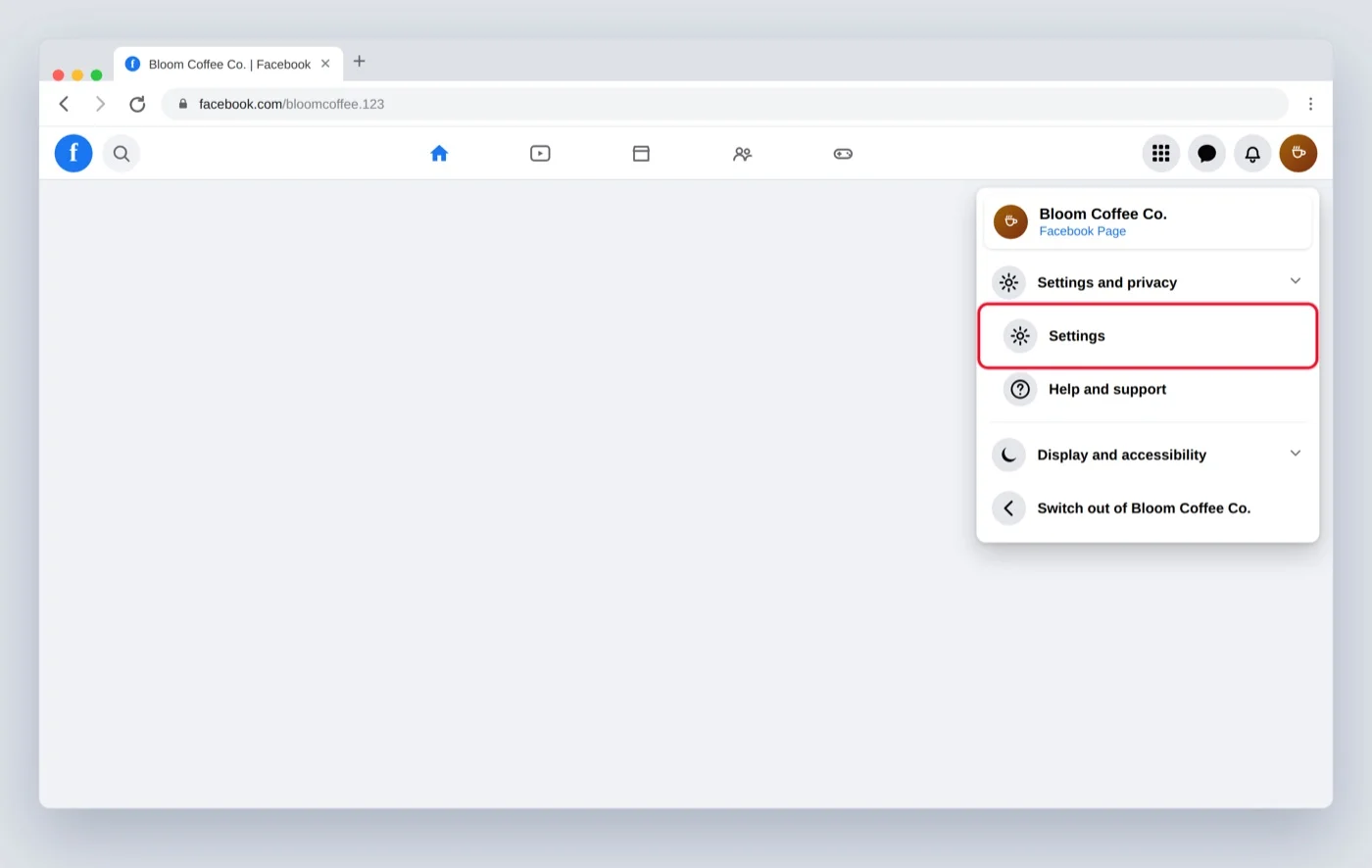
Step 3: Click your Page’s profile picture in the top right, then click Settings and privacy, then Settings.
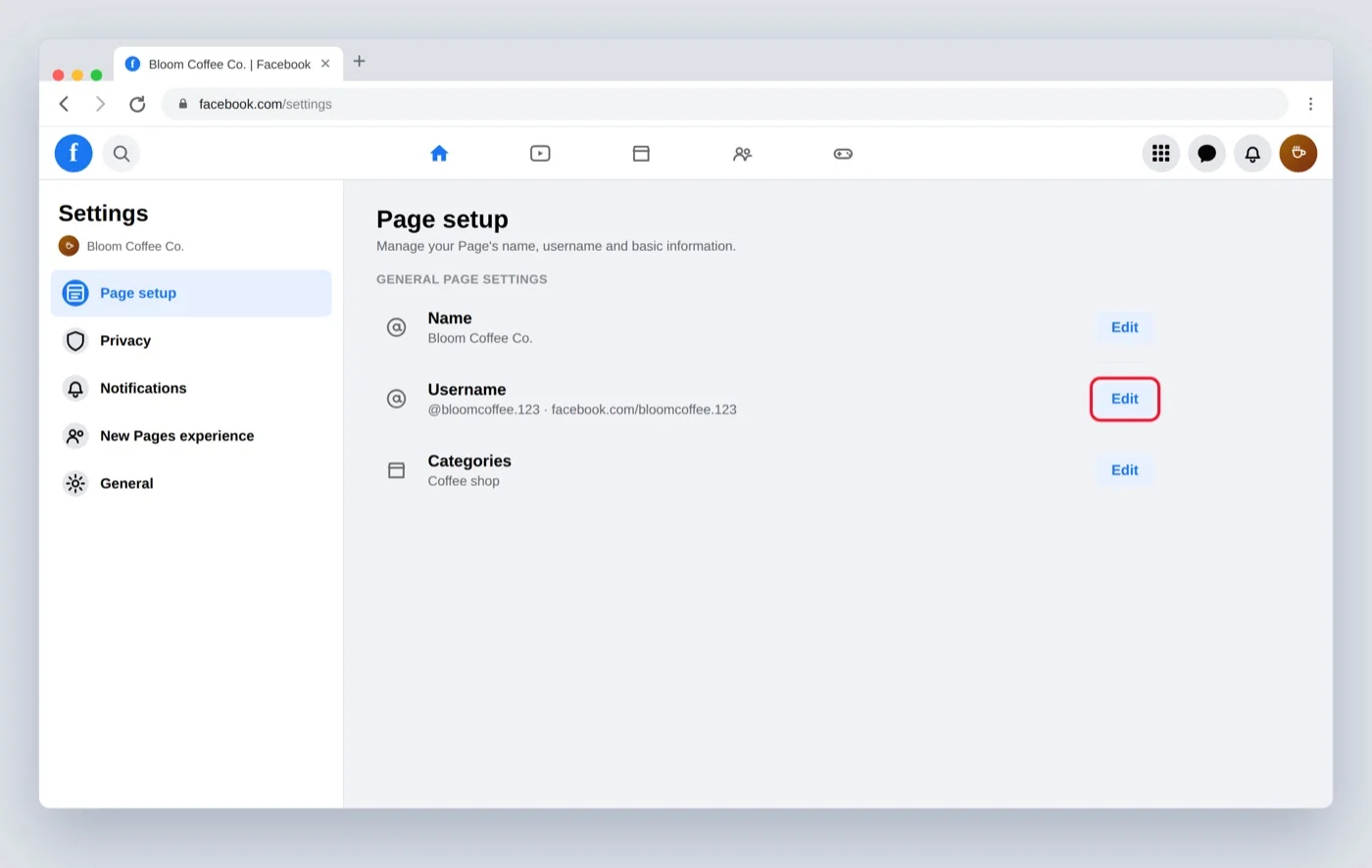
Step 4: Click Page setup, then, next to your username (under General Page settings / Name), click Edit.
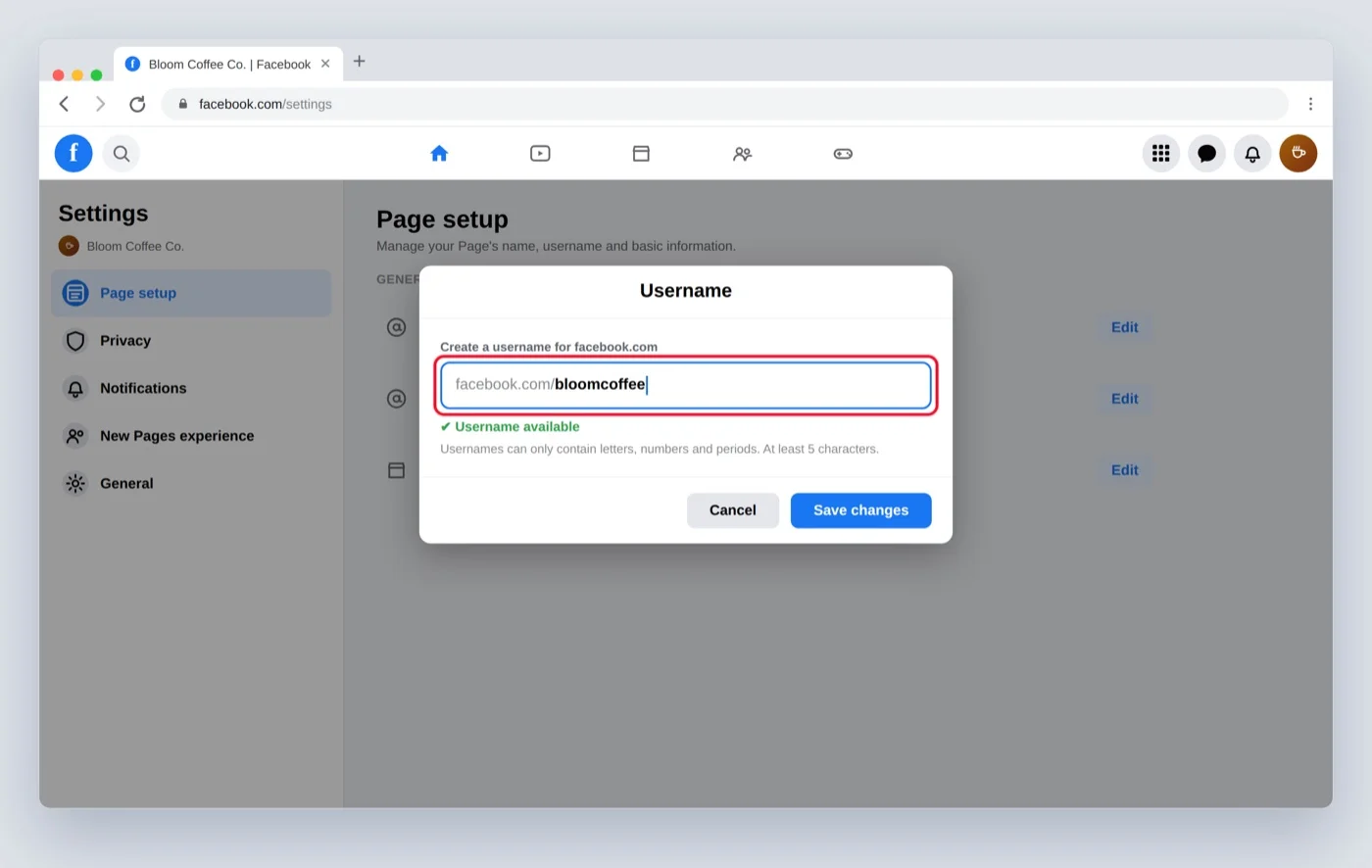
Step 5: Enter your new username. Facebook shows whether it’s available.
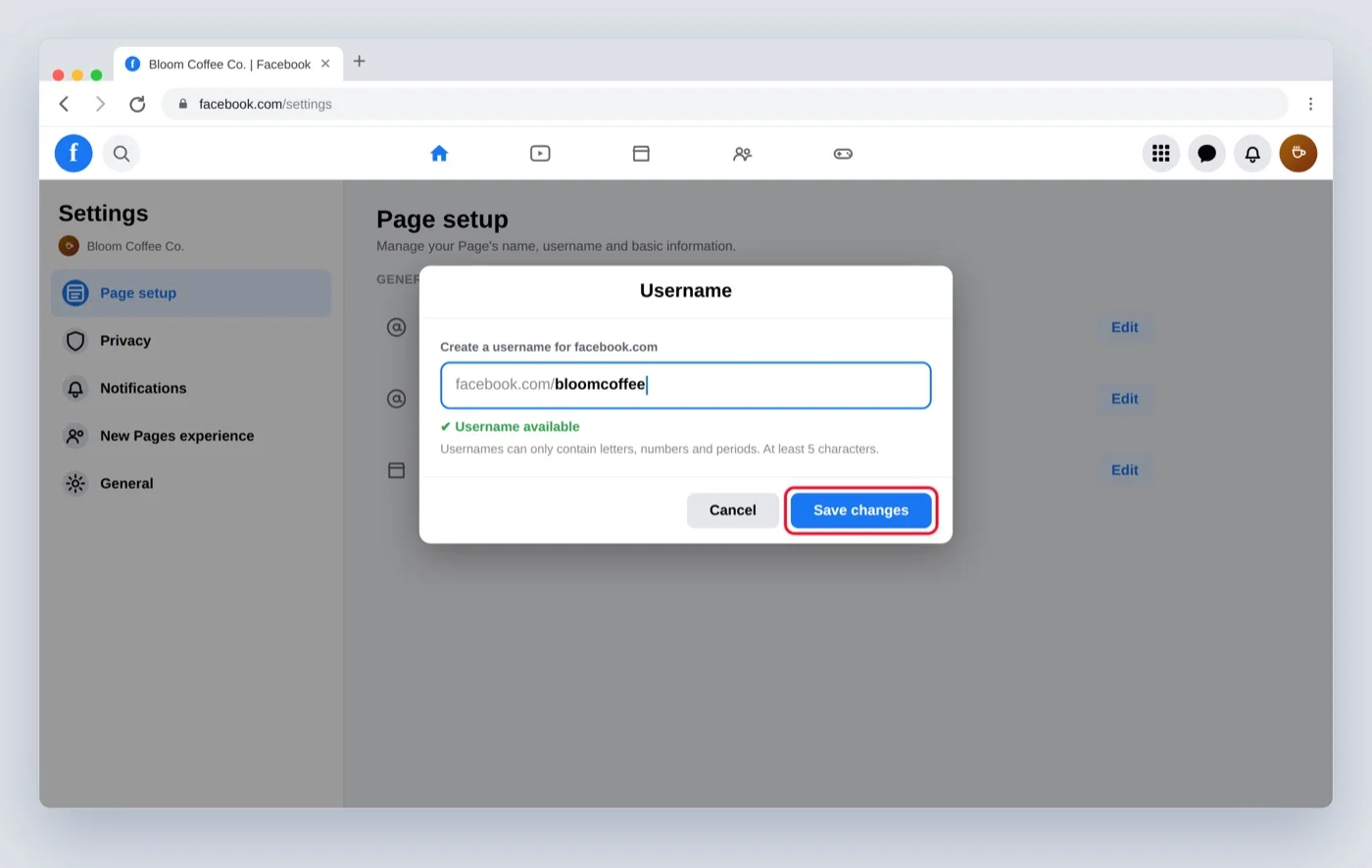
Step 6: Click Save changes.
If you don’t see Username, make sure you switched into the Page (not your personal profile) and that you have Facebook access, not task access.
On mobile
You can’t change a Page’s username in the Facebook app. To change your Page URL, use Facebook in a desktop browser and follow the steps above.
Best Practices for Choosing the Right Facebook URL
Changing your URL is easy. Choosing a username you’ll want to keep is the harder part.
1. Keep it short and memorable
A shorter username is easier to type, remember, and share.
2. Match your name or brand
For a Page, use a username that closely matches your business or brand name. For a personal profile, your name or a recognizable variation is usually easier for people to identify.
3. Keep your other social handles in mind
If you use the same brand across Instagram, LinkedIn, X, and other networks, a consistent username can make your profiles easier to find.
4. Don’t rely on dots or capitalization to claim a variation
Facebook says periods and capitalization don’t make usernames meaningfully different for availability purposes.
5. Think before you change it
Facebook warns that you may not be able to reclaim your previous username after changing it. If your existing URL is already used on your website, email signature, ads, business cards, or other social profiles, make a list of those places before making the change.
Can’t Change Your Facebook URL? Here’s What to Check
Sometimes Facebook won’t let you change a username even when you’ve followed the right steps.
Here are the most common reasons and what you can try to fix them.
- URL not available: If the username is already taken, Facebook won’t let you use it. Try a different spelling or add a number.
- Username too short: Usernames need at least 5 characters. If yours is shorter, Facebook rejects it.
- Can’t change it after a recent switch: Facebook limits how often you can change your username, and there can be a waiting period between changes. If a change won’t save, you may need to wait before trying again.
- Error when saving: Clear your browser cache or try a different browser. Old stored data can cause glitches.
- Invalid characters: Facebook doesn’t accept spaces or symbols like @, #, or %. Stick to letters, numbers, and periods.
- Name conflicts with Facebook’s rules: If your username breaks Facebook’s name policy (for example, a misleading name), it can be blocked. Keep it appropriate and within the guidelines.
- You only have task access (Pages): If you can’t find the Username option for a Page, you may have task access instead of Facebook access, or you may be on mobile. Switch to a computer and use an account with Facebook access.
Things to Know Before You Change Your URL
Once you change your URL, the old one stops working and Facebook does not redirect your old link to the new one. Anyone who saved or shared your old link will hit a dead end, so your discoverability can dip right after the change.
Your display name and profile don’t change when you change your username, only the link does. But because the old link breaks, treat a URL change as something to plan, not to do on a whim.
Your profile has a permanent backup link. Even after you change your username, your personal profile stays reachable at facebook.com/profile.php?id=[your numeric ID]. Facebook assigns that numeric ID when your account is created, and it never changes, only the username is editable.
So, if a shared link ever breaks, the numeric URL still works. To find your ID, open your profile in a desktop browser, view the page source, and search for “profile_id” (a “find my Facebook ID” lookup does the same). Save that link somewhere safe as a fallback.
If your Page or profile is well established, your link is probably posted in a lot of places. Before you change it, find those spots so you can update them. To keep your reach steady:
- List important places where your old URL appears. Check your website, email signature, social profiles, ads, business cards, and other marketing materials.
- Choose the new username carefully. Facebook warns that you may not be able to reclaim the old one.
- Check connected Meta accounts. If you’ve enabled username syncing between Facebook and Instagram, changing your Facebook username can also affect your Instagram username according to your sync settings.
- Update your links after the change. Replace the old URL wherever you control it.
- Check the new URL yourself. Open it in a private/incognito browser window to make sure it leads to the correct profile or Page.
Keep Your Facebook Page Active After the Change
Changing your Facebook URL is quick, but it’s worth doing deliberately. Pick a username you’ll be happy to keep, update your old link everywhere it lives, and remember your profile’s numeric URL is a permanent safety net. For Pages, do it on a computer with Facebook access, and keep posting so an inactive Page doesn’t lose the username you claimed.
Staying active is the theme either way, a consistent posting schedule protects your URL and keeps you visible.
If someone has hacked your account, secure it first by resetting your password, then reset your username to what it was or pick a new one.