

For years, “social SEO” was a phrase people used without being able to prove anything. You knew Google surfaced your TikToks and Instagram posts in search results. You just had no way to see how often, for which searches, or whether any of it sent people your way.
That changed in July 2026. Google Search Console for social media is now a real thing, thanks to a new property type called platform properties. Google announced it on July 7, 2026, and by July 29 it had rolled out to every account worldwide with a companion guide.
For the first time, the search side of your social content is measurable in Google’s own tool.
If you saw the announcement go around LinkedIn and thought “I want to actually use this, not just know it exists,” this guide is the setup and the read-out in one place. Google split the details across two blog posts and two Help Center pages. Here they are together, and accurate.
What Platform Properties Are (and Whether They're for You)
Platform properties are a new type of property in Google Search Console built for social and video accounts instead of websites.
What the Feature Actually Does
A platform property connects one of your social accounts to Search Console and shows how that account’s content performs in Google Search, Discover, and Google News. You get three reports:
- Performance: total clicks, impressions, average click-through rate (CTR), and average search position, sliced by the search queries people used to find you
- Insights: trends, your top-performing posts, and the searches that lead to you
- Achievements: milestones across a rolling 28-day window
Google Search Console supports four platforms today: Instagram, TikTok, X, and YouTube. Pick the account, verify you own it, and Google starts showing you the search demand you were guessing at before.
Who It's for, Including Creators with No Website
This is the part of Google’s announcement post buried, and it decides whether the feature is even for you.
You do not need a website.
Platform properties work on their own. A creator who has only ever posted on TikTok and YouTube can set one up and get data, with no domain, no site, nothing else attached.
So the audience is wider than “SEO people.” If you’re a social media manager, a creator, or anyone who wants a real answer to how to track social media performance beyond likes and shares, this applies to you. Agencies get the most out of it, because every client account can be added as its own property, giving you a Google-visibility read on each one from a single login.
One Thing to Know Before You Start
Set your expectations early. This tool measures how your content does in Google, not on the platform itself. It will not tell you how many times your Reel played inside Instagram or how your video did on the TikTok For You page. Your native app analytics and a tool like SocialPilot still own that half, and we’ll come back to exactly where the line falls near the end.
Setup takes a few minutes, and there are two ways to verify ownership. Google states them plainly. Verification happens through “automated connection via an existing website property, or direct platform login.”
Before you start, you need two things:
- A Google account to hold the property, and
- The ability to log into the social account you want to add.
That’s the whole checklist. There’s no code to install, no DNS record to edit, and no tag to drop into a site, which is exactly why creators without a website can use it. If you manage accounts for other people, make sure you can sign into each one, because the direct-login path verifies ownership through that sign-in.
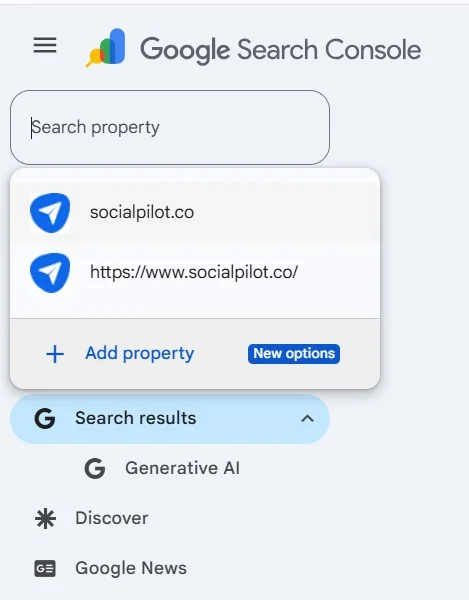
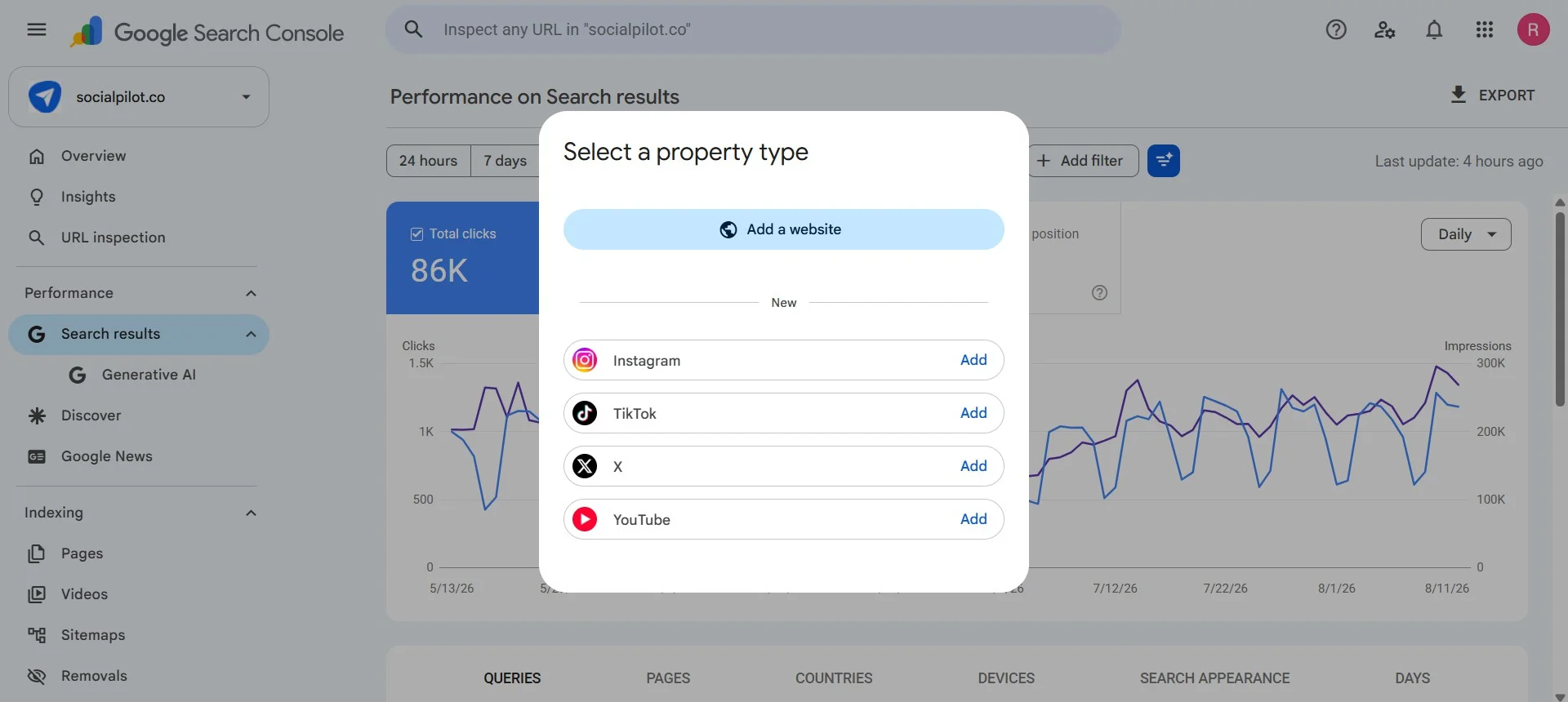
Path 1: Connect Through an Existing Website Property
If you already have a verified website property in Search Console and your social account is linked to that site, Google can connect the platform property automatically. There’s nothing to paste or upload. Google recognizes the existing relationship and verifies for you. This is the fastest route if you’re an established brand already running Search Console for your domain.
Path 2: Verify With a Direct Platform Login
If you have no website, or your account isn’t tied to one, you verify by logging into the platform directly. You prove you own the Instagram, TikTok, X, or YouTube account by signing in through it. This is the path most creators will use, and it’s the reason a website isn’t required. The platform login is the proof of ownership.
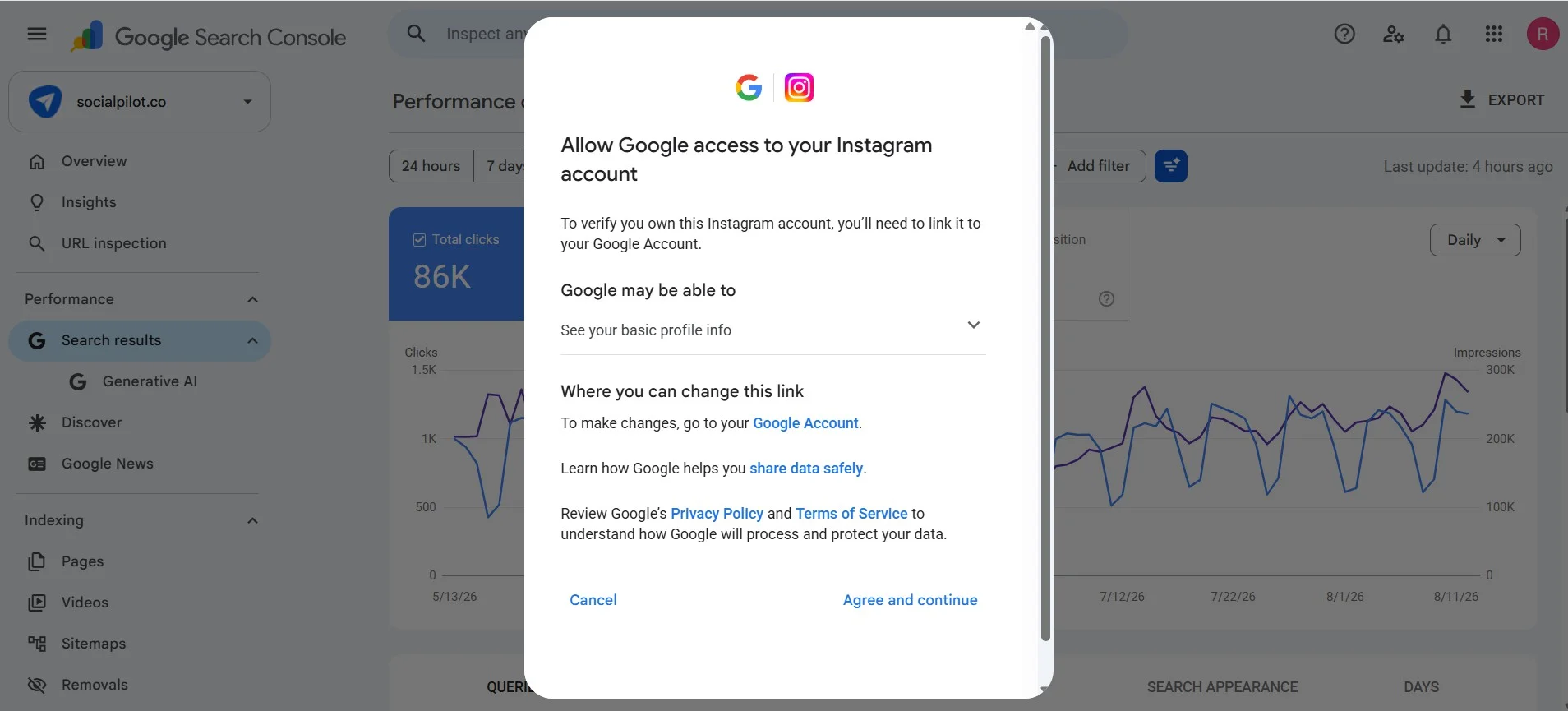
Add it Now, Verify When it's Convenient
Here’s a genuinely useful detail from Google’s Help Center that isn’t in either announcement post.
Data collection starts the moment you add a property, even before verification.
So add all four of your accounts today, and finish verifying whenever you have time.
The practical order is add first, verify second. Even if you don’t get around to verifying right away, the data is already banking behind the scenes from the moment you add the account. This one detail is the difference between looking back in three months with a full quarter of history and starting from zero the day you finally get around to it.
What You're Looking At Once Data Starts Flowing
Give it a few days after adding a property, then open the Insights report. Empty charts on day one are normal, not a bug. Once data lands, here’s how to read it without getting lost.
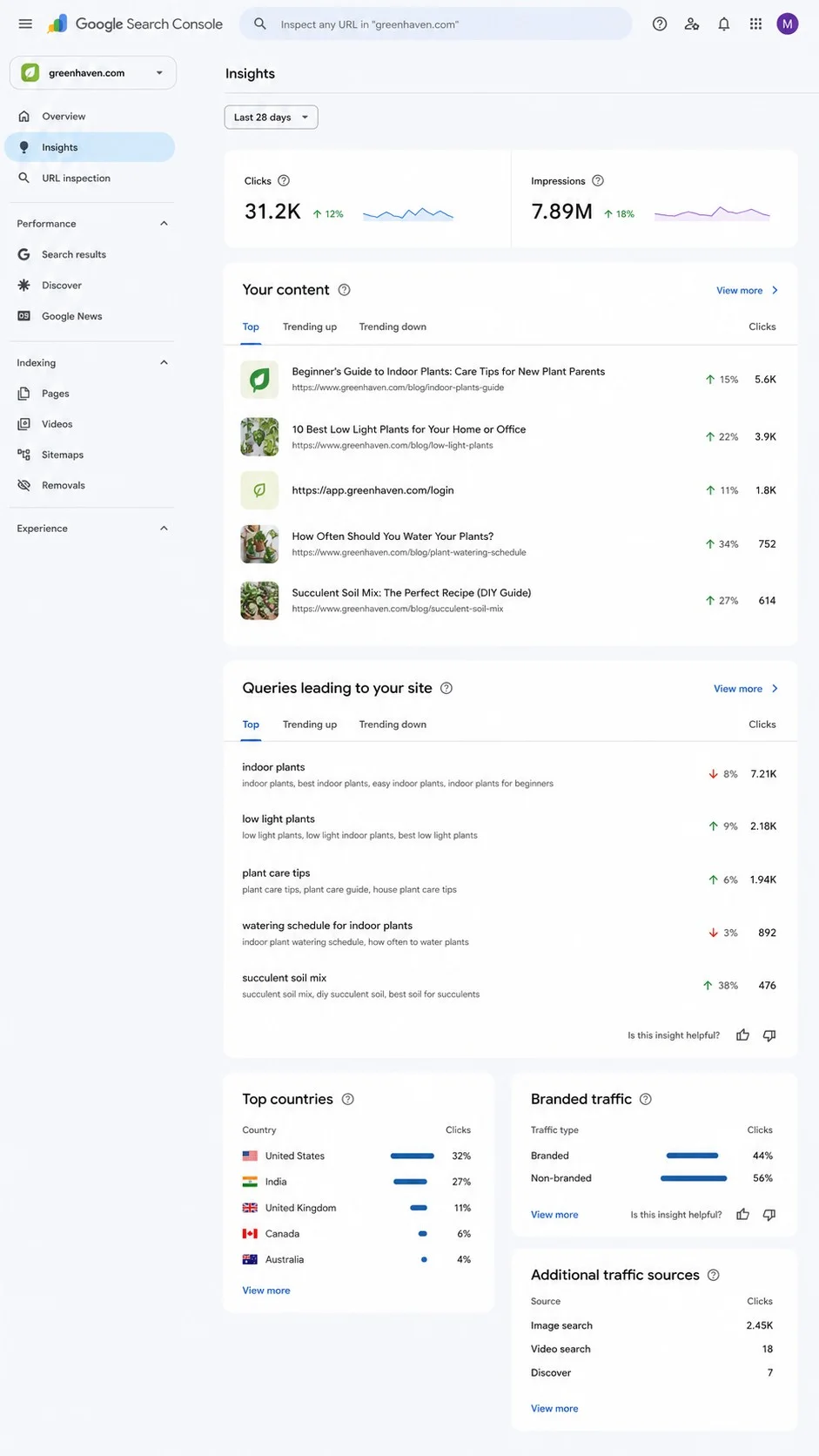
1.Traffic Trends Show if Interest is Rising or Fading
The trend line is your headline number. It shows whether Google is sending more or fewer people to your content over time. A rising line means your topics are gaining search demand. A falling one is an early signal that interest is cooling, often before your in-app numbers show it, because search intent tends to shift before feed behavior does.
2. Top-performing Content Shows What Google Surfaces Most
This list ranks your content by how it performs in search, which is almost never the same order as your most-liked posts. A video that got modest engagement in-app can quietly be your biggest search winner. That gap is the whole point. It tells you what to make more of for discovery, not just for the feed.
3. Query Groups Show What People Search Before They Find You
Query groups show the actual searches that surface your content, bucketed into top queries, ones trending up, and ones trending down. This is the closest thing social has ever had to keyword data. A trending-up group is a topic to make your next few posts about while demand is climbing.
Here’s how that plays out. Say you post about budget travel and the “carry-on packing” group is trending up while “cheap flights” is trending down. That’s a direct instruction. Lean into packing content this month, ease off flight-deal posts. You’re no longer guessing at what your audience wants next. Google is telling you, in the words they actually typed.
4. Achievements Flag Milestones Worth Noticing
The Achievements report flags milestones across a rolling 28-day window, like a post crossing a click threshold, a new best day, or a fresh high in impressions. On its own it won’t change your strategy, but it’s a fast way to spot when something broke out without you noticing. Treat an achievement as a prompt to open the other two reports and ask why. Which post, which query, which format drove it, then repeat whatever caused it.
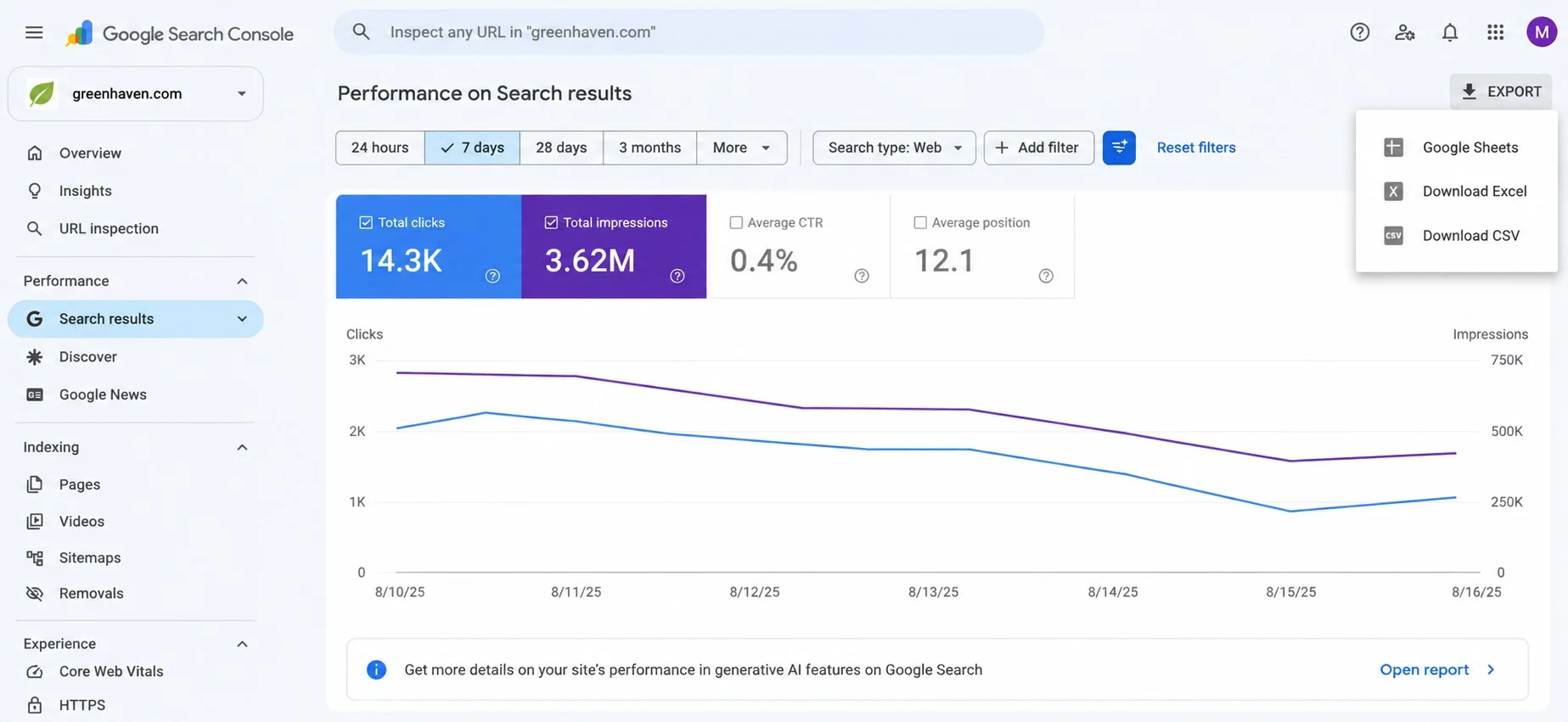
5. The 24-hour Filter Catches a Spike While it's Happening
In the Performance report, apply the 24-hour filter to see the last day of search activity. This is how you catch a spike in real time. A post suddenly picking up search traffic while it’s still hot, so you can push a follow-up or boost it before the moment passes.
6. Why the Summary Card and the Lists Below it Don't Match
This one will confuse you if nobody warns you first, so here it is. The numbers on the top summary card won’t match the totals in the lists underneath, and that is intentional, not a broken report.
Google’s exact words: the top summary card “shows all clicks to your property across Google (including web, image, video, and news searches),” while “the detailed lists below the summary card focus specifically on traffic from web search results.” Different scopes, different totals. The card is everything. The lists are web search only. Nothing is wrong.
What to Actually do With This Data
Reading the reports is step one. The value is in acting on them. Three moves turn platform properties from a dashboard into a workflow.
1.Compare Two Content Types Side by Side
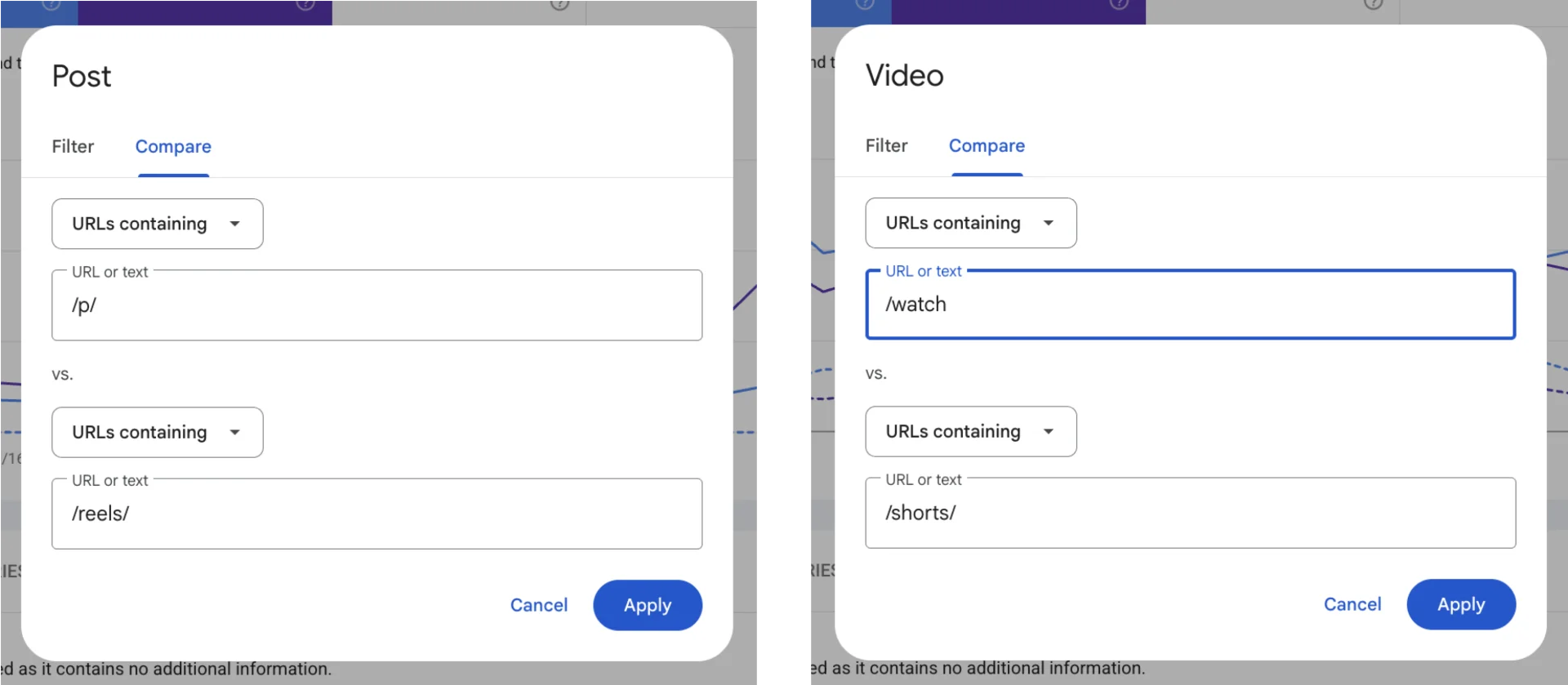
Use comparison mode to put two content patterns against each other, such as long videos versus Shorts, or feed posts versus Reels. Compare the URL patterns (for example /watch against /shorts, or /p/ against /reel/) and you’ll see which format Google actually rewards with search visibility. That answer often overturns what your in-app engagement told you to prioritize.
A common surprise here is that Shorts and Reels rack up plays inside the app, but long-form videos frequently win more Google Search clicks because they rank for how-to and question searches. If comparison mode shows your /watch URLs pulling the search traffic while /shorts dominates in-app, you’ve just learned to keep making both, for two different reasons, instead of chasing the format that only looks like it’s winning.
2. Annotate the Timeline When You Change a Caption or Title
When you rewrite a caption, change a video title, or shift a posting time, add an annotation on the Performance timeline to mark the date. Weeks later, the annotation tells you whether that change moved your search numbers. It turns a vague “I think the new titles helped” into a dated before-and-after you can actually read.
3. Export it to Compare Across Platforms
Each platform property is separate, so to see the full picture you export each one and compare them in a sheet. This is how you learn whether TikTok or YouTube is winning you more Google visibility, and where to shift effort. Export is also how you build a repeatable monthly view of how to track social media metrics across all four accounts at once.
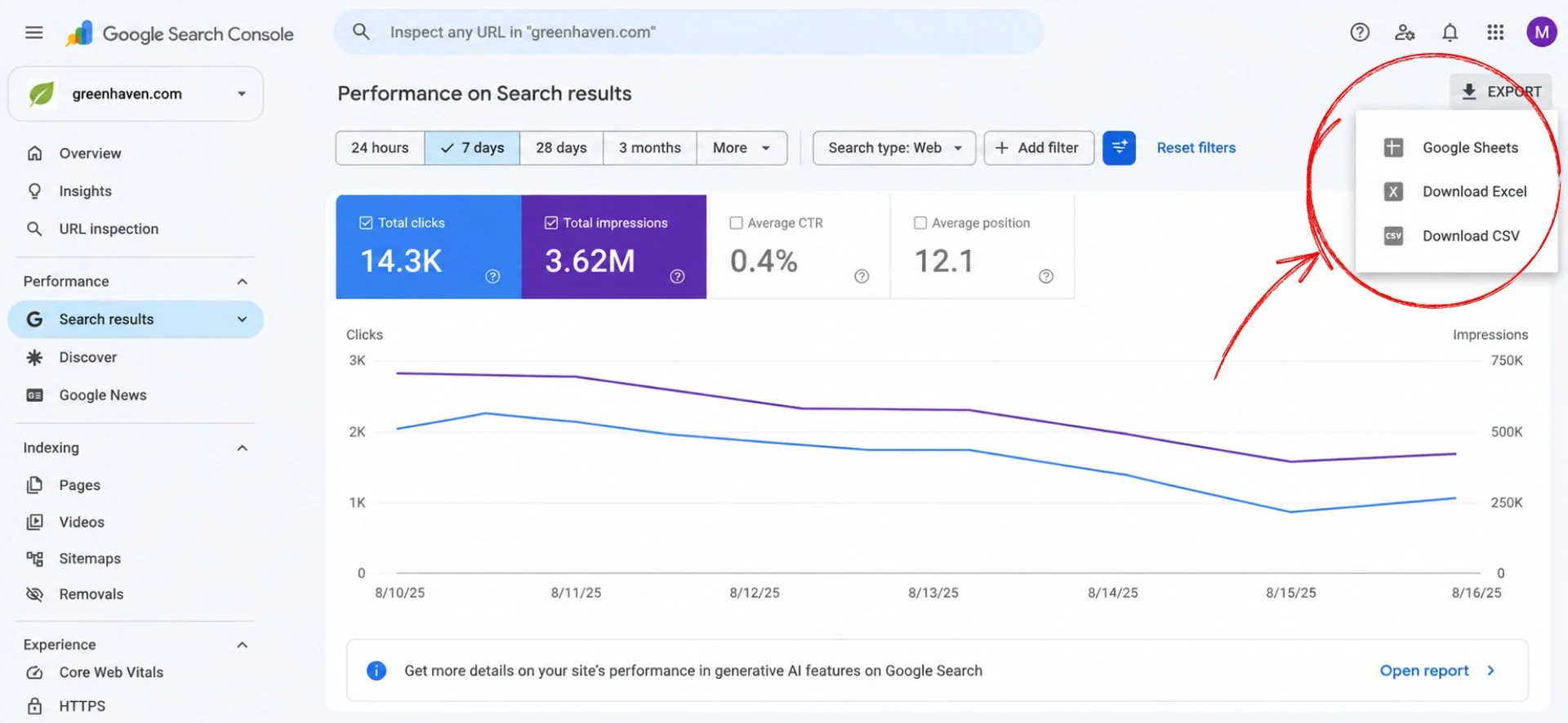
Do it on a set cadence, say the first of every month, and drop each export into the same sheet. Over a few months you build a trend line no single report gives you: which platform’s search visibility is climbing, which is flat, and where your next post is most likely to get found. That’s the kind of decision this data is built to inform.
What Search Console won't show you
A brand-new tool is easy to over-trust. Knowing its edges is what keeps you from drawing the wrong conclusion. Three limits matter.
1.It Only Measures Google Search, in Google's Own Words
This is confirmed by Google, not inferred. In its Help Center, Google states: “Platform properties only show how your content performs on Google Search. They don’t track when people see your content on the platform itself (for example, they won’t show how many times your video appeared on TikTok).”
So this is not a replacement for your platform’s own numbers. It measures the search doorway into your content, and only that doorway. A post can be quiet in your app and still be a search workhorse, or the reverse. Neither number is the “real” one. They answer different questions, and you need both to see the whole performance of a post.
2. There's No Back-catalog of Past Data
Platform properties don’t reach into the past and reconstruct how your content did in search before you added the property. Data begins accumulating when you add it. This is exactly why “add all four accounts now” is the single most useful thing you can do today, even if you won’t look at the reports for a week.
3. A "click" Can Happen Inside Google's Own Viewer
One nuance changes what “a click” means here. Google counts a click on video content even when it opens inside Google’s own viewer rather than sending the person to your platform. In Google’s words, “even if that click opens the video inside the Google viewer, a click will be added in Search Console.” So a click is search interest in your content. It is not proof someone landed on your TikTok or YouTube page. Read it as demand, not as a guaranteed visit.
Where this Fits in Your Measurement Stack
Think of it as two halves of one picture, not two competing tools.
Search Console owns one half, how people discover your content through Google. SocialPilot owns the other and larger half, what happens on the platforms themselves: your posting schedule, your comments and shares, your follower growth, your engagement rate, and your performance across every account in one dashboard. Search Console can’t see any of that, by Google’s own admission.
Put them together and you get the whole funnel. A query group trending up in Search Console tells you what to post about. SocialPilot then handles the posting, scheduling it across every account at the times your audience is active, and reports back the engagement Google can’t see. If you also track the website side of this, our Google Analytics for social media guide is the parallel read for site traffic.
Start Now, While the Field is Empty
Platform properties are the first time Google has let you measure the search side of your social content directly, and right now almost nobody is using it. That’s the opening. The data is thin for a day or two, and then it’s the clearest read you’ve ever had on which of your posts Google surfaces, and for which searches.
The one move worth making today is the cheapest one. Add your Instagram, TikTok, X, and YouTube accounts as platform properties now, even before you verify, because the data clock starts at “add.” Give it a few days, then come back and read it.
Then pair it with the other half. Search Console shows you how people find your content in Google. SocialPilot shows you what they do next, and lets you act on it, scheduling posts, publishing across every account, and tracking real engagement from one dashboard. Run the two side by side and you close the loop between getting found and getting results. Start your 14-day free trial and put both halves to work from day one.




 Join 55,000+ social media managers


