
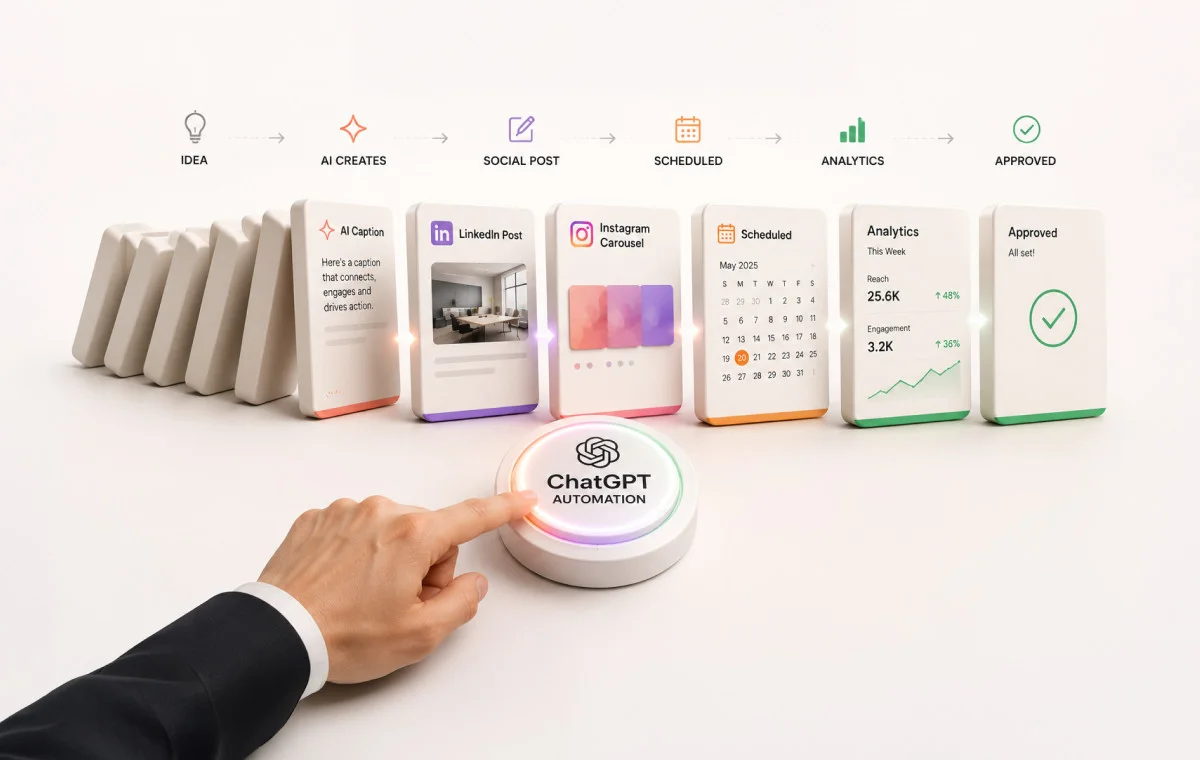
Most people use ChatGPT to write captions. Some use it to brainstorm. A smaller group uses it to research trends.
Almost no one uses it to run their entire social media operation from start to finish.
That changed when MCP arrived.
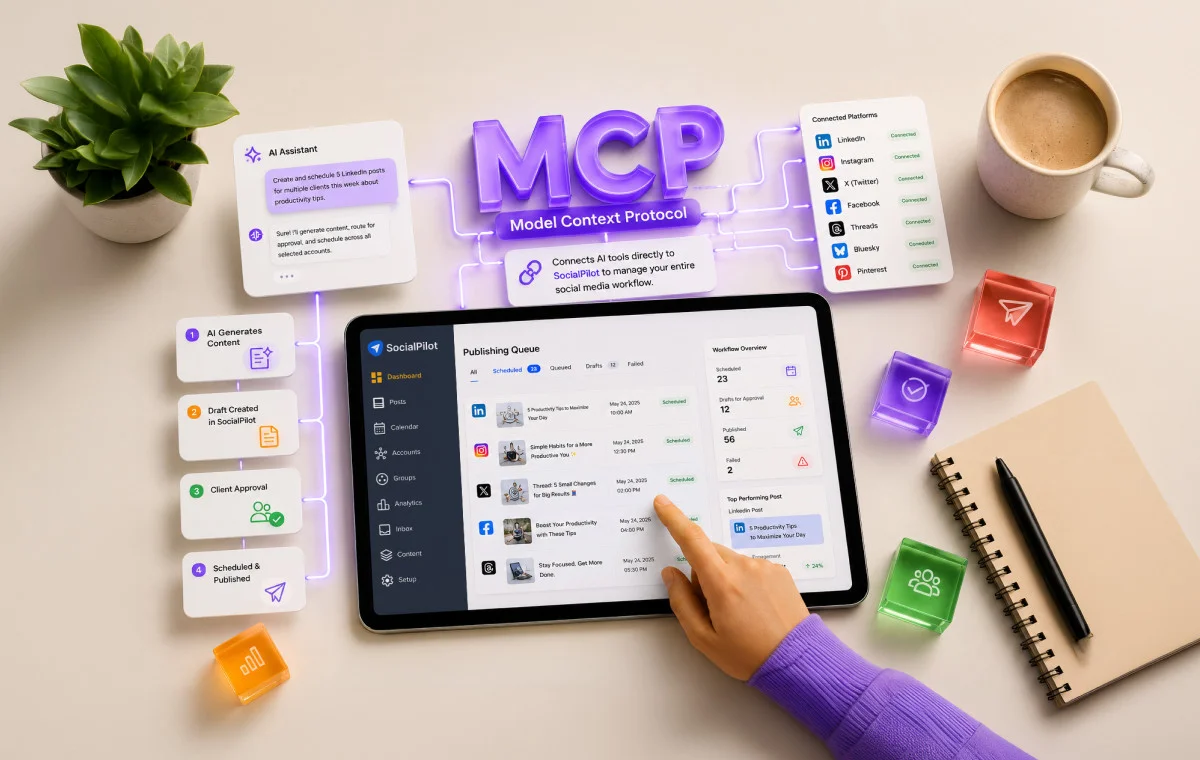
MCP (Model Context Protocol) is an open standard that lets ChatGPT connect directly to the tools you already use: your scheduling platform, your design tool, your content calendar, your analytics dashboard. Once connected, ChatGPT doesn’t just generate content. It acts on it. Posts get scheduled, reports get pulled, visuals get briefed, without you manually moving anything between tabs.
The result is two distinct ways to work with ChatGPT in 2026. The first keeps you in the workflow but makes every stage faster. The second takes you out of it.
Both are covered here: the setup, the six workflow stages, and the end-to-end systems that run without you.
Key Takeaways
- MCP connects ChatGPT to your tools. No manual handoffs between platforms.
- Two paths: faster manual workflow (Chat) or fully automated pipeline (Codex).
- Six stages, both paths: research, create, design, calendar, schedule, analyze.
- SocialPilot connects to both paths as the scheduling and analytics output layer.
What Changed: ChatGPT Is Now a Workflow Tool
Before MCP, ChatGPT was a writing assistant. You’d prompt it, it’d generate something, and you’d carry the output wherever it needed to go. The manual handoff from ChatGPT to your scheduler, your design tool, your analytics dashboard was yours to manage every single time.
MCP removed that step.
Built by Anthropic and now adopted by OpenAI and Google, MCP lets AI models connect directly to external tools via API. No custom integrations, no third-party automation platforms in between. When ChatGPT has an MCP connection to SocialPilot, it can pull analytics, create drafts, and schedule posts directly. When it’s connected to Canva, it can brief and generate a visual inside the same session.
ChatGPT is no longer just the place where you write things. It’s the place where the workflow runs.
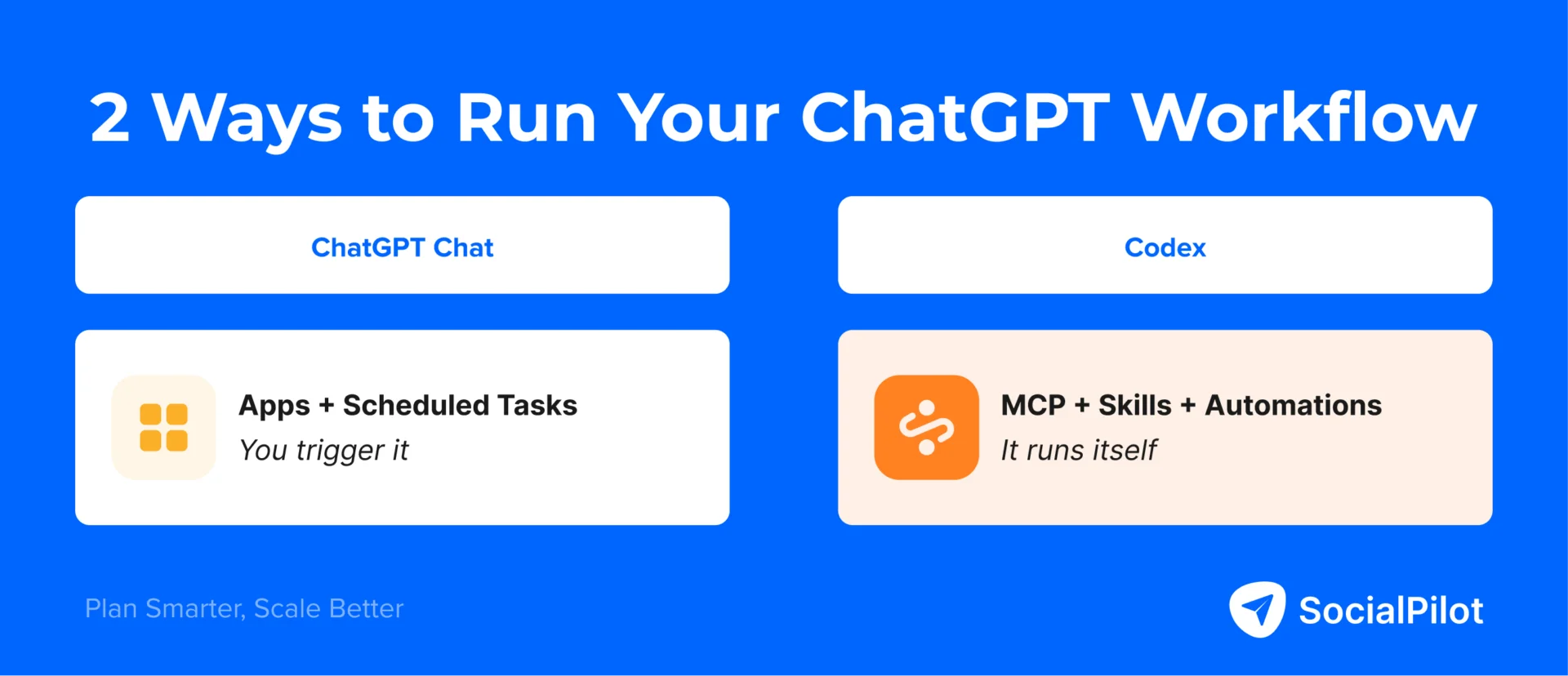
Two Ways to Automate: ChatGPT Chat and Codex
There are two surfaces where this works, and they operate very differently.
ChatGPT Chat is the interface you already know. You connect tools through Apps (ChatGPT’s term for MCP connectors) and run your workflow from within the conversation. Every session is started by you. The tools do the heavy lifting, but you’re still the trigger.
ChatGPT Codex is a separate, more powerful surface. It has full file system access, configures MCP connections once through a config file that stays active across every session and every automated run, stores reusable workflow instructions through Skills, and runs complete pipelines on a schedule through Automations.
The practical difference at a glance:
| ChatGPT Chat | Codex | |
| Tool connections | Apps (MCP), activated per session | MCP via config.toml, always active |
| Skills | Business and Enterprise only | Plus and above |
| Automation | Scheduled Tasks (lighter, single-stage) | Automations (full pipelines, event triggers) |
| Best for | SMMs who want a faster manual workflow | Agencies and power users who want it to run itself |
| Plan required | Plus and above | Plus and above |
| Setup | Minutes | One-time, then hands-off |
ChatGPT Chat makes your workflow faster and more consistent. Codex removes you from the workflow entirely. Pick where you are right now, and start there.
The Building Blocks Behind Each Path
Each path runs on three components. Knowing what each one does before you set anything up saves significant trial and error.
In ChatGPT Chat
Apps
Apps are ChatGPT’s MCP connectors: tools that extend what ChatGPT can access and act on. Connect SocialPilot and ChatGPT can schedule posts and pull analytics. Connect Canva and it can generate visual briefs. Connect Notion and it drops ideas straight into your content calendar.
Apps are activated at the start of each conversation. They don’t persist automatically. You select the relevant ones when you begin a session.
Available to connect: SocialPilot, Canva, Notion, Descript, and others.
Scheduled Tasks
Scheduled Tasks let you set a prompt on a recurring schedule. ChatGPT runs it automatically at the cadence you set — daily, weekly, or monthly — without you needing to initiate it. Tasks run server-side. Your machine doesn’t need to be on.
One practical limit to know: there’s a 10-active-task cap per account. Scheduled Tasks are built for lighter, single-stage recurring work — a weekly analytics digest or a daily topic pull — not complex multi-step pipelines.
The complete pattern for ChatGPT Chat: App (connects the tool) + Scheduled Task (sets the cadence) = recurring automated stage.
Example: SocialPilot App connected → “Pull last week’s analytics and summarize top-performing posts by platform” → Scheduled Task runs every Friday → digest ready before you start your day.
Skills are reusable workflow instructions that ChatGPT can apply automatically. In the Chat interface, they’re available on Business and Enterprise plans only, not on Plus. If you’re on Plus, Skills live in Codex, which is covered in detail below.
In Codex
MCP via config.toml
Codex configures all tool connections in a single file: config.toml. Set it up once, and every session and every Automation run has access to those tools automatically. No per-session activation.
Tools to connect: SocialPilot, Canva, Notion, Descript, Apify.
Skills (SKILL.md)
A Skill is a reusable workflow instruction stored in a SKILL.md file. It tells Codex exactly how to handle a specific task: what to research, how to write a post for a particular brand, what a client analytics report should look like.
Once created, Codex recognizes when a Skill is relevant and applies it automatically, including inside Automations. Your Skills pull from your AGENTS.md file, which stores your brand voice, client briefs, and content pillars. Every output is calibrated to your context without extra prompting.
Skills to build as you go: Research, Content Creator, Visual Content, Analytics Digest.
One important note: don’t write Skills upfront. Run each stage manually first. Once the output looks right, ask Codex to reverse-engineer the workflow into a Skill. You’ll save exactly what works instead of guessing.
Automations
Automations are what turn a working pipeline into something that runs without you.
Two types:
| Type | How It Works | Best For |
| Standalone | Fresh run each time, no memory of previous runs | Weekly content production |
| Thread | Returns to the same conversation, preserves context across runs | Analytics monitoring, ongoing campaign tracking |
Event-based triggers are also available: fire on a webhook or API event rather than a fixed schedule. This is what powers the Content Flywheel workflow covered later.
On Workspace Agents: Launched in April 2026, Workspace Agents are the cloud-native extension of Codex Automations. Always-on, cloud-based agents that run without any local machine setup. They integrate with 60+ enterprise apps natively and support custom MCP connections. If you’re scaling Codex workflows across a team or want to remove the local dependency entirely, this is the next step up. Available on Business and Enterprise plans.
The complete pattern for Codex: MCP (where to get data, where to send output) + Skill (what to do) + Automation (when to run) = fully automated pipeline.
Example: Apify MCP pulls competitor posts and trending topics each morning. The Research Skill knows your niche and what a good idea looks like. The Automation fires before you open your laptop. New ideas land in Notion, ready to use. You never touch it.
Setting Up Before You Run Anything
Set up the tools before running any stage. For Skills, build them after running each stage manually, not before. The setup below covers what needs to happen first.
ChatGPT Chat Setup
Step 1. Open ChatGPT and go to Settings → Apps.
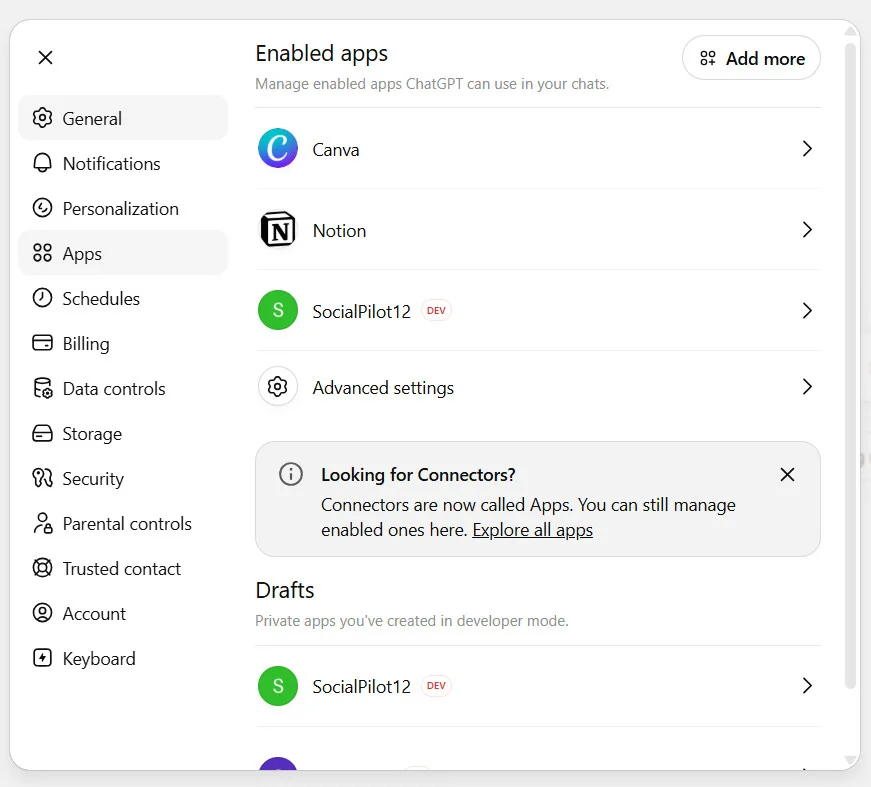
Step 2. Search for SocialPilot and connect it first. This is the output layer every stage feeds into. SocialPilot’s MCP server gives ChatGPT direct access to scheduling, drafts, and analytics in your account.

Step 3. Add Canva, Notion, and Descript.
Step 4. At the start of each session, activate the Apps relevant to what you’re running that day.
Scheduled Tasks are set up inside the conversation itself. Run your workflow, then tell ChatGPT: “Save this as a Scheduled Task and run it every [day/week/month].”
Codex Setup
Step 1. Download and install Codex at developers.openai.com/codex. Available on Plus, Pro, Business, and Enterprise plans.
Step 2. Create your project folder structure. One folder per client or brand, with a separate folder for your own brand assets and shared files. Keep it simple. Codex automatically accesses everything inside your project folder on every run — the cleaner the structure, the easier it is to point Codex at the right place.
Step 3. Create your AGENTS.md. This is where Codex learns your context: brand voice guidelines, content pillars, target platforms, tone notes, and client-specific instructions. Every Skill and Automation pulls from this file automatically.
Step 4. Configure MCP via config.toml. Add SocialPilot first, then Canva, Notion, Descript, and Apify. Each tool’s MCP server details are in its own documentation. SocialPilot’s ChatGPT MCP setup takes under 10 minutes.
Step 5. Build Skills as you go. Run each stage manually first. When the output looks right, ask Codex: “Turn this workflow into a Skill.” It extracts the logic, writes the SKILL.md, and saves it.
Here’s what the difference looks like in practice:
| Without Skill context | With Skill context (Codex) |
| “Write a LinkedIn post about productivity.” | Post matched to brand voice, referencing established content pillars, correct length, ending with the audience-specific question stored in AGENTS.md |
Step 6. Attach Automations last. Once each stage works manually and its Skill is saved, set the Automation: choose Standalone or Thread, set the cadence or trigger, and the stage runs without you from that point on.
Apps connected. MCP configured. Skills ready to build as you go. Run the stages first, then automate.
These are the building blocks. Each stage covers what the tools handle, what Skills store for Codex, and real prompts that work across both paths.
Stage 1: Research
Tools: Apify (or Firecrawl) pulls competitor posts, trending topics, RSS feeds, and forum threads. Notion or SocialPilot receives the output, with ideas saved directly to your content calendar.
What the Research Skill stores: Your niche, content pillars, preferred angles, formats that perform well for your audience, and what a strong content idea looks like.
ChatGPT Chat prompt:
“Activate Apify. Search [niche/topic] across Reddit, Twitter, and industry blogs. Pull the top 5 trending topics from the last 7 days. For each: summarize the angle in one line, note the content format getting the most engagement, and suggest one post idea.”
Codex prompt (runs inside Automation, daily):
“Use the Research Skill. Pull trending topics in [niche] using Apify. Output a structured brief: 5 ideas, each with angle, recommended format, and suggested platform. Save to Notion under [client], [month].”
Stage 2: Creating Posts and Visuals
Tools: Canva generates graphics alongside copy. Descript pulls transcripts from podcast or video content for repurposing.
What the Skills store:
- Content Creator Skill: brand voice, platform-specific rules, post length guidelines, tone, content pillars
- Visual Content Skill: preferred graphic formats, Canva template preferences, image style notes
ChatGPT Chat prompt:
“Activate Canva and Descript. Write 3 LinkedIn posts and 2 Instagram captions about [topic]. LinkedIn: 150–200 words, professional tone, end with a question. Instagram: under 100 words, conversational, 5 hashtags. Create a Canva infographic brief for the top LinkedIn post.”
For a full library of prompts you can use across every stage and platform, see 100+ ChatGPT prompts for social media marketers.
Codex prompt:
“Use the Content Creator Skill and Visual Content Skill. Write this week’s posts for [brand/client], platform-matched for LinkedIn, Instagram, and Facebook. Feed the Descript transcript from [file]. Output posts and Canva briefs together in one run.”
Stage 3: Building Content Calendars
Tools: Notion receives the calendar output directly. SocialPilot saves week 1 as a draft batch immediately.
What the Calendar Skill stores: Post frequency per platform, preferred content mix, upcoming campaigns, and client-specific calendar notes.
ChatGPT Chat prompt:
“Activate SocialPilot and Notion. Create a 4-week content calendar for [niche/client]. Include post type, topic, platform, and suggested day for each entry. Save to Notion. Create week 1 as a draft batch in SocialPilot.”
Codex prompt:
“Use the Calendar Skill. Build next month’s content calendar for [client] using the content pillars in AGENTS.md. Save to Notion. Push week 1 to SocialPilot as drafts.”
Stage 4: Batching Content
Tools: Canva batches visuals alongside copy in one run. SocialPilot receives the completed batch as organized drafts.
Skills in action: The Content Creator Skill and Visual Content Skill from Stage 2 carry through here. This is where they earn their keep, applied across a full month’s batch rather than individual posts.
ChatGPT Chat prompt:
“Activate SocialPilot and Canva. I have a content calendar for [month]. Write all 20 posts, platform-matched for LinkedIn, Instagram, and Facebook. Include Canva visual briefs for carousel and infographic posts. Save everything as drafts in SocialPilot, organized by platform.”
Codex prompt:
“Use the Content Creator Skill and Visual Content Skill. Point at the [client] folder. Write all posts for the month, platform-matched. Output a separate CSV per client formatted for SocialPilot bulk upload, with Canva briefs alongside each visual post.”
Stage 5: Scheduling
Tools: SocialPilot only. This stage needs one connection.
No new Skill required. Scheduling runs directly through SocialPilot’s MCP. Posts are already sitting in drafts from Stage 4. This stage moves them to scheduled.
Prompts that work across both paths:
- “Schedule this week’s posts for [account]: LinkedIn at 9 AM, Instagram at 12 PM, Monday through Friday.”
- “Save as drafts and flag for client approval before publishing.”
- “Bulk schedule everything following the calendar dates in Notion.”
- “Reschedule my lowest-performing post from last week to Thursday at 11 AM.”
For Codex: scheduling fires as the final step in the Automation. The full pipeline, from research through scheduling, completes without manual input at any point.
The ability to automate social media posts at scale is what makes the scheduling stage worth building properly: once it runs without manual input, every other stage compounds on top of it.
Stage 6: Analytics
Tools: SocialPilot pulls performance data directly. No CSV export, no manual download.
What the Analytics Digest Skill stores: Report format, recurring questions to answer each period, performance flags to watch for, and how to frame recommendations for clients.
ChatGPT Chat prompt:
“Activate SocialPilot. Pull last month’s analytics for [account]. Which posts got the most engagement and why? What topics and formats performed best? What should I post more of next month? Format as a plain-English digest.”
Codex prompt (Thread Automation, preserves context week over week):
“Use the Analytics Digest Skill. Pull this month’s performance data for [client] from SocialPilot. Flag underperforming posts. Compare LinkedIn vs. Instagram over the last 30 days. Generate a client-ready report.”
Prompts that work across both paths:
- “Which posts got the most engagement last month and why?”
- “Flag underperforming posts and suggest what I should change.”
- “Compare LinkedIn vs. Instagram performance over the last 30 days.”
- “What should I post more of next month?”
Four End-to-End Workflows
Social media scheduling automation is where the workflow stops requiring a person entirely: posts move from draft to published on the date and time set, across every platform, without a manual trigger.
The stages above are the building blocks. These are the complete systems, with automation triggers attached.
Workflow 1: The Weekly Content Sprint
Best for: Solo social media managers on ChatGPT Chat (Plus)
Time: One focused session per week
This is the social media manager’s workflow. One session covers everything: topics researched, posts written, visuals briefed, and the week scheduled.
- Activate Apify, Canva, and SocialPilot Apps
- “What are the top 3 topics in [niche] this week?”
- “Write 5 posts: 3 LinkedIn, 2 Instagram. Create a Canva infographic brief for the top LinkedIn post.”
- “Schedule everything for [account] Monday through Friday: LinkedIn at 9 AM, Instagram at 12 PM.”
As a list, this looks like four steps. In a live ChatGPT session, it looks like a week’s work disappearing in 30 minutes. If you want to see the pace before you build it yourself:
To make it run without even that session: set a Scheduled Task for Monday morning. ChatGPT runs the full sequence and delivers the week’s content without you asking. One setup. Every week handled.
Workflow 2: The Agency Client Batch
Best for: Agencies managing multiple clients on Codex
Time: A few hours of setup, then recurring automation
Build the pipeline once. After that, it produces a full week of content across every client, platform-matched and brand-consistent, with drafts waiting in SocialPilot for approval.
- Content Creator Skill + Visual Content Skill pull from each client’s AGENTS.md. Brand voice and content pillars are built in from the start.
- Canva MCP generates visual briefs alongside every post.
- SocialPilot MCP saves everything as drafts, organized by client and platform.
- Once the team approves, one command schedules the full batch.
Attach an automation, and this runs every week across all clients without any manual trigger. The team reviews, approves, and schedules. The production work happens without them.
Workflow 3: The Monthly Hands-Off System
Best for: Marketers on Codex who want to batch once and step away
Time: One-time setup
- Notion MCP + Calendar Skill + Automation triggers on the 1st: next month’s calendar built and saved automatically.
- Content Creator Skill + Visual Content Skill: all posts and visuals created from the calendar.
- SocialPilot MCP: everything scheduled following calendar dates.
- Analytics Digest Skill + SocialPilot MCP + end-of-month Automation: performance report generated automatically.
One-time setup. Every month after: calendar planned, content produced, posts scheduled, report delivered.
Workflow 4: The Content Flywheel
Best for: Businesses on Codex that already publish blog content regularly
Time: One-time setup, then compounds over time
Each new blog post automatically becomes a week of social content. No brief needed. No manual trigger.
- Research Skill connects to your blog’s RSS feed as a live source.
- Apify MCP + Content Creator Skill + event-based Automation fires each time a new article publishes.
- Canva MCP generates visuals automatically from the post content.
- SocialPilot MCP schedules posts for the week, platform-matched.
The flywheel: blog content drives social posts, social posts drive traffic back to the blog, the blog generates more content to turn into posts. Each piece of content you publish multiplies across platforms without additional work.
The Posts Go Out. The Reports Come In. You Were Somewhere Else.
Social media management has never really been about scheduling posts or pulling analytics. Those are the mechanics of it. The actual work is the judgment: what to say, to whom, and when. That’s the part that requires a person.
What MCP changes is how much of that mechanical layer you have to sit inside. If you’re new to how MCP connectors work for social media, this breaks it down.
Research runs. Posts get written, scheduled, and reported on without a manual trigger. The stages that were eating hours run while you’re doing something else.
That’s where SocialPilot fits: as the place where everything lands. Drafts, scheduled posts, performance data. It all runs through automatically. Nothing waits for you to move it.


 Join 55,000+ social media managers


