
YouTube has evolved from a video-sharing platform into one of the most powerful advertising channels for businesses of all sizes. With over 2.5 billion monthly users and unmatched reach across mobile, desktop, and connected TV, YouTube gives brands the opportunity to connect with audiences at every stage of the buying journey.
But running successful YouTube ad campaigns requires more than just uploading a video and setting a budget. Marketers need to understand the different ad formats, how pricing works, which strategies drive results, and how to optimize campaigns for performance.
This guide walks you through everything you need to know about YouTube advertising, from ad types, step-by-step process, and best practices, so you can create campaigns that reach the right audience, maximize ROI, and drive real business growth.
What Are YouTube Ads?
YouTube ads are paid video advertisements that help businesses reach audiences across YouTube and Google’s video partner network. These ads can appear before or during videos, in search results, in the feed, across Shorts, and on connected TVs. With multiple formats and placements available, YouTube ads allow brands to build awareness, drive consideration, and generate conversions at scale.
YouTube ads are created and managed through Google Ads. Advertisers set campaign goals, choose video ad formats, define targeting, and control budgets and bidding. Google’s auction system then delivers ads based on relevance, bid, and expected performance—making YouTube advertising highly targeted, measurable, and scalable.
Different Types of YouTube Ads
YouTube offers a variety of ad formats to help businesses reach audiences at different stages of the marketing funnel. All YouTube ad formats serve a unique purpose, whether it’s building brand awareness, driving consideration, or generating conversions.
1. Skippable In-Stream Ads
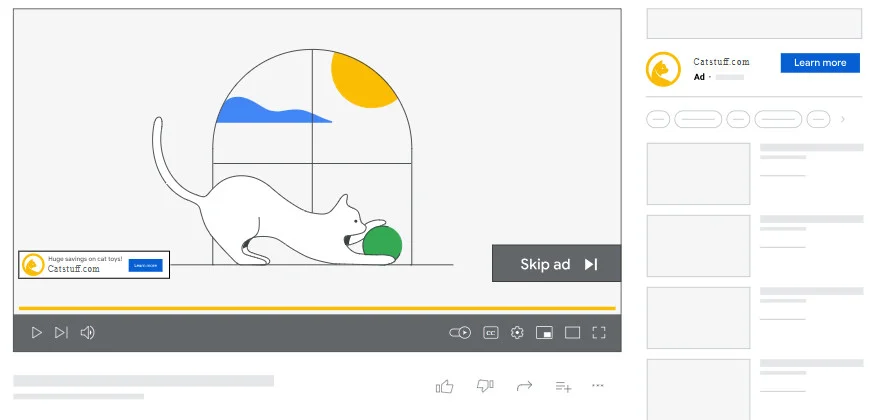
These ads appear before, during, or after a YouTube video and can be skipped after 5 seconds. Advertisers are typically charged only when viewers watch at least 30 seconds (or the full ad if shorter) or interact with the ad. This format gives brands flexibility to tell longer stories while still respecting user choice.
Best for: Brand awareness, traffic, conversions, sales, remarketing
2. Non-Skippable In-Stream Ads
Non-skippable ads must be watched before the viewer can access the video. They usually run up to 15 seconds and guarantee full message delivery, making them ideal when every second of the ad needs to be seen.
Best for: Strong brand messaging, product launches, sales, high-impact campaigns
3. Bumper Ads
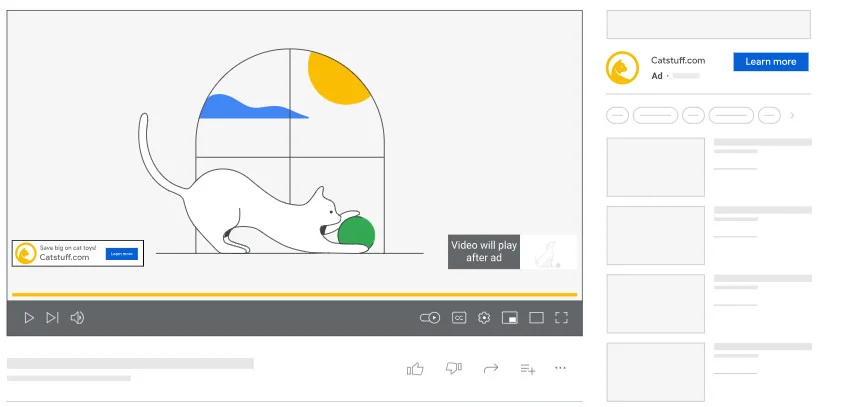
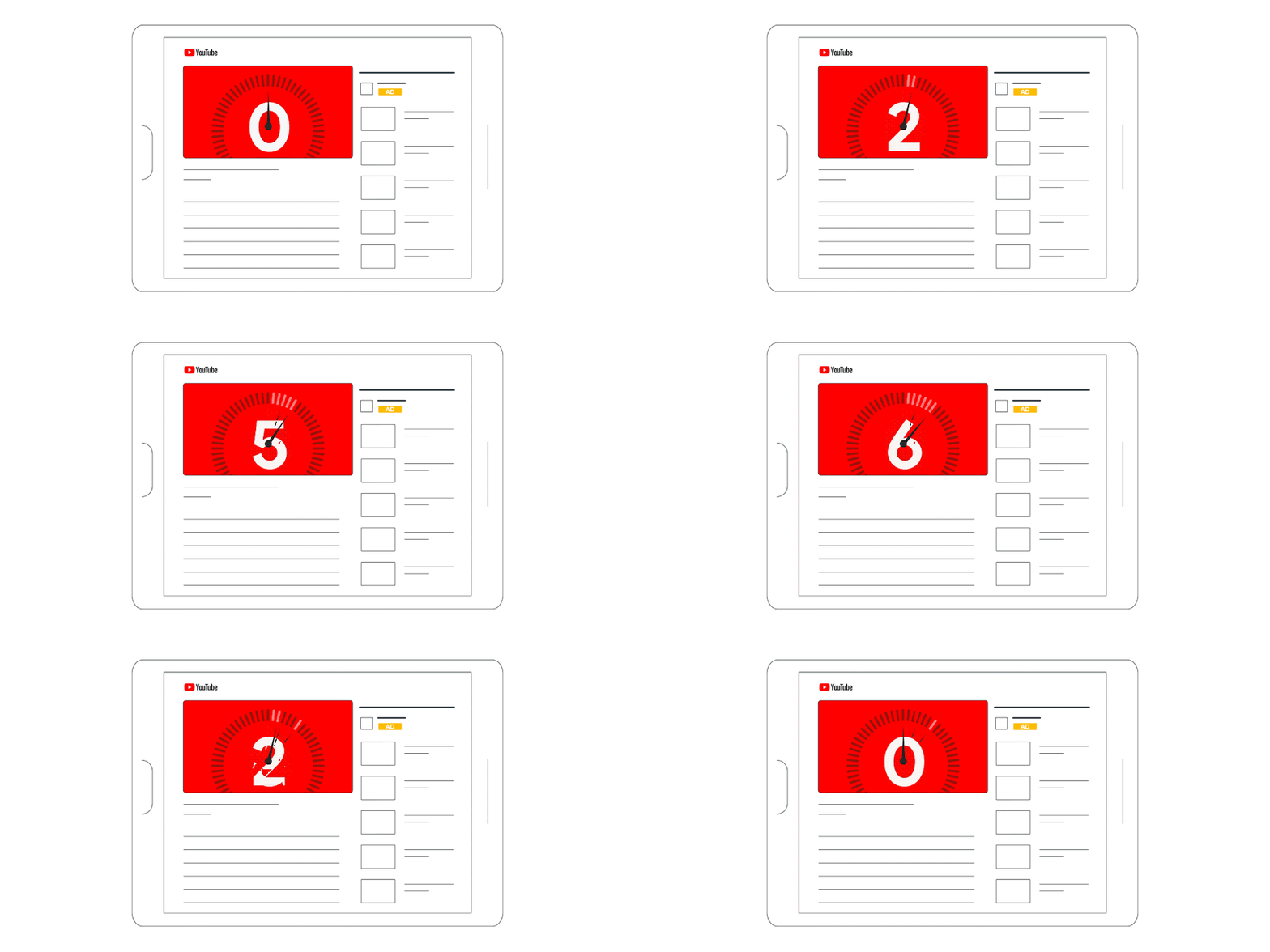
Bumper ads are short, 6-second, non-skippable ads designed to deliver a quick, memorable message. They are often used alongside longer campaigns to reinforce key ideas or increase recall.
Best for: Brand recall, reminders, sales through promotions, message reinforcement
4. In-Feed Video Ads (Discovery Ads)
These ads appear in YouTube search results, on the homepage, or in the “Up next” section. They don’t autoplay; users choose to click and watch, which means viewers are often more interested in the content.
Best for: Consideration, product education, high-intent audiences
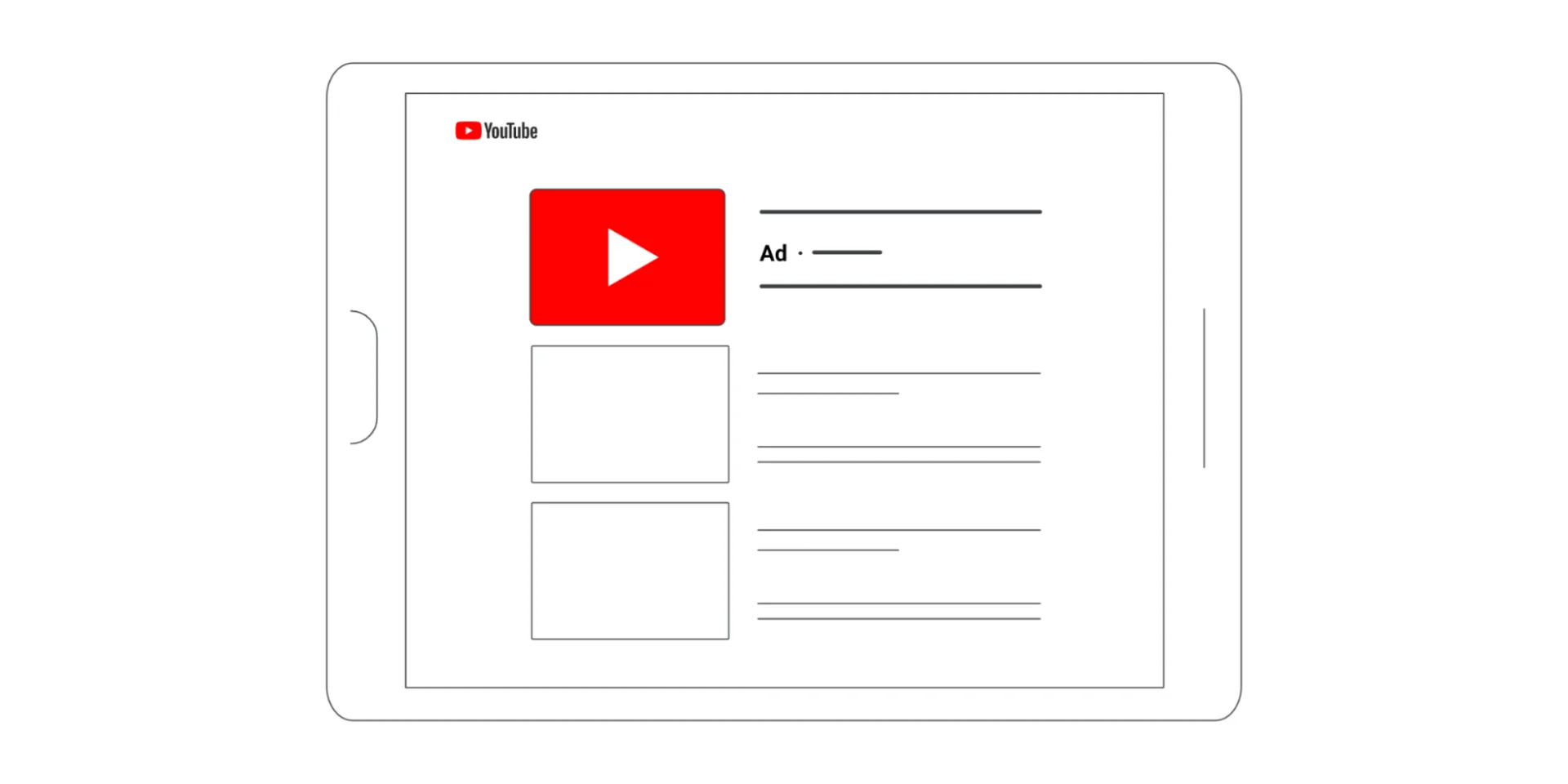
5. Masthead Ads
Masthead ads are premium placements shown at the top of the YouTube homepage for a set period, usually 24 hours. They offer massive reach and visibility but are generally reserved for large-scale campaigns because of their higher costs.
Best for: Major announcements, product launches, large brand takeovers
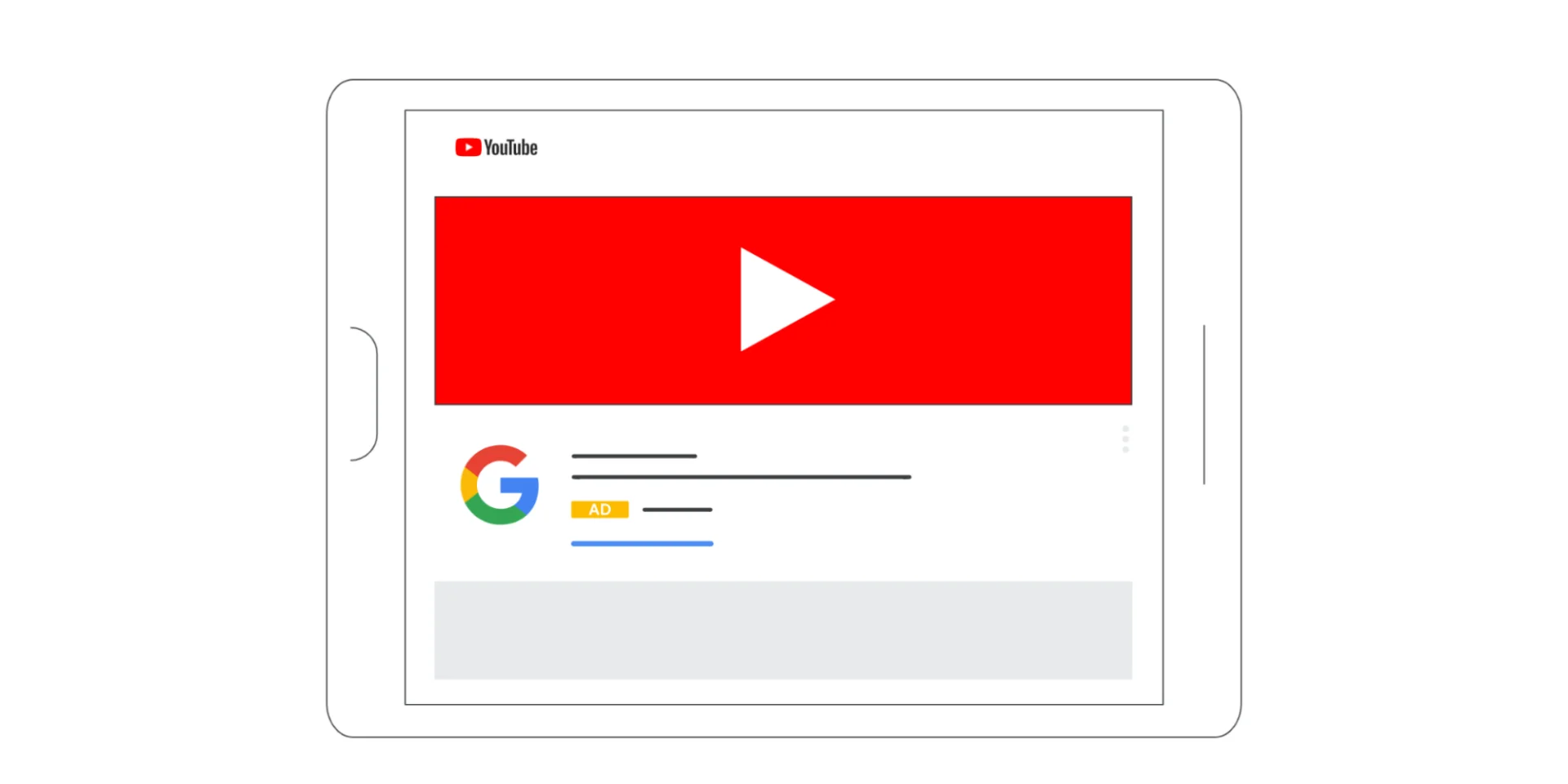
6. YouTube Shorts Ads
These ads are displayed between YouTube Shorts videos in a vertical, full-screen format. They blend naturally into the Shorts feed, making them effective for reaching younger, mobile-first audiences.
Best for: Gen Z reach, vertical video campaigns, short-form storytelling

YouTube TV Ads: What They Are & How They Work
YouTube TV ads are video advertisements shown to viewers of YouTube TV, Google’s live TV streaming service that includes 100+ channels, including sports, news, and entertainment. These ads bring a TV-like commercial experience to a digital streaming platform, while still using Google’s powerful targeting and measurement technology.
Key Features of YouTube TV Ads
TV-Style Ad Experience: Ads are inserted into live streams, on-demand content, and DVR playback via Dynamic Ad Insertion (DAI), creating seamless ad breaks similar to traditional TV without buffering or interruptions.
Targeted & Personalized: You can reach specific audiences with personalized ads based on viewing behavior and Google’s targeting signals, making them more relevant to individual viewers.
Ad Formats Available: YouTube TV supports several video ad formats familiar from YouTube, including:
- Non-skippable in-stream ads
- Skippable in-stream ads
- Bumper ads
These can be booked through reservation deals or programmatic buying methods like YouTube Select or Display & Video 360.
When to Use YouTube TV Ads?
YouTube TV ads are ideal if you want to:
- Reach audiences in a traditional TV environment but with modern targeting.
- Show your creativity in front of live and on-demand TV content.
- Blend digital targeting with premium TV placement for brand awareness.
Unlike standard YouTube ads that you can run via an auction in Google Ads, YouTube TV ads are often purchased on a reservation basis for guaranteed placement in TV ad breaks.
How to Create a YouTube Ads Campaign
This step-by-step guide will walk you through every stage of setting up a YouTube advertising campaign, from signing in to going live and optimizing performance.
Step 1: Sign In to Google Ads
- Open your browser and go to ads.google.com.
- Sign in with your Google account (preferably the one linked to your business).
- If you don’t have an account yet, click “Start now” and follow the prompts to set up your account.
- Enter billing info
- Choose your time zone
- Set your business details
Step 2: Link Your YouTube Channel
Before running YouTube ads, link your YouTube channel:
- In Google Ads, go to Tools & Settings (top right).
- Under “Setup,” click Linked accounts.
- Choose YouTube.
- Select your channel and click Link.
This enables you to use your YouTube videos in campaigns, track performance, and remarket to video viewers.
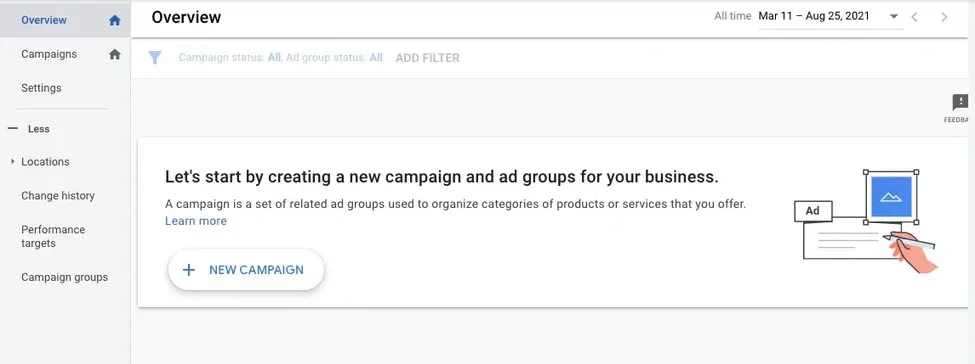
Step 3: Click “+ New Campaign”
- From your Google Ads dashboard, click the blue “+” New Campaign button.

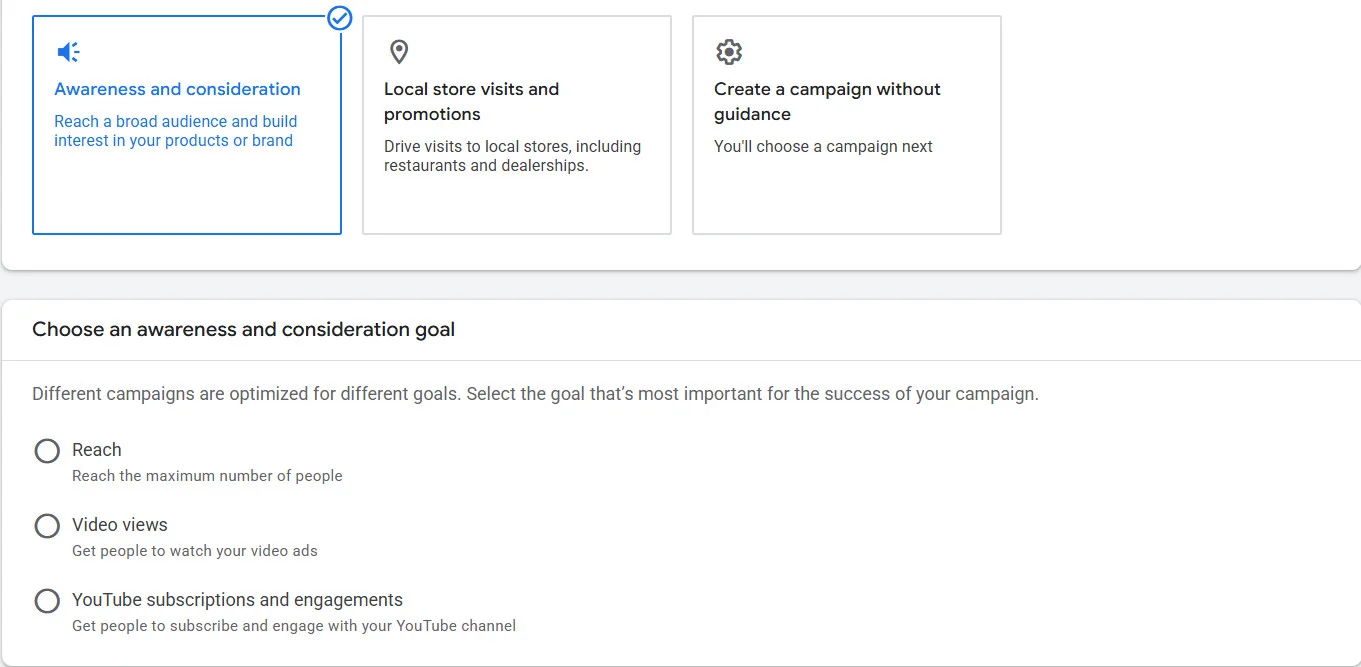
- Choose Create a campaign without a goal’s guidance (gives you full control) or pick a business goal like:
- Brand awareness
- Product consideration
- Conversions
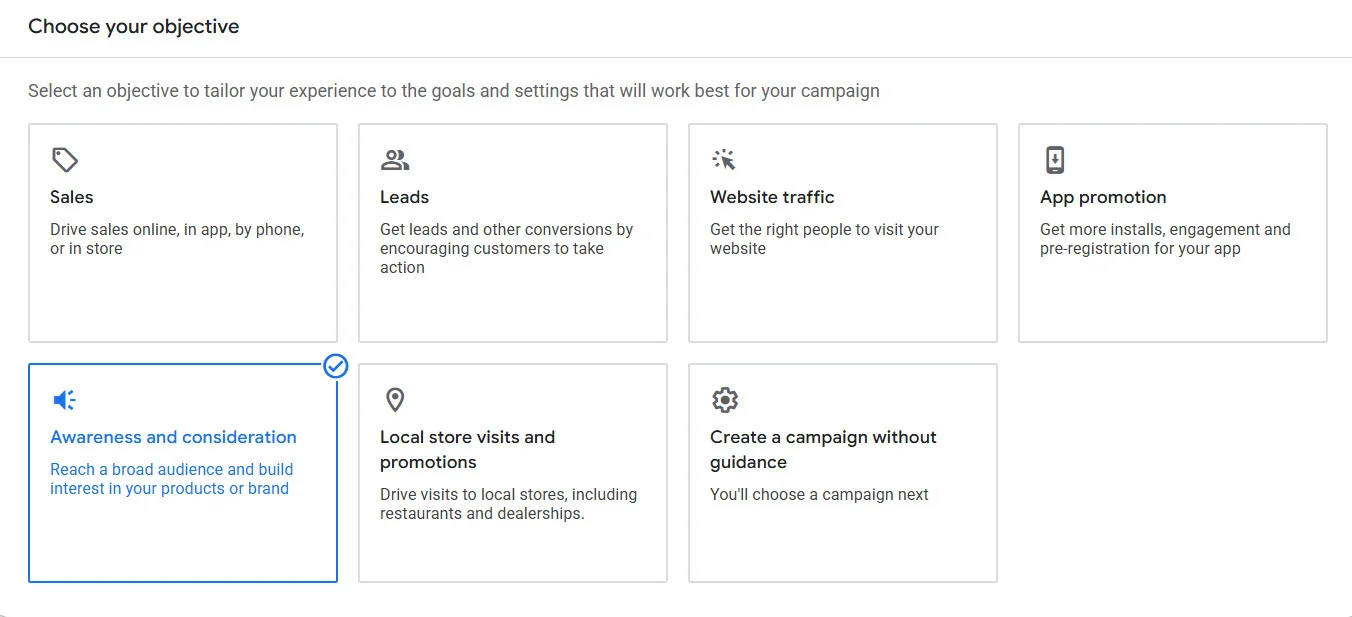
Selecting a goal helps Google optimize bidding and placements. Now choose a sub-campaign goal of choosed goal:
Step 4: Select Campaign Type – Video
Now you need to choose any of the reach, video views, or subscription, and you will get a category to select from:
- Choose Video as your campaign type.
- This enables YouTube-specific ad formats and targeting options.
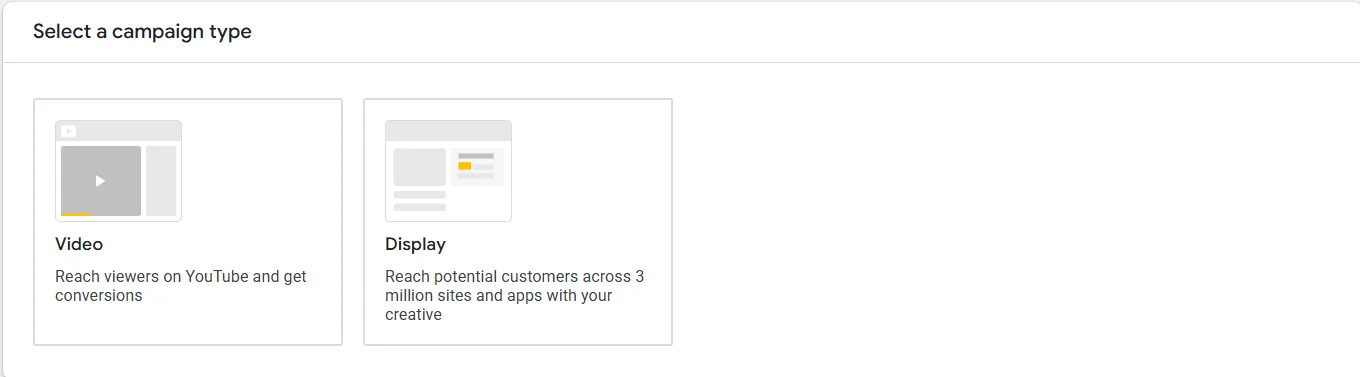
Video campaigns are designed for YouTube and video placements across Google’s network. While display ads need GIF or static images on YouTube, the recommendation feed helps meet your campaign goal.
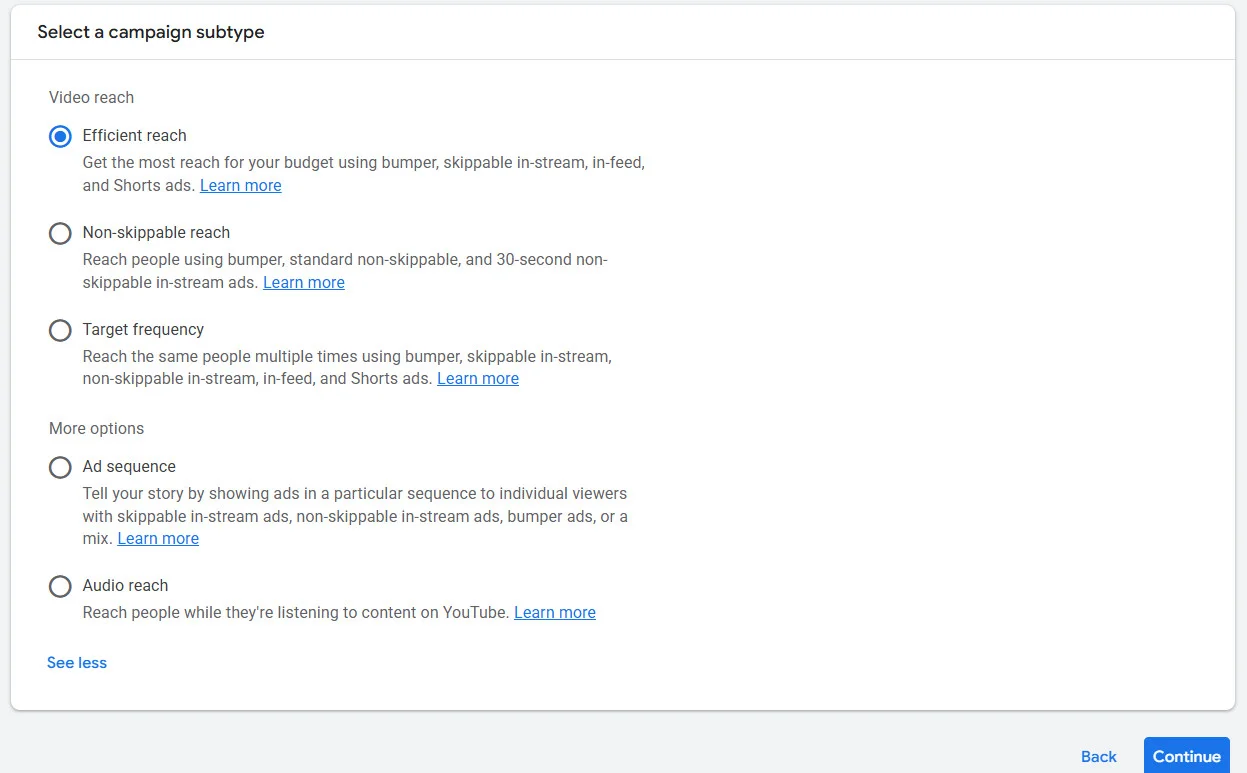
Step 5: Select a Campaign Subtype
Next, decide how you want Google to deliver your ads, for example, if selected reach, then video, then you will get those options:
Step 6: Name Your Campaign & Set the Budget
-
- Enter a clear campaign name (e.g., Summer Promo 2026 – YouTube Ads).

- Set your budget type:
- Daily budget – Average spend per day
- Campaign total – Spend limit for the whole campaign
- Enter a clear campaign name (e.g., Summer Promo 2026 – YouTube Ads).

For example, for brand awareness, you might set a higher daily budget; for short promos, a campaign total limit works well.
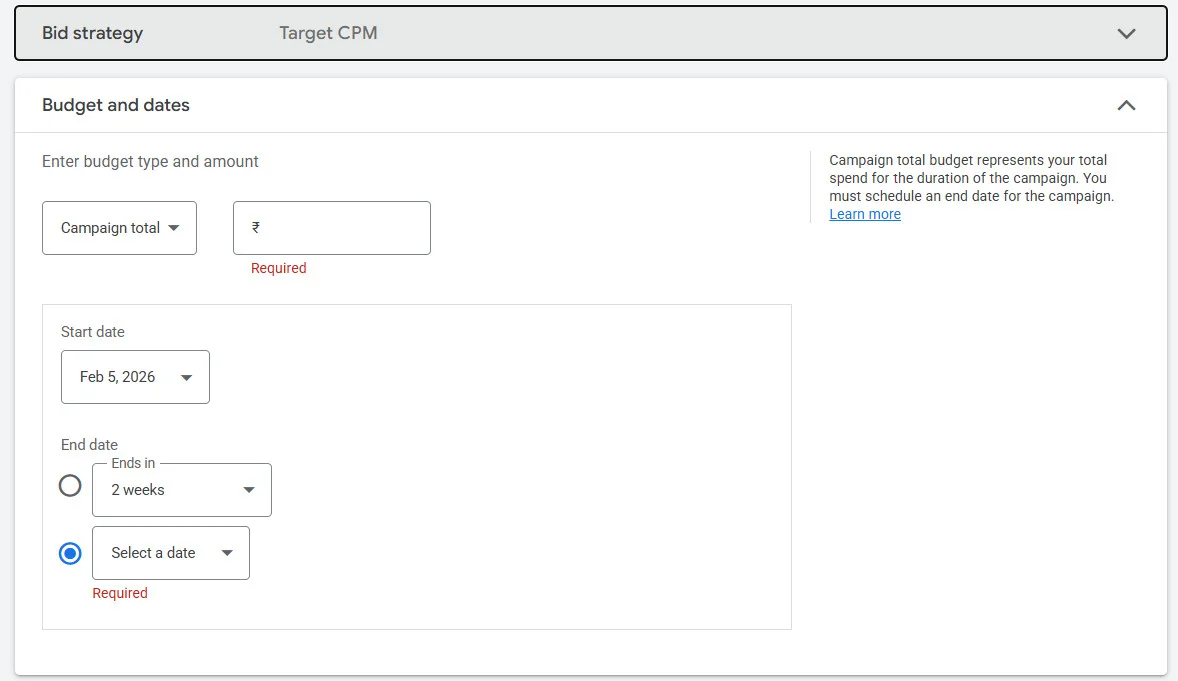
- Choose your start and end dates (optional).
- At the end of the section, you will get a bid column for this campaign:
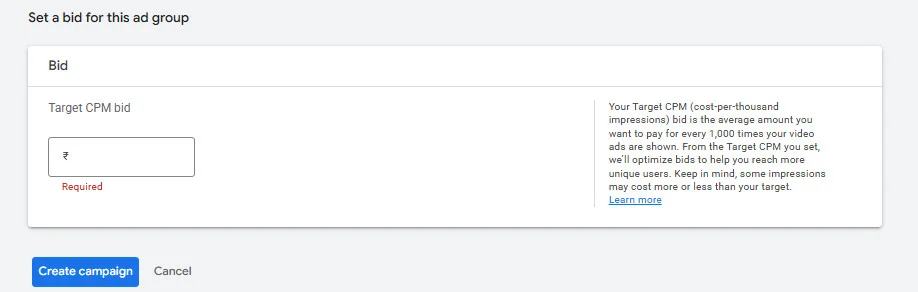
Step 7: Select Bidding Strategy
Choose how you want to pay:
- CPV (cost per view): Pay when someone watches or interacts
- CPM (cost per thousand impressions): Good for awareness
- Target CPA: Optimized for conversions
- Maximize conversions: Let Google optimize bids
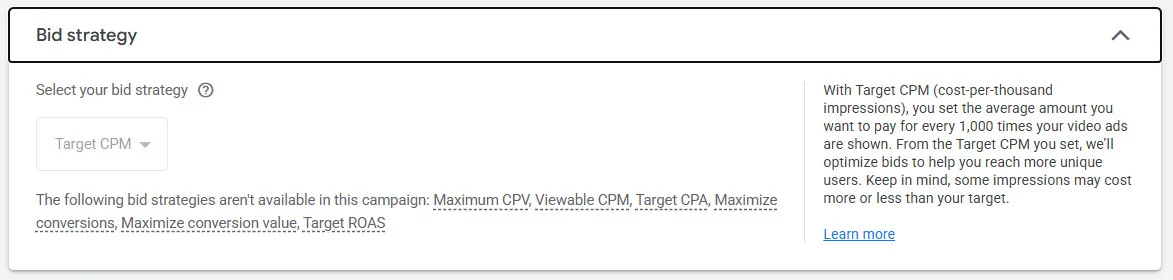
This step aligns your budget with your goals. In most cases, Google Ads will automatically select your bid strategy based on the campaign category and ad formats you selected earlier.
Step 8: Choose Networks & Placements
Decide where your ads should run:
- YouTube videos
- Google TV
- YouTube search results
- YouTube Shorts
- Google video partners
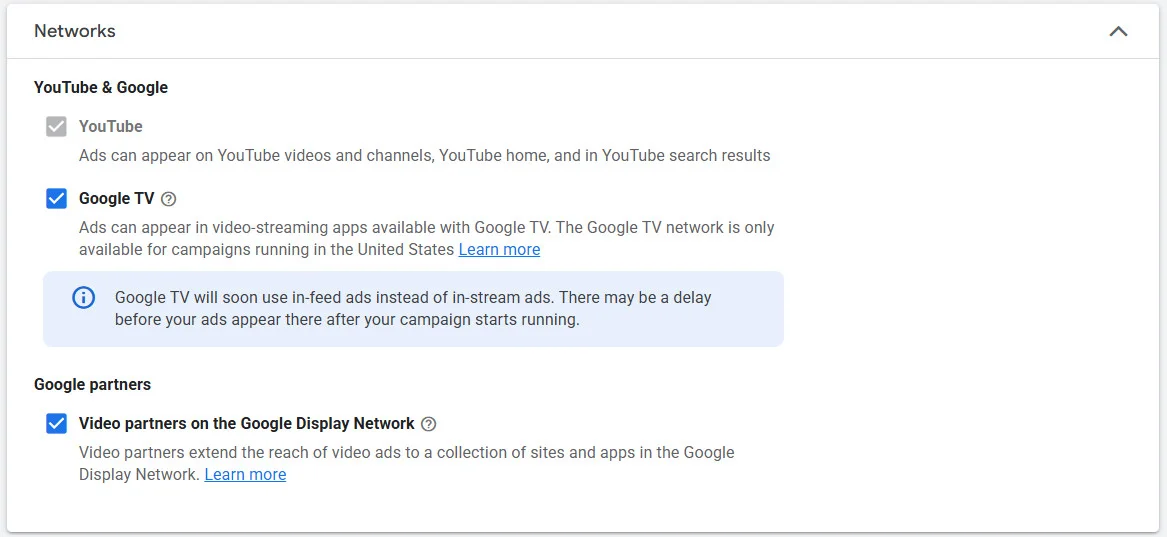
You can also exclude placements you don’t want.
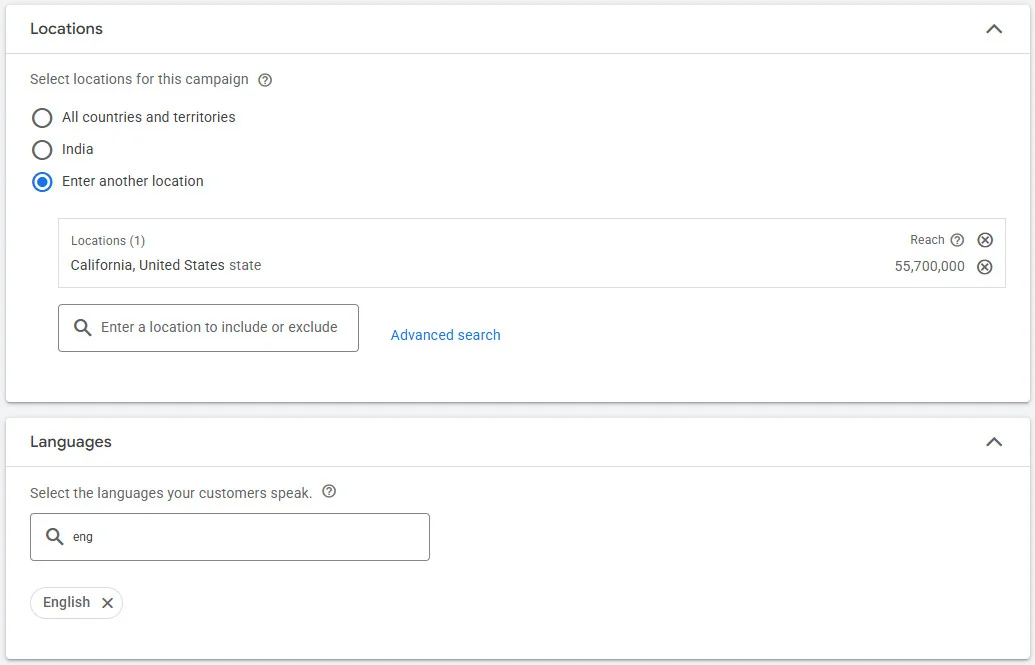
Step 9: Choose Location, Language, and Devices
- Select geographic targeting (countries, cities, radius, etc.).
- Choose audience language(s).

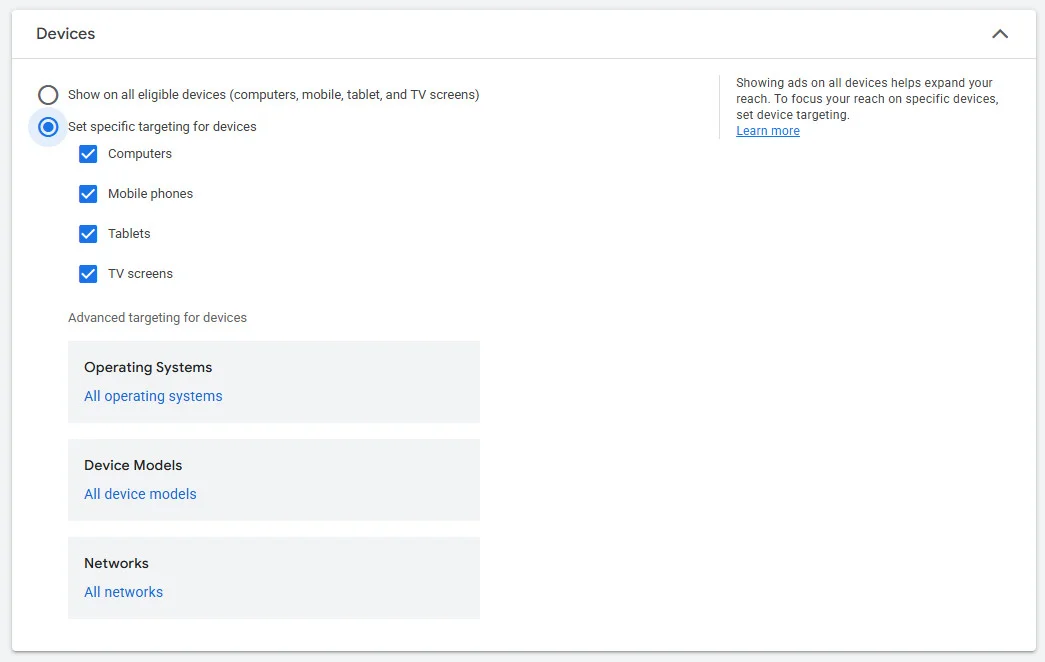
- You can also select specific devices (in the additional settings section) (mobile, desktop, TV) to prioritize the screens of your target audience, helping you improve ROI and pinpoint targeting.
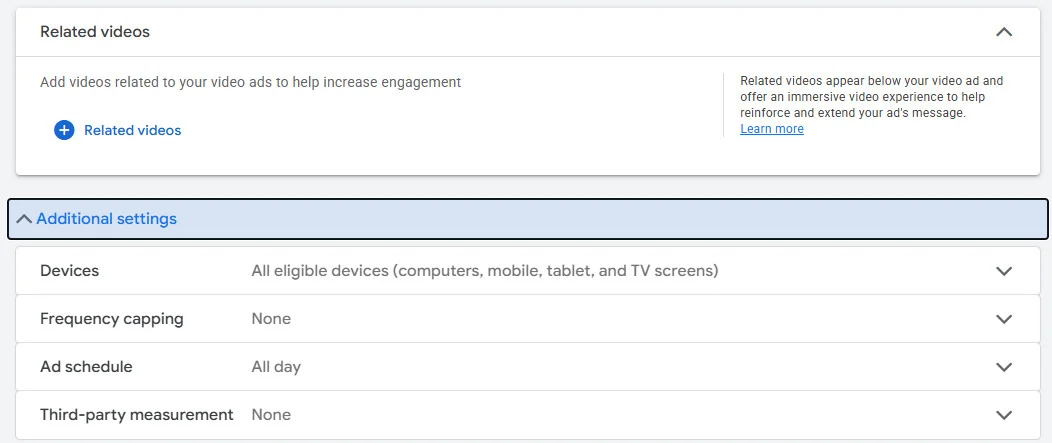
In this step, you can select or add related videos that align with your niche or topic. These are videos where you’d like your ad to appear, helping your campaign reach a more relevant audience. Placing ads alongside related content can improve engagement, watch time, and overall ad performance.
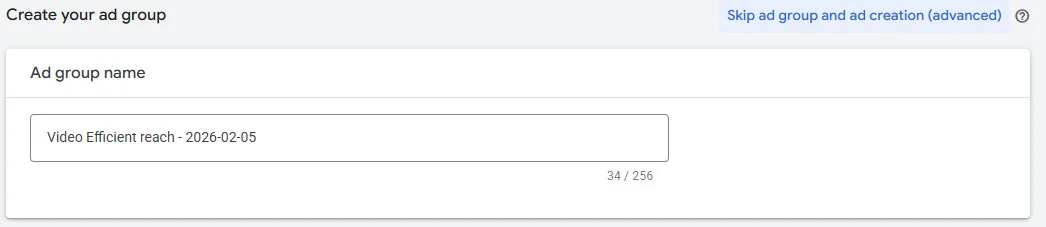
Step 11: Define Your Target Audience
If you already have ad groups from previous campaigns, you can select from those ones or add a new ad group. You can also use Google’s targeting options to reach the right viewers.
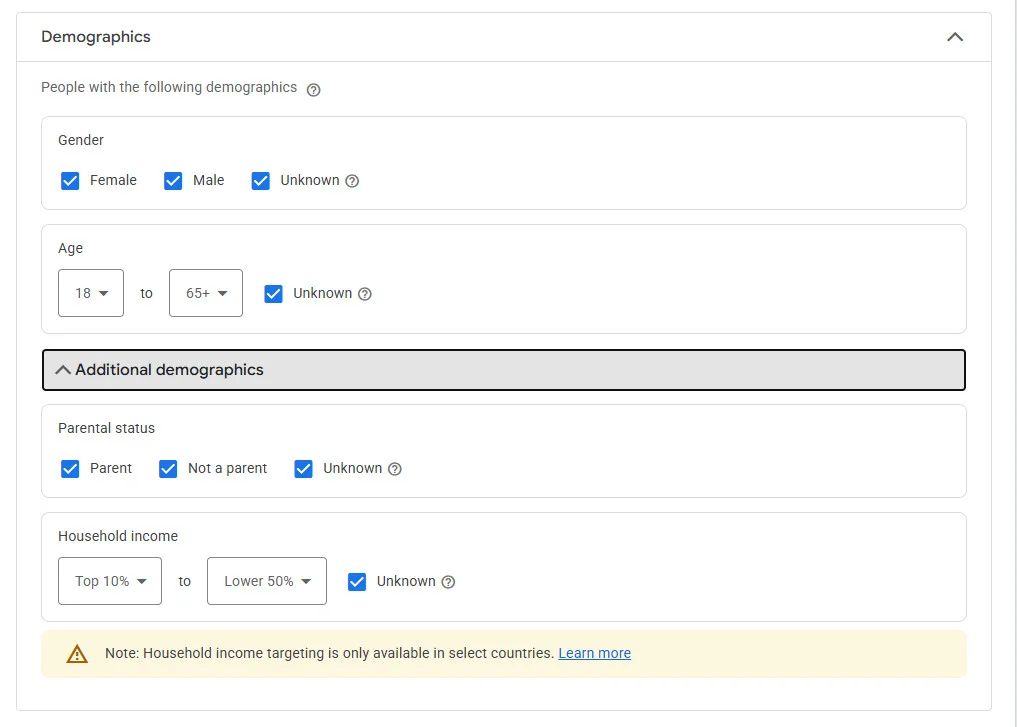
1. Demographics — Age, gender, parental status
2. Interests & affinity audiences
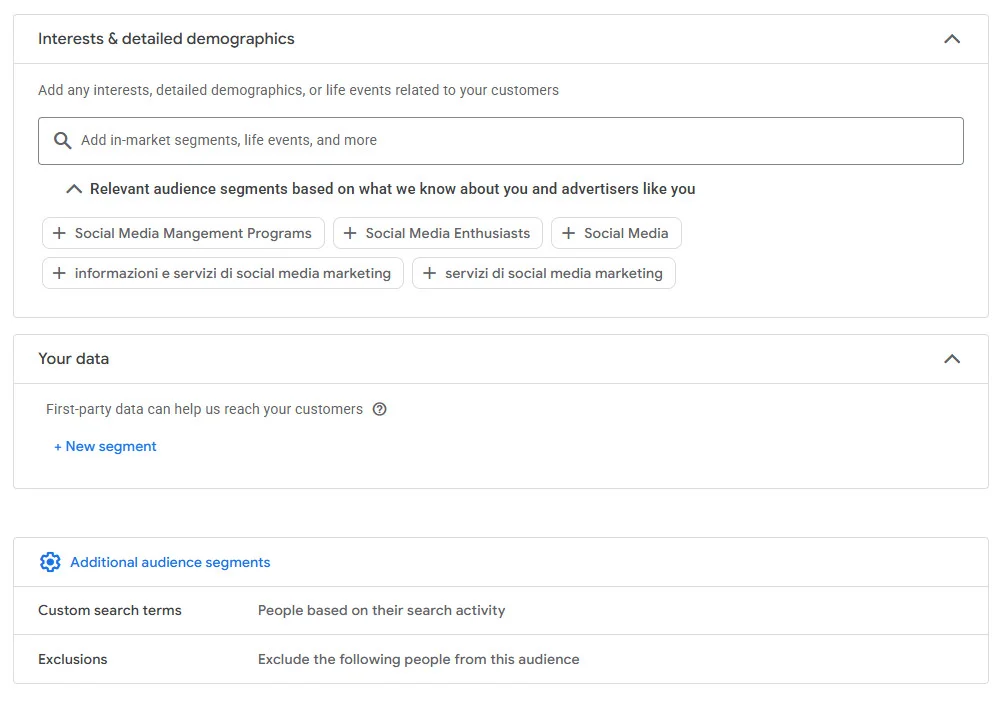
3. In-market audiences — Actively researching products with specific keywords, topic & behavior.
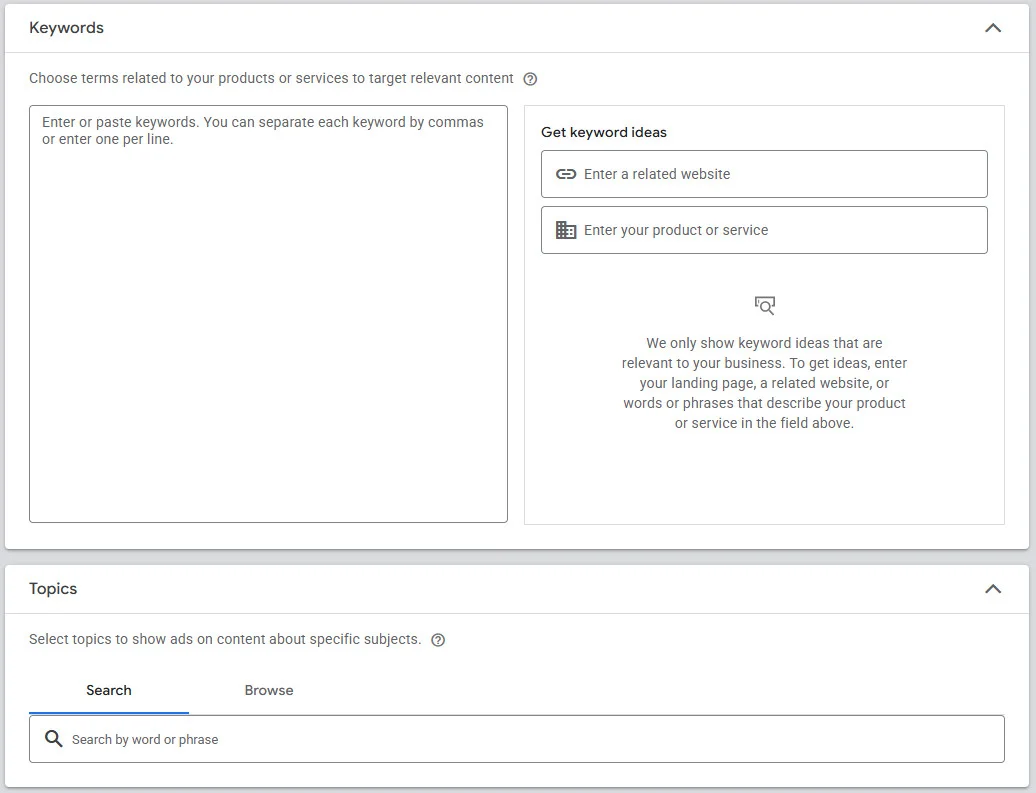
Good audience targeting increases relevance and lowers ad waste.
Step 12: Add Your YouTube Video Ad
Next, need to upload the video ad you want to use for the campaign.
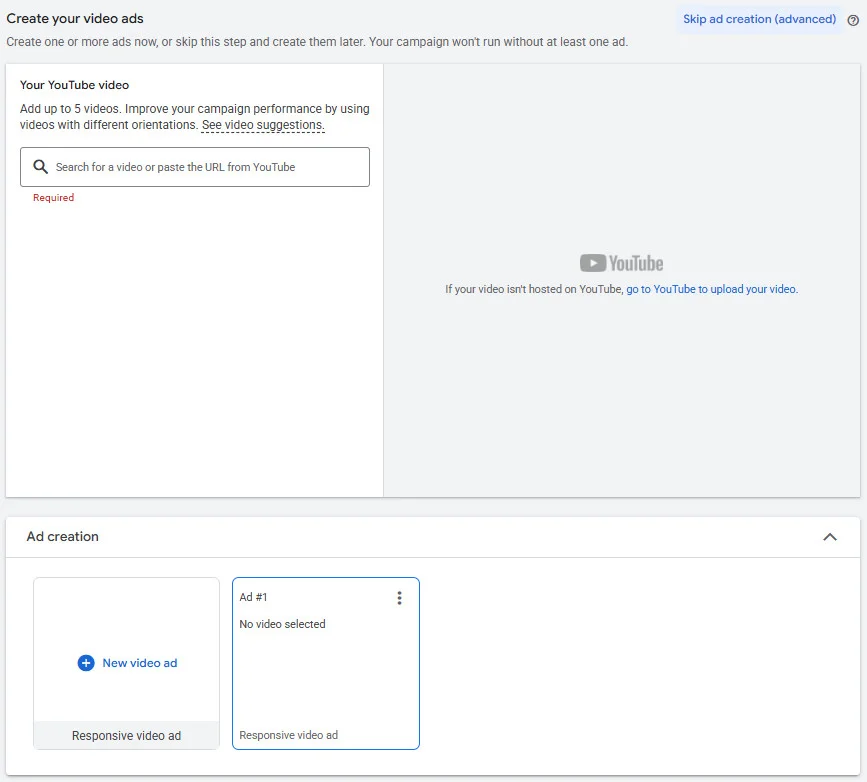
Step 13: Review & Publish
Before publishing, double-check:
- Targeting settings
- Budget & bidding
- Ad preview on mobile & desktop
When everything looks good, click “Create campaign”. Your ad will go live after approval.
Step 14: Monitor Performance & Optimize
Once your campaign is live, keep an eye on key metrics in Google Ad analytics:
- Views and view rate
- Watch time
- Click-through rate (CTR)
- Cost per view/acquisition
- Conversions and ROI
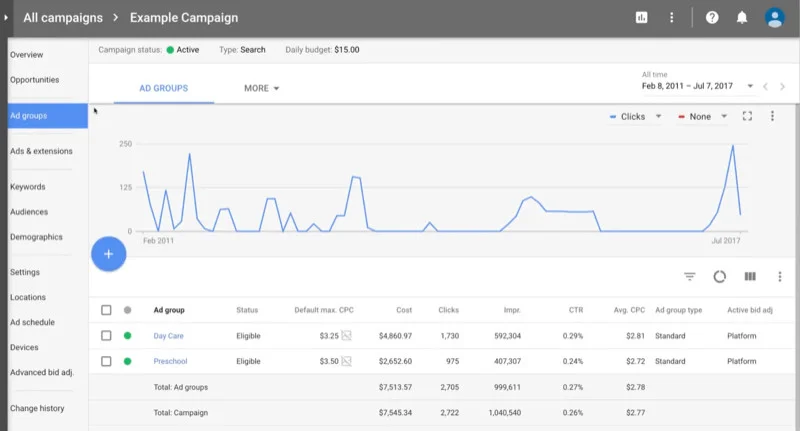
Source – socialmediaexaminer
7 Tips to Optimize YouTube Ads and Boost Performance
Optimizing campaigns is as important as creating a YouTube ad campaign. Every marketer, experienced or new to the game, follows the practice of optimizing their campaigns, and you should too.
Here are 7 ways to optimize your YouTube ads:
1. Track the View Rate for Refining Content
View rate is an essential metric for determining the success of your marketing ad. A higher view rate indicates that your creative work is successful. Videos with higher view rates have a better chance of winning auctions and enjoy a lower cost-per-view (CPV), leading to higher ROI.
2. Include Multiple Videos in your Ad Campaign
Viewers hate watching the same ad multiple times in a row. They experience creative fatigue due to repetition and ultimately start hating skipping all the ads. You can keep a healthy mix of ad rotation to avoid this fatigue and ensure that your marketing efforts do not go to waste.
3. Monitor the Watch Time
Monitor the metrics that indicate the effectiveness of your creatives, such as watch time and audience retention. If the video is not generating sufficient watch time among the audience, analyze the cause. If the creative element is not working, remove the ineffective parts and refine the content; no two ways about it.
4. Practice Remarketing
A highly effective strategy, remarketing can work wonders for advertisers. Remarketing involves interacting with viewers who have already engaged with you. You can easily track who liked what and accordingly create audience lists to market your videos to them. It results in better ROI and higher conversion rates.
5. Add Captions
Many people prefer reading captions because of language barriers or because they do not want to listen to the audio. Advertiser-provided captions make videos more interactive and engaging, increasing the likelihood of conversions.
6. Use Advanced Targeting Capabilities
You should not shy away from using Google Ads’ advanced targeting capabilities. It helps you pinpoint the exact audience based on demographics, location, and topic affinity, and accordingly display the right kind of ads to them. It improves conversions and also boosts ROI.
7. Experiment with Multiple Ad Types and Strategies
Ad campaigns never work the same way every time. You should experiment with multiple YouTube advertising options, especially if your brand is new. Only then will you know what works the best, and more importantly, what does not.
How to Stop Your YouTube Ad Campaign
If you want to pause or permanently stop your YouTube ads, you can do so directly from your Google Ads account. Since YouTube advertising is managed through Google Ads, all campaign controls are handled there.
Step 1: Log in to Google Ads
Go to your Google Ads account and navigate to the dashboard where your campaigns are listed.
Step 2: Go to Campaigns
Click on “Campaigns” in the left-hand menu to view all active campaigns, including your YouTube (Video) campaigns.
Step 3: Locate Your YouTube Campaign
Find the specific video campaign you want to stop. You can filter by campaign type if needed.
Step 4: Pause or Remove the Campaign
You have two options:
- Pause the Campaign: Click the status indicator (green dot) next to the campaign name and select Pause. This temporarily stops ads from running without deleting campaign data.
- Remove the Campaign: Select the campaign, click Edit, and choose Remove if you want to permanently stop it. This action cannot be undone.
Step 5: Confirm Billing Status
After pausing or removing the campaign, check your billing summary to ensure no active campaigns are still running.
If you’re testing campaigns, it’s usually better to pause instead of delete. Pausing keeps your performance data intact so you can relaunch or optimize later without starting from scratch.
Best Practices for Running Successful YouTube Ads
Running high-performing YouTube ads requires more than good visuals; it’s about delivering the right message at the right moment.
- Grab attention in the first 5 seconds: Most viewers decide whether to skip within seconds. Start with a strong hook—ask a question, show a bold visual, or highlight a key benefit immediately.
- Design for sound-on and sound-off viewing: Many users watch videos without sound. Use captions, text overlays, and expressive visuals so your message is clear even when muted.
- Keep branding visible early: Introduce your logo, product, or brand name early to ensure recognition, even if viewers don’t watch the full ad.
- Test multiple creatives: Create different versions of your ads with varied hooks, messaging, and CTAs. A/B testing helps identify what resonates best with your audience.
- Optimize for mobile-first viewing: Most YouTube views happen on mobile. Use clear visuals, readable text, and formats that work well on small screens.
- Match ad length to intent: Use shorter ads for awareness and longer formats for storytelling or product education.
- Include a clear call-to-action (CTA): Tell viewers exactly what to do next through CTAs—visit a site, sign up, or learn more to drive results.
- Monitor performance and optimize regularly: Track key metrics like view rate, watch time, and conversions, and adjust targeting or creatives to improve outcomes.
Tools to Manage and Optimize YouTube Ads
Using the right tools can make a significant difference in how effectively you manage, track, and optimize your YouTube ad campaigns.
Google Ads Tools
Google Ads is the primary platform for creating and managing YouTube ad campaigns. It allows you to control targeting, bidding, budgets, and ad formats, while built-in reports help you monitor performance and optimize campaigns based on real-time data.
Analytics and Tracking tools
Tools like Google Analytics (GA4) and Google Tag Manager help you track user behavior after ad clicks. These insights allow you to measure conversions, understand audience engagement, and evaluate ROI beyond views and impressions.
YouTube ads are managed through Google Ads, which handles targeting, budgeting, and campaign optimization. If you don’t want to invest in separate ad management tools, you can use SocialPilot to plan, schedule, and analyze your organic social content. While managing ads in Google Ads or YouTube Studio, and use SocialPilot to keep your overall social strategy organized and aligned.
Final Thought Managing
YouTube advertising is one of the most powerful ways to reach, engage, and convert audiences through video. With multiple ad formats, flexible budgeting options, advanced targeting capabilities, and measurable performance metrics, businesses of all sizes can build campaigns that drive real results.
Success on YouTube doesn’t come from simply launching a video ad, it comes from choosing the right format, targeting the right audience, testing creatives, and continuously optimizing performance. Whether your goal is brand awareness, consideration, or conversions, a strategic approach ensures your budget works harder and delivers stronger ROI.
By understanding how YouTube ads work and applying best practices consistently, you can turn video marketing into a scalable growth channel for your business.


