

Your analytics dashboard shows you what happened last month. It doesn’t tell you what to post next month. That translation step – from performance data to a structured content plan – is where most agencies either spend hours guessing or skip it entirely and repeat the same content pillars on autopilot.
This article walks you through a nine-step monthly workflow to use Claude for social media content planning – starting from your analytics and ending with a data-backed 30-day calendar. It’s built for agencies and freelance managers who already have performance data inside SocialPilot but don’t have a reliable process for turning those numbers into strategy.
By the end, you’ll have eight copy-paste prompts, a repeatable workflow your full team can run, and a way to package everything into a Claude skill so any account manager can execute it for any client in roughly 20 minutes.
What You Need Before You Start Turning Your Data into a Content Plan
Most analytics-to-strategy workflows break down before they start because the data going into Claude isn’t structured for it. Before you run a single prompt, spend five minutes pulling the right inputs from SocialPilot.
Here’s exactly what Claude needs.
The Data Claude Actually Needs (and What to Skip)
Claude doesn’t need six months of analytics or a full audience breakdown. It needs a specific set of inputs to identify meaningful patterns across your content. Without them, it produces a content plan that could apply to any brand in your category, which defeats the purpose of using performance data at all.
Before running this workflow for each client, pull four things from the past 30 days:
- Top 10 posts by engagement rate, including format, topic, platform, reach, saves, and shares
- 3 lowest-performing posts from the same period
- Current content pillars, even loosely defined ones
- Platforms active on and approximate weekly posting frequency
The underperformers are the input most people skip. They’re as directional as the top performers. If a client has been posting behind-the-scenes content for three months and it consistently underperforms, Claude needs to see that before building next month’s calendar. It cannot make useful recommendations about what to stop without knowing what hasn’t worked.
Before running this workflow, it helps to understand your social media analytics before feeding them to Claude so you know what each metric actually represents. When you use AI to analyze social media analytics, the quality of what you put in determines the quality of what comes out – and that starts with knowing your own numbers before Claude sees them.
Two Ways to Get Your Data into Claude
Track 1: Copy/Paste Data Report (no setup required)
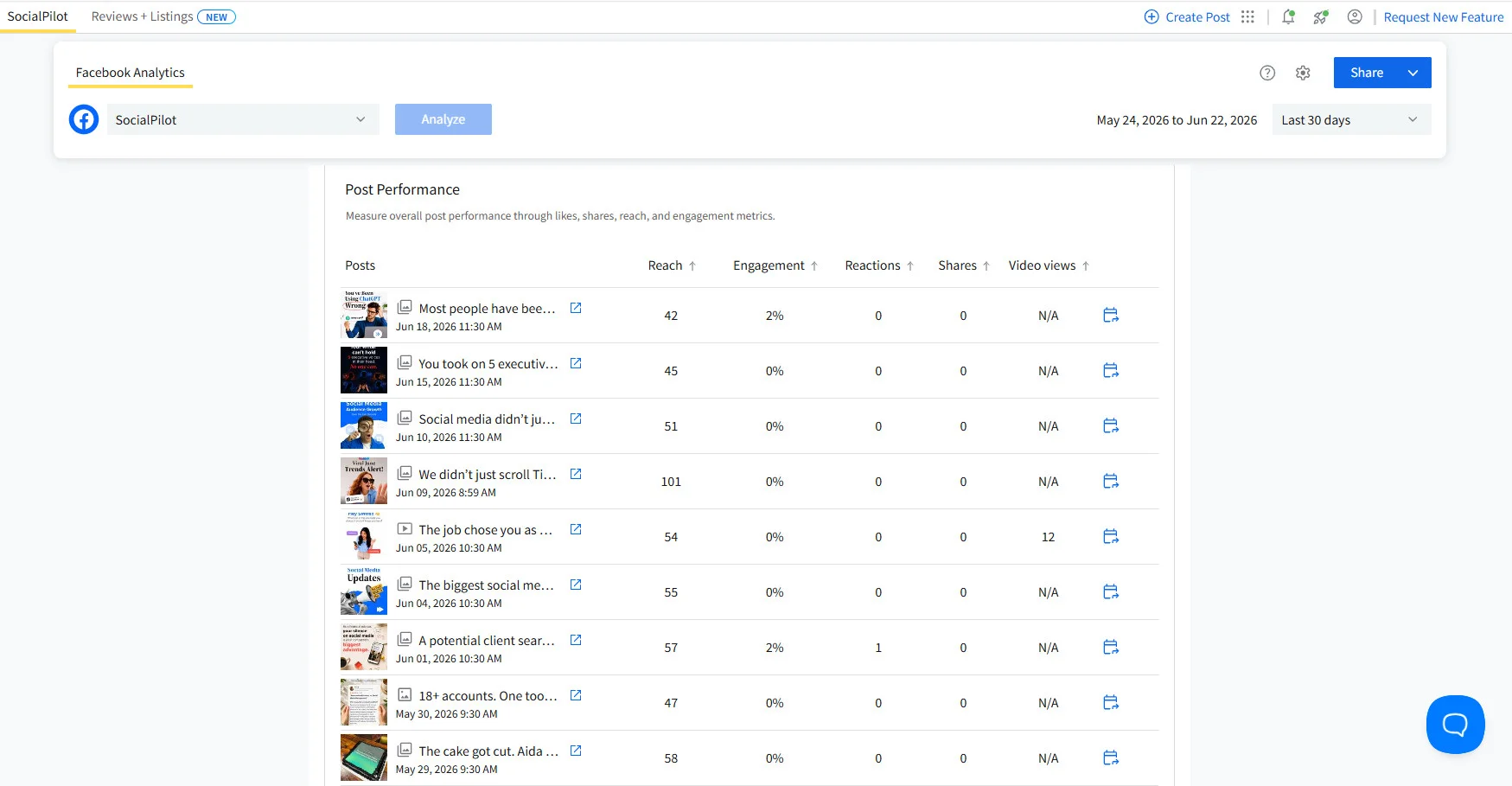
Open SocialPilot’s Analytics dashboard, navigate to the Posts report, filter by your date range, and sort by engagement rate. Copy the results table directly into Claude.ai. Most browsers paste it as structured text with column headers intact. That is the complete setup for Track 1.
Track 2: SocialPilot MCP (live data, no manual export)
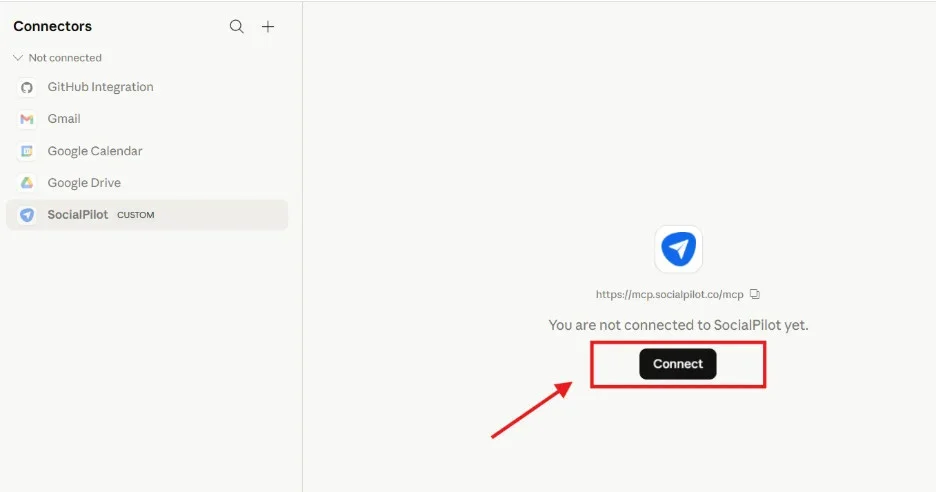
For agencies running this workflow across ten or more accounts monthly, the SocialPilot MCP connector remove the copy/paste step entirely. Claude reads your live analytics through the integration without any manual data transfer or export.
Through the MCP connection, Claude can pull all your delivered posts, queued posts and analyze your post-level performance and page-level analytics.
For deeper insights, you can read this article on how MCP connectors work for social media scheduling before your first setup session.
Track 1 works for everyone immediately. Track 2 is worth configuring once you’ve run the workflow a few times and want to eliminate the manual export step for faster results.
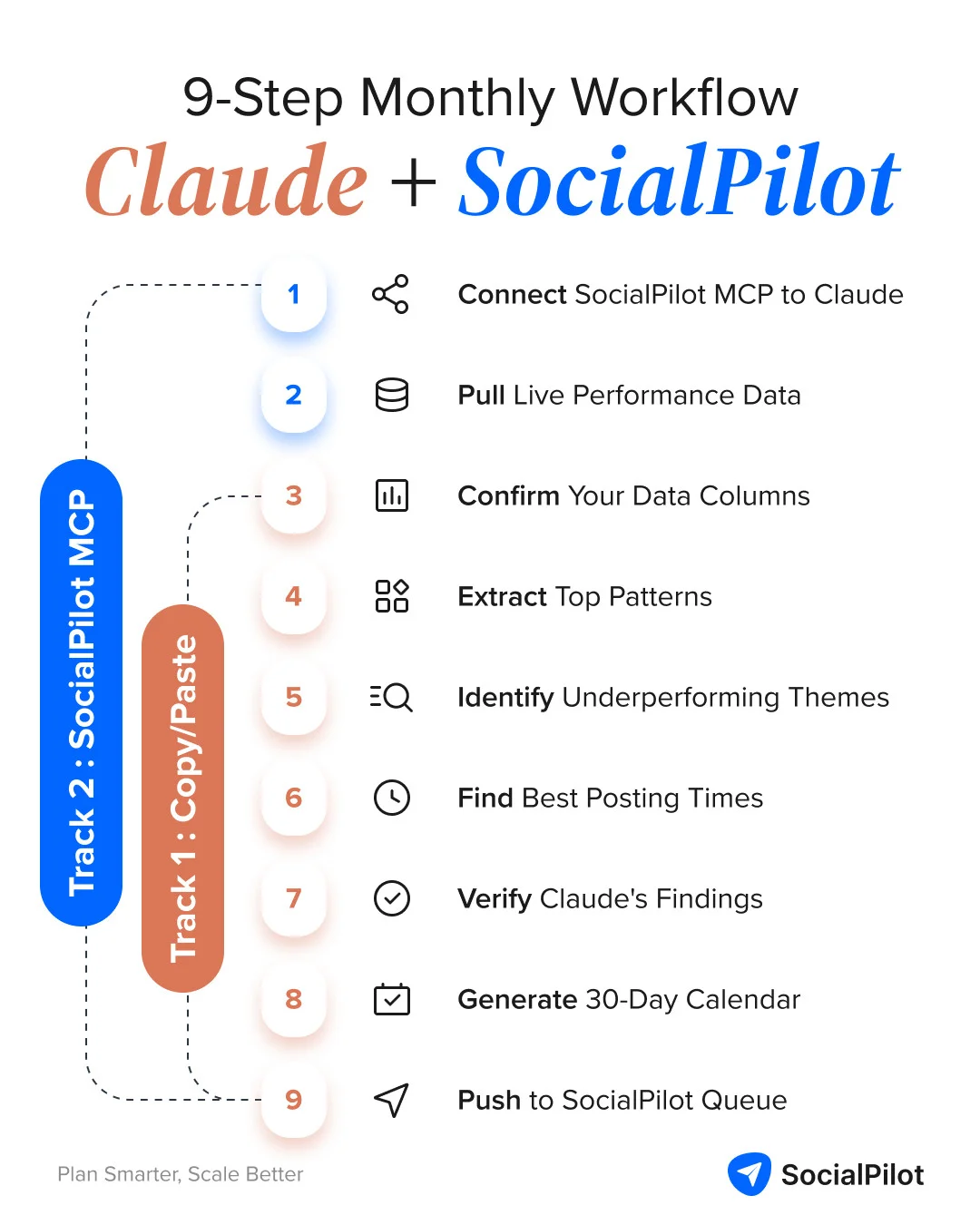
If you’re a Track 1 (copy/paste) user, just copy paste your data in Claude and start at Step 3. Steps 1 and 2 are only for users who want to connect SocialPilot MCP to Claude.
Open Claude and click “Customize” in the left sidebar. Select Connectors, click the + icon, choose “Add Custom Connector,” and paste “https://mcp.socialpilot.co/mcp” into the URL field. Click Add, select the connector, hit Connect, and sign in with your SocialPilot credentials. You just need to do this setup once, and it works for every session after that.
For the full agency configuration walkthrough, this guide on automating your agency workflow with Claude and SocialPilot covers the complete setup.
Step 2: Pull Live Performance Data
With MCP active, Claude retrieves performance data automatically when you open a session. By default, it pulls top posts ranked by engagement rate, reach figures across the selected period, saves and shares per post, and posting frequency broken down by format.
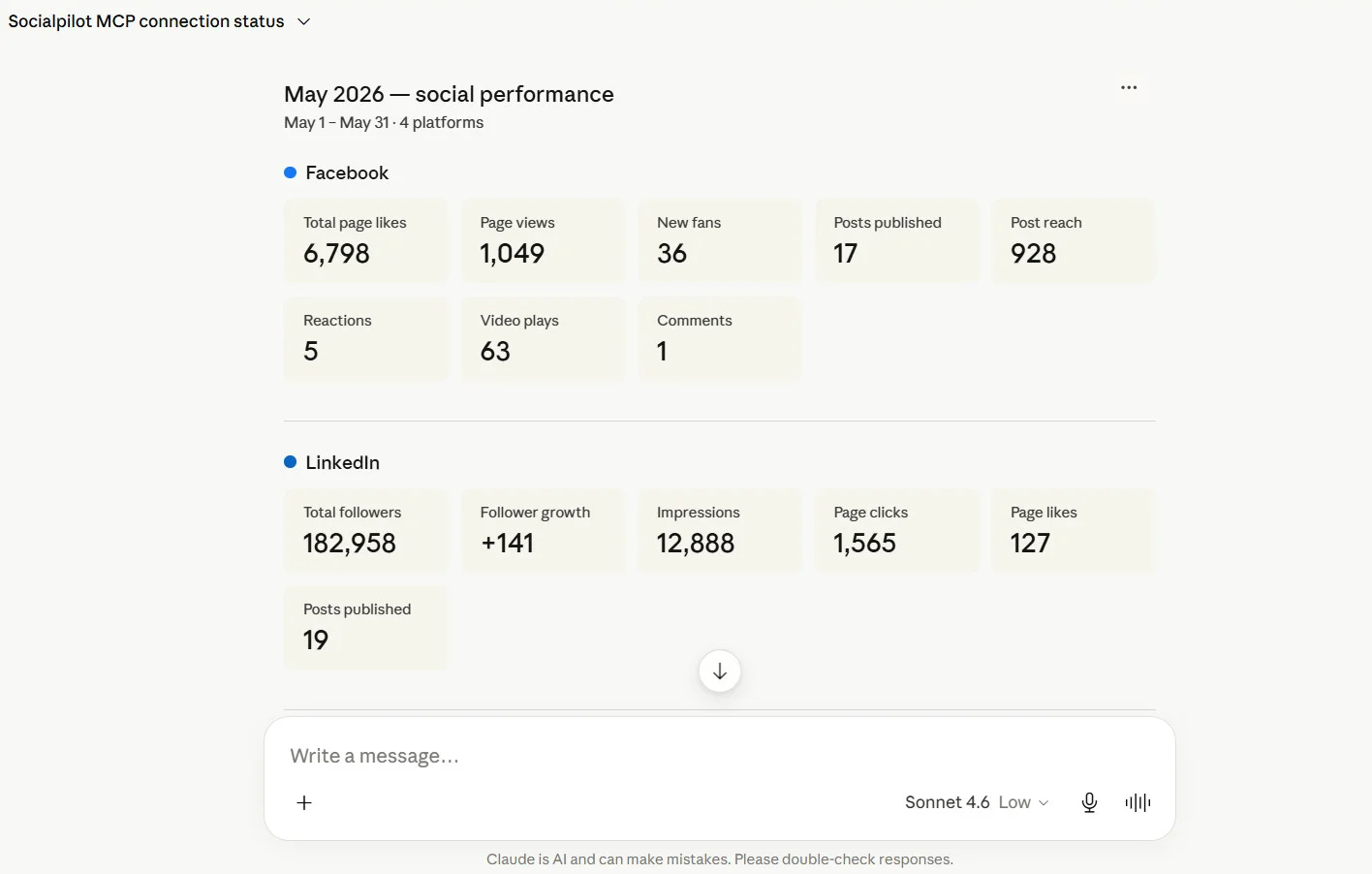
Before running any analysis, ask Claude to list the data it’s working with so you can confirm the right columns are present. That confirmation step is what Step 3 formalizes.
Step 3: The Prompt – Exactly What to Ask Claude and Why It Works
This is the first prompt you run regardless of which track you’re on. For Track 1 users, paste your data first and then send this. For Track 2 users, Claude already has the data, so send it directly.
I’m going to work with my social media analytics data. Before I ask you anything, confirm you can see the following columns: [list your columns, e.g. post date, platform, format, topic, engagement rate, reach, saves, shares]. Do not draw on any data not present in what I’ve provided. If a column is missing, tell me before we proceed.
The column-confirmation step is not optional. Claude will sometimes fill data gaps with plausible-sounding figures, particularly when asked to compare metrics across posts where some values are missing. Asking it to confirm the exact columns it can see before running any analysis prevents the workflow from producing insights built on figures that were never in your data.
Step 4: What Claude Surfaces – Patterns by Format, Topic, and Hook Style
Once you’ve confirmed the data is clean, run the pattern extraction prompt:
Based on the top 10 performing posts in this data, identify:
(1) the content formats that consistently outperformed,
(2) the topics or themes that drove the highest saves and shares,
(3) any posting patterns correlated with higher reach, and
(4) what the three lowest-performing posts had in common.
For each finding, cite the specific posts from my data as evidence.
The “cite the specific posts” instruction forces Claude to tie every insight to actual data rather than generating strategic observations that sound reasonable but aren’t supported by the numbers you provided.
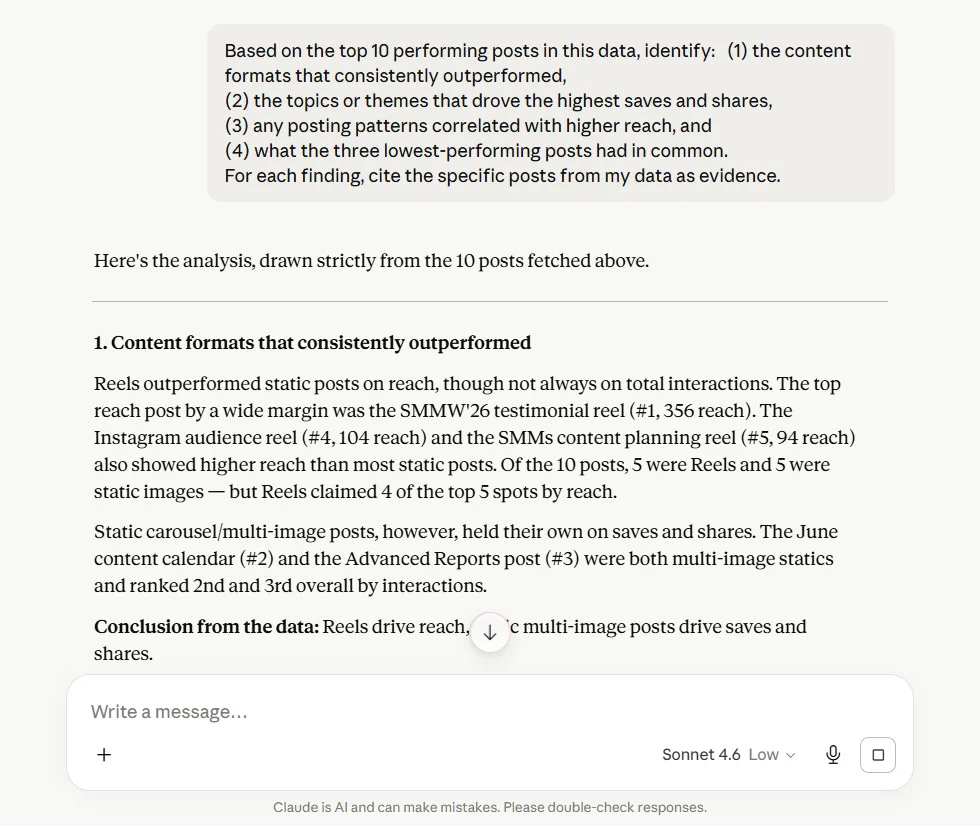
What comes back should read like a brief analyst report: carousels outperformed single images by a specific margin for this account, behind-the-scenes content drove saves but not reach, posts in a certain time window consistently hit higher reach. Those specific findings feed directly into the next two steps.
Step 5: The Other Side – Underperforming Themes and What to Stop Posting
The pattern extraction output tells you what to do more of. This step tightens the plan by identifying what to cut entirely.
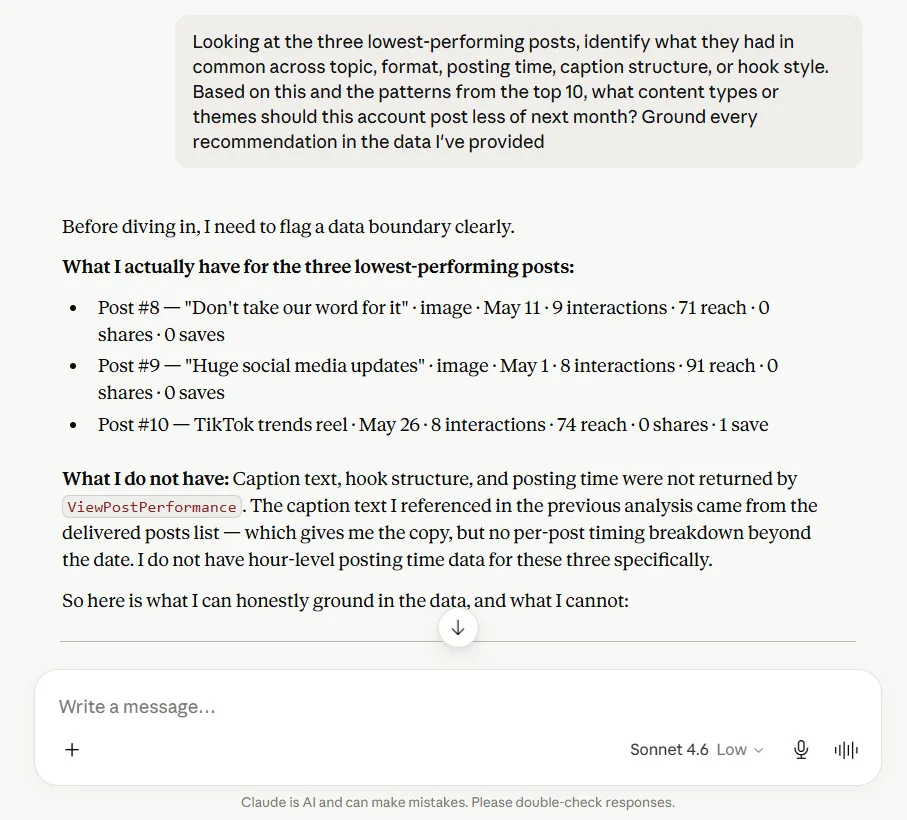
Looking at the three lowest-performing posts, identify what they had in common across topic, format, posting time, caption structure, or hook style. Based on this and the patterns from the top 10, what content types or themes should this account post less of next month? Ground every recommendation in the data I’ve provided.
Most content plans only prescribe what to create. This prompt forces Claude to flag what’s actively pulling performance down, which is what separates a data-informed calendar from a recycled one.
Step 6: Optimal Posting Times Based on Your Audience’s Actual Behavior
Based on the posting times and engagement rates in this data, identify the time windows that correlate with above-average engagement for each platform. Break the findings down by platform and day of week where the data supports it. Flag any patterns where the sample size is too small to draw a reliable conclusion.
The “flag small sample sizes” instruction keeps the timing recommendations honest. If a client only posted twice on Sundays, Claude shouldn’t present Sunday as a high-performing day. Asking it to qualify its own confidence level prevents weak correlations from being embedded into the calendar as firm strategy.
Step 7: Validate Claude’s Findings Against Your Own Knowledge
Before generating the content plan, run one more verification pass. Claude can misread analytics in specific ways: it has been documented inventing data columns that were not present in the original input and attributing performance drops to incorrect variables while presenting the output with complete confidence.
Field testing documented by Shared Physics found that both Claude and ChatGPT “began to hallucinate when prompting took the insights back into deliverables,” specifically generating analysis that referenced metrics not present in the source data. The confidence of the output makes these errors difficult to catch without a structured check built into the workflow.
Run this prompt before moving to Step 8:
Review the analysis you’ve provided so far. For each claim or recommendation, identify the specific data point from my input that supports it. If you cannot point to a specific number or post in my data, flag that insight as unverified. Do not proceed to content planning until this check is complete.
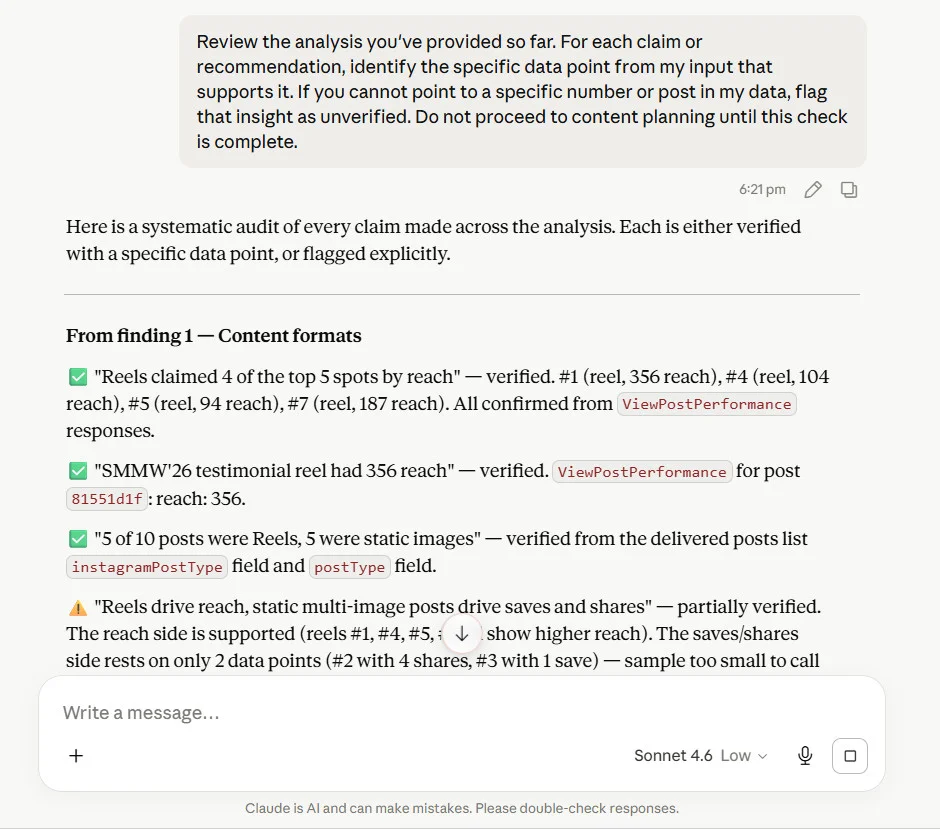
This adds roughly five minutes to the monthly process and catches the errors that would otherwise produce a calendar built on false pattern recognition.
Step 8: Generate the 30-Day Content Plan Built on What’s Already Working
With verified patterns in place, generate the calendar:
Using the patterns identified above, suggest five content pillars for this account for next month. For each pillar provide: the name, rationale tied to the performance data, three specific post ideas, recommended format based on historical data and posting frequency. Then build a 30-day content calendar using these five pillars. For each post, include pillar, topic, format, platform, suggested posting day, and a one-line hook. Format the calendar as a table.
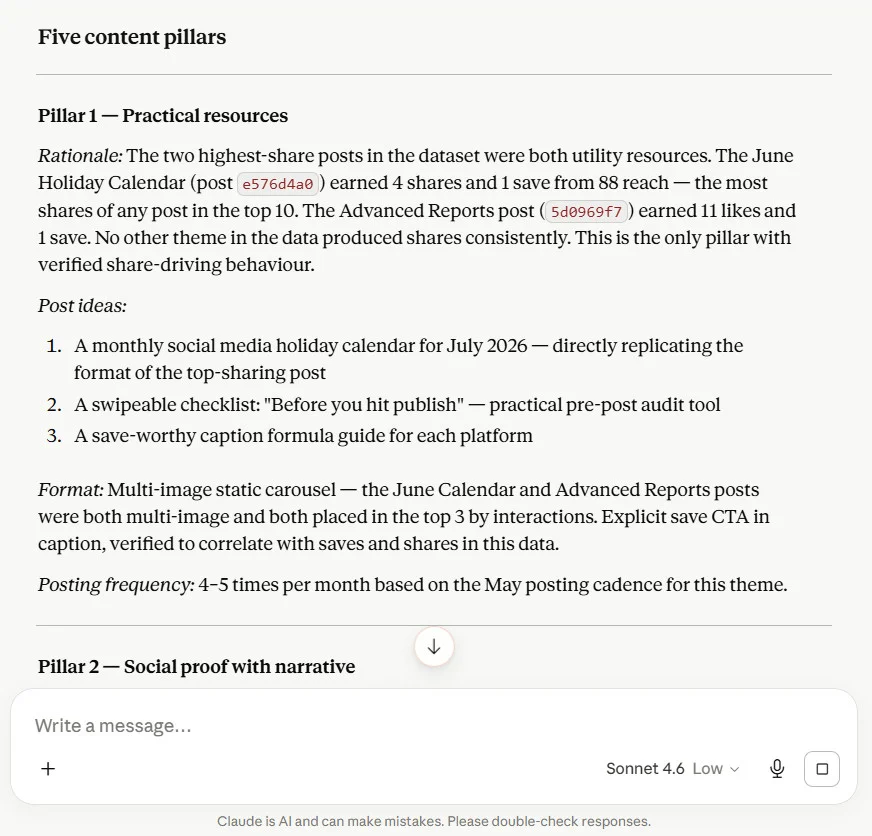
The pillar-first structure gives the calendar a strategic backbone rather than producing 30 disconnected post ideas. Each pillar connects back to what performed, so when you review it with a client, you can explain why the calendar looks the way it does with specific data behind each decision.
Claude’s calendar is a structured first draft, not a final one. Before scheduling, check three things: that the hook styles match the client’s actual brand voice, that any time-sensitive content such as product launches or seasonal moments has been layered in, and that the distribution across platforms reflects where their audience is most active.
Once reviewed, track 2 users can move approved posts into SocialPilot’s content calendar and schedule in bulk. For accounts connected via MCP, Claude can push drafts directly into the queue. For Track 1 users, copy the table into SocialPilot’s post scheduler or use bulk upload. The transfer from Claude’s calendar to a fully scheduled queue should take under 10 minutes.
Once your plan is live, building a social media content strategy that follows from your Claude analysis is useful for showing clients how the monthly workflow connects to their longer-term channel goals.
Turning This Workflow into a Reusable Agency Skill
Running the workflow once is useful. Running it for 15 clients every month without rebuilding the prompt sequence each time requires packaging it, so any team member can execute it without starting from scratch.
Here is what a Claude Skill can help you do:
What a Claude Skill Is and Why It Matters at Agency Scale
A Claude skill is a saved workflow stored as a custom slash command inside a Claude Project. In practice, it’s a Markdown file (md file) with your instructions saved in it, so that anyone on your team can run the whole workflow just by typing that Skill name.

It holds the full prompt sequence, the column verification step, and any client-specific context in one place. Instead of rebuilding the process each month, a team member opens the client’s Claude Project, types the command, and follows the structured steps that load automatically.
For agencies, this matters because the quality of the output should not depend on which account manager happens to be running the account that month. The skill standardizes the process, so every client gets the same verification step, the same pattern extraction logic, and the same calendar structure regardless of who executes it.
The Prompt Library Inside the Skill
Package these four prompts into each client’s Claude skill:
| Prompt | What It Does |
| Data verification | Confirms Claude can see the right columns before any analysis begins |
| Pattern identification | Extracts top-performing formats, topics, timing correlations, and underperforming themes |
| Content plan generation | Builds the five pillars and 30-day calendar from verified patterns |
| Underperforming content audit | Identifies what to stop posting with every recommendation grounded in the data |
Each client’s Claude Project also stores their brand voice document, three to five example top-performing posts, audience description, and a list of banned phrases. That context loads automatically in every session, so the calendar output reflects the client’s voice rather than a generic strategy template.
To do your social media audience analysis before building content pillars in Claude, make sure each project’s audience description covers not just demographics but what that specific audience responds to and what it scrolls past.
Structuring the Skill So Any Team Member Can Run It
Set up each client’s workflow with this structure:
- One Claude Project per client, named consistently (for example: [Client Name] – Monthly Strategy)
- The skill installed in that project with the four prompts running in the correct sequence.
- A client context document covering voice guidelines, content pillars, and audience description
- A standing monthly task: pull SocialPilot data on the first of the month, run the skill, review output, schedule approved posts
When presenting AI-assisted strategy to clients, lead with the data rather than the tool. “Based on your last 30 days, carousel posts drove significantly higher saves than single images, so we’ve weighted the calendar toward that format” is a sentence every client can act on. The data is the justification; Claude is the analyst that surfaced it.
For agencies that want consistently formatted input across all accounts, this guide on how to build a social media report before running it through Claude covers how to structure the reporting step, so your Claude input is clean and consistent every month.
What Actually Changes When You Run This Workflow
Most agencies don’t have a data problem, what they don’t have is a proper process to turn those numbers into a calendar without it eating half your day. Here’s what shifts once this workflow is running across your accounts.
The highest time cost per client isn’t content production. It’s the two-plus hours interpreting analytics and building a strategy brief before a single post is written. That drops to roughly 20 minutes once the prompt sequence and Claude Project are set up.
Quality gets more consistent too. A manually built brief depends on how closely the account manager read the analytics that week. This workflow produces the same depth every time.
Strategy Consistency Across Accounts
When strategy quality depends on individual judgment, the accounts that get the most attention tend to get the sharpest work. Packaging the workflow into a Claude skill removes that variability.
Every client account, regardless of size or tenure with the agency, runs through the same data-driven process and gets a calendar grounded in its actual performance data rather than general best practices applied to its niche.
More Clients, Same Hours
For freelance managers, the ceiling on growth is usually not client acquisition – it’s the time required per client to do strategy work properly. Compressing the monthly strategy process from two-plus hours per client to roughly 20 minutes creates capacity without adding headcount.
An agency managing 12 clients on this workflow reclaims approximately 20 hours per month – time that they can spend on client relationships, new business development, or higher-value strategic work.
Every Month of Data Is a Content Strategy Waiting to Be Used
Your clients are generating strategy-ready data every month. The workflow in this article is the process for turning it into a calendar instead of letting it sit in a dashboard untouched.
Start with one account: pull the last 30 days of data from SocialPilot, paste the posts report into Claude, and run the verification prompt from Step 3. One run is enough to see what’s possible.
From there, SocialPilot’s analytics, multi-account dashboard, and bulk scheduling tools become the backbone of this workflow at agency scale. It helps you pull data and create post approval queues for every client on your roster. If you’re managing multiple accounts and want a faster path to that setup, explore SocialPilot’s agency plans built specifically for teams running this kind of monthly cadence.





 Join 55,000+ social media managers


