
What if you could exponentially increase the reach of your next Facebook post for free? Organic reach is driven by engagement, and every like, comment, save, and share on a social media post expands its potential audience.
And while Facebook makes sharing simple, getting your audience to actually hit that “Share” button is where the real challenge lies. That gap between creating content and getting people to amplify it is exactly what many struggle with.
This article will not only show you the essential technical steps to make any Facebook post shareable, but also share practical strategies to boost engagement so your posts get the traction they truly deserve.
Ready to unlock the potential for viral growth? Let’s dive in.
Key Takeaways:
- You can make any Facebook post shareable by changing the audience setting to Public so that anyone on the platform can view and share it.
- Facebook gives you the option to adjust visibility for both individual posts and all future posts, allowing you to control how widely your content can spread.
- Shareable posts help you reach more people naturally because every share increases visibility and introduces your content to new audiences.
- Creating content that is visually appealing, emotionally engaging, and genuinely helpful encourages people to share it with others.
- Instead of using engagement bait, focus on building authentic conversations in the comments and writing captions that naturally encourage interaction.
- Posting a variety of formats such as lists, infographics, how-to guides, behind-the-scenes content, and entertaining visuals can significantly increase engagement.
- Your posts have a higher chance of going viral when you publish during peak activity times, participate in relevant Facebook groups, and promote your content on other platforms as well.
- Tracking your performance through Facebook Insights allows you to understand what your audience enjoys most and helps you refine your content strategy for better results.
Types of Sharing Options Available on Facebook
Facebook allows users to choose an audience through the ‘audience selector’ and share their content. You may find these options in the audience selector:
- Public: The post can be viewed by everyone
- Friends: The post will only be visible to your FB friends
- Friends except: The post will be visible to all your FB friends except the ones you exclude
- Specific friends: The FB post can only be viewed by a select few of your friends
- Only Me: The post will only be visible to you on your timeline
- Custom: You can create lists to choose who sees your post, and also add or remove certain FB users from seeing your content
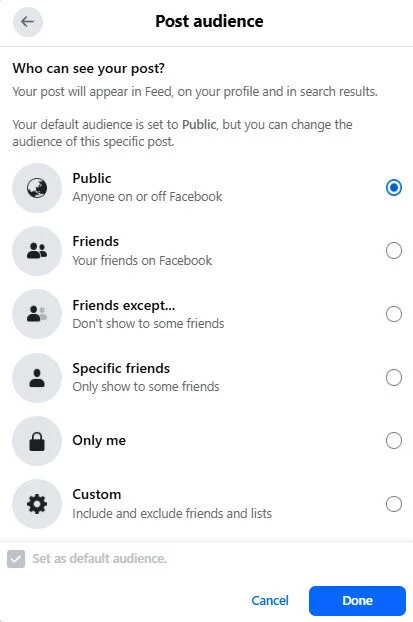
Keep in mind that the users who can view your Facebook content can also see the audience with whom you have chosen to share your content. For example, the post will have a ‘Public’ or ‘Specific Friends’ tag if that’s who you’re sharing the post with.
What are Custom Lists on Facebook?
Facebook gives users the option to create custom lists to organize their Facebook audience. You can create groups for certain target audiences, colleagues, or even restricted users.
Here is how you can create a list:
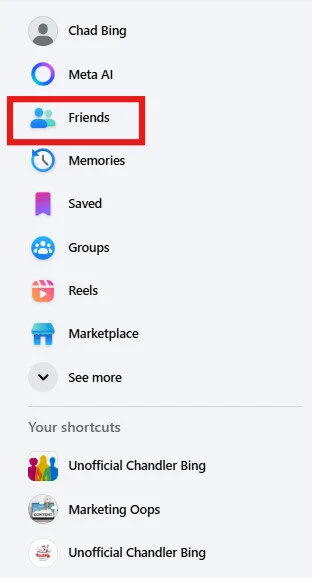
Step 1: Go to friends on the left panel of the homepage.
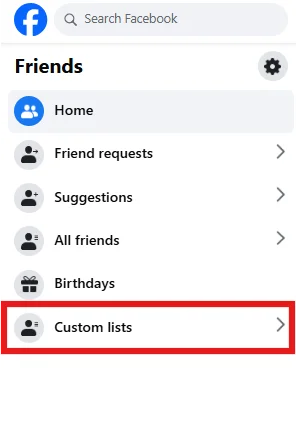
Step 2: Next, go to the custom list.
Step 3: Click on Create list to make your list.
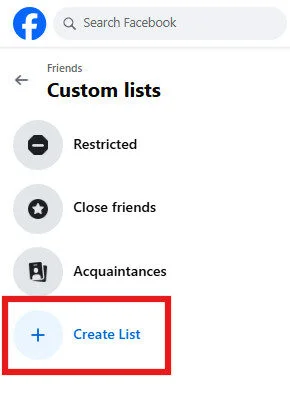
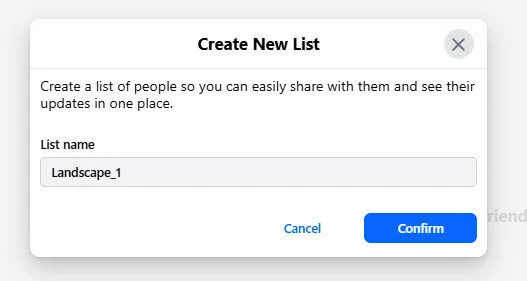
Step 4: Give a name to your list and click on confirm.
Step 5: Finally, add members to your list and save it.
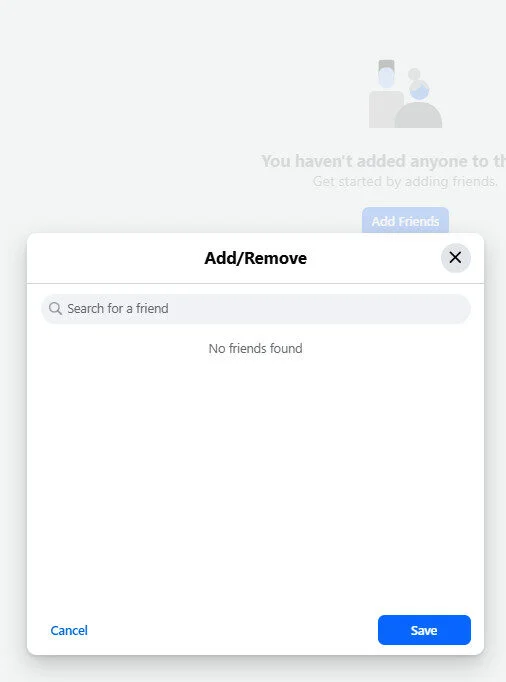
You needn’t worry about offending anyone while making lists, as Facebook doesn’t notify people if they’ve been added or removed from lists.
These lists can be utilized when you want to share your post with a specific group of Facebook users. In order to use this feature, follow these simple steps:
Step 1: Create a new post on your FB feed through the option ‘What’s on your mind, [-]?’
Step 2: Click on the audience selector.
Step 3: Choose the list you wish to share the content with.
Step 4: Post your content.
That’s it! You can create multiple Facebook lists on your profile and share content hassle-free.
You can make your Facebook post shareable in different ways. When you make sure your post is available to the maximum people, you increase its potential reach.
Here are different ways to make your Facebook post shareable.
Step 1: Log in to your Facebook account
Step 2: Click on the “What’s on your mind?” section to type your post
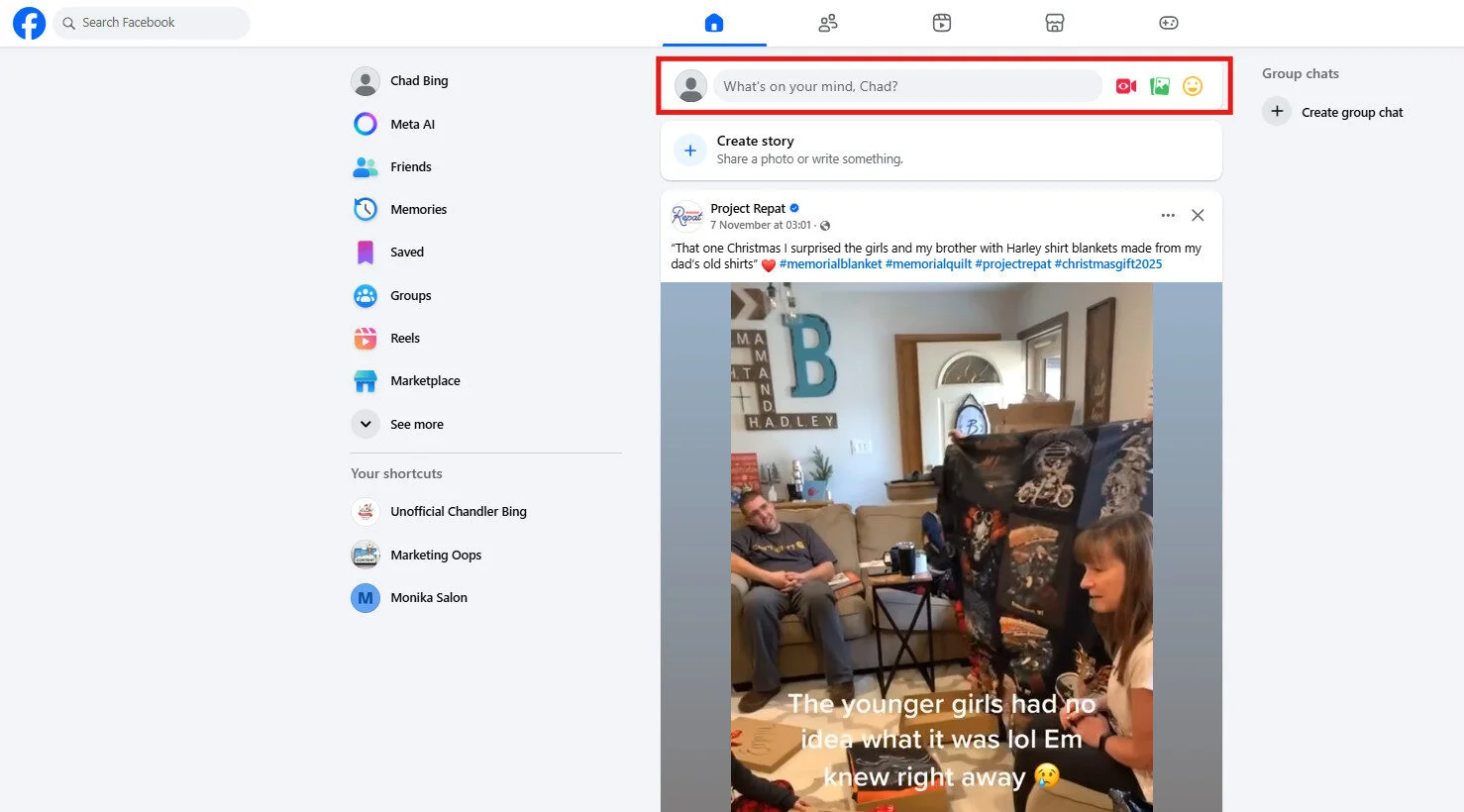
Step 3: Click on the “Edit audience’ option as highlighted in the image below
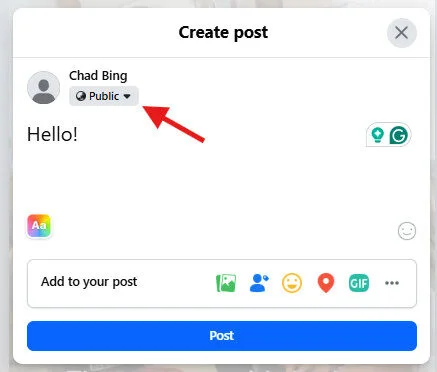
Step 4: This will take you to the “Post Audience” drop-down menu. Here you can select the audience for your post.
Step 1: Log in to your brand’s Facebook account.
Step 2: Go to the ‘Settings and Privacy’ option.
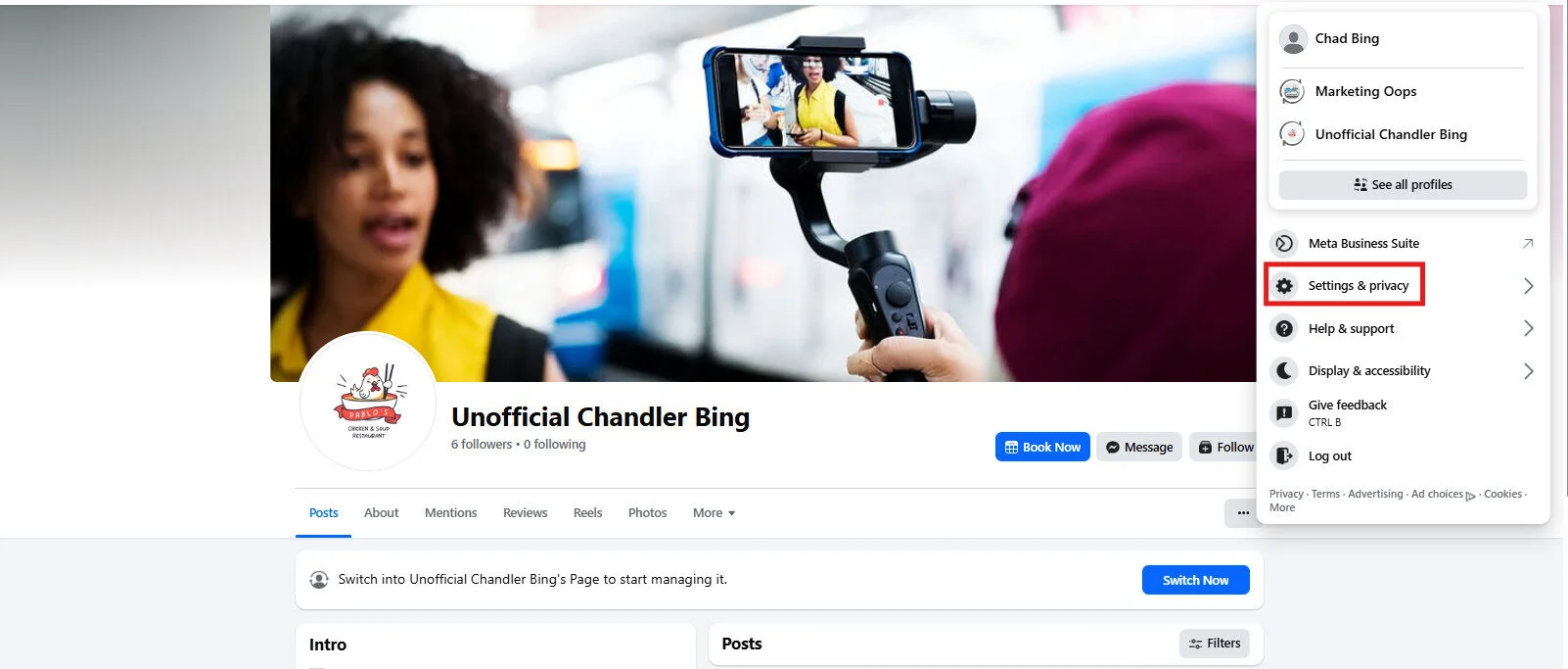
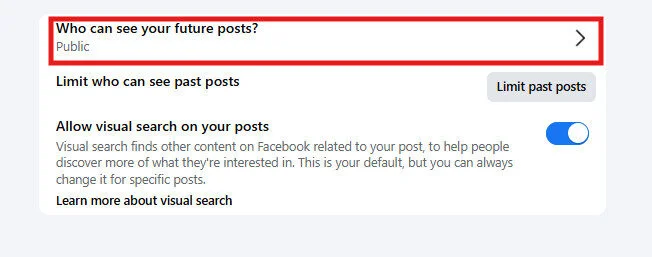
Step 3: Go to “Posts” under “Audience and Visibility”

Step 4: Click on “Who can see your future posts?” and go to Public
Step 1: Go to the post you want to change the sharing settings. Click on the three dots in the top right corner of the post.
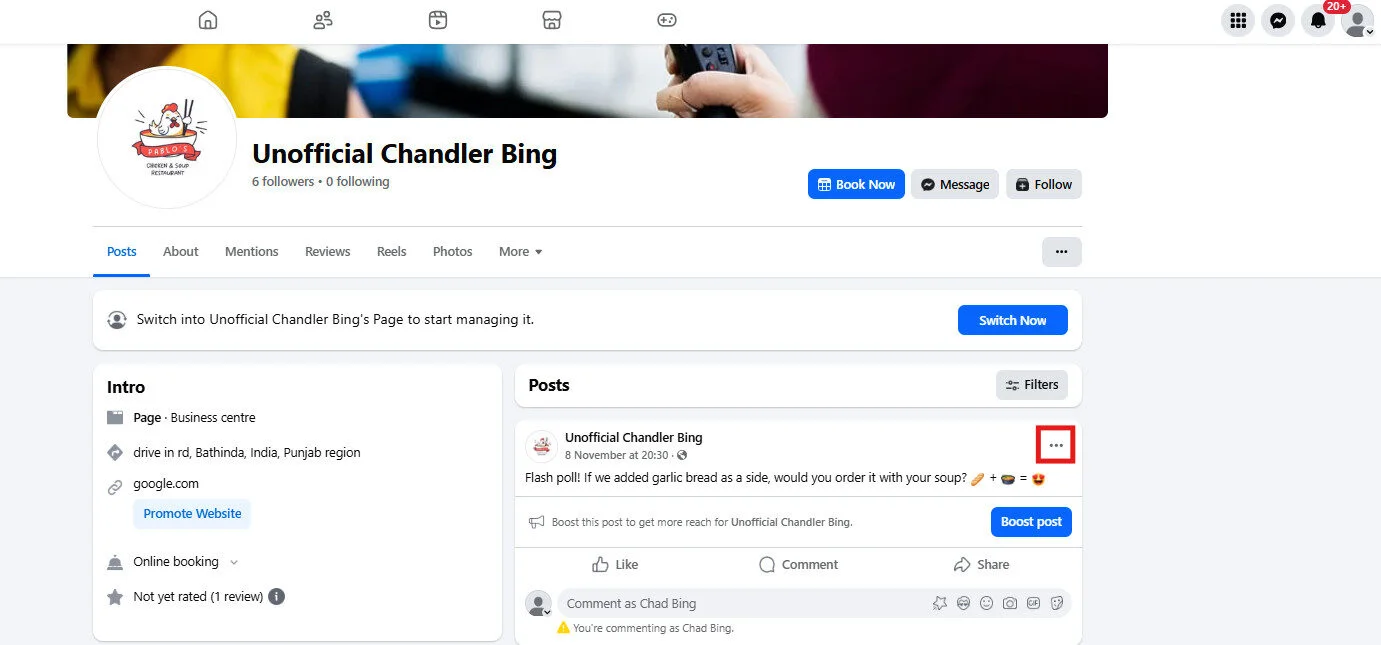
Step 2: Click on the “Edit Audience” button in the pop-up menu
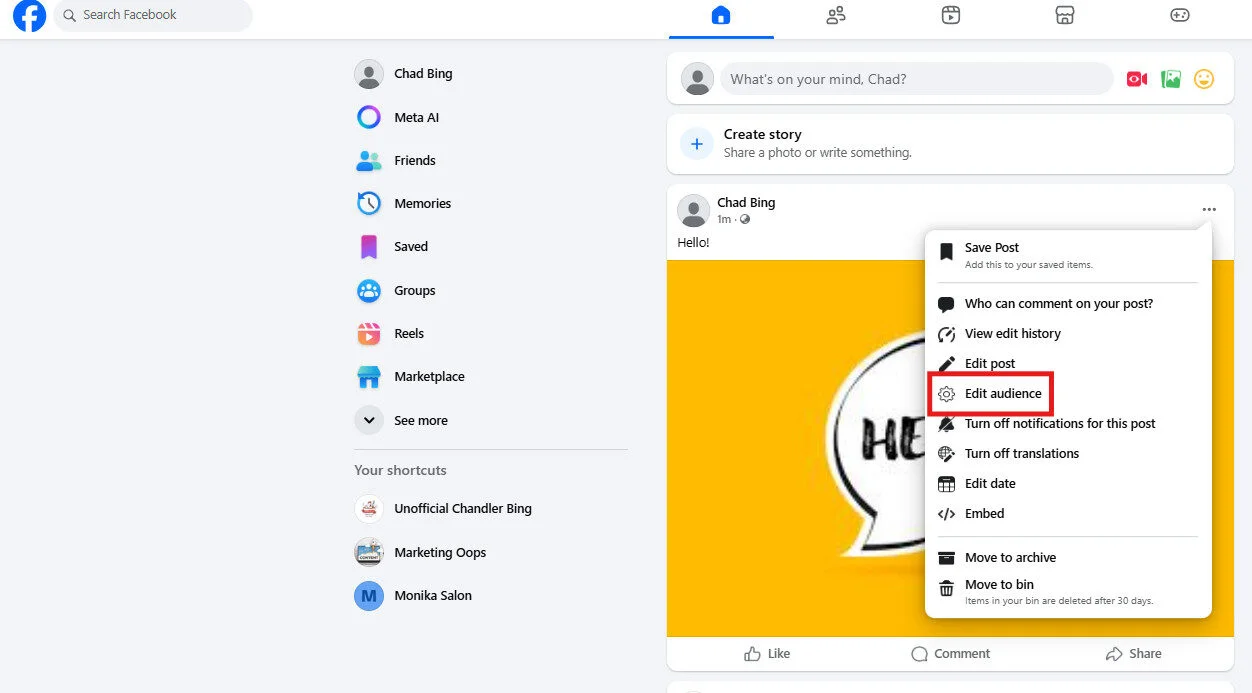
Step 3: After clicking on “Edit Audience”, you will be taken to the “Post audience” drop-down. Here you can change your audience.
As you might already know, Facebook pages only allow public posts by default. This works in your favor if you want to share content widely and boost engagement.
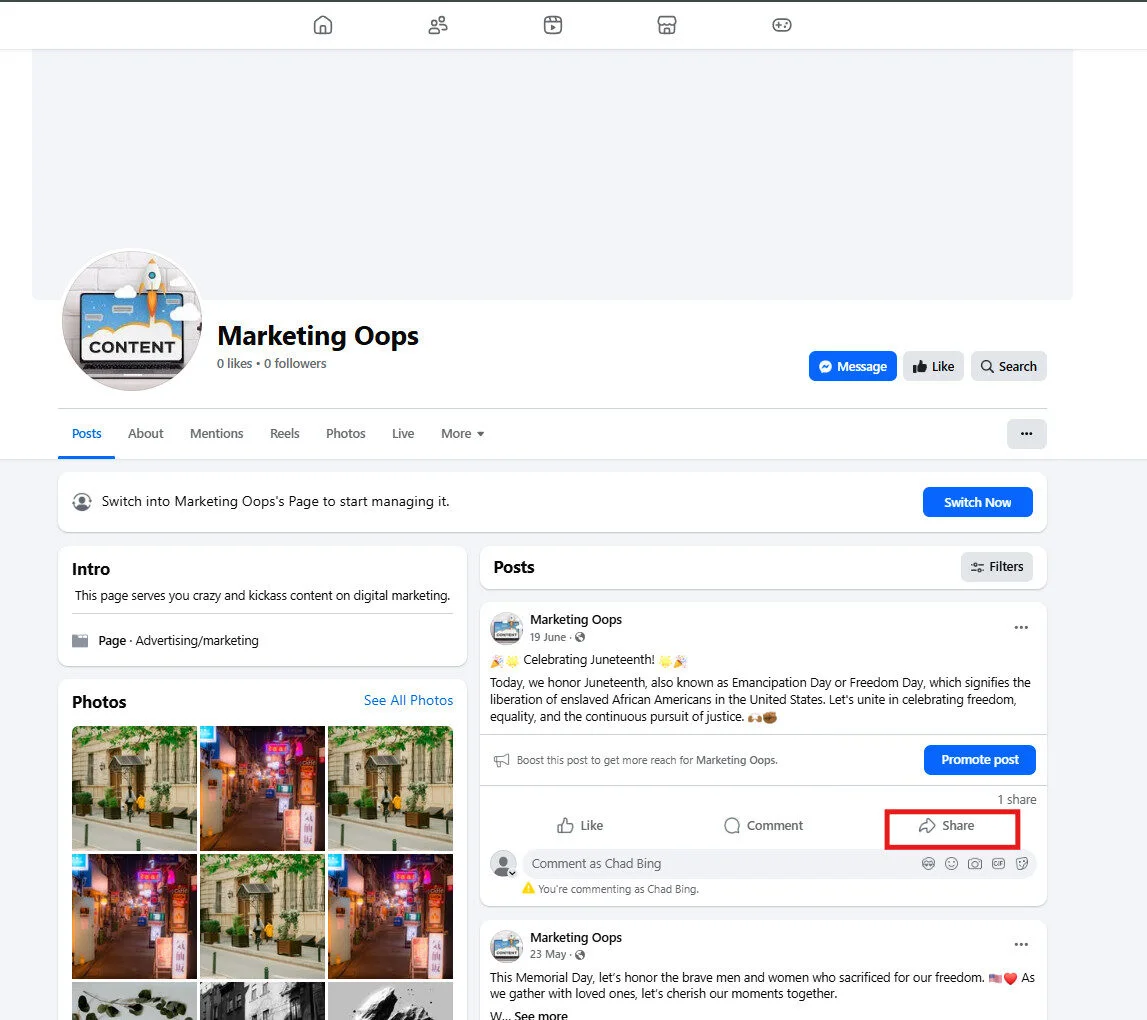
Step 1: Go to your Facebook page
Step 2: Find the post you want to share.
Step 3: Click on the share button as highlighted in the image below. This will share the post from the page wall.
Step 1: Log in to your Facebook account
Step 2: Go to the group you want to share the post in
Step 3: Type the post you want to share with the members and visitors of the group
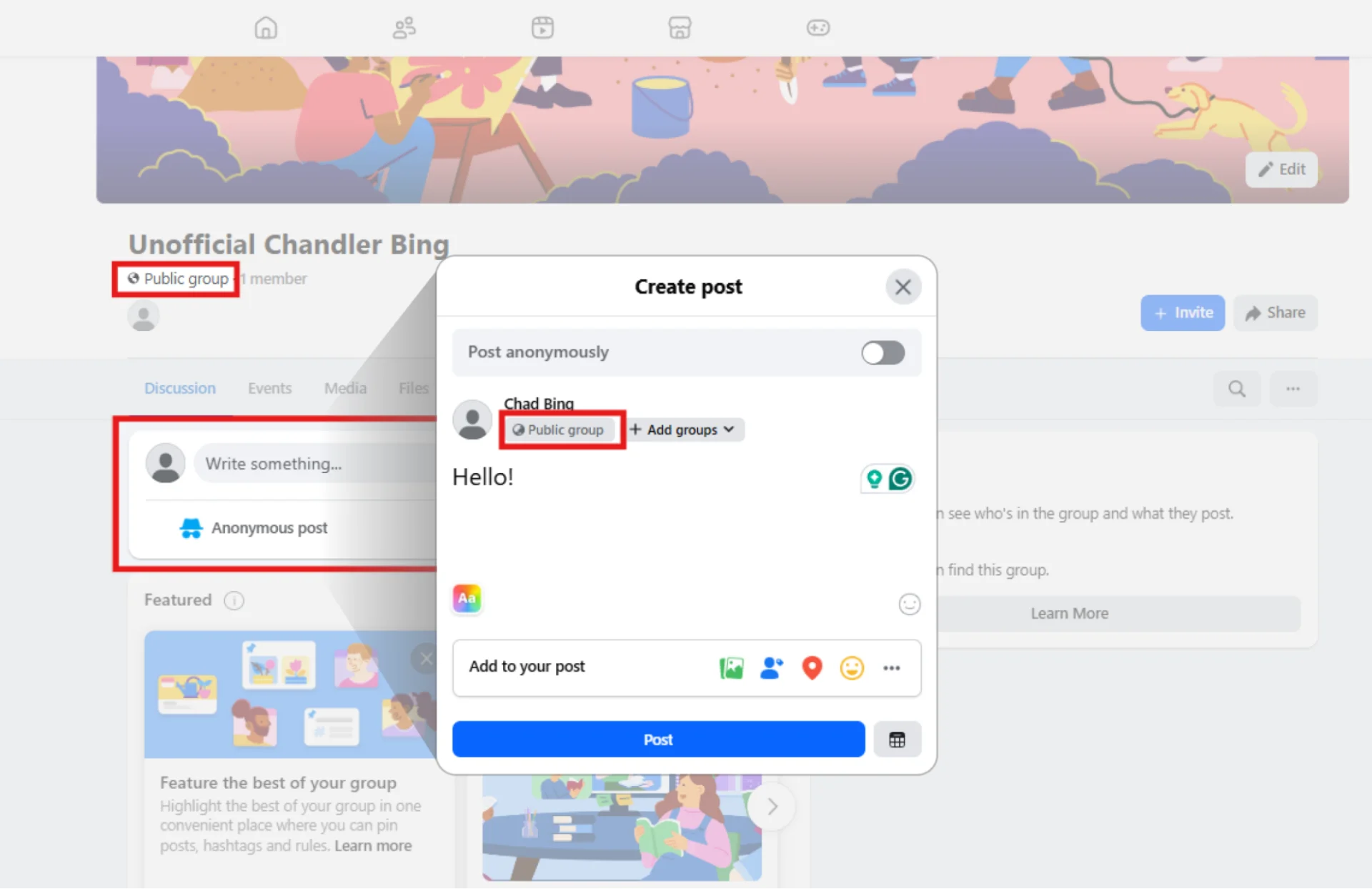
Posts in private groups are visible only to members, and the “Share” button is hidden or replaced with “Send in Messenger.” This helps to maintain the privacy of the group and its members.
Making your Facebook post shareable can greatly increase your reach and keep you in tune with the latest trends. Here are a few major benefits:
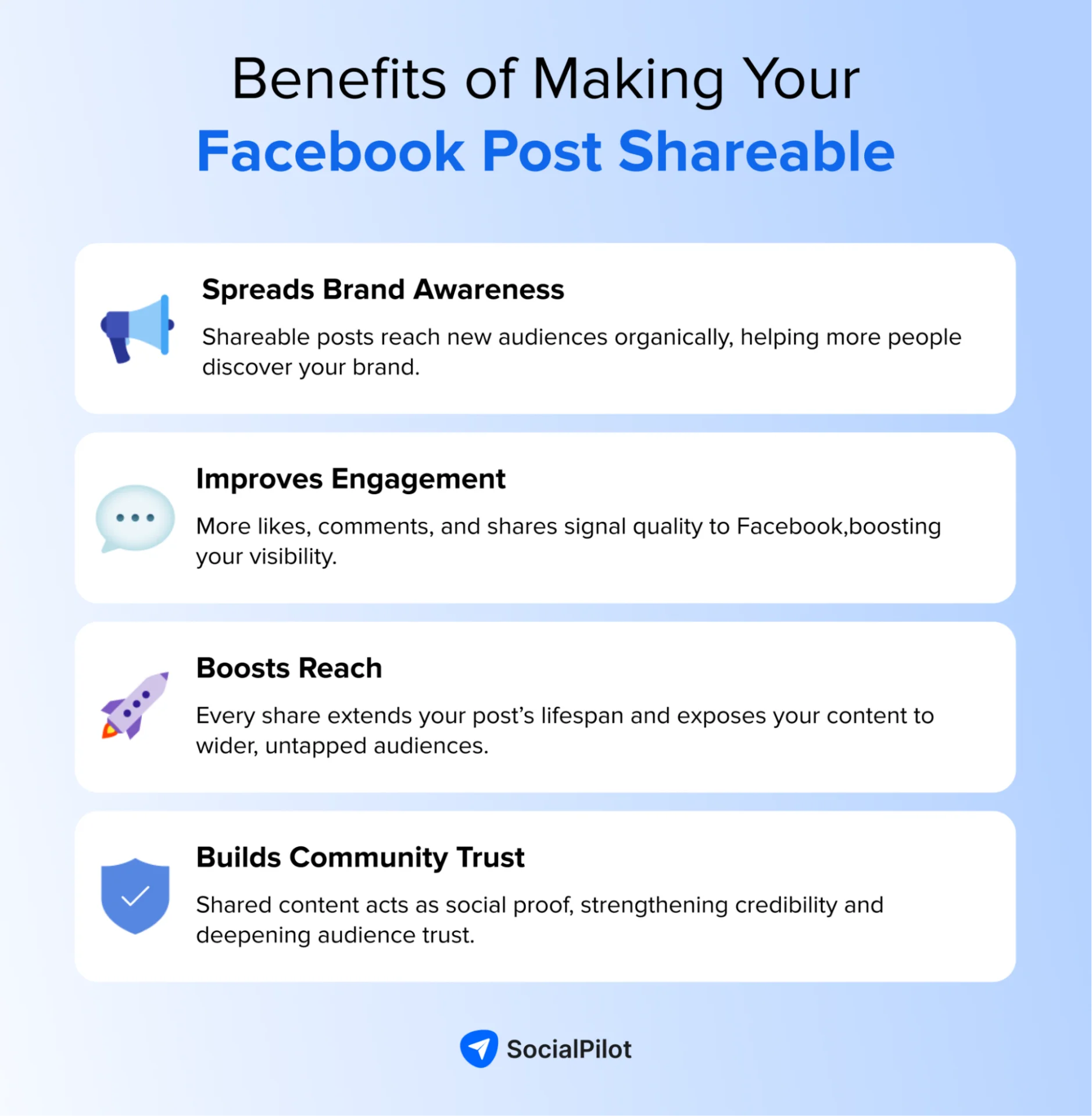
1. Spreading Brand Awareness
When your content is shareable, it reaches far beyond your existing followers. People who find your posts interesting or entertaining are more likely to share them, helping new audiences discover your brand organically.
To build brand awareness, define your mission and target audience, use consistent visuals like your logo and colors, and collaborate with influencers who align with your brand.
2. Improving Engagement Levels
Engaging content sparks conversations and keeps your audience interested. The more people interact with your posts, the more Facebook amplifies your content’s visibility.
Boost engagement by analyzing audience insights, posting during peak times, and hosting live Q&As or interactive sessions that encourage participation.
3. Boosting the Reach
Every share extends your post’s life and visibility. Shareable content has viral potential, helping you reach audiences you might not have targeted otherwise.
Increase your reach by running targeted Facebook ads, using relevant hashtags, and sharing user-generated content to build trust and inspire more shares.
4. Building Community Trust
When people share your content, it acts as a form of social proof that strengthens your credibility. The more authentic and valuable your posts are, the more trust you’ll build within your community.
Focus on transparency, respond to comments promptly, and showcase real customer stories to foster stronger connections.
Type of Facebook Content that Gets More Engagement
Reports show that listicles and GIFs are some of the most shared content on Facebook. To maximize reach and engagement on Facebook, marketers can focus on creating informative lists or creative and interactive visual content. These are some content types that get more engagement on Facebook:
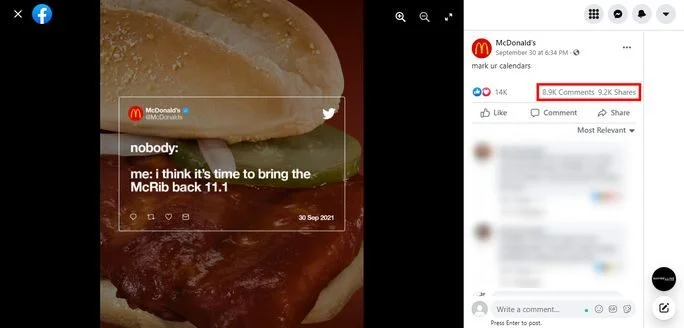
Teasing the launch of a new product or the comeback of a customer favorite can garner a lot of buzz. Posts that drive audience curiosity can receive better overall engagement. McDonald’s uses this strategy to announce the return of their McRib.
2. Hyping Exclusive Offers
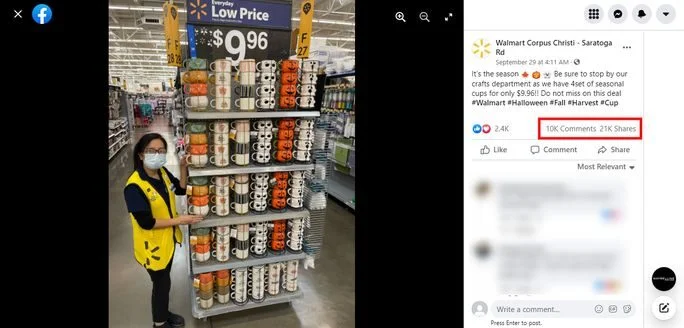
Brands also utilize the FOMO (fear of missing out) marketing strategy to gain higher engagement from their audience. Read this to learn about 8 genius FOMO marketing techniques for your business. These techniques can be used for exclusive offers or time-based sales. For example, Walmart created this sales post for their Halloween-themed cups.
3. Showing that You Care
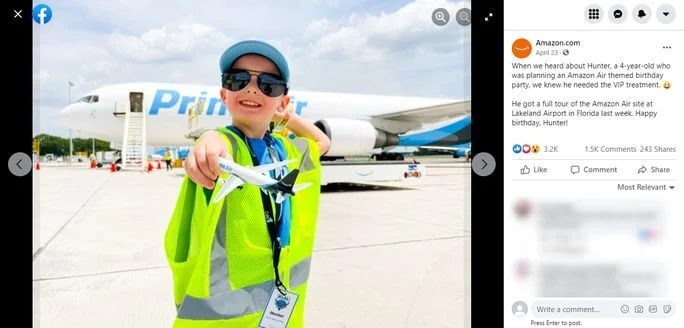
Inspirational content can aid brands in connecting with their audience. Marketers can post real-life stories or support a social cause to humanize their brands. Amazon integrates this by occasionally sharing content about their contribution to social causes or simply helping people.
Live Videos or Behind-the-scenes
Facebook Live content can produce 6x higher interaction compared to traditional video content. People enjoy watching live streams or behind-the-scenes as it offers more transparency. Facebook also allows you to save the live video and post it on your feed as a regular video.
4. Informative Hacks or How-to Posts
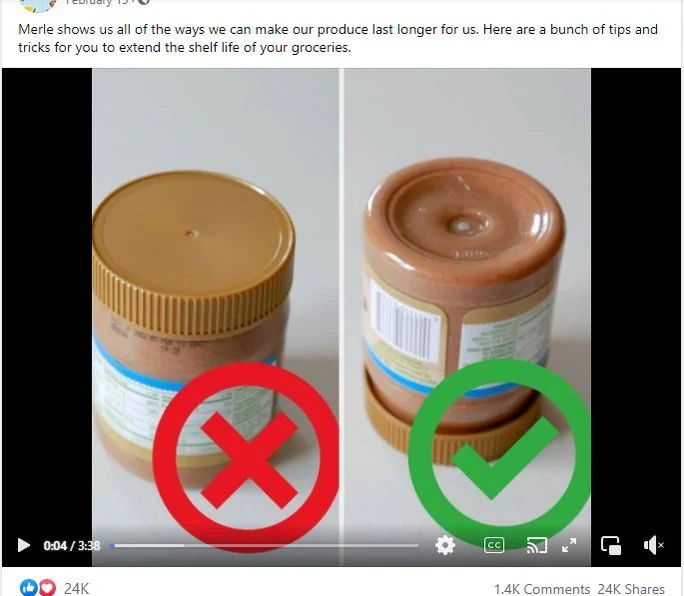
Hacks or how-to posts can be created in the form of listicles, infographics, or reels. Make sure that the content is relevant to your brand’s offerings. Food Network Tasty often shares food hacks and recipes with its Facebook audience, as the content drives more engagement.
5. Relatable or Entertaining Content
Depending on your brand style, you can integrate humorous or relatable posts into your Facebook marketing plan. Here are some powerful ways to create engaging Facebook posts.
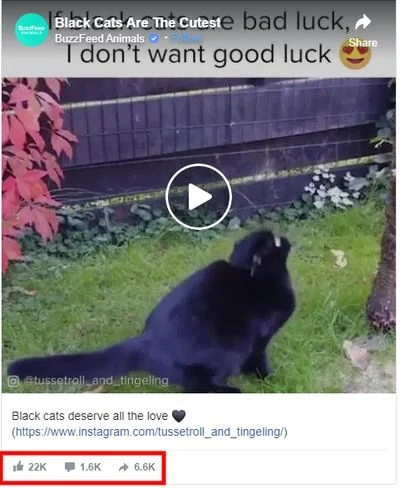
Buzzfeed is known to share cute animal videos or memes to entertain its audience. This shows that the brand doesn’t just care about promoting its website content.
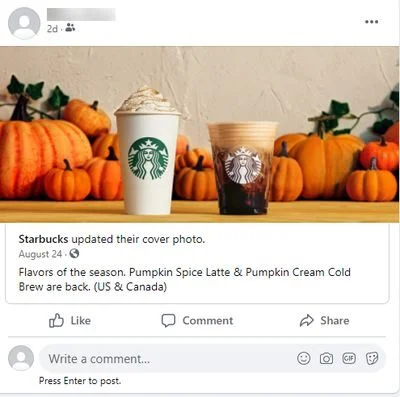
This option will simply create a linked Facebook post. People can click on the image and head straight to the original post.
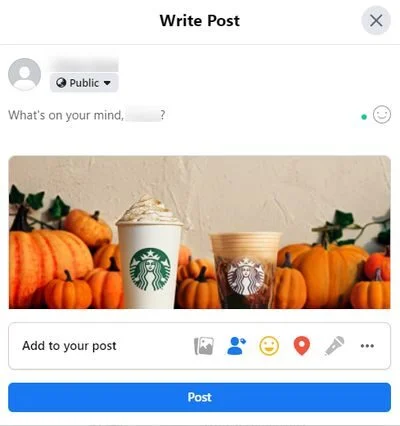
Sharing through the News Feed will allow users to edit the post, where they can write additional content to supplement the link.
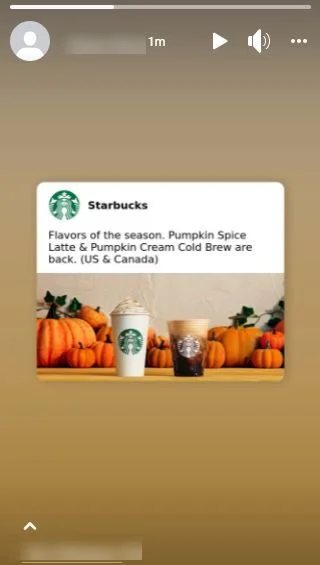
As the name suggests, users can share a post directly on their Facebook Story.
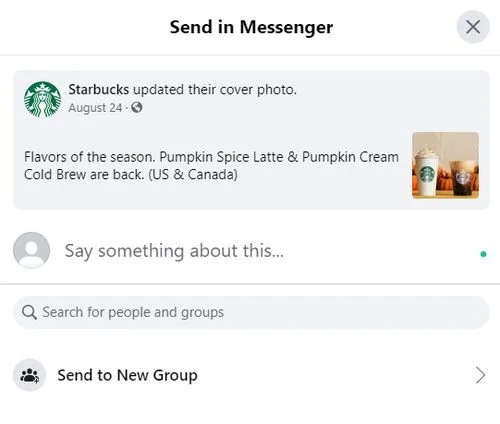
4. Send in Messenger
Users can share Facebook content with other people or groups on Messenger. Here are some more ways in which Facebook Messenger chatbots can be used for businesses.
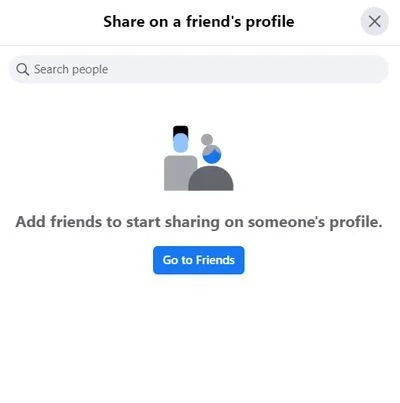
Facebook also allows you to simply share content on a friend’s profile.
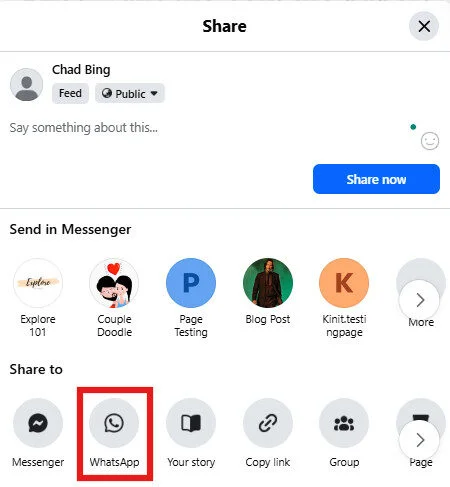
Users can also share Facebook posts directly through WhatsApp, making it simpler for businesses to spread their content beyond Facebook and reach their audience on their messaging platform.
Facebook can place temporary blocks on sharing posts in the following scenarios:
- If you’ve been posting a lot of content in a short time
- Sharing content marked as ‘unwelcome.’
- Sharing anything that doesn’t align with Facebook’s community standards
To avoid these blocks, it’s best to follow the community guidelines of the platform.
1. Engage in the Comment Box
Converse with your audience in the comment section. You don’t have to limit yourself to only answering questions. You can improve your engagement by agreeing with a fan or responding with a GIF or emoji. The point is, being active through comments will encourage your audience to participate more.
2. Post a Variety of Content
Don’t just pitch sales or post the same type of content all the time. Provide informative content, entertain your audience through relatable memes, create interactive posts, or share a personal story to connect better with your audience. You can also ask questions or set up polls to engage with your Facebook audience.
3. Incorporate Visuals
According to Meta, Reels are reshared 3.5 billion times each day across Facebook and Instagram. You can also try using Facebook Live and share high-quality images and reel content to catch your viewers’ eyes. Incorporate Facebook stories for authentic and informal communication with your audience.
4. Leverage AI Assistance to Enhance Content
The text content, such as captions and one-liners that go with your posts, reels, and stories, plays a significant role in boosting engagement on social media.
If you cannot invest the time required to create engaging content, you can use our Facebook post generator. It enables you to create captions in various tones that resonate with your audience.
Give it a whirl right now!
Facebook Post Generator
Generate engaging, high-performing Facebook posts instantly.
Here is the Generated Result
4. Don’t Participate in Engagement Bait
Blatantly asking for likes or shares on a post is what Facebook considers ‘engagement bait’. For example, posts like “Share this now!” or “Like this if you agree!” fall directly into this category and can get your reach penalized.
Refrain from participating in engagement baits if you want to score high on Facebook’s algorithm. Marketers can invite their audience to share their opinions, but they shouldn’t goad users into interacting with a post.
5. Track what Works Best
Use your Page Insights to figure out what type of posts attract more engagement from your audience. Yes, you can post content based on the general Facebook statistics. But keep in mind that statistics can change over time. It is vital to track your brand’s social performance and revise your strategy accordingly.
6. Utilize Facebook’s Boost Feature
Facebook allows you to boost your Facebook posts by applying a budget and promoting your content. The boosted post will contain a CTA button, and you can track the metrics for this post as well. You can also boost your Instagram content on Facebook.
Wrapping Up
Having an engaged audience is vital for any social media plan. Facebook, in particular, makes it easy for brands to not only reach a wider demographic but also track their performance through the built-in tools.
Follow our tips and review your Page Insights regularly to optimize your content for better engagement.
Get the most out of your Facebook performance by tracking your efforts through SocialPilot’s Facebook Analytics Tool. Through this tool, you can check your FB post engagement, number of page fans, and monitor the trends. You can also download presentable PDF versions of these reports with just one click.
So, why wait? Try its free trial today!