We have often heard people asking, “Can you schedule YouTube Shorts”? Yes, you can — and in fact, doing so is one of the smartest ways to save time, remain consistent, and boost engagement on YouTube.
YouTube Shorts are already exploding, with CEO Neal Mohan revealing that they now rack up 200 billion views daily. But it can get really challenging if you post them manually every day.
That’s where scheduling comes in.
It keeps your uploads timely, helps you ride the algorithm’s demand for frequent content, and frees you up to focus on creativity instead of constant posting.
In this blog, we’ll explore the best ways to schedule YouTube Shorts, the tools you can use, and tips to optimize your content strategy for maximum reach.
How to Schedule YouTube Shorts Natively On Desktop and Mobile Phone
Are you still setting alarms to manually schedule your YouTube Shorts? You have been doing it all wrong. There are several ways to schedule YouTube Shorts in advance, so you can save your time and effort.
How to Schedule YouTube Shorts Using a Desktop
If you want to schedule YouTube Shorts on a desktop, you can do so by using YouTube Studio. It is a YouTube built-in scheduling feature for any video upload, allowing you to set a future date and time for your Short to go live automatically.
Here are the steps you must follow:
Step 1: Create Your YouTube Short
The first step is to create a Short – that is, ideally below 60 seconds. You can either make them separately or directly on the YouTube Studio mobile application.
Step 2: Access YouTube Studio
Go to YouTube Studio and sign in to your channel.
Step 3: Start the Upload
In the top-right corner, click the “Create” button (a camera icon) and select “Upload videos”.

Step 4: Select your Short File
Drag and drop your video file, or click Select Files to choose it from your computer. The video should be vertical (like 9:16) and ideally less than 60 seconds long for it to be categorized as a Short.

Step 5: Add Video Details
Fill in the required video details, including a title and description. Consider adding some keywords and adding #Shorts, as this will help with a better reach. Select and upload a visually appealing thumbnail, something that makes people want to click and view your short.

Step 6: Choose Visibility
Navigate to the Visibility tab. Instead of selecting “Public,” “Private,” or “Unlisted,” choose Schedule. Then use the calendar to pick the day and time you want your Short to be published. You can also specify the time zone.
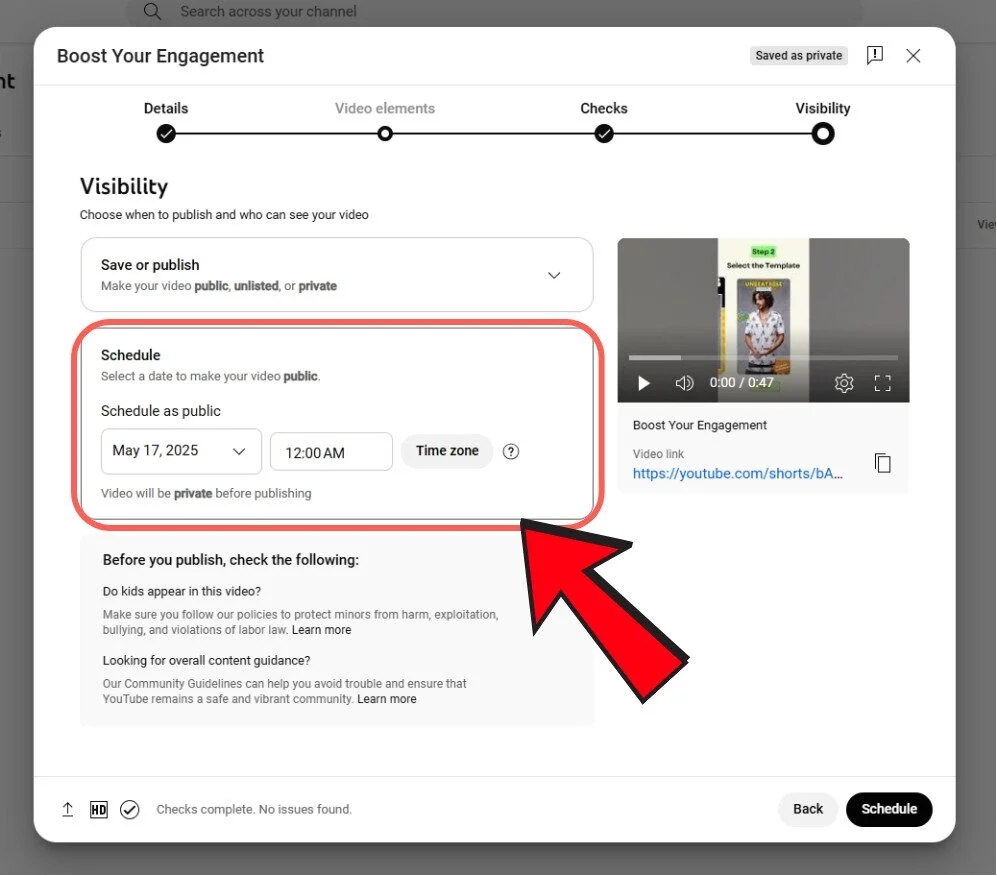
Step 7: Finalize the Schedule
Click the Schedule option, towards the bottom right, to confirm. Your Short will now appear in your “Content” list as a scheduled video and will be published automatically on the date and time you selected.
How to Schedule YouTube Shorts on the Native YouTube App (Phone)
Alternatively, you can also use the YouTube app on your mobile device to schedule shorts. You can either pre-record your short or record and upload it simultaneously using the YouTube app on your Android or iOS devices.
Here is how you get started
Step 1: Open the YouTube app
Open the app and sign in to your channel. Next, tap the “Create” button (the plus + icon) at the bottom of the screen.
Step 2: Upload or Create a Short
To upload, select the “Upload a video” option from the menu that appears. This will open your phone’s camera roll. Select your pre-recorded video file, ensuring it has a vertical (portrait) orientation and is under 60 seconds in length.

Alternatively, select ‘Create a Short’ from the menu shown above, then tap the 15s symbol at the top right corner to adjust the video length (it could be between 15 and 60 seconds).
Next, press the red circle, as shown in the image below, to start recording and tap it again to stop. You can also use the undo and redo buttons to manage your recordings.

Step 3: Add Details and Edits
Once your short is ready, you will be taken to the editing screen where you can add sounds, voiceovers, text, or filters. When finished, tap Next.

Step 4: Enter your Video’s Details
This process is the same as we followed for the desktop version. Just write a title for your Short, adjust its location, and select your audience.

Step 5: Schedule the Video
Tap on the “Visibility” option, and then select Schedule. Next, use the calendar to pick the exact date and time you want your Short to go live. You can also confirm your time zone.
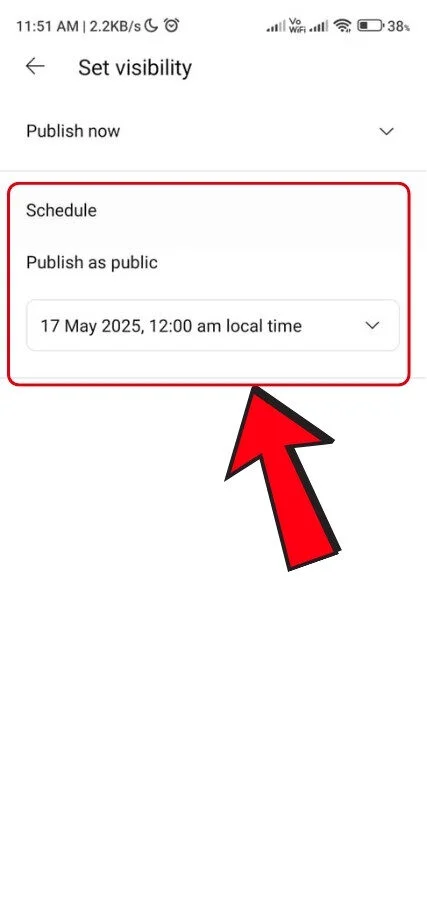
Step 6: Confirm and Upload
Tap Done or Schedule to finalize your selection. Then, tap “Upload Short” to complete the process. Your Short will now be uploaded and will automatically publish on the scheduled date and time.
Using this simple process, you can successfully schedule your YouTube Shorts using the native YouTube app.
Drawbacks of Scheduling Shorts on YouTube Natively
YouTube native scheduling might look simple, but we have identified a few limitations that can hinder the visibility of your YouTube Shorts.
Here are a few of them:
- No Bulk Scheduling: The YouTube app does not let you schedule shorts in bulk. You must either use the YouTube Studio on your desktop or a third-party app for bulk scheduling.
- No Custom Thumbnails: You must select a thumbnail from the video if you are scheduling natively, as there is no option to add a custom thumbnail.
- No In-Depth Analytics: For YouTube Shorts, you will not get in-depth, detailed analytics on the native software; stats like traffic sources and mobile analytics are not available.
- No Advanced Scheduling: The native app lacks advanced scheduling abilities like posting for optimal time and adding the Shorts to the queue.
- No Cross-Platform Posting: You can only schedule your Shorts for the YouTube channel and not any other platform simultaneously.
- No Automated Rescheduling: If you need to change the schedule of your YouTube Shorts, you will have to do that manually; native software does not let you reschedule at a glance.
- No Publishing for Strikes Impact: If your account has a strike for not following YouTube community guidelines, your scheduled Shorts will not go live.
- No Hashtag Suggestions: There are no explicit hashtag recommendations to help you improve your reach.
So, if you are a business looking for content recycling, cross-platform posting, detailed analytics, or getting some serious visibility for your YouTube shorts, these drawbacks may feel restrictive.
In such situations, it is best to depend on third-party scheduling apps that can help you fill the void left by YouTube’s native scheduler.
How to Schedule YouTube Shorts Using a Third-Party Scheduling Tool
As discussed in the above sections, manual posting can be exhausting, especially for creators or brands looking to grow on YouTube.
By using the third-party scheduling tools, you can plan, schedule, and post your YouTube Shorts without being glued to your desktop or phone at odd hours.
There are multiple scheduling tools that you can use to schedule YouTube Shorts. Some popular options include SocialPilot, Buffer, Later, Hootsuite, SocialBee, and Post Planner.
While all these tools work phenomenally well for scheduling YouTube shorts, we will demonstrate the scheduling process using the YouTube scheduler.
If you, too, can not afford to ruin your efforts by scheduling Shorts using a native app, SocialPilot is a social media scheduling tool that can optimize your YouTube strategy with advanced abilities.
Here are simple steps to schedule YouTube Shorts with SocialPilot.
Step 1: Connect Your Channel to SocialPilot
Start by creating a SocialPilot account and connecting your YouTube channel with it. You can also connect multiple channels, as it supports multi-account management.
To connect your channel, on the left dashboard, click on Connect Account -> YouTube -> Connect Channel.
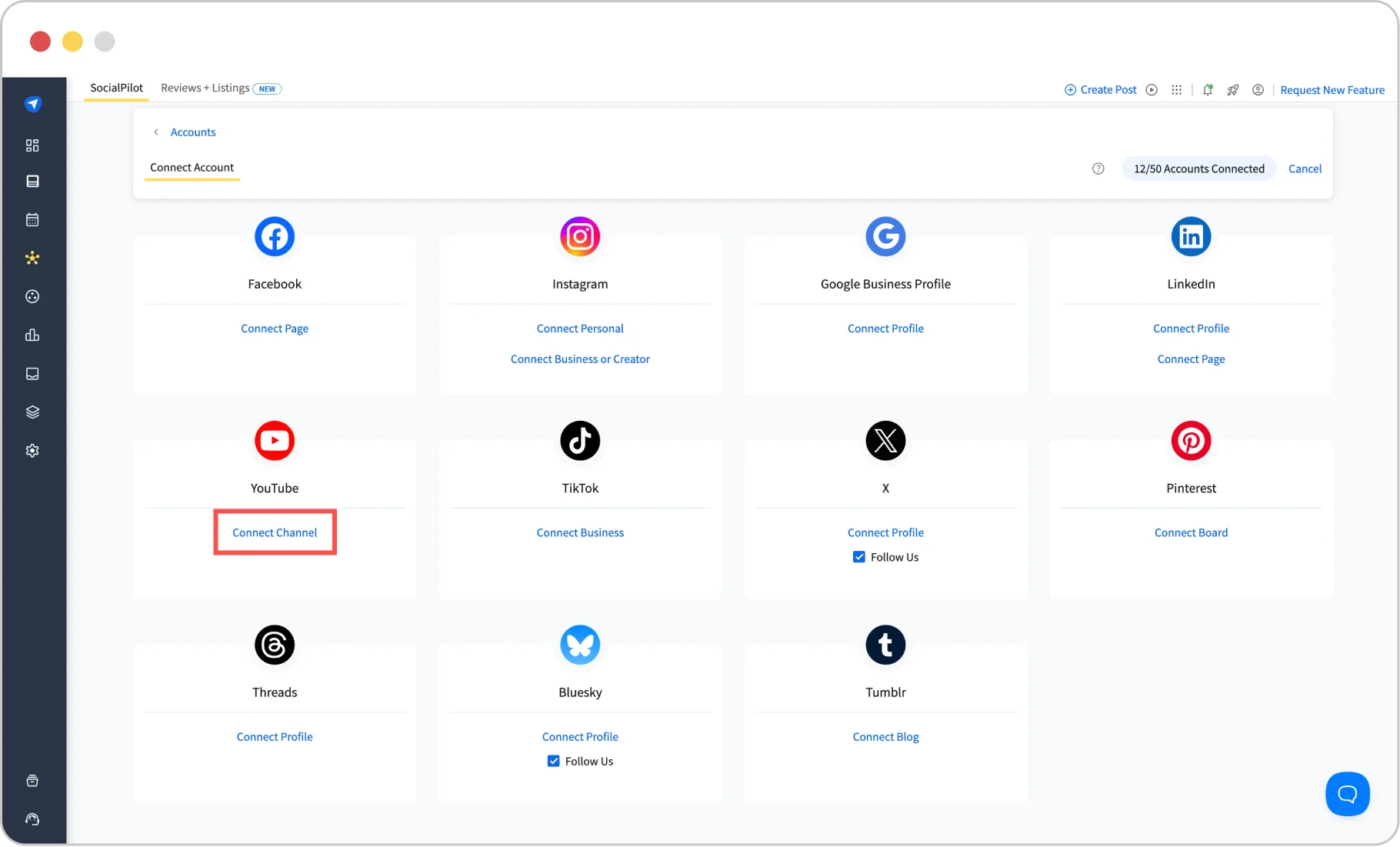
Step 2: Switch to the YouTube Tab and Upload Your Short
Once your YouTube account is connected to SocialPilot, click on Posts, then Create Post. This will redirect you to the post composer. From the social media network tabs that you see above, select YouTube. Then click on “Video Upload” and upload the Short you want to schedule.
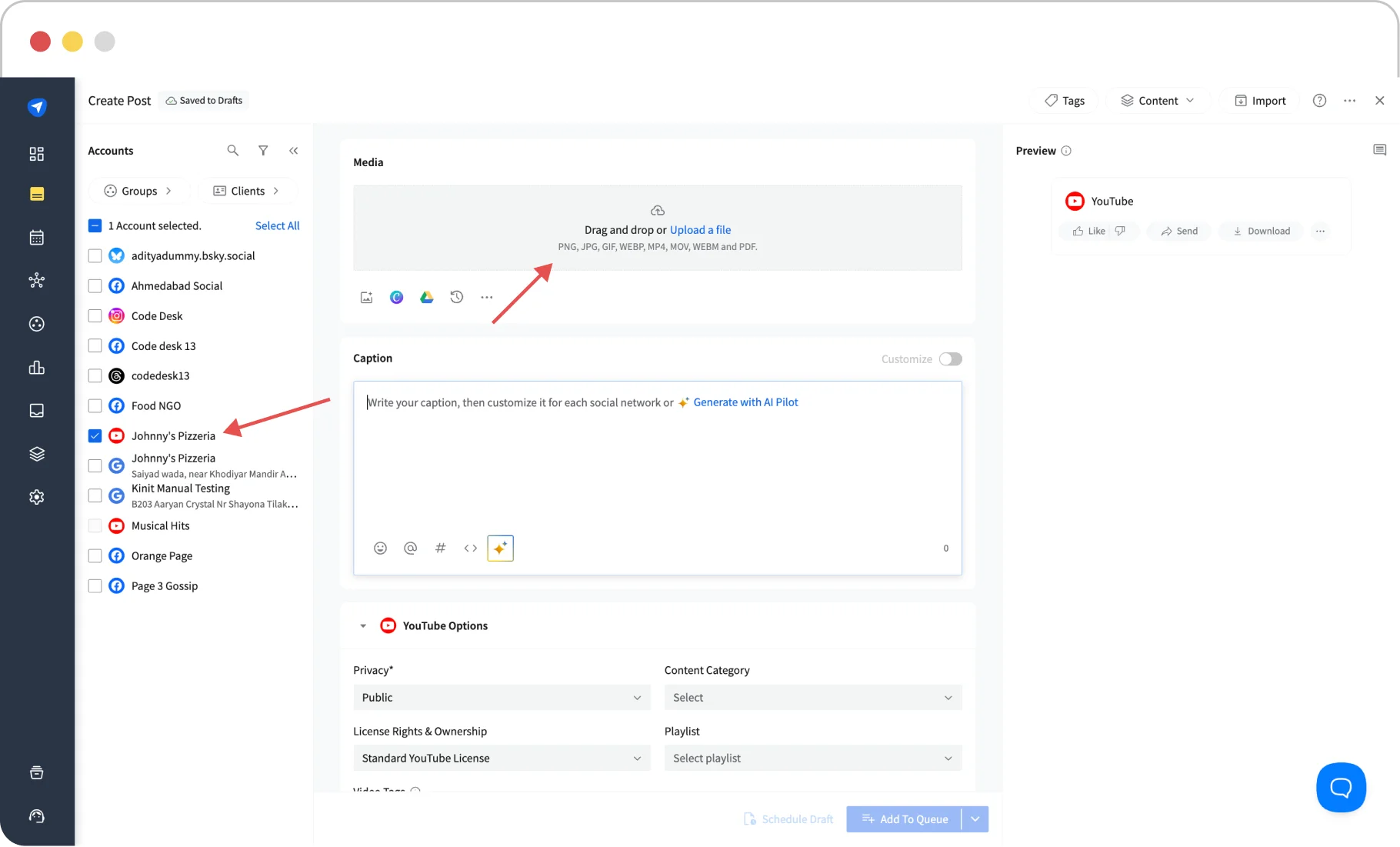
Follow the same guidelines for dimensions. You can upload the short from Dropbox, Google Drive, or a local device.
Step 3: Prepare Your Post and Select the YouTube Account
Next comes composing and preparing your YouTube Short. SocialPilot also lets you pick a custom thumbnail for your YouTube Videos and Shorts.
In addition, the SocialPilot scheduler allows you to add subtitles to YouTube Shorts. These subtitles can help increase the watch time and boost the visibility of your short.
Along with this, don’t forget the following elements:
- Title
- Description
- Tag People
- Add Hashtag and Emojis
- Set Privacy
After all of this is done, select the YouTube channel on which you want to share this Short.
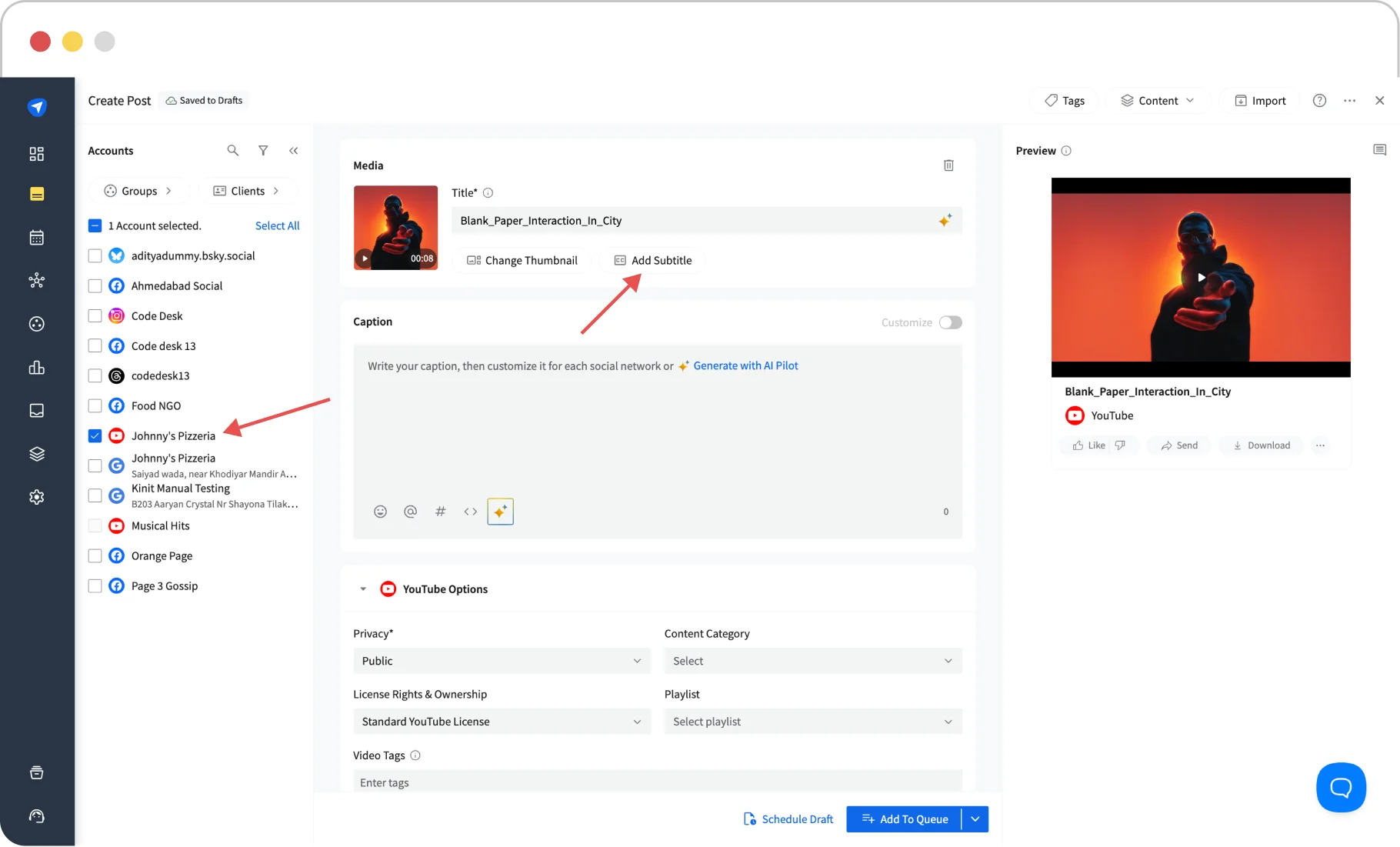
Step 4: Set Advanced Settings and Schedule the Short
At the final stage of scheduling, SocialPilot offers you some advanced options that can help you reach the right audience and boost your visibility.
As shown below, here you have to specify your content details and select categories and other specifications, such as tagging videos.
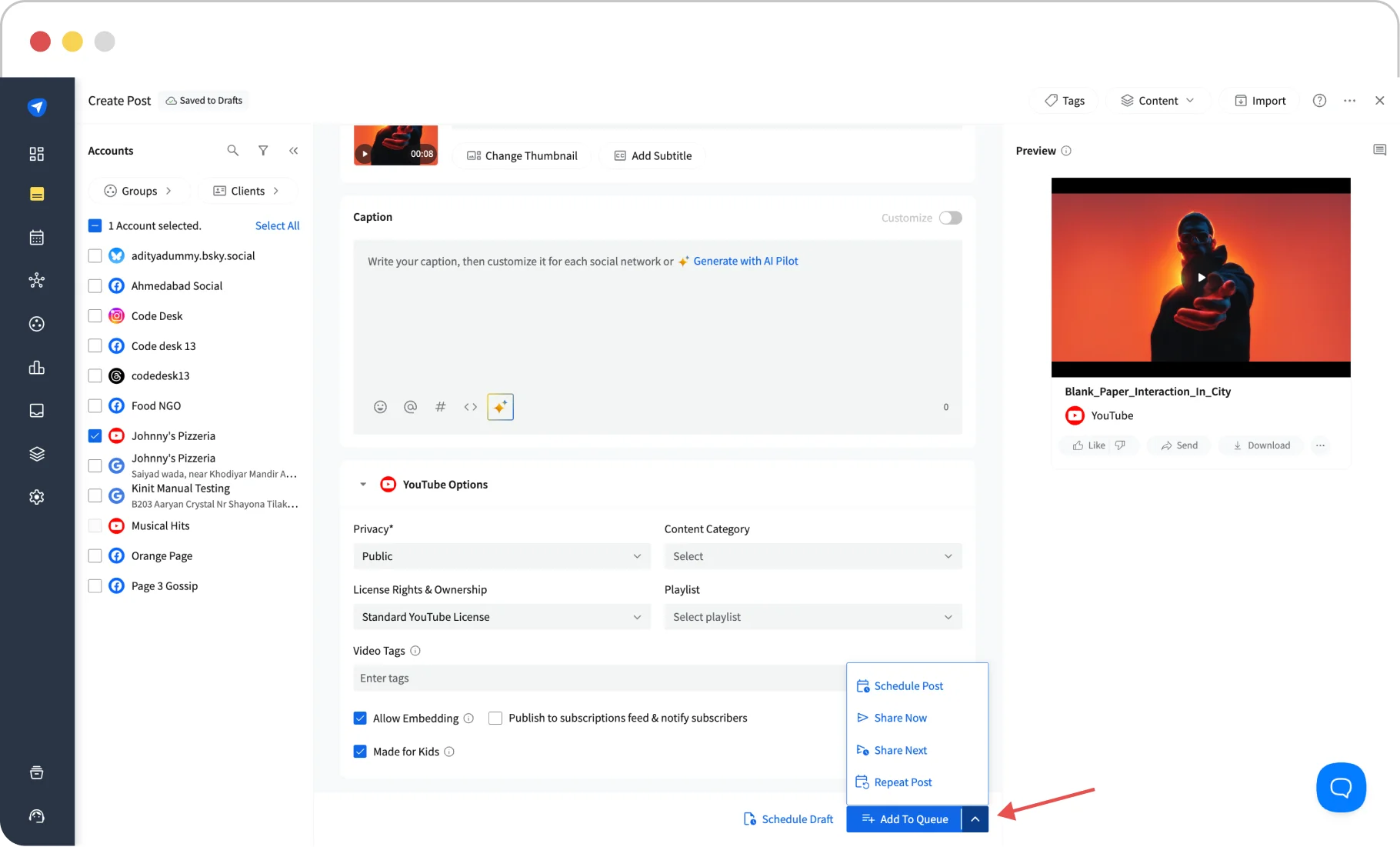
Finally, you can pick a date and time and schedule the Short. By clicking “Done,” you have ensured that your Shorts will go live at the chosen time.
SocialPilot also allows you to schedule YouTube Shorts using ChatGPT, to help you further speed up the scheduling process.
SocialPilot also has an app that you can download on your Android or iOS devices for easy scheduling. Just like its desktop version, using the SocialPilot app is quick and simple.
Here’s how you schedule shorts using the SocialPilot app:
Step 1: Log In to Your SocialPilot Account and Click on “+”
Download the SocialPilot app and log in to your account. To compose the YouTube Shorts, click “+” at the bottom of the screen.
Step 2: Compose the Post and Select the YouTube Account
As you are taken to the compose page, upload the video and write a post description with emojis and hashtags. Then, select the YouTube account to which you want to share the short.
Step 3: Preview the Post and Pick the Scheduling Option
Before you schedule the Short, take a preview of your post to check for unknown errors, and then schedule it for the optimal time for the highest visibility.
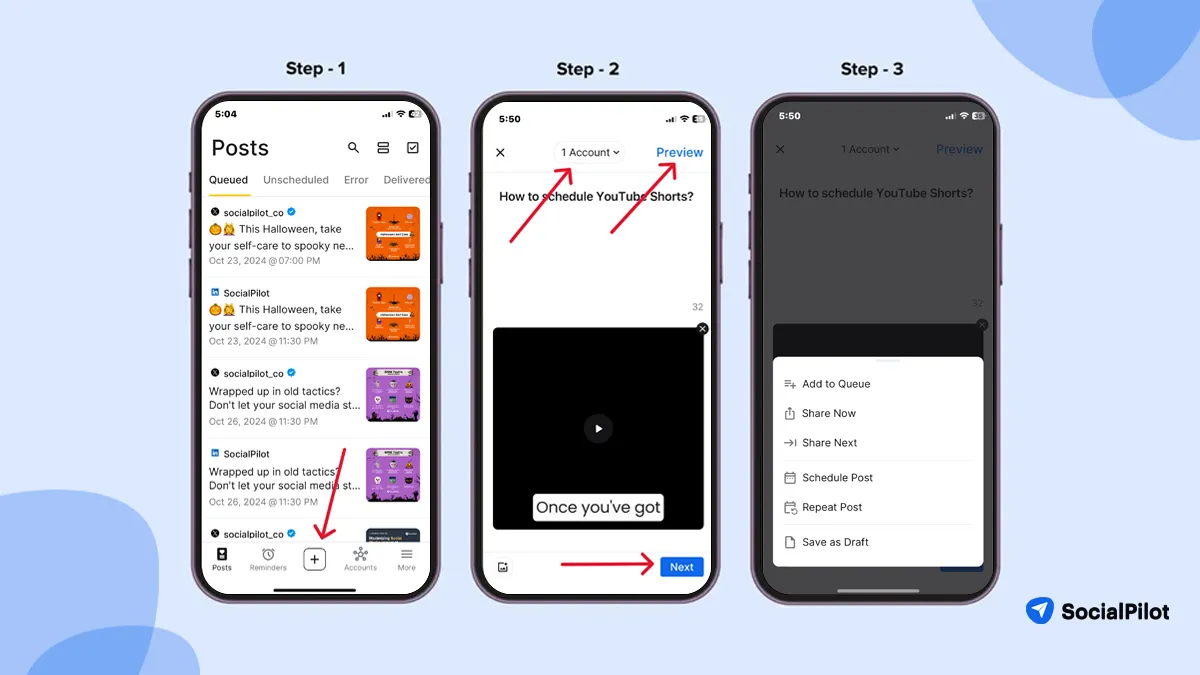
And done. Your Shorts is all set to go live when you want it to.
Once your Shorts start performing and reaching viewers, you will receive detailed analytics to know what is working and what is not.
For a social media marketer managing multiple social media accounts, it is a tool that ensures your YouTube marketing is always on point.
How to Manage Scheduled YouTube Shorts
Once your Shorts are scheduled, you might think the job is done, but that’s not always the case. Sometimes you might make mistakes that may require you to edit, delete, or reschedule an already scheduled short.
How to Edit Scheduled YouTube Shorts?
Are you looking to reschedule your post at a better time, or did you discover some last-minute error in the video title, description, or tags?
Fret not. Simply follow these steps to edit the YouTube Shorts or change your scheduled time.
Edit YouTube Shorts on Native App (Web or Mobile)
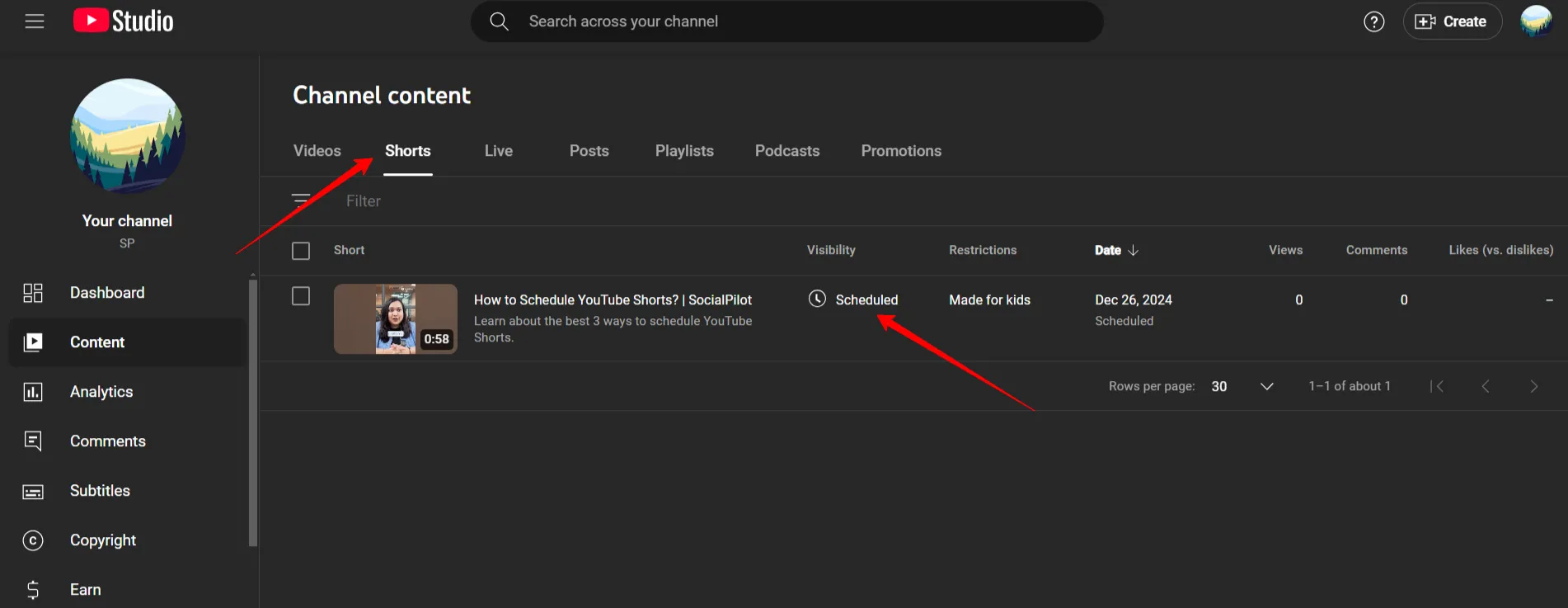
To begin with, let’s understand how to edit an already scheduled Short on native YouTube software on a desktop or the YouTube Studio mobile app:
Step 1: Open YouTube and click on “Your Videos” on the left menu bar.
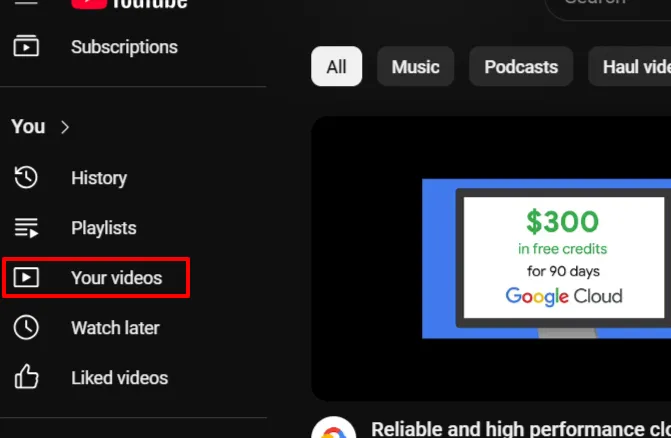
Step 2: Click the “Shorts” tab, select the one you want to edit, and make the necessary changes.
How to Edit YouTube Shorts Using SocialPilot?
Here are the easy steps to schedule YouTube Shorts when you have planned with SocialPilot desktop software:
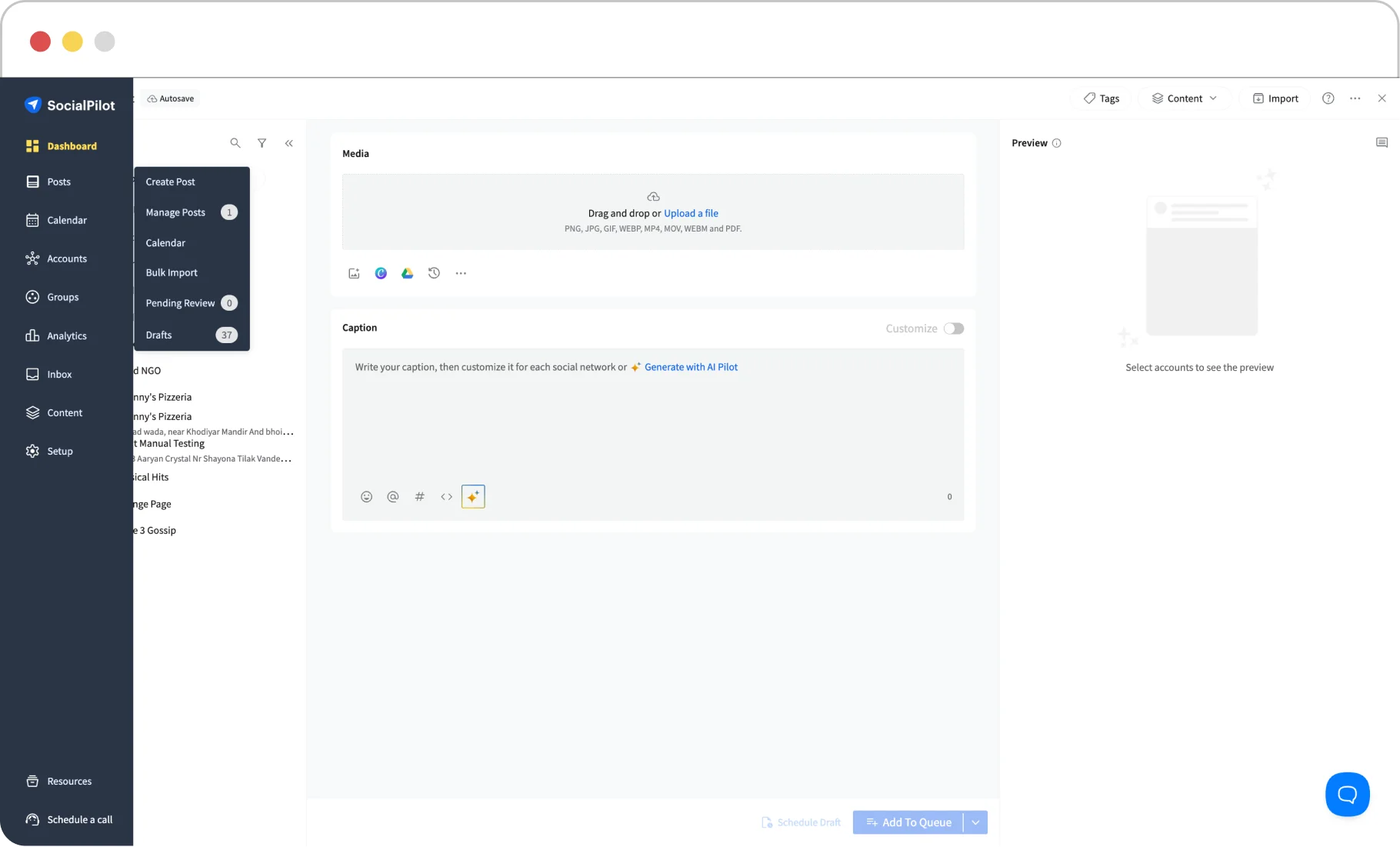
Step 1: Log in to your SocialPilot account, and from the left dashboard, click on Posts -> Manage Posts.
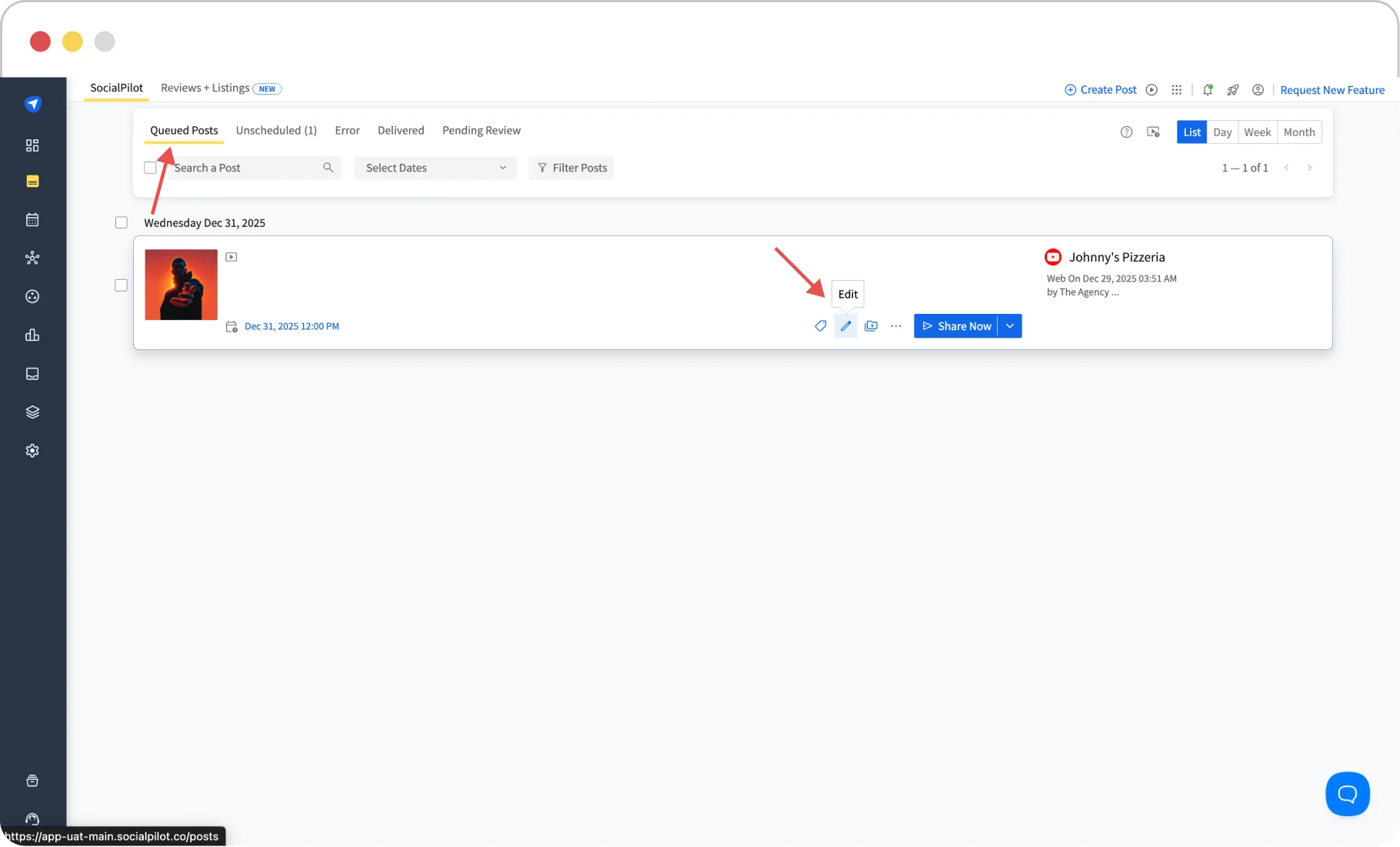
Step 2: In the “Queued Posts” section, you will find all your scheduled posts for the future. You can edit and reschedule a post by clicking on it.
Editing Shorts on the SocialPilot Mobile App
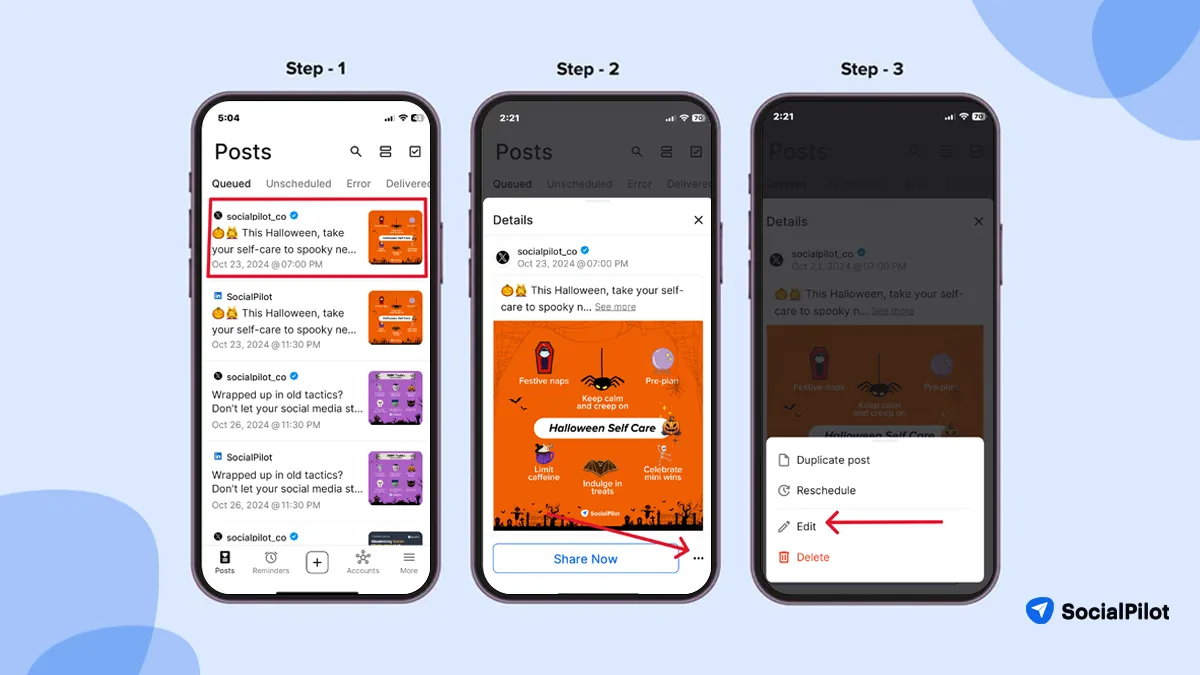
Step 1: Open the SocialPilot mobile app to see all your schedules on YouTube Shorts.
Step 2: Click on the post you want to edit or reschedule.
Step 3: Click on the menu on the post to access all the options to edit or reschedule the Short.
How to Reschedule a YouTube Short
Sometimes, the post looks good, but the scheduled timing may look off. In such cases, you also have the option to reschedule the post at the new time. Here’s how you do it:
How to Reschedule YouTube Shorts Natively?
Step 1: Follow the same steps as above, i.e, find the schedule short in “Your Videos” and then click on “schedule”. This will show you the date and time for which the video is scheduled.

Step 2: In the calendar pop-up, select a new date and time for the Short to go live. Click Schedule to confirm your new time.
How to Reschedule YouTube Shorts on Desktop Using SocialPilot?
If you have scheduled the short using SocialPilot, here are the steps you must follow
Click on Posts -> Select Manage Posts ->, and you will see your scheduled short in the “queued post” category.
Click on the pencil (edit icon) and then click on the post time.
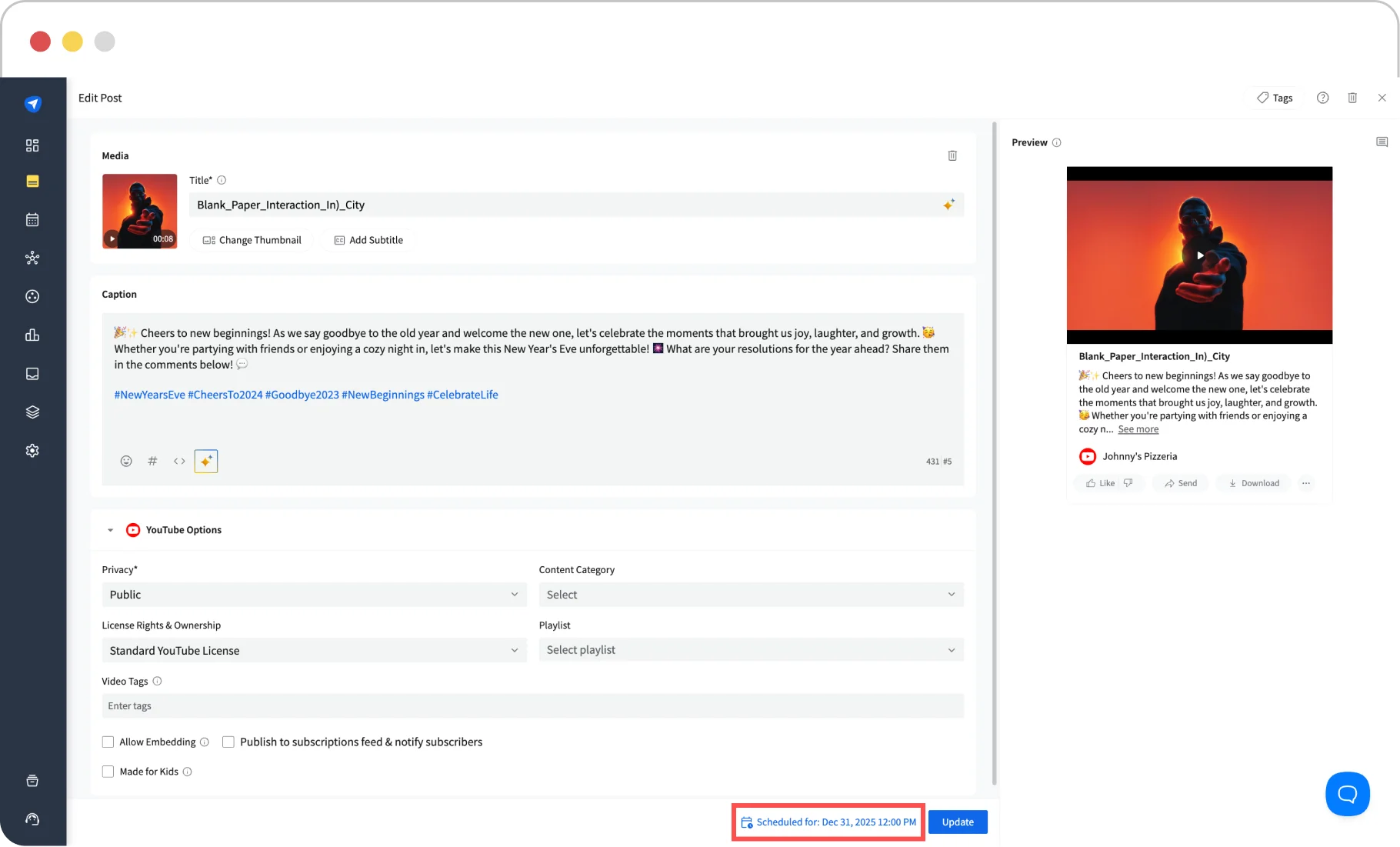
A calendar pop-up will appear; just select your desired date and time and click on “Done.”
How to Reschedule Shorts on a Mobile Device Using SocialPilot
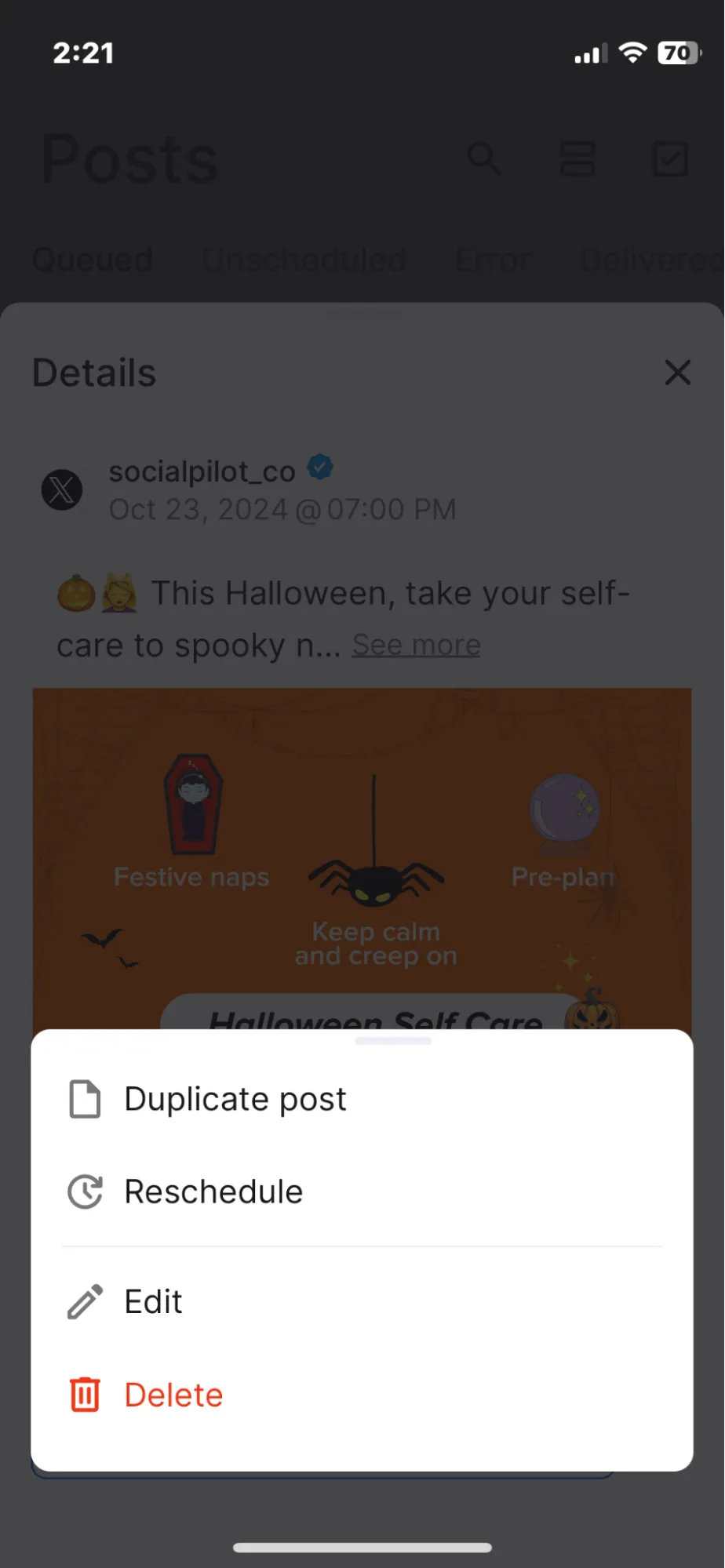
Rescheduling shorts using the SocialPilot app is equally simple. Just click on the post and you will see the “Reschedule” option. Select the desired date and time and click on “Done”
How to Delete Scheduled YouTube Shorts?
Deleting the YouTube Shorts is crucial when you no longer need the post to go live. Here’s how you can delete the Short.
How to Delete Scheduled Shorts on YouTube Natively?
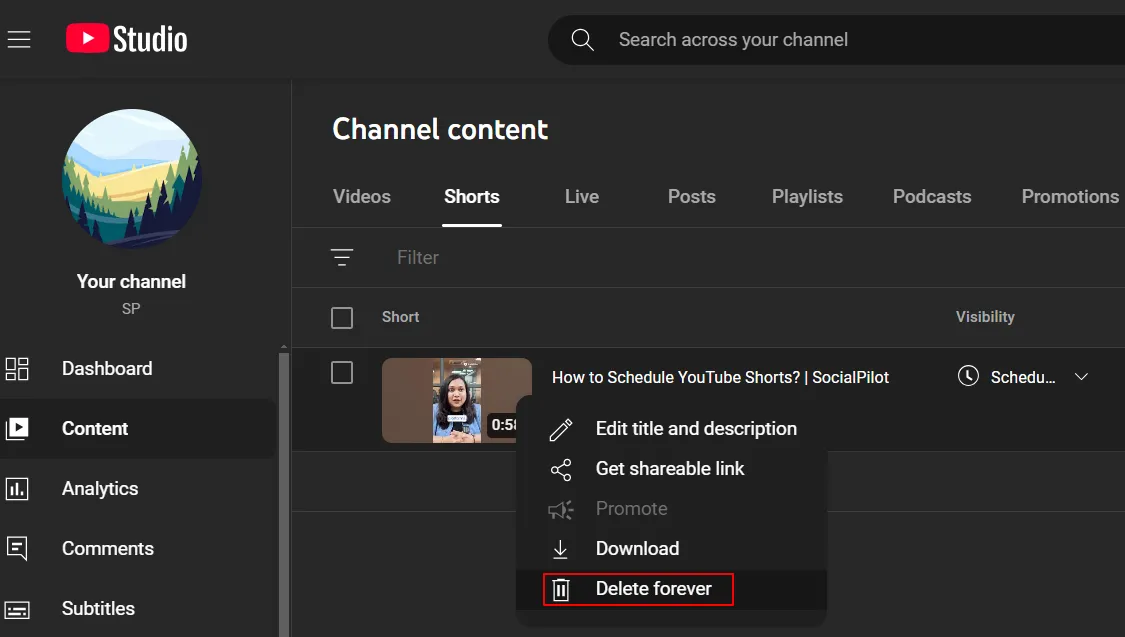
To delete YouTube Shorts, follow the same steps as for deleting, and in the edit section, click “Delete Forever.”
How to Delete Scheduled YouTube Shorts on SocialPilot?
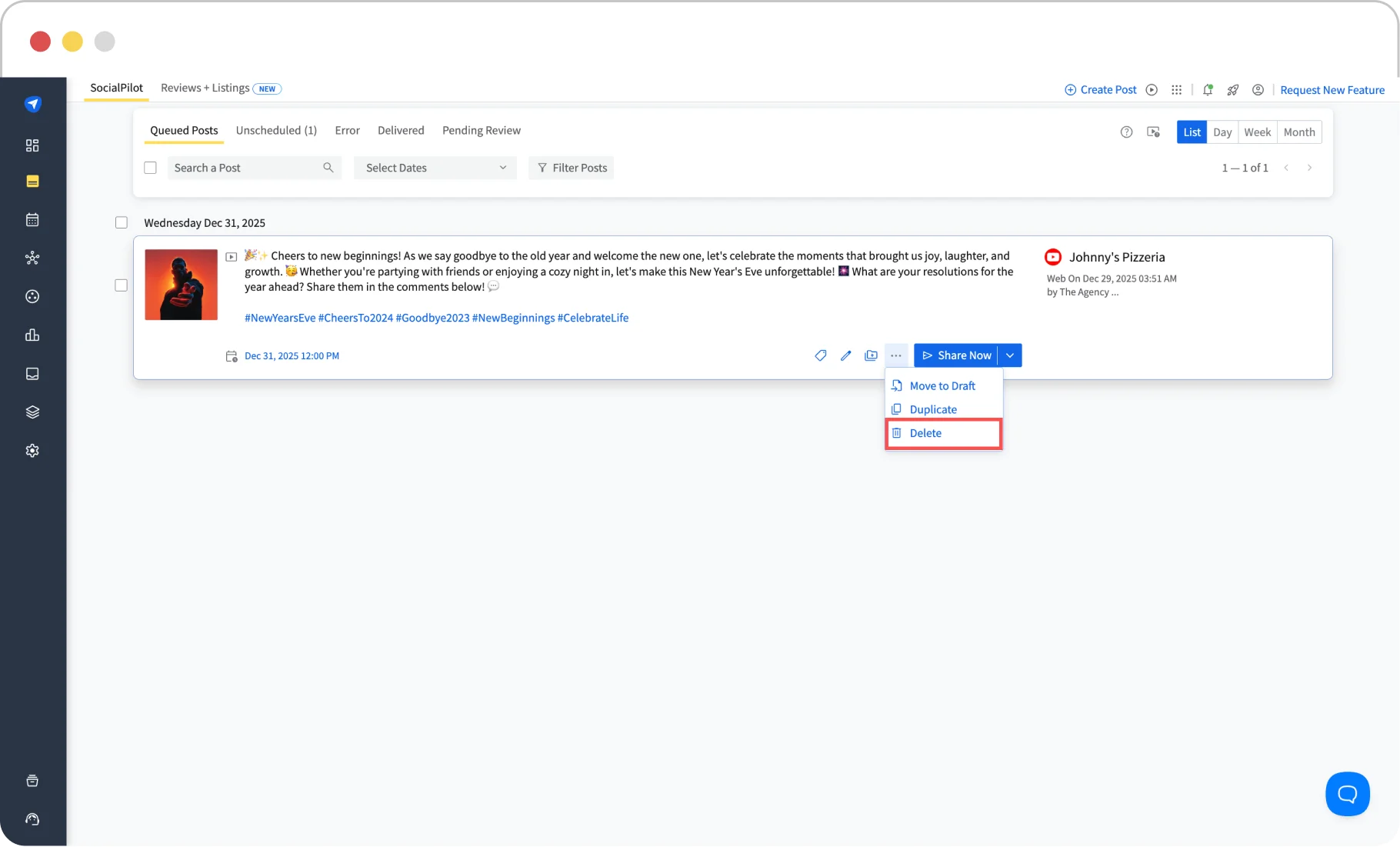
When you have scheduled your YouTube Shorts using SocialPilot, you can delete them easily. Click on Posts -> Manage Posts ->, and you will see all your scheduled videos under the queued posts tab.
Here, you can click on edit and then delete your Short.
How to Delete Scheduled Shorts on a Mobile Device?
Deleting YouTube Shorts is much simpler on the SocialPilot mobile app. Simply click on the post, then the menu over it, and delete the Shorts from the queue.
With this, you are a pro at everything scheduling. You can plan, manage, reschedule, edit, and even delete the post in seconds and with a few clicks.
Important Considerations While Scheduling YouTube Shorts
Scheduling YouTube shorts is not just about creating videos and posting them on YouTube. There are multiple parameters to take care of, from changing algorithms to the rising competition.
But with smart scheduling, you can manage your shorts and increase your reach on YouTube. That being said, here are some strategies that can help streamline your workflow and even get you more eyeballs.
1. Optimize Posting Time
One of the most common issues businesses and creators face is finding the best time to post YouTube Shorts for maximum visibility. Timing is crucial because the YouTube algorithm favors videos that get rapid engagement instantly after going live, and scheduling helps you achieve that.
You should post at the optimum time based on your audience’s activity. If you post when your audience is not online, your Shorts may get buried under newer content and receive fewer views.
When you schedule your post with SocialPilot, you will receive detailed analytics to understand how your video content performs in front of the audience and when you get the best response. And if you’re looking for more ways to grow visibility beyond timing, here’s a full guide on how to get more views on YouTube Shorts.
2. Have a Content Calendar in Place
You cannot just post one Short and then disappear for weeks; this inactivity can bring a sudden decline in your engagement rates. This is where a pre-planned YouTube content calendar can help.
It will keep things organized and prevent the last-minute rush. It will also allow you to post things at optimal times and improve the visibility of your shorts.
3. Record in Vertical Format
YouTube Shorts are vertical, and ideally, they should have a 9:16 aspect ratio and 1080 x 1920 pixels. Follow these requirements so that they easily fit into your viewer’s screen and give them an immersive experience.
Do not record videos in horizontal format as they may look distorted and unimpressive.
4. Leverage New Trends
Trends keep changing, and so should your content strategy. Hop onto the viral trends, use trending audios, and participate in popular challenges to reach a wider audience.
But how do you discover these trends? Well, it’s easy. Just go to the “Trending” section to find the hot trends. This will help you understand what your users are gravitating towards.
Also, don’t just depend on trends. Keep a mix of trending and authentic content, so that you don’t lose your uniqueness. Creativity combined with relevance is what sets you apart and keeps your viewers engaged.
5. Hook Your Audience from the Beginning
Attention spans are constantly declining, and it is becoming more and more challenging to capture attention. The key is to hook your users in the first few seconds and keep them engaged until the very end. Refer to this guide to learn more on how to create YouTube Shorts and hook your audience.
Here’s how you can do it effectively:
- Start Strong: have an appealing first frame – use bold colors, unique shots, or dynamic motions to grab attention.
- Catchy Audio: Set the tone quickly with music. Music isn’t just background noise—it helps establish mood and energy immediately.
- Ask a Question: Starting with a question intrigues the viewer, creates curiosity, and encourages them to stick around.
- Tease the Best Bit: To keep viewers hooked, give them a quick glimpse of the most exciting part of your video.
- Snappy Text: If you’re using text, make it short yet bold.
- Movement is Key: Incorporating transitions or subtle animations breaks the monotony and keeps viewers engaged.
- Trigger Emotion: Open with something that strikes an emotional chord—whether humor, awe, or surprise.
Adding hashtags to your Shorts is a win-win strategy that not only helps YouTube algorithms understand your content but will also help your content reach the right viewers (those who are genuinely interested). Hashtags are your discovery tools, without which your Shorts may just get lost amidst the endless scroll.
When adding hashtags:
- While YouTube allows up to 15 hashtags, just use 3–5 highly relevant and strategic ones.
- Add the platform tag like #shorts and 1–2 broad high-volume hashtags from your category.
- If you have a unique branded hashtag for your channel name, you can add that too.
- Place them in your description or title, where YouTube recognizes them best.
You can also use SocialPilot’s free Youtube hashtag generator, that helps you find the most relevant hashtags for your Shorts.
Free AI Youtube Hashtag Generator
Use SocialPilot’s AI-powered Youtube Hashtag Generator to create engaging Youtube Hashtaga in a snap!
Here is the Generated Result
A well-optimized metadata (titles, descriptions, and tags, including hashtags) has a higher chance of ranking on search and being recommended.
7. Monitor Your Account Status
Here’s something many creators overlook: your account’s health directly impacts your Shorts’ visibility. If your channel has a Community Guidelines strike, YouTube may automatically set your scheduled videos to private during the penalty period. That means your carefully planned shorts might not go public as expected.
To avoid disruptions:
- Regularly check your YouTube Studio dashboard for any policy updates or strikes.
- Appeal immediately if you believe a strike was issued unfairly.
- Stay aligned with YouTube’s rules on music licensing, copyright, and appropriate content.
Protecting your channel’s standing is just as important as creating the Shorts themselves.
Schedule YouTube Shorts for Better Reach and Engagement
People don’t watch those full-length videos anymore. So more and more brands resort to YouTube Shorts. Also, scheduling them is a smart strategy as it keeps things planned, helps to stay consistent, and prevents last-minute hassles.
And this is exactly what SocialPilot helps you with. With SocialPilot, you can not only schedule YouTube Shorts but also analyze performance and manage all your social channels in one place.
Ready to get started? Check out our SocialPilot pricing plans and level up your YouTube strategy today.